
Customers
On the Customers page (Customer care > Customers), adding a button that allows you to go to the bulk import interface.

-
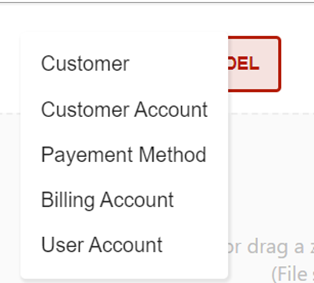
A "Download Template" button that allows you to download the Template of the template chosen from:
-
Customer
-
Customer account
-
Billing account
-
Payment method
-
User account
-
-
A drag and drop that allows the upload of the file to be imported: accepted zip and csv format
Data model download:
By clicking on the "Download template" button, a list is displayed containing the types of models available for download, by clicking on a choice, the model is downloaded in csv format.
Please note: For Boolean fields, X = true.
Each model from the previous models accepts custom fields by adding them on the columns at the end.
Hierarchy 1 to n of the User account:
Since the user account can have a parent user account, the user can create a user account with parent by adding the parent user account code on the 'OC_PARENT_UA_CODE' column.
Please note: The development of this part was done based on the fact that the Jobs process the files in numerical or alphabetical order, which is proven -after testing on our part- that this is not the case.
For this, the import of a user account hierarchy at several levels at once is not currently possible.
Upload data files:
The user has the possibility to upload two file formats: CSV and ZIP
The user can do the upload either by selecting a file from the machine or by doing a drag and drop.
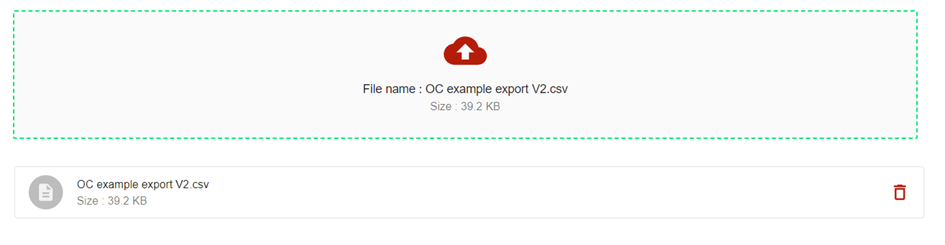
Uploading a csv file: Displaying the file name with the ability to delete the file
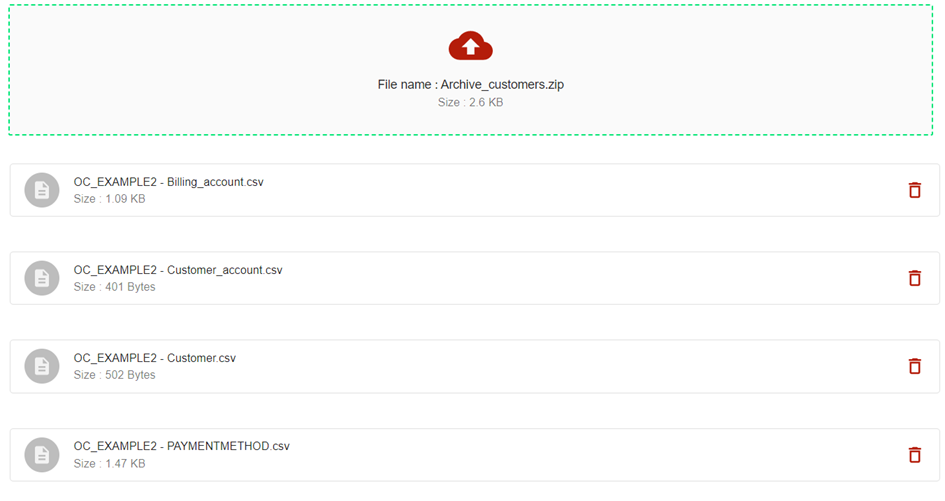
Uploading a zip file: Displaying the names of the csv files contained in the zip, with the possibility of deleting files (keep the files to be imported)
Import files:
After uploading the files, the user can do 3 actions (3 buttons):
-
GO BACK (RETOUR) : Exit the import interface and return to the previous page.
-
RESET (Réinitialiser) : Reset upload form (no files selected)
-
IMPORT (Importer) : Start import
Note: The Reset and Import buttons are only visible after uploading a file
Import data process:
When the user clicks on the "Import" button:
The upload api is called POST /massImport/uploadAndImport.
The Import Job 'massImportCustomerJob' is launched:
-
Checking required fields
-
Format compliance verification
-
Data creation
The interface displays a notification that the job is running.
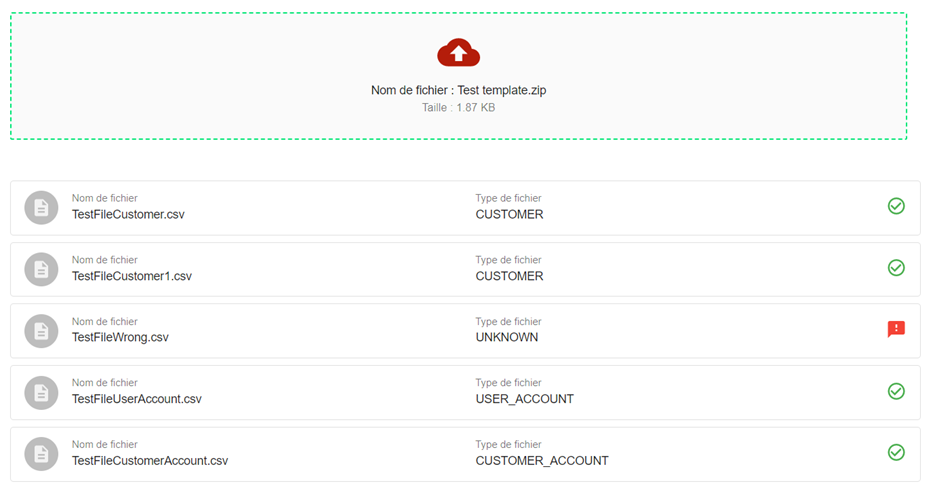
View the list of imported files, specifying the name of the file and its type:
-
CUSTOMER
-
CUSTOMER_ACCOUNT
-
BILLING_ACCOUNT
-
PAYMENT_METHOD
-
USER_ACCOUNT
-
UNKNOWN : in case that the file does not conform to any type of the previous types.
Display of a green icon for files of valid types, and a red icon for files of invalid types.
Notifications
After executing the Import Jobs an email is sent to the user, the mail can have a status of the following 3, based on the import report:
-
Success:
Subject: Your import was a success: Job_name
Body: Your import that started #{date} at #{time} has been processed successfully.
-
Fail:
Subject: Your import has failed: Job_name
Body: Import process has failed. Please check the rejection file for more details. If this persists, please contact your integrator or our support team.
-
Issues:
Subject: Your import had a few issues: Job_name
Body: Your import was not a 100% success and some records were not created. Please review the rejection file.
Subscription
On the Subscriptions page (Customer care > Subscriptions), add a button that allows you to go to the interface of the bulk import of subscriptions.

-
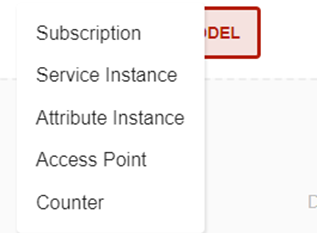
A "Download template" button that allows you to download the Template of the template chosen from:
-
Subscription
-
Service instance
-
Attribute Instance
-
Access Point
-
Counter
-
-
A drag and drop that allows the upload of the file to be imported: accepted format zip and csv
Data model download:
By clicking on the "Download template" button, a list is displayed containing the types of models available for download, by clicking on a choice, the model is downloaded in csv format.
Please note: For Boolean fields, X = true.
Each model from the previous models accepts custom fields by adding them on the columns at the end.
Upload data files:
The user has the possibility to upload two file formats: CSV and ZIP
The user can do the upload either by selecting a file from the machine or by doing a drag and drop.
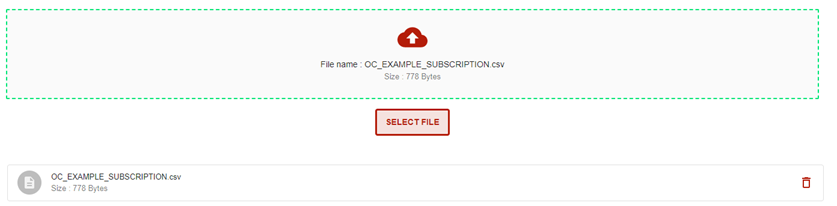
Uploading a csv file: Displaying the file name with the ability to delete the file
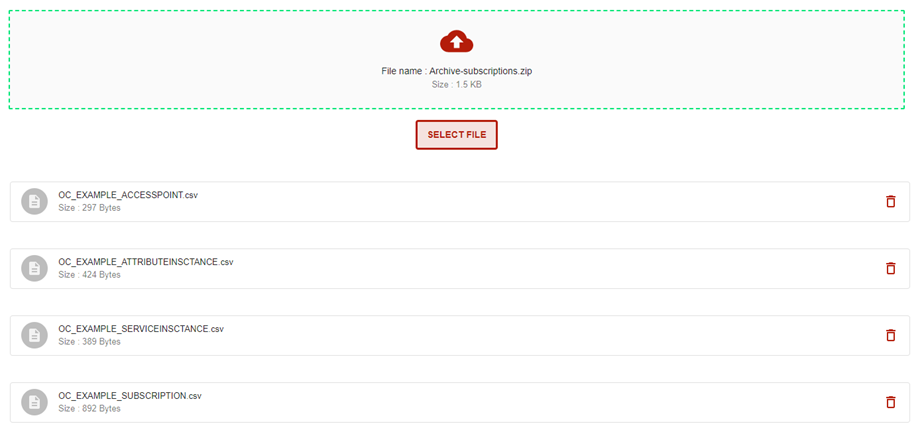
Uploading a zip file: Displaying the names of the csv files contained in the zip, with the possibility of deleting files (keep the files to be imported)
Import files:
After uploading the files, the user can do 3 actions (3 buttons):
-
GO BACK (RETOUR) : Exit the import interface and return to the previous page.
-
RESET (Réinitialiser) : Reset upload form (no files selected)
-
IMPORT (Importer) : Start import
Note: The Reset and Import buttons are only visible after uploading a file
Import data process:
When the user clicks on the "Import" button:
The upload api is called POST /massImport/uploadAndImport.
The Import Job 'massImportCustomerJob' is launched:
-
Checking required fields
-
Format compliance verification
-
Data creation
The interface displays a notification that the job is running.
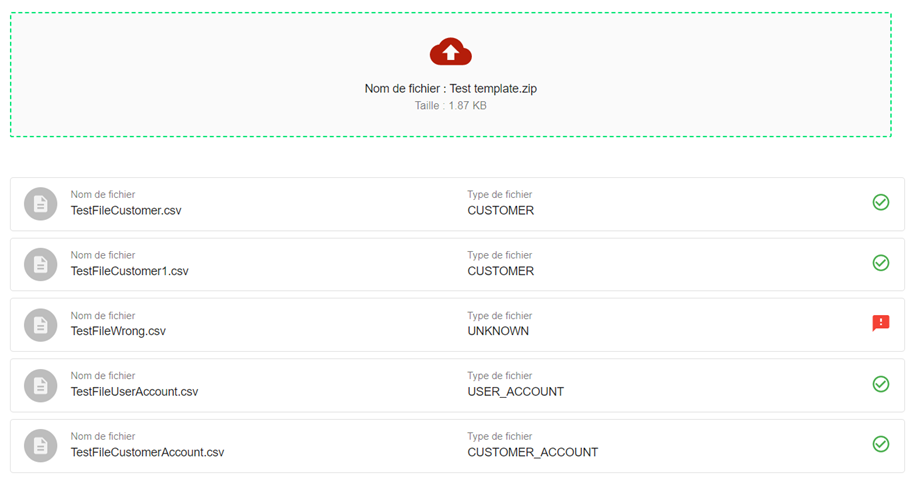
View the list of imported files, specifying the name of the file and its type:
-
SUBSCRIPTION
-
SERVICE_INSTANCE
-
ATTRIBUTE_INSTANCE
-
ACCESS_POINT
-
UNKNOWN : in case that the file does not conform to any type of the previous types.
Display of a green icon for files of valid types, and a red icon for files of invalid types.
Notifications
After executing the Import Jobs an email is sent to the user, the mail can have a status of the following 3, based on the import report:
-
Success:
Subject: Your import was a success: Job_name
Body: Your import that started #{date} at #{time} has been processed successfully.
-
Fail:
Subject: Your import has failed: Job_name
Body: Import process has failed. Please check the rejection file for more details. If this persists, please contact your integrator or our support team.
-
Issues:
Subject: Your import had a few issues: Job_name
Body: Your import was not a 100% success and some records were not created. Please review the rejection file.