
Opencell Portal allows you to manage documents attached to business entities. On supported entity pages, a Documents tab gives you access to all files linked to that entity — so you can upload supporting documents, review existing ones, download them, or remove them.
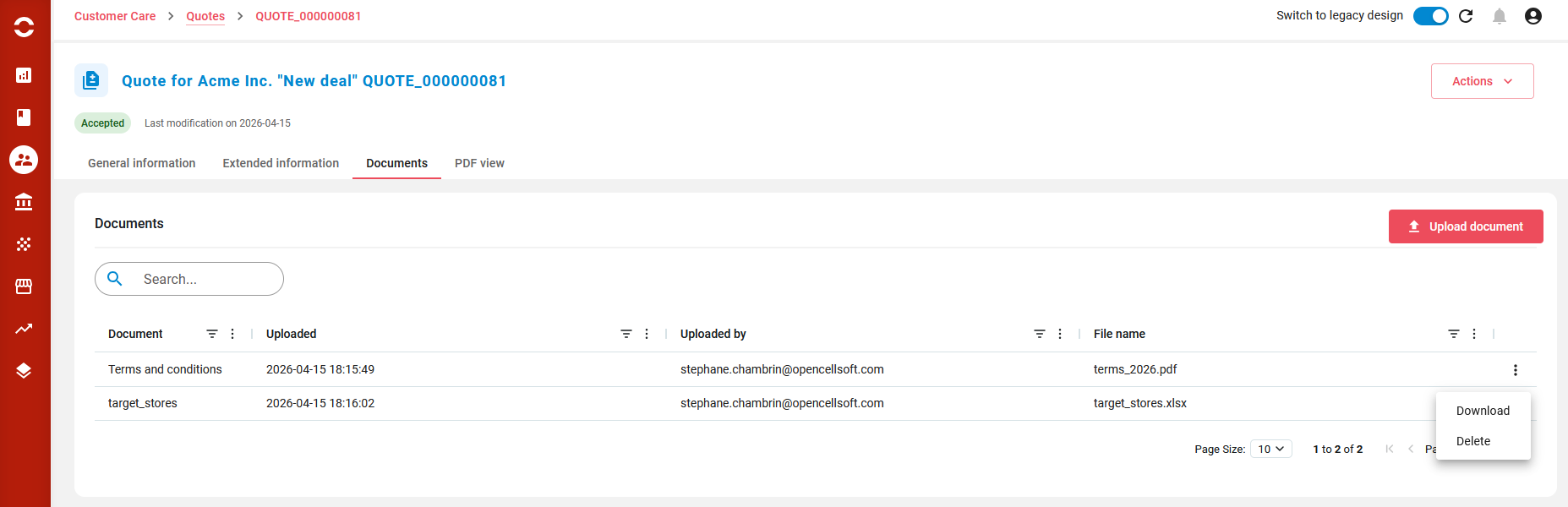
Where to find the Documents tab
The Documents tab is available on the following entity detail pages:
-
Customer (Customer Care → Customers)
-
Customer Account / Paying Account (Customer Care → Paying Accounts)
-
Billing Account (Customer Care → Billing Accounts)
-
Quote (Customer Care → Quotes)
-
Order (Customer Care → Orders)
-
Invoice (Customer Care → Invoices)
Open any entity detail page and click the Documents tab in the lower section of the page.
Viewing the document list
The Documents tab displays the list of all files attached to the entity. For each document, the following information is shown:
-
File name
-
Description
-
Category
-
Upload date
You can sort and filter the list using the standard table controls.
Uploading a document
To upload a new document to an entity:
-
Open the entity detail page and click the Documents tab.
-
Click the Upload button.
-
Select the file from your computer.
-
Fill in the Description and select a Document category.
-
Click Save to confirm the upload.
The document is then linked to the entity and immediately appears in the list.
Downloading a document
To download a document:
-
In the Documents tab, locate the document you want to download.
-
Click the Download icon on the document row.
The file is downloaded to your computer.
Deleting a document
To delete a document:
-
In the Documents tab, locate the document you want to remove.
-
Click the Delete icon on the document row.
-
Confirm the deletion when prompted.
The document is permanently removed from the entity.