
Subscription is an instantiation of an offer that contains data related to the customer for this offer.
With subscriptions, customers can make one or more purchases for access to a product or a service. A subscription might not seem much different from a one-time purchase. But to manage subscription and its operations the user needs to retain more information about the customers, so he can charge them automatically in the future and maintain the access and the consumption of the service.
For more information towards Subscriptions and their behavior, please refer to Subscription concepts
Subscription lifecycle and statuses
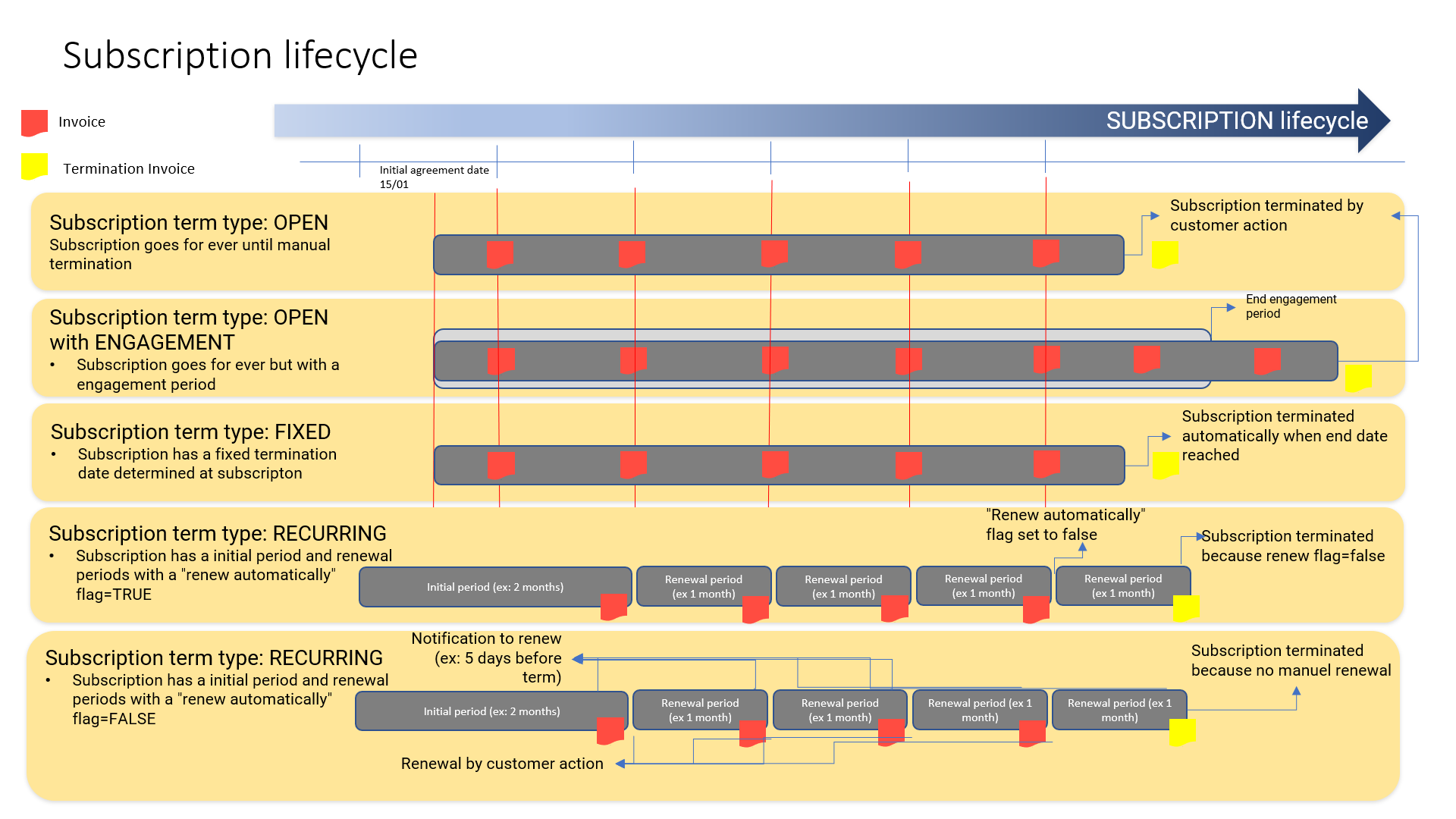
The many statuses of a subscription materialized its lifecycle, each status has a specific meaning depending on the use cases of the projects. Here are the available statuses of the subscription:
-
Created: The subscription is created which means that it has been instantiated.
-
Active: It means that the subscription carries active services and it is ready to be consumed and billed.
-
Canceled: The subscription has been created, then canceled, It could be canceled on a specific date and for a specific reason “Termination reason”.
-
Suspended: It means that all the active services are suspended until they are resumed.
-
Resiliated (Terminated): It terminates all ACTIVE or SUSPENDED services and sets all access point end date to termination date, it also sets the status to RESILIATED.
Subscription lifecycle and statuses
Here is a list of uses cases and the consequence within the portal:
|
Type |
Sub type |
How |
What to see |
|
Change offer |
Move a subscription from Offer1 to Offer 2 |
Action on subscription: change offer and select the target offer, then configure products |
On the subscription a new version with activation date, and previous version on the previous one with a end date |
|
New product |
Add another product |
On the subscription, click the "Add Product" |
Available products are displayed to be configured |
|
Add another product through Amendment order |
Create an order to modify an existing subscription and add a product to an existing subscription |
On the subscription the related order with type Amendment |
|
|
Remove Product |
Remove a product in an offer |
Deactivate the Product directly on the subscription |
On the subscription the product is not terminated on today's date |
|
Remove a product in an offer through Amendment order |
Create an order to modify an existing subscription and remove a product to an existing subscription |
On the subscription the related order with type Amendment has been applied with the product's status change |
|
|
Update a Product |
Change the quantity of a Product |
Create an order to modify an existing subscription and change quantity of a product to an existing subscription |
On the subscription, the order is listed and quantity change has been applied |
|
Change an attribute of the product |
Create an amendment to modify attribute on the product |
On the subscription, the order is listed and attribute change has been applied |
|
|
Update a Product on Subscription with Future-dated Updates |
Update Product through Amendment Order even if there is already a future-dated amendment on the subscription. |
Amendment has been applied, and future amendment is still pending |
|
|
Update a Product on Subscription with a Future-dated Remove |
Update Product through an amendment order even if there is already a future-dated amendment to remove a Product on the subscription. |
Amendment has been applied, and future amendment is still pending |
|
|
Owner Transfer |
Transfer from a Consumer to another Consumer |
Action on subscription: change consumer |
See details on Change consumer in a subscription |
|
Suspend a Subscription |
Suspend without charge |
Action on subscription: suspend |
Subscription status change, Reactivation or Termination are the only possible actions. |
|
Suspend a Subscription with Future-dated Amendments |
Action on subscription: suspend |
On a suspended subscription, future amendement is applied as scheduled and leaves the suscription suspended. No charge are applied. |
Subscription actions in the new portal
In the new portal, the actions you can run on a subscription depend on its status. From 18.1.0 onwards, they are the following:
|
Status |
Activate |
Suspend |
Terminate |
Generate invoice |
|---|---|---|---|---|
|
Instantiated |
Yes, main action. It activates all the products that are not activated yet. |
No |
Yes |
No |
|
Activated |
Yes, when some products are not activated yet. It is then the main action. |
Yes |
Yes |
Yes, when all the products are activated. It is then the main action. |
|
Suspended |
Yes, as Resume, the main action: it resumes the subscription. |
No |
Yes |
No |
|
Terminated |
No |
No |
No |
No |
Once a subscription is terminated, you can no longer run any action on it or on its products: you can only view their information.
Subscription details in the new portal
From 18.1.0 onwards, the subscription details page shows:
-
The Next customer invoice indicator: the date of the next invoice of the subscription's billing account. It concerns all the subscriptions of that billing account, not only this one.
-
In General Information, the Name and Billing cycle of the subscription, which you can change, and the Order number of the order the subscription comes from, which is filled in automatically and cannot be changed.
To change the general information, click Edit next to the subscription title, make your changes, then click Save modifications.
Products in the new portal
From 18.1.0 onwards, the Products section of the subscription details page shows the status of each product. You can:
-
Add a product with Add product while the subscription is instantiated, pending or activated.
-
Activate products one by one with Activate product in the actions menu of each product line.
Mandatory products cannot be deleted. For the details, see Subscription products & attributes. To create a subscription in the new portal, see Creating a subscription.