Query tool is a tool that allows to extract virtually any data from Opencell with limited aggregation abilities.
This will allow to produce data extracts without having to write SQL query, although a good knowledge of Opencell model is required.
Accessing the Query tool
Query builder is accessible in the “Finance” app’s “Reports / Query tool” menu path.
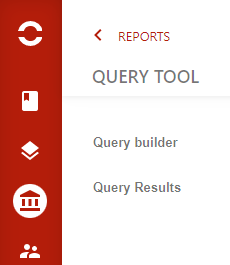
Role QUERY_USER (QUERY_MANAGER) is required to access (manage) queries.
Creating a query
To create a query, go to Query builder.
This page will allow you to:
-
load an existing query,
-
write a new query
-
save query

It will also allow you tu run a saved query, as we will see later.
Query filter
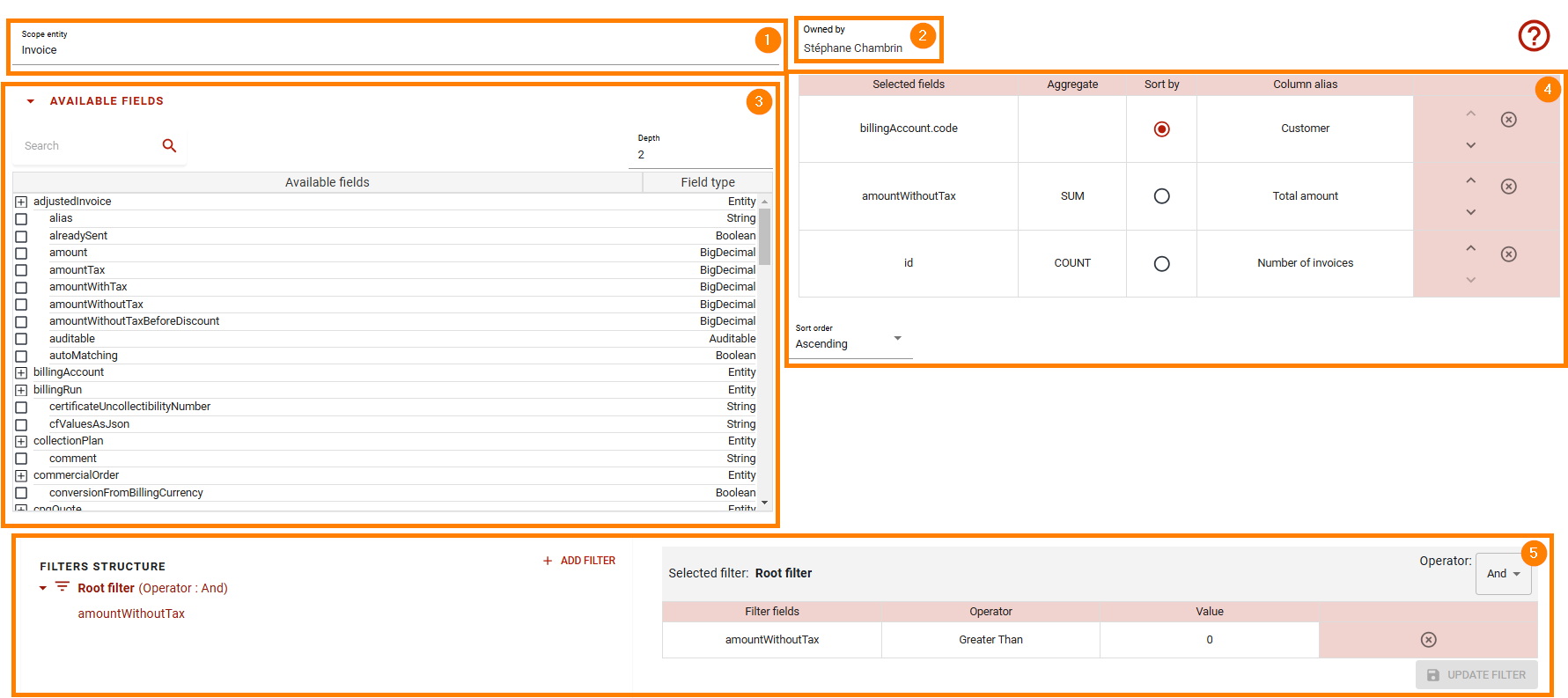
The filter section is where you select the data that will be returned by the query.
|
Field |
Description |
|
|---|---|---|
|
1 |
Scope entity |
Here, you select the entity that you want to query |
|
2 |
Query owner |
The user who created the query |
|
3 |
Available fields |
Select the fields that you want to extract by dragging them to “selected fields” or “filter fields” (this can be performed using action buttons on selected fields).
|
|
4 |
Selected fields |
The selected fields that will be extracted are visible here.
|
|
5 |
Filter fields |
here, you can drag fields and apply condition (equals, greater, lower, contains, …) to restrict extracted data.
|
Saving a query
When you save a query:

You can select a scope:
-
Private: only you can see, use and update it.
-
Protected: all can see and use, but only you can update
-
Public: everyone can see, use, and update
Running a query
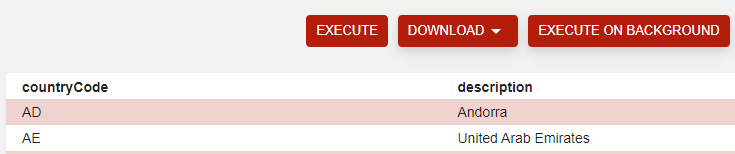
A query can be executed immediately, and download result as CSV or Excel file.
If the result size is too big, you can execute it in background, a notification email will be sent when the result is ready.
Scheduling a query
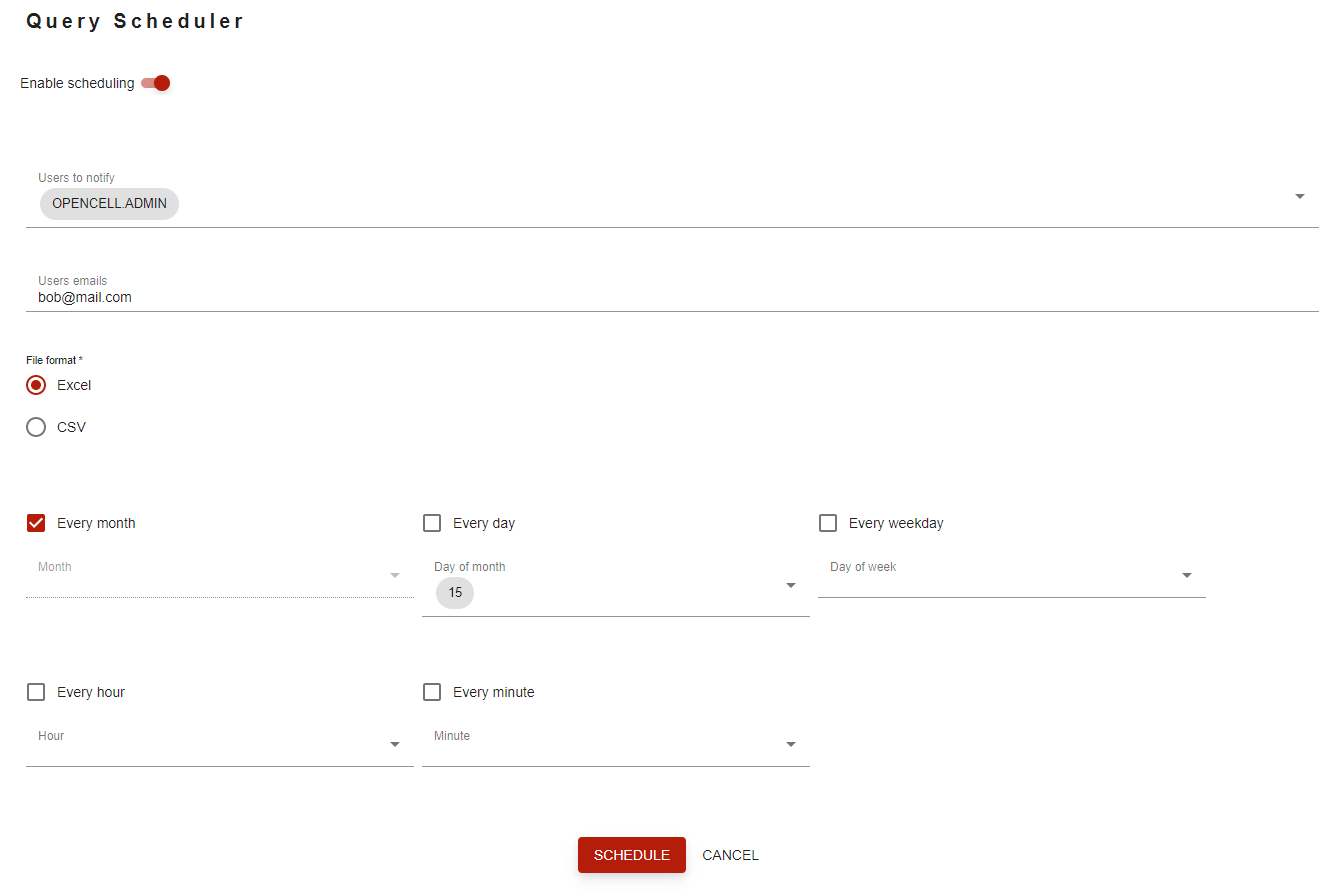
Another way to execute queries is to schedule them.

This will schedule the query to execute on a regular basis (for example, every day or every month).
You can also list a number of user or emails that will be notified that the query has been executed and the result is available.
View query result
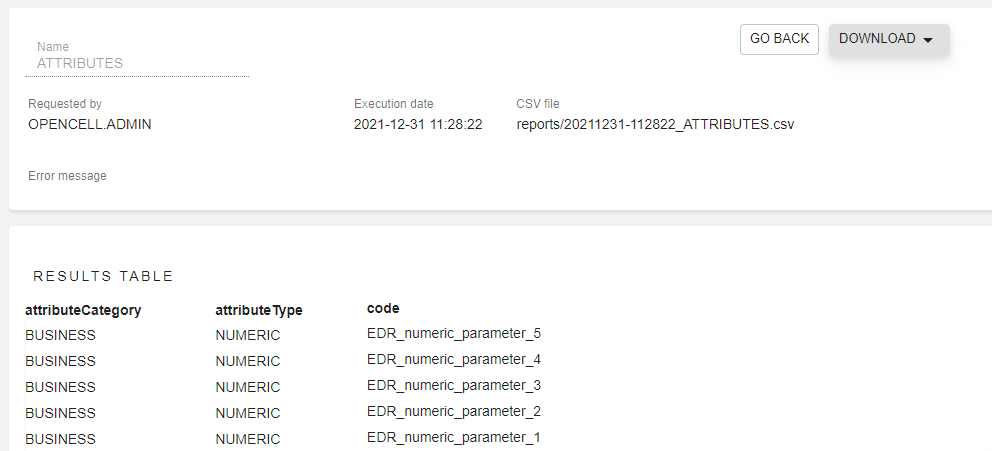
You can access results from the result list page.
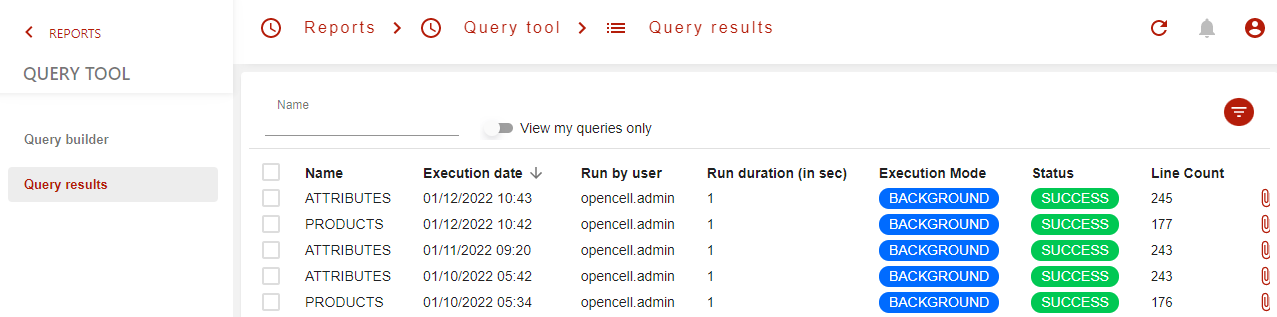
Selecting a result will open the result page where you can view or download the query result.