Accessing
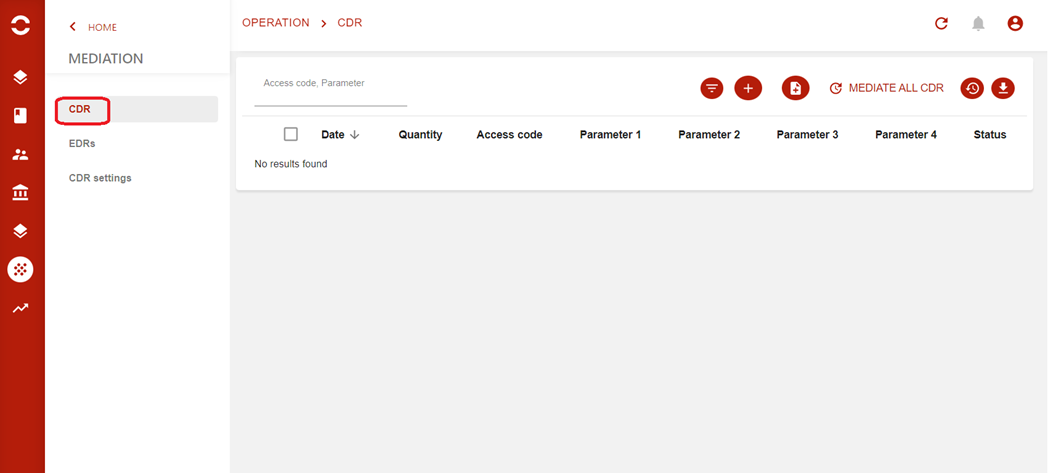
Possible actions
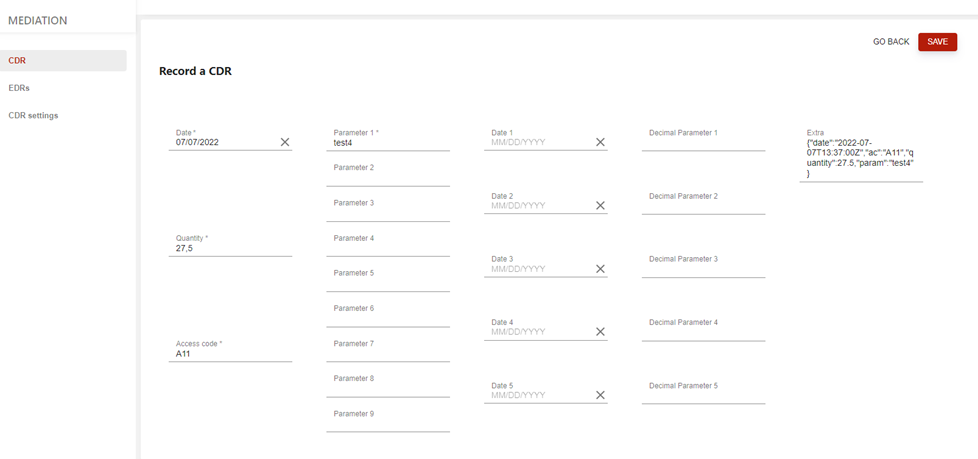
Add a CDR
-
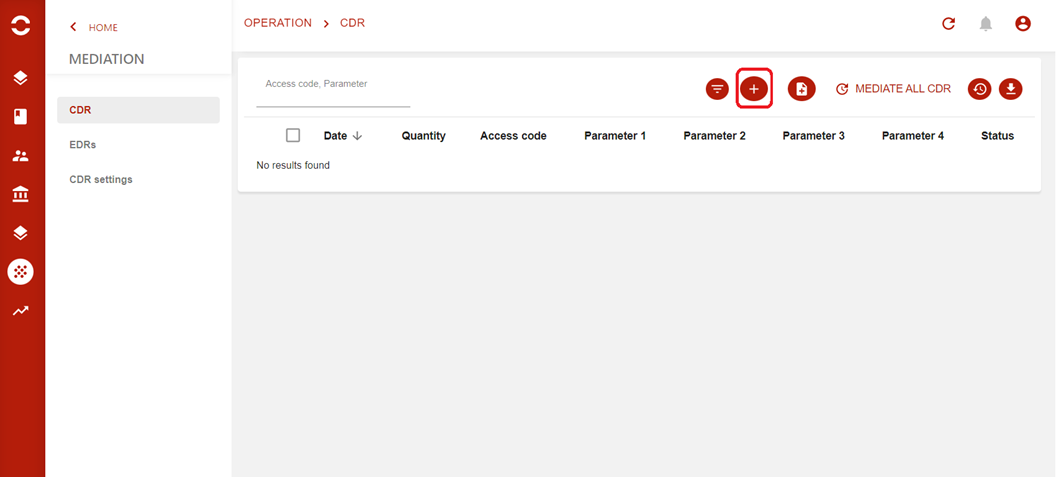
Click on the add button
-
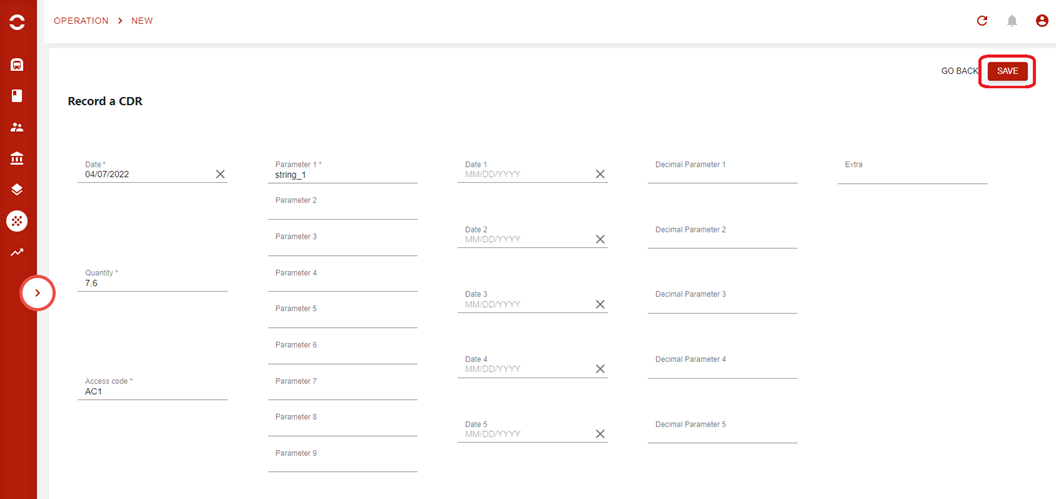
Fill in the fields and click on Save
-
The CDR has been added to the list

Import CDRs
-
Click on the import button
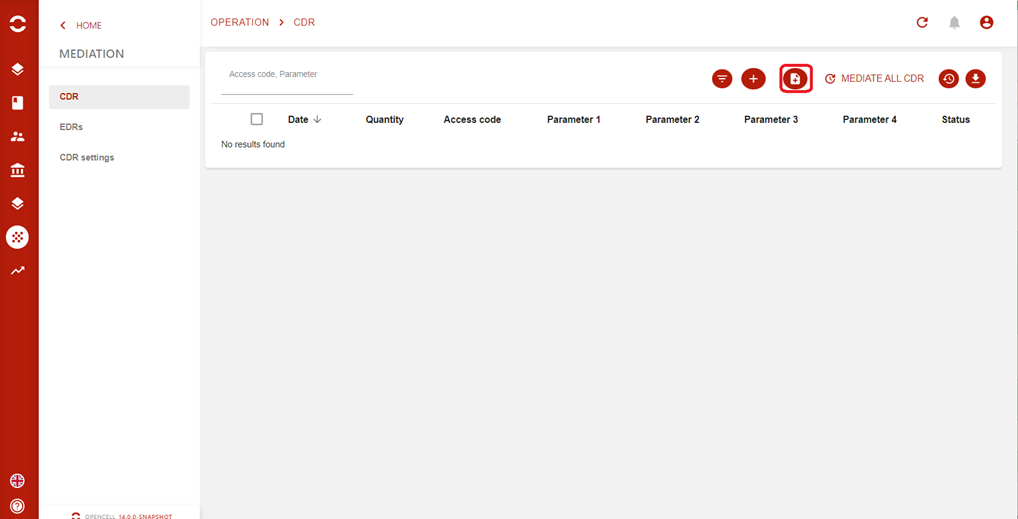
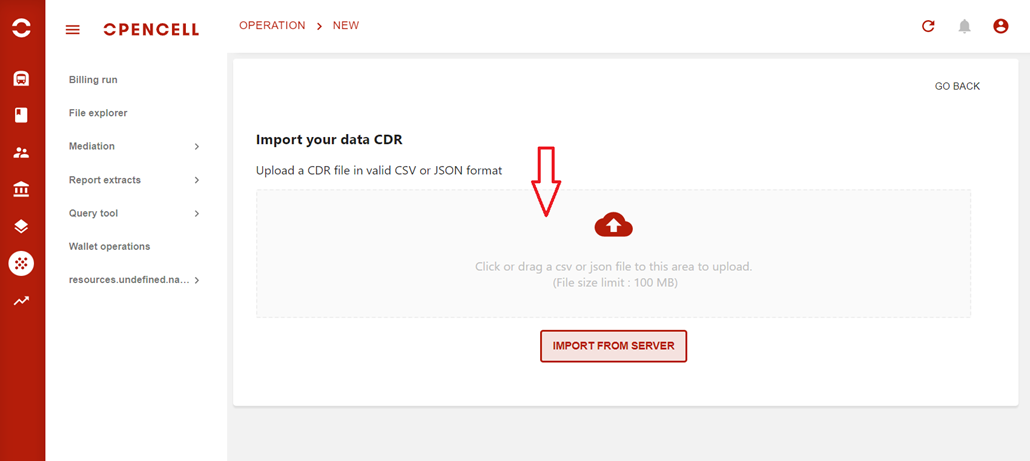
Import CSV files
-
drag and drop or by selecting the file from the local.
-
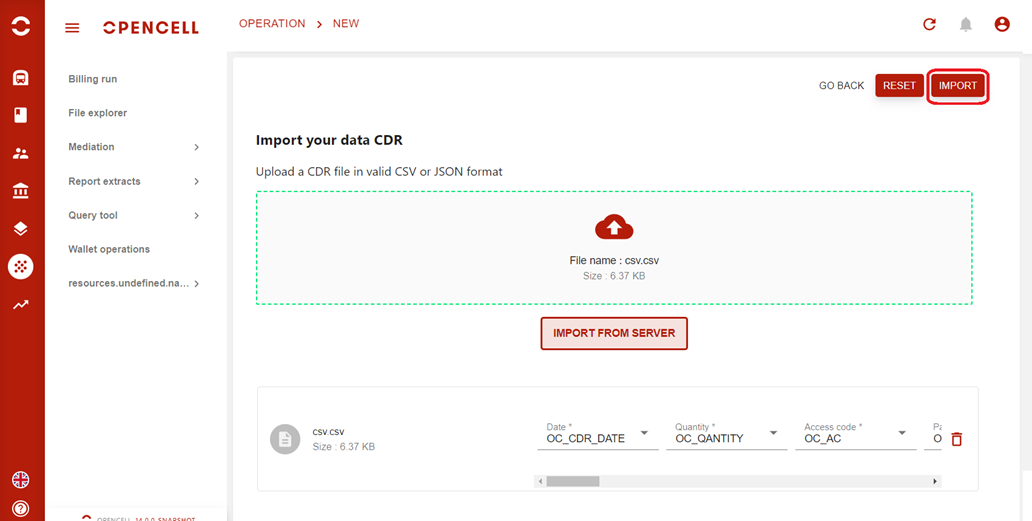
Click the "Import" button
-
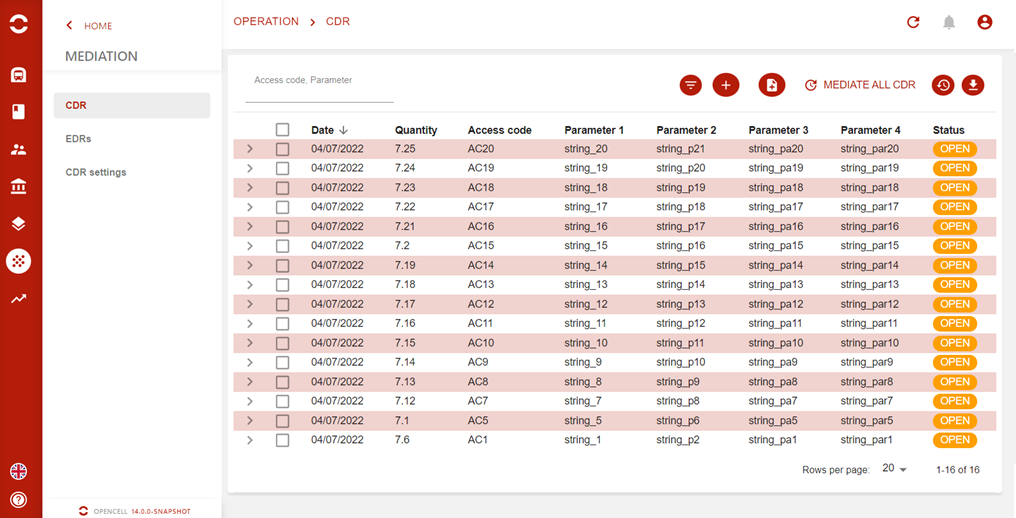
CDRs are added to the list
Import flatfile files
-
drag and drop or by selecting the file from the local.
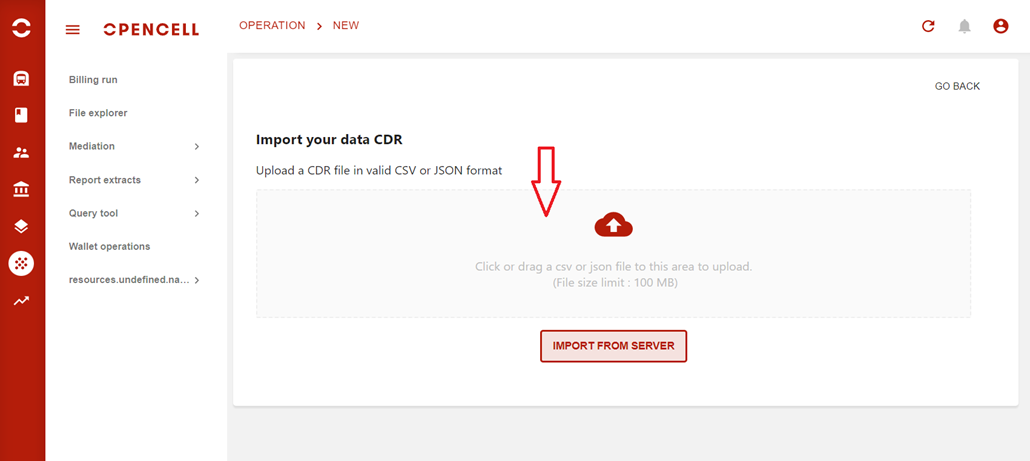
-
Make the correspondence between these fields and the fields of the file
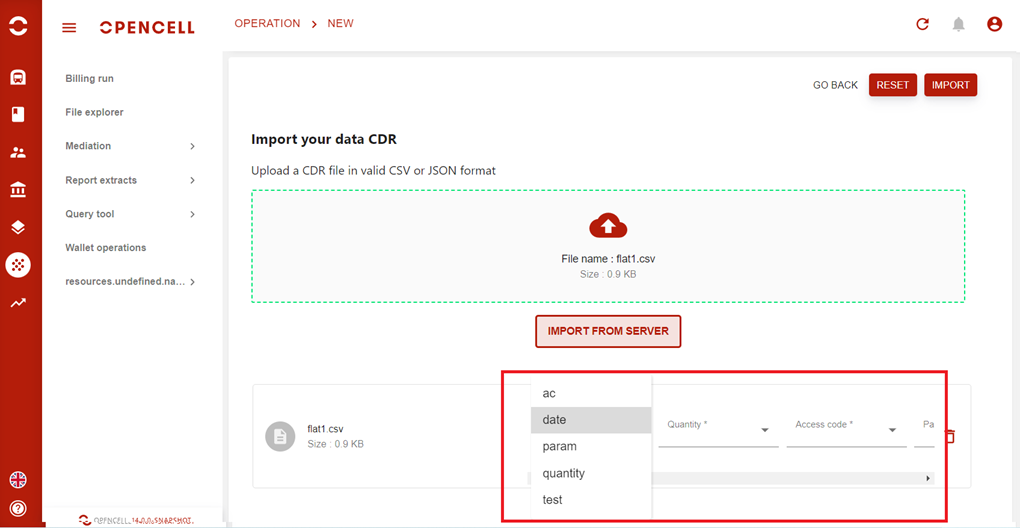
-
Click the "Import" button
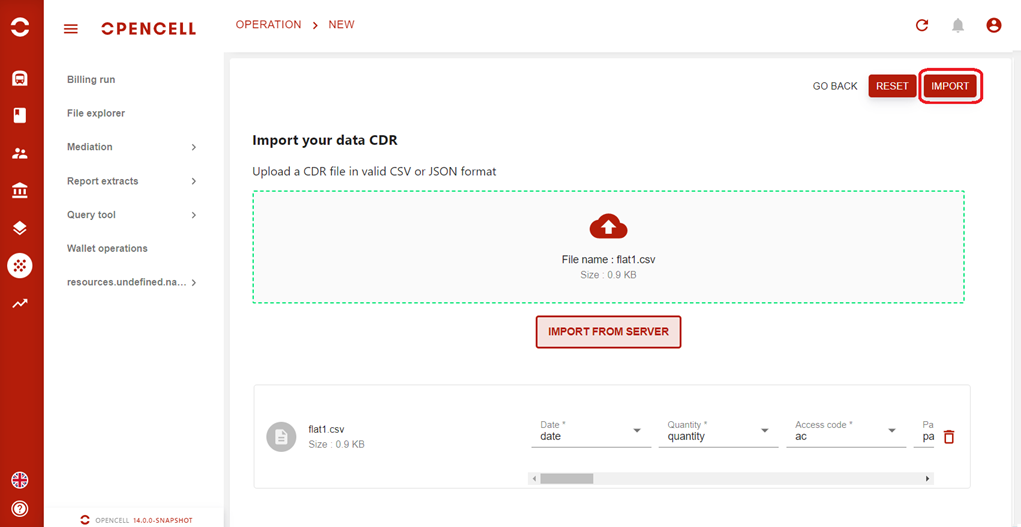
-
CDRs are added to the list
Import JSON files
-
drag and drop or by selecting the file from the local. (The same steps as importing a flatfile)
Modify a CDR
-
Click on a CDR at the list level
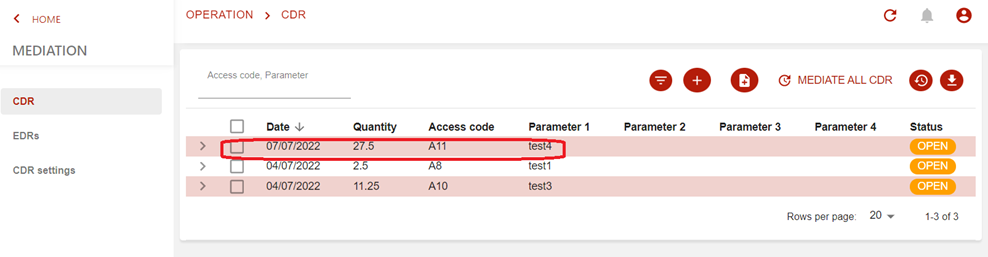
-
Modify the CDR and click on Save
Export list of CDRs
-
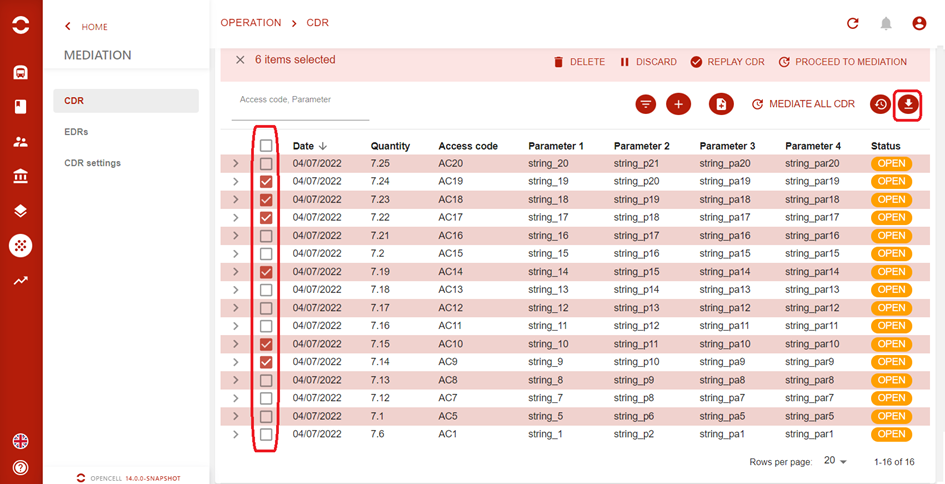
Select the CDRs then click on the export button
-
Selected CDRs are exported

Mediate
-
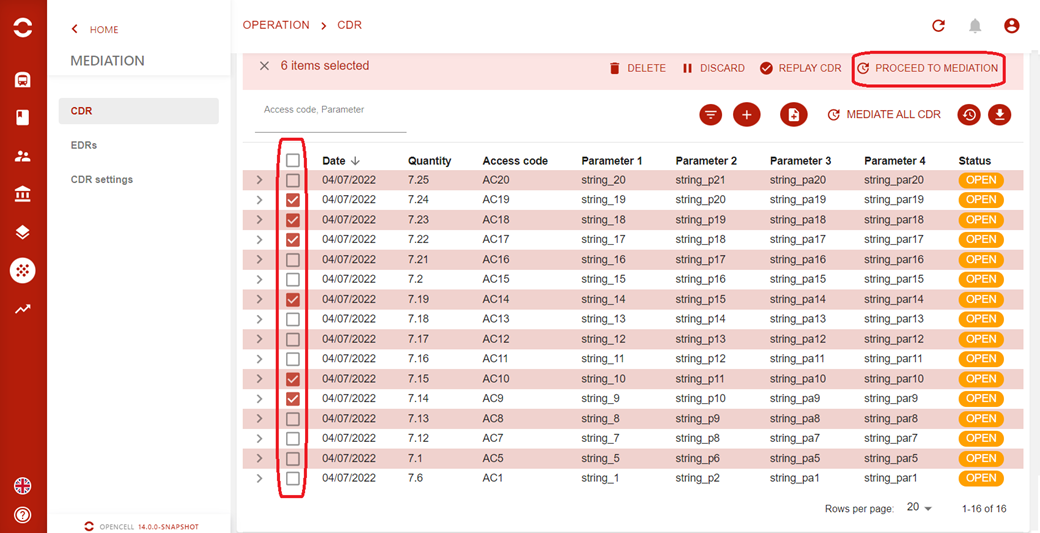
Select the CDRs and click on the "Proceed to Mediation" button
-
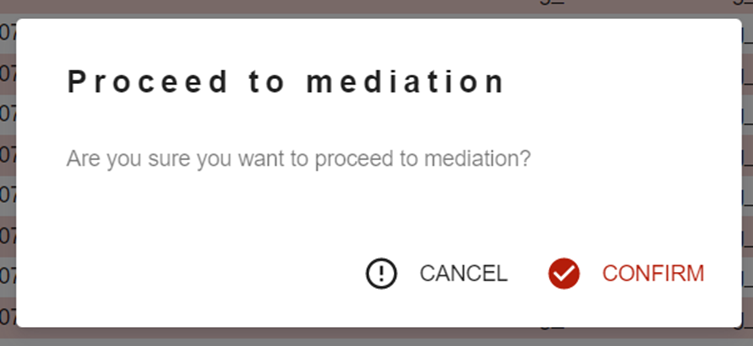
Confirm the operation
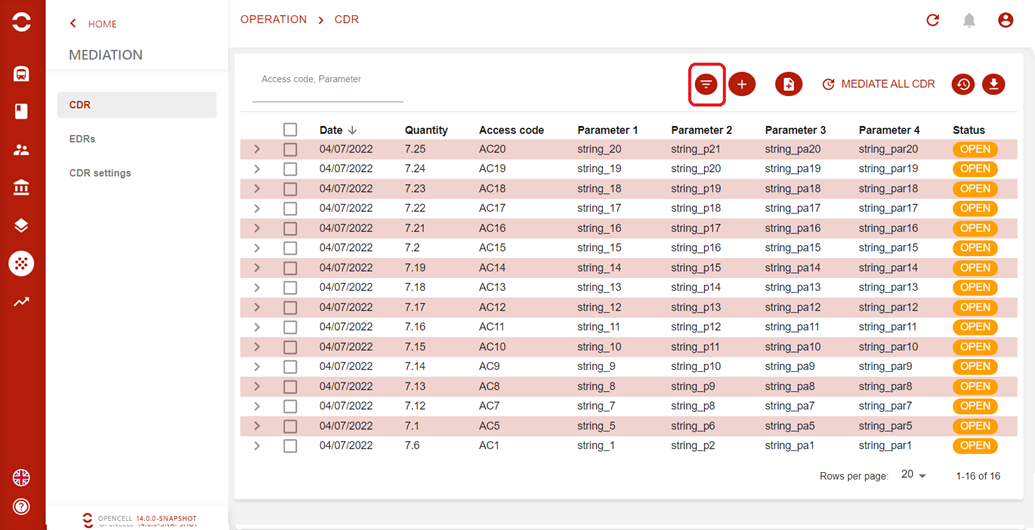
Filter CDRs
-
Click on the filter button
-
Select filter
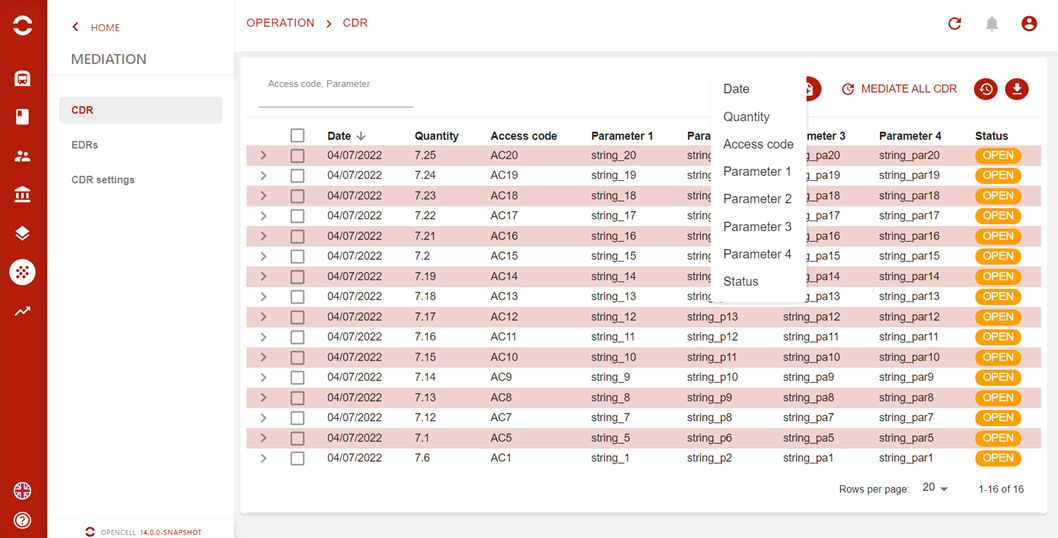
Example :

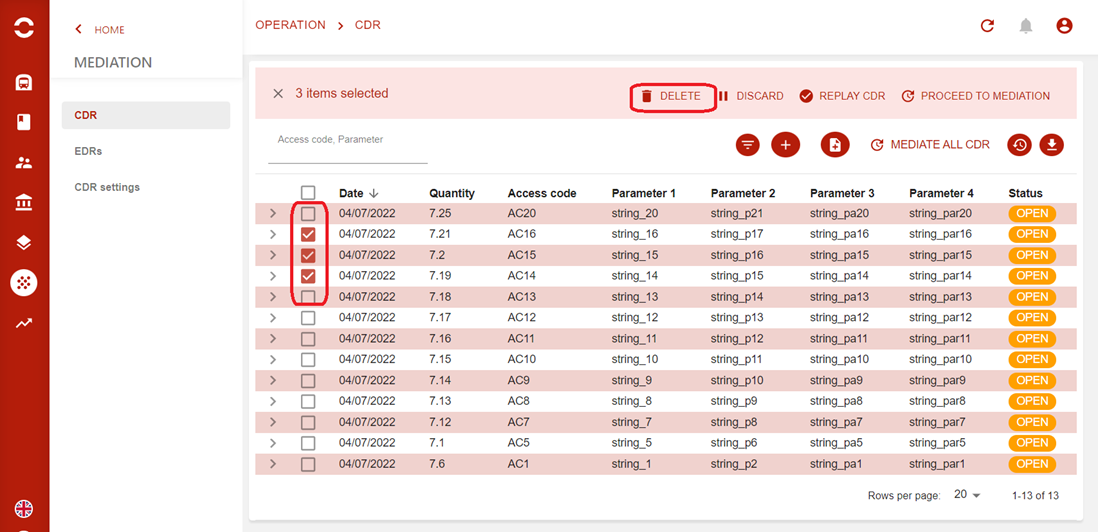
Delete CDRs
-
Select the CDRs and click on Delete
-
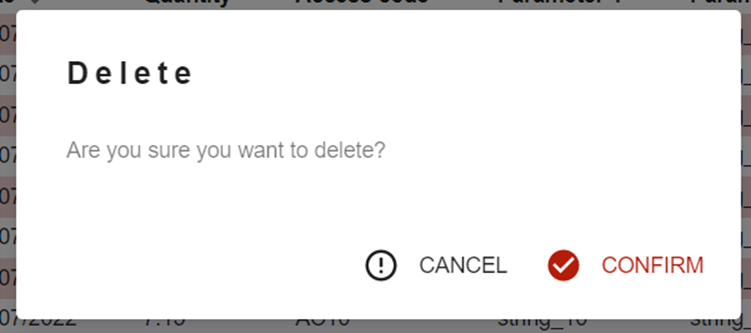
Confirm the operation
Reject CDRs
-
Select the CDRs and click on Discard
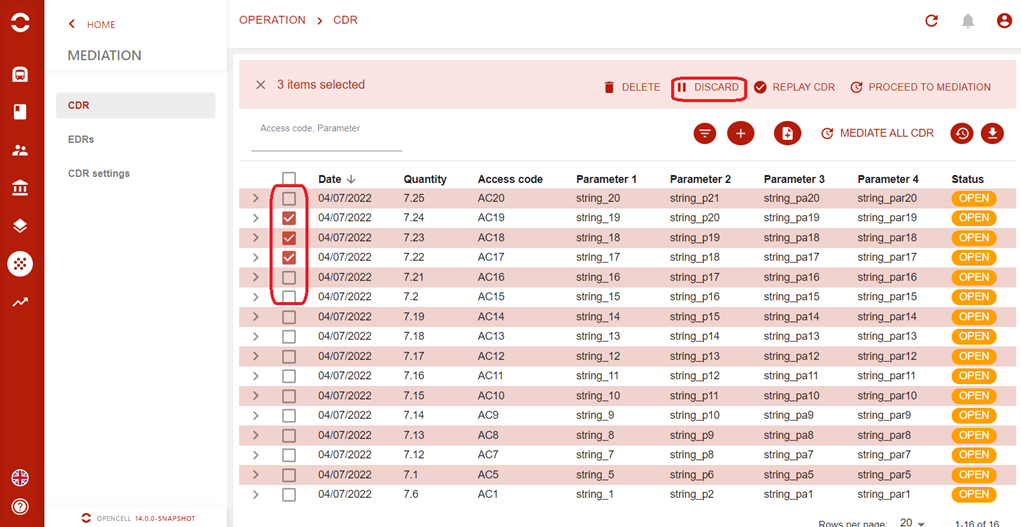
-
Enter the reason and confirm
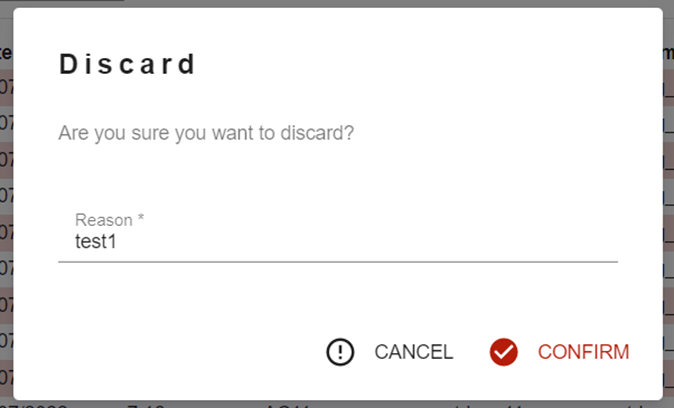
-
Status changes from 'OPEN' to 'DISCARDED'

Replay CDRs
-
Select the CDRs with the status 'DISCARDED' and click on the Replay CDR button
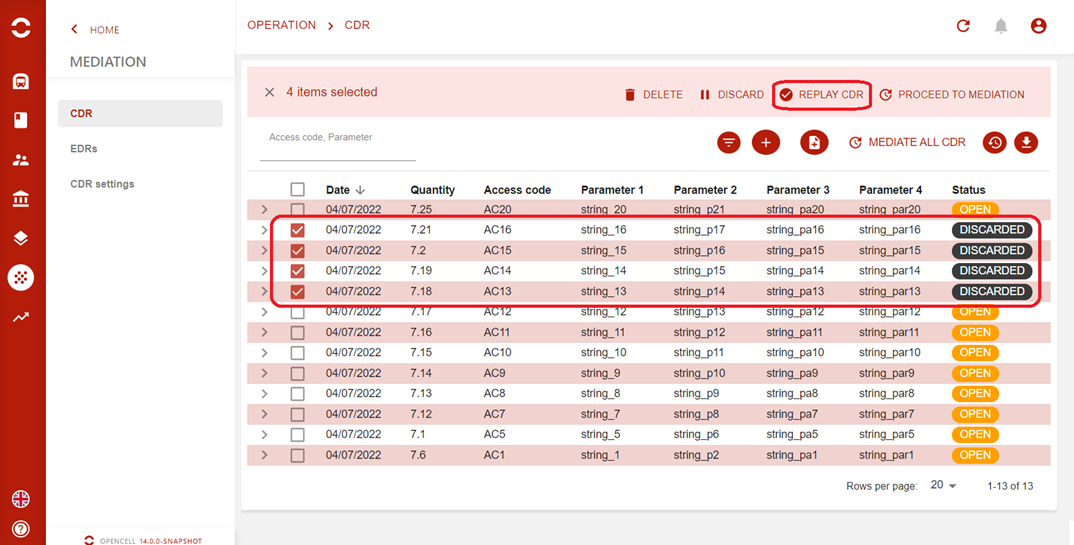
-
Confirm the operation
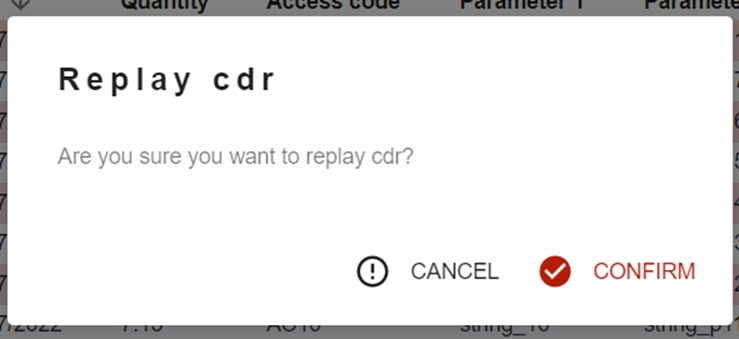
-
Status changes from 'DISCARDED' to 'OPEN'

Mediate all CDR
-
Click on Mediate all CDR button
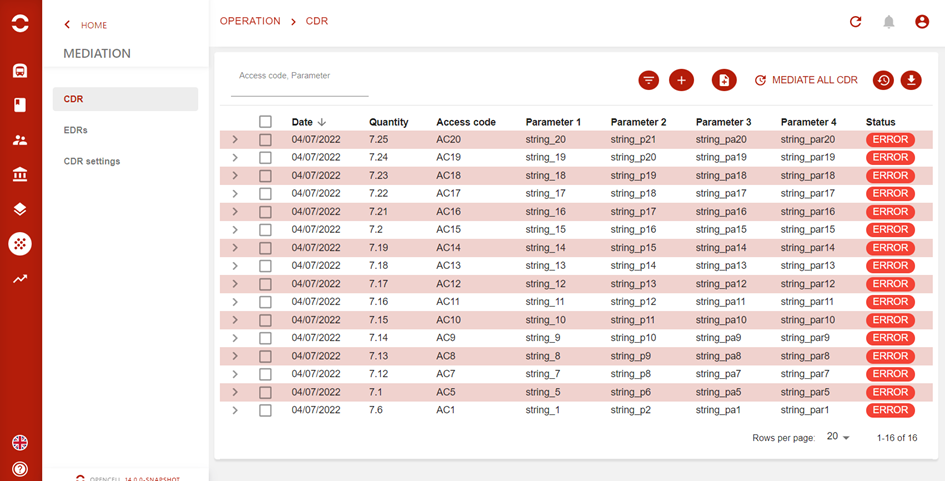
-
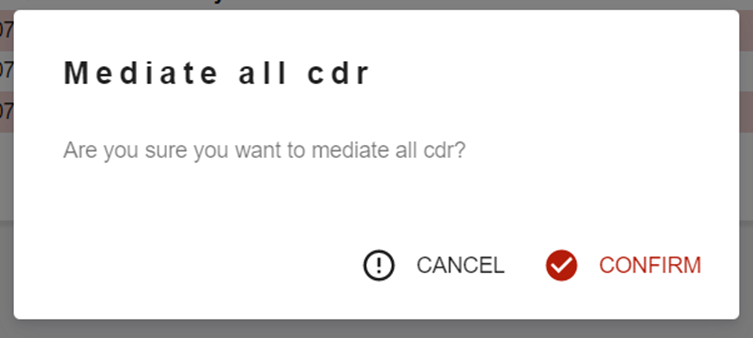
Confirm the operation
Add a deduplication key
-
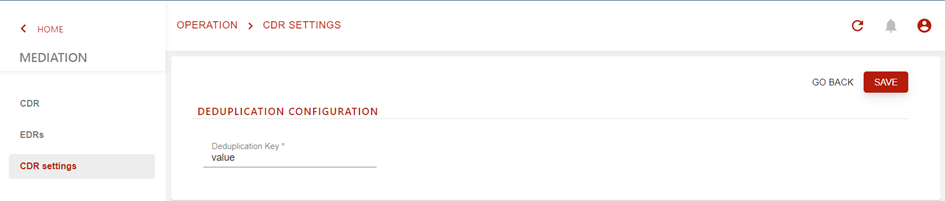
Click on CDR Settings at the mediation level
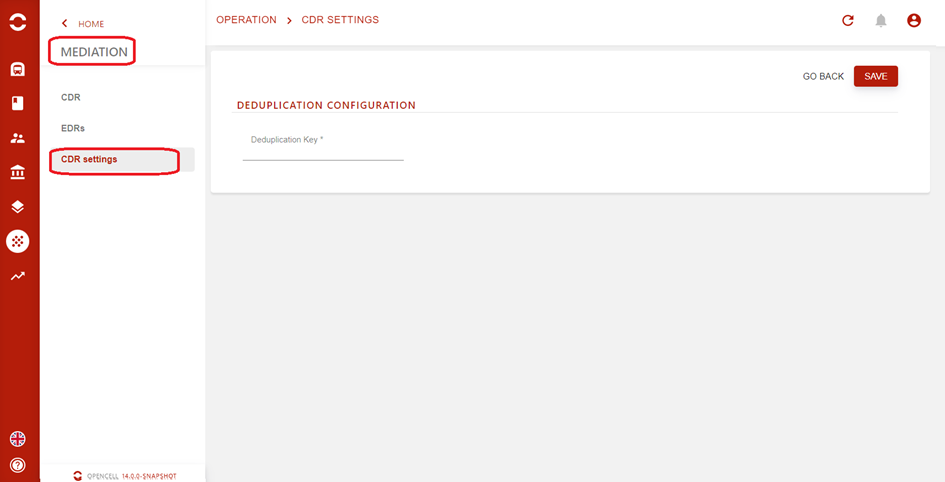
-
Enter the deduplication key and click on the Save button
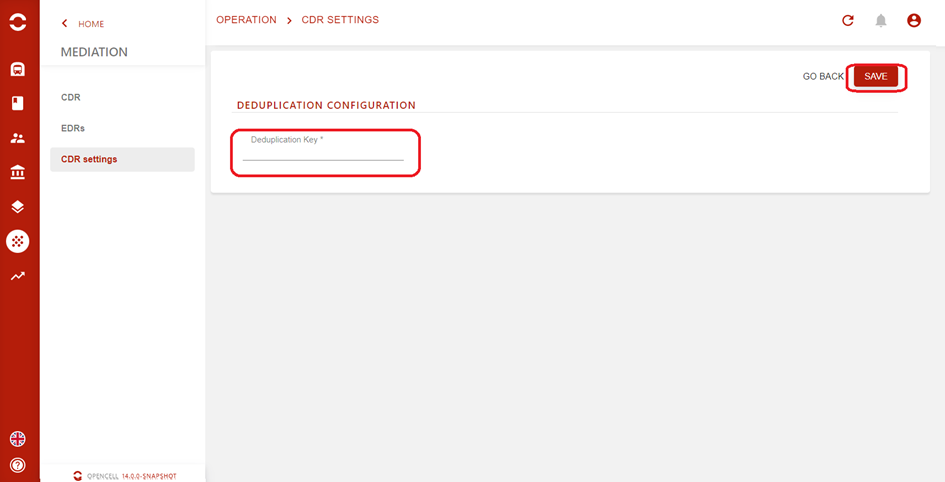
Search in the list by the search bar
-
The bar allows the search of the Access code fields and the first 4 parameters

-
When the user hovers over the icon, the following box appears and displays the searched fields

Settings
On Operation > Mediation, a CDR setting menu is added, it allows to configure CDR deduplication key.