
Articles
You can define there Articles to automate accounting writings when invoicing.
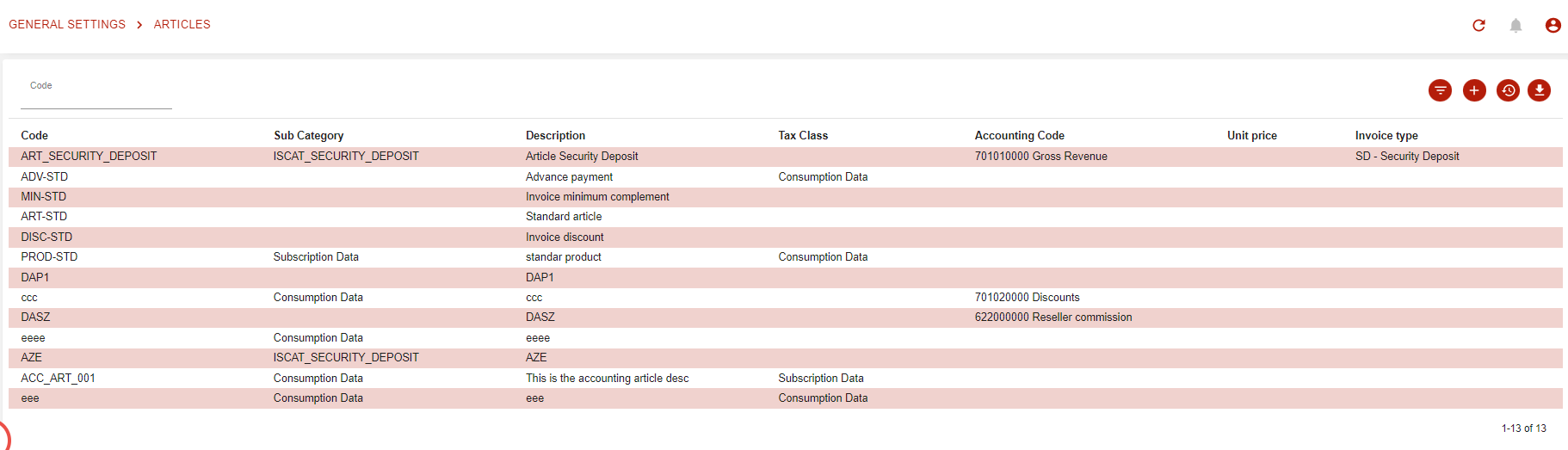
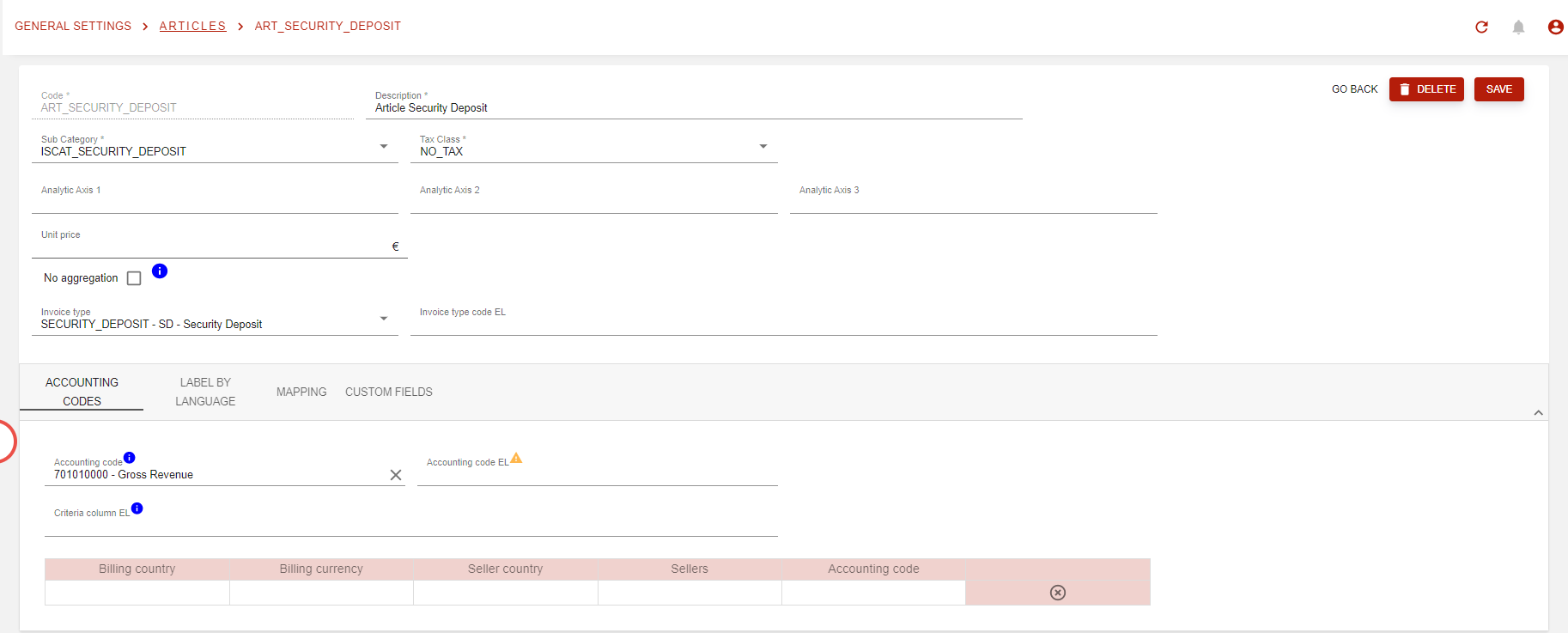
You can define new articles:
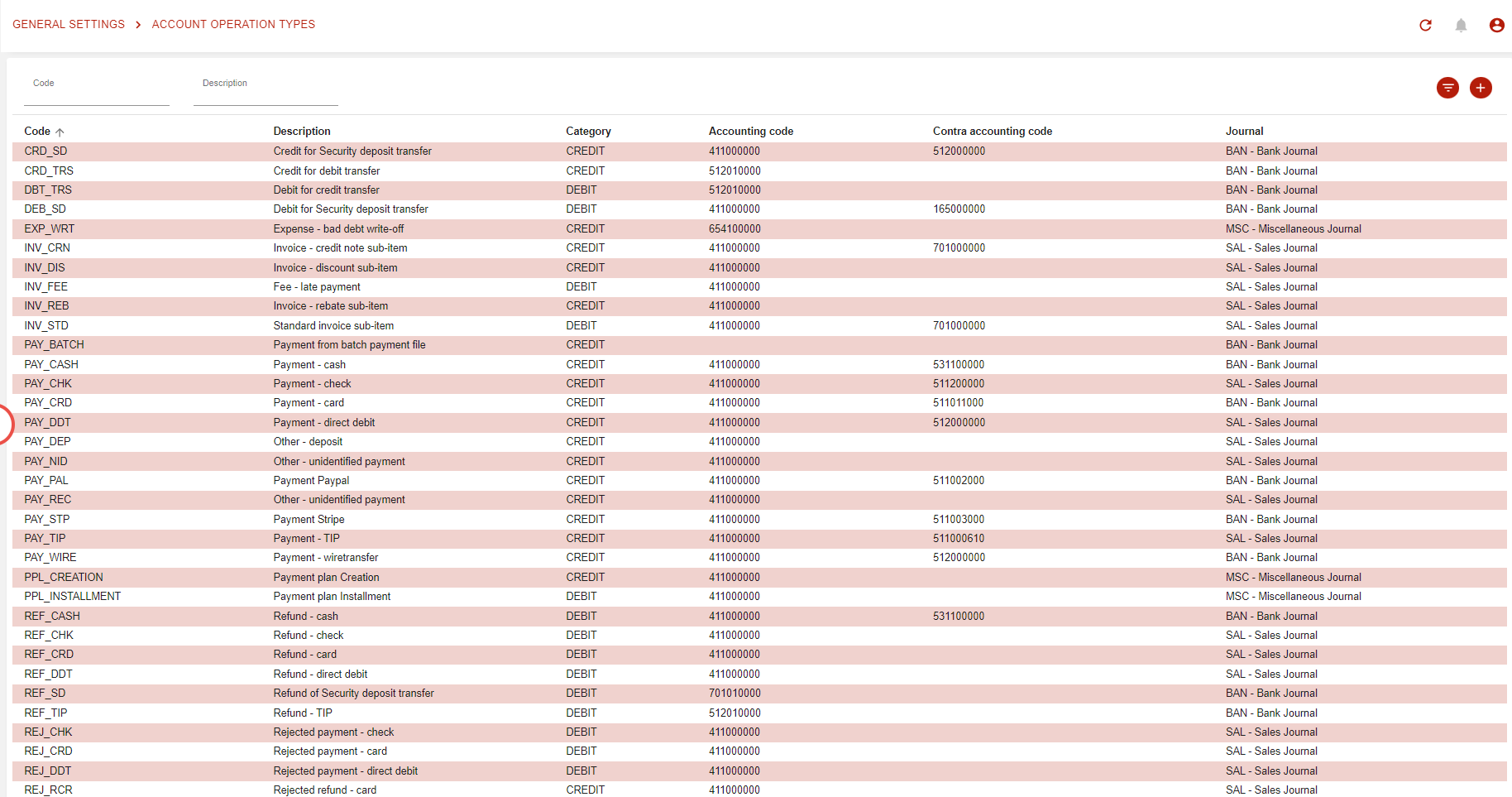
Account operation types
You can list Account operation here:
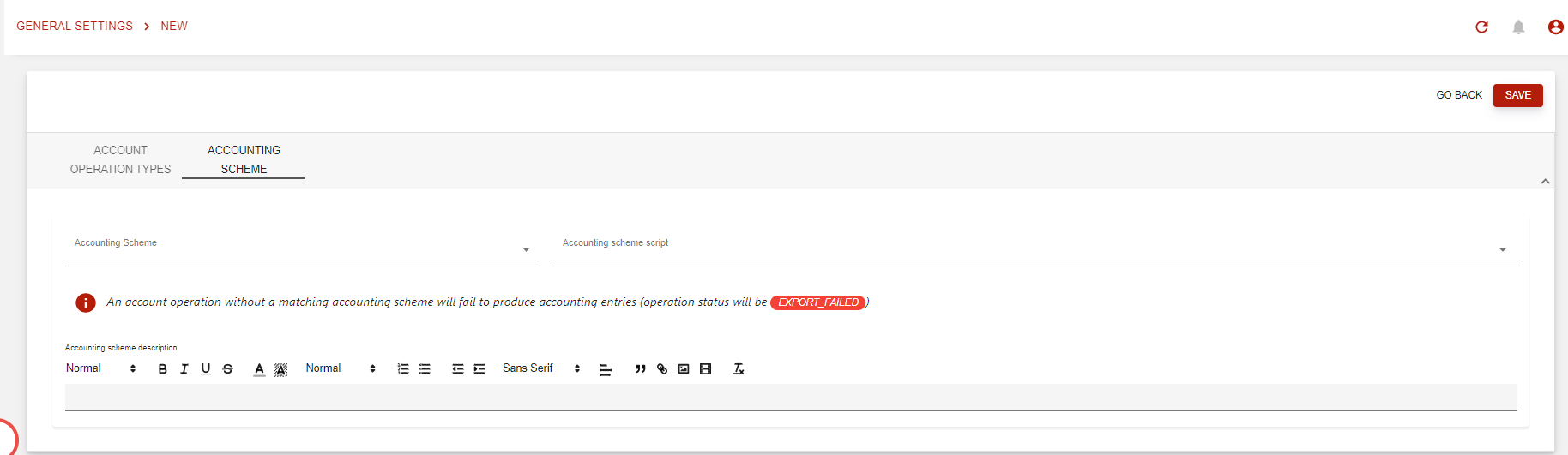
You can create new Account Operations:
Accounting period settings
You can define your accounting period settings.
You can only setup this value once on the system
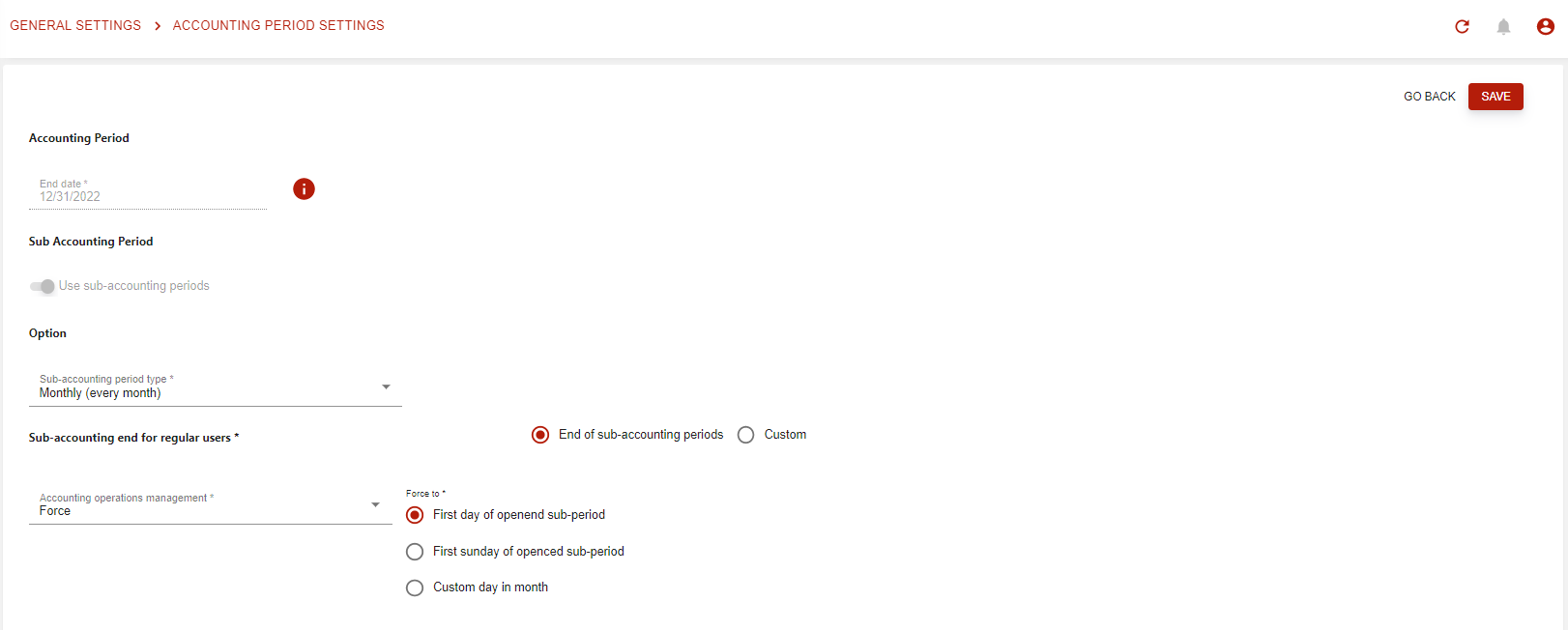
Chart of accounts
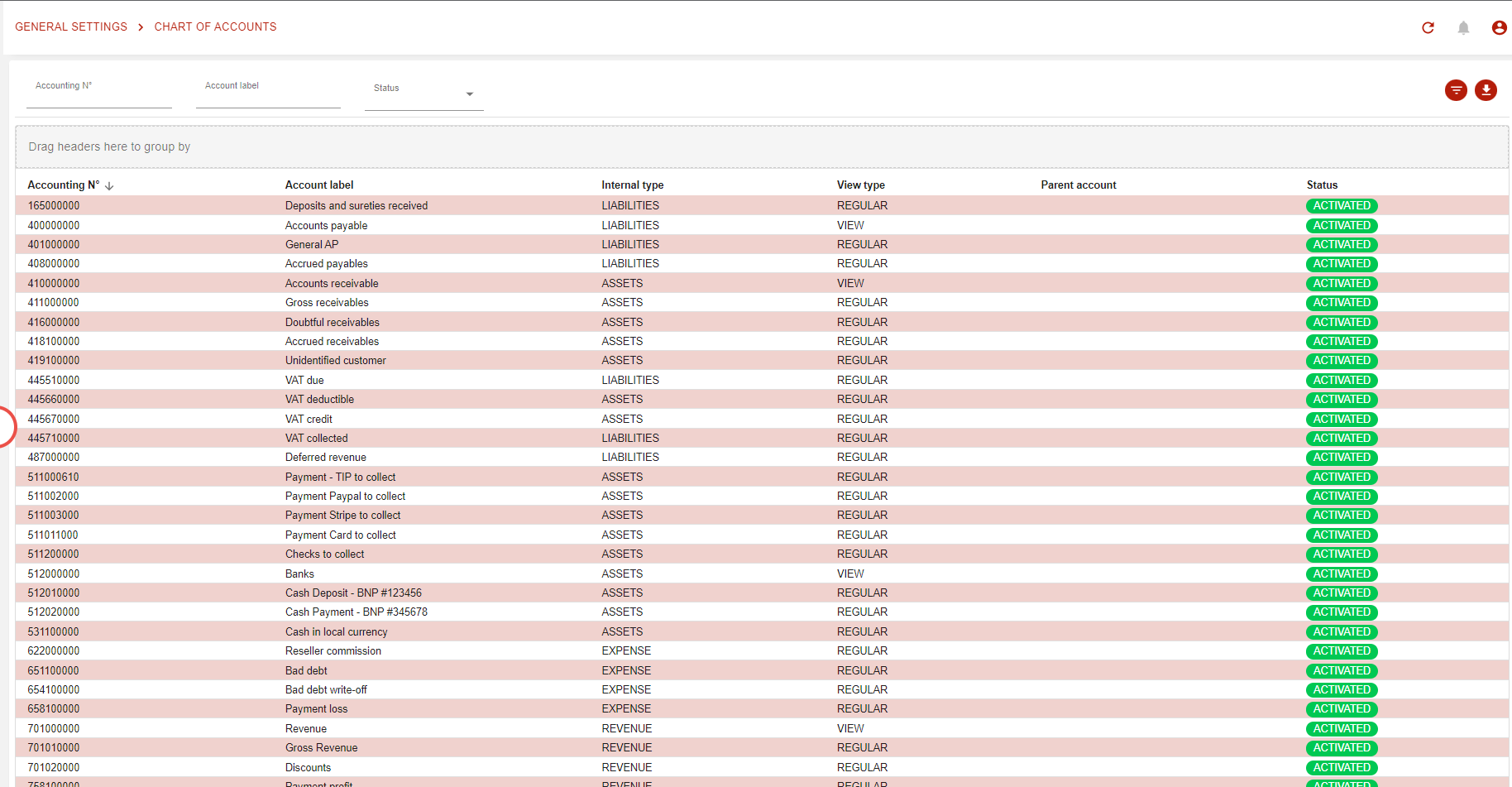
You can see and export the chart of accounts from the application:
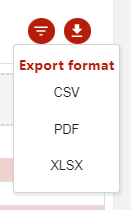
Download menu:
Invoice subtotals
Complementary invoice aggregates that will be added on the XML to generate PDF invoice:
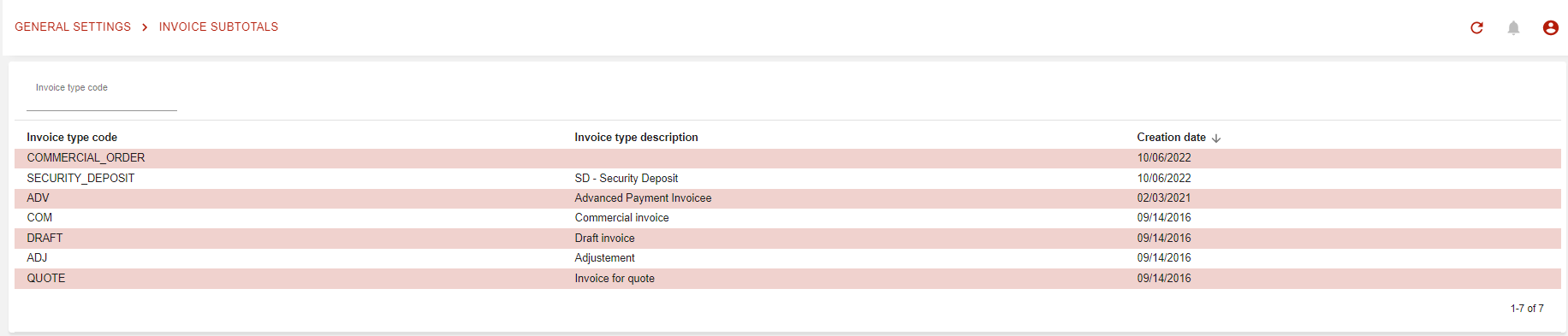
You can edit:

Payments
Upcoming feature
Payment settings
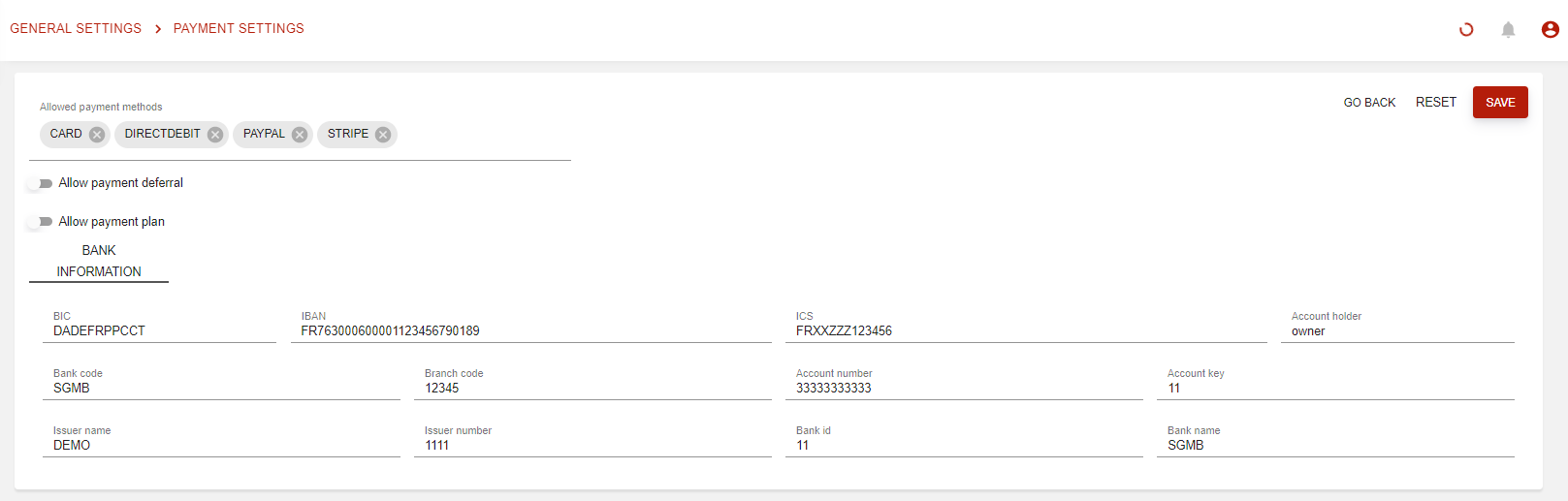
You can define allowed payment methods:
Taxes
Taxes are set up in the Finance settings menu, under Taxes. The taxes you define here are the ones you can then use in your tax mappings.
For how simple and composite taxes are applied to invoice lines, see Tax management.
Tax list
The list shows each tax with its tax code, tax rate, accounting code, Pending VAT and Collected VAT on Receipt accounting codes, whether it is composite, and its description. It is sorted by tax code and shows 20, 50 or 100 taxes per page.
-
Use the search bar to find a tax by its code, its description or its accounting code.
-
Use the filters to search on a range of tax rates, or to show only composite or only non-composite taxes.
-
Click Create to create a tax, or click a tax to open and edit it.
You can define taxes amounts:

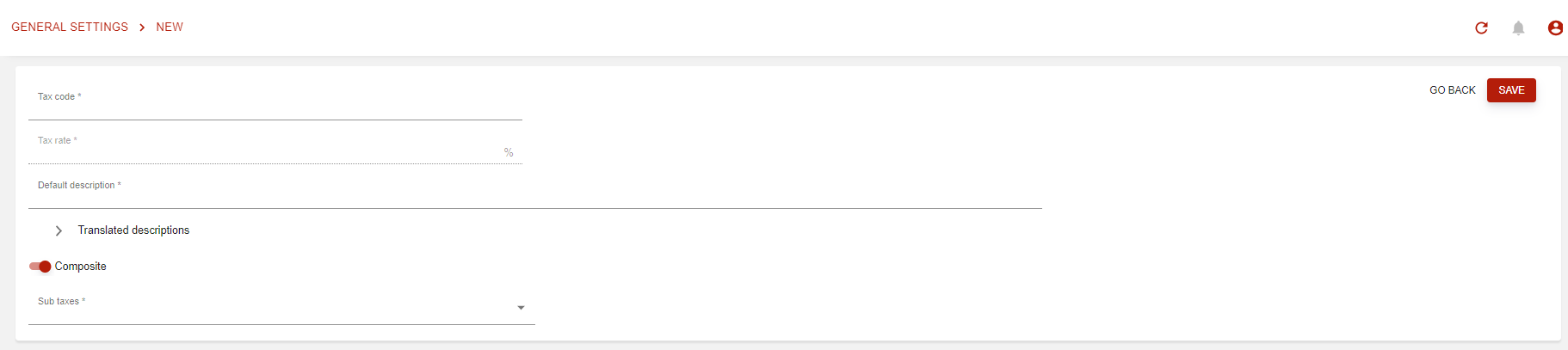
Creating or editing a tax
The main fields of a tax are:
|
Field |
Description |
|---|---|
|
Tax code |
Mandatory. It cannot be changed once the tax is created. |
|
Tax rate |
Mandatory, as a percentage. For a composite tax, this field cannot be edited: it shows the sum of the rates of the sub-taxes, and it is updated as you add or remove sub-taxes. |
|
Accounting code |
Optional. Pick it from the list of accounting codes. It is not available for a composite tax. |
|
Default description |
Mandatory. Unfold it to enter a description in each of your trading languages. |
|
Composite |
Off by default. Turn it on to build the tax from sub-taxes (see below). |
|
Sub taxes |
Shown only when Composite is on, and then mandatory. |
The form also has other fields, among them Taxation Category, which is mandatory.
Click Save to record the tax.
And edit them:
Composite taxes
A composite tax groups several taxes that apply together. To set one up:
-
Turn on Composite. The Sub taxes field appears, and Tax rate can no longer be edited.
-
In Sub taxes, select at least two taxes. Only non-composite taxes are offered: a composite tax cannot be a sub-tax.
-
Check the Tax rate: it is the sum of the rates of the selected sub-taxes.
-
Click Save.
To change a composite tax later, add or remove sub-taxes in the same field; the tax rate follows.
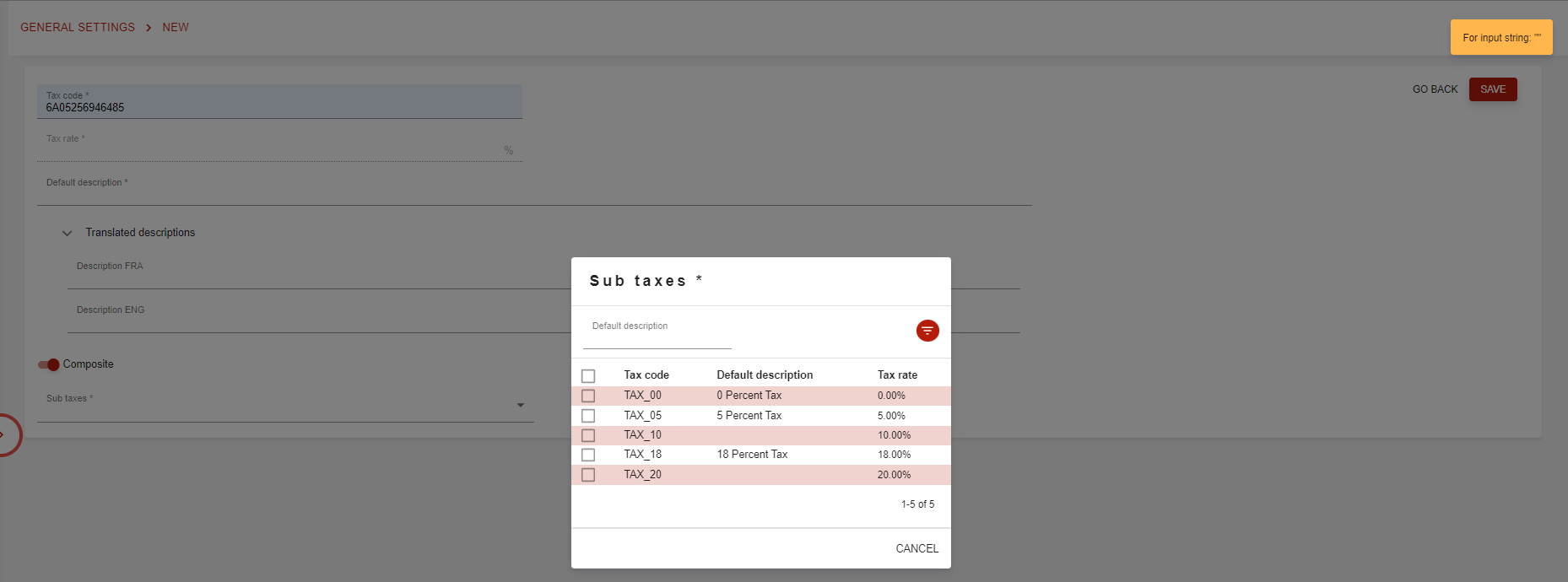
And if composite add sub-taxes:
Deleting a tax
You can delete a tax from its page, with Delete, or from the list.
A tax can only be deleted if it is not used anywhere in Opencell. If it is still referenced, the deletion is refused with an error message.