
Opencell now manages contacts linked to you contacts that you interact with in your daily activities. Contacts are by definition individuals that are linked to an organization (e.g. companies) in our solution. Let’s have a quick overview of their management
Contacts in Opencell
A new “Contacts” sub-menu is now available in the Customer care app, just beneath the Customer sub-menu. As soon as yu arrive on this page, you will arrive on a list view of all contacts on your environment.
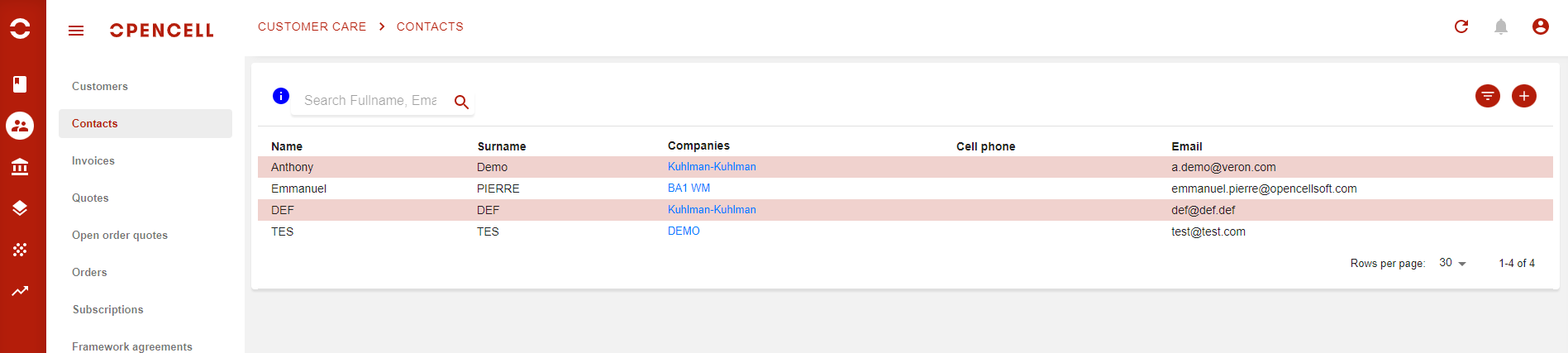
As you may have notices, a search bar and a :filter: button are available on this view.
Search bar will allow you to search seamlessly and at once on:
-
Contact full name
-
Company code
-
email
-
Cell number
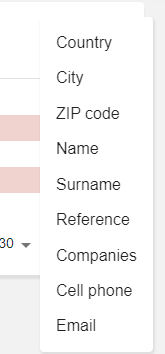
And the filter button will allow you to filter on a viriety of fields
As contacts are linked to organization, you can as well finnd all the contacts linked to a specific company by going on a Customer (type company) 360 view. There you will now have a new tab with all linked contacts
Contact creation
From this list view, when you hit the :plus: button, you will then be taken to the Contact’s creation page.
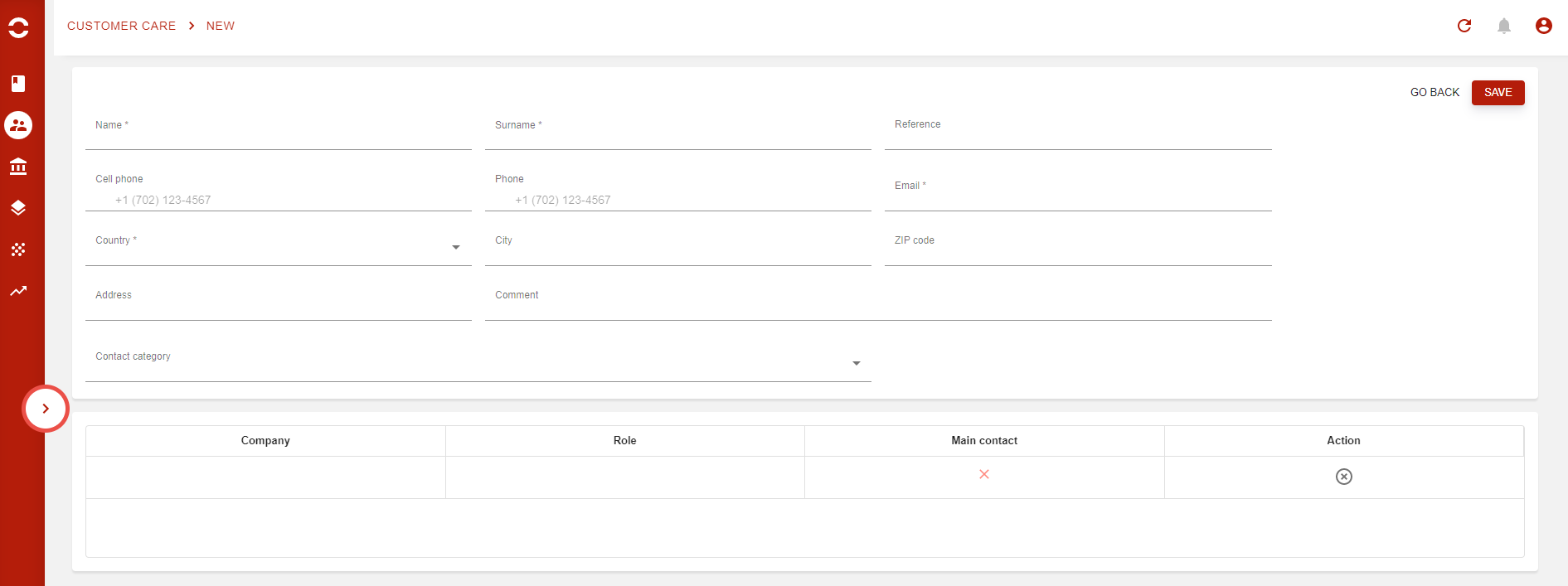
A few fields are mandatory here as Name, Surname, Email, Country and Company.
Other fields are not mandatory, but can come in handy to go s step further like Comment field or the Contact category field.
This field allows you to define existing categories to a single contact, like decision maker, or Power user, Signature power…
Contact categories are managed in General settings app → Customer settings → Contact categories. There you will find the Contact category creation page.

For now, these categories are highly simple: just a category name (yeah, no category codes 🥳 ).
You can search for a specific via the search bar at the top left corner, and create new ones via the :plus: button.
Last tip: On the Contacts tab in the Customer 360 view, you have the exact same search, filter and create features as in the contact list view.