
Now that you’ve activated and set multi-currency in Opencell portal, you’re now ready to generate invoices in another currency.
To do so, you will learn how to create an invoice for a foreign customer and settings available on invoice page.
Associating a currency to a customer
As you are billing a customer on its own currency, you first need to associate a currency to a billing account.
To do so, go to your customer page, then “billing account” :
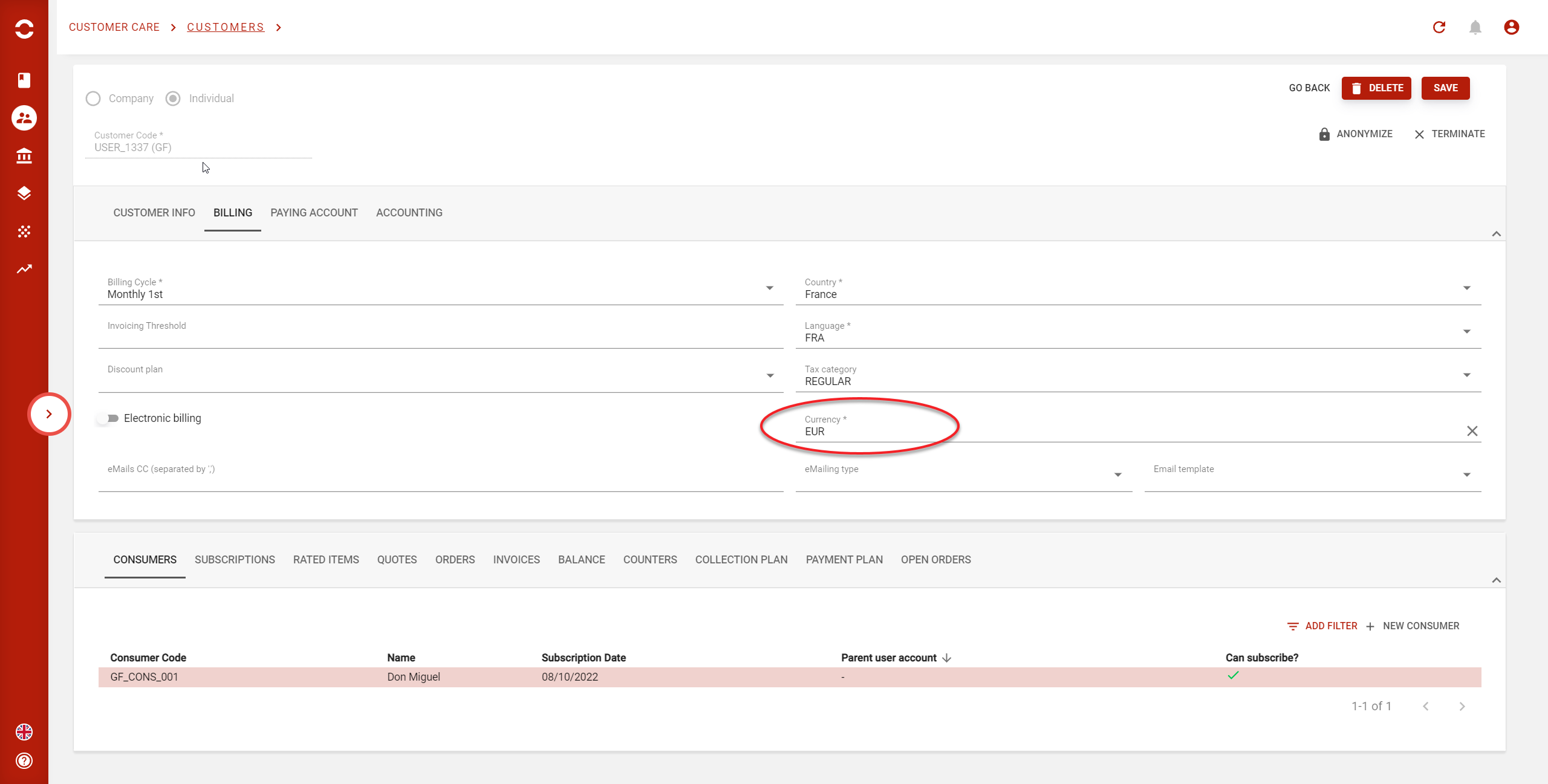
Then from here, you’re able to choose a currency that you’ve already set in Portal
Note that if you add a currency but did not set an exchange rate (XR), you will still be able to select this currency and the XR by default will be to 1.
From now, every invoices generated for this billing account will be in this currency. If the currency is the same as the functional currency then no conversion will be made. If the currency is different, then exchange rate will apply in amounts of the invoice.
Creation an invoice
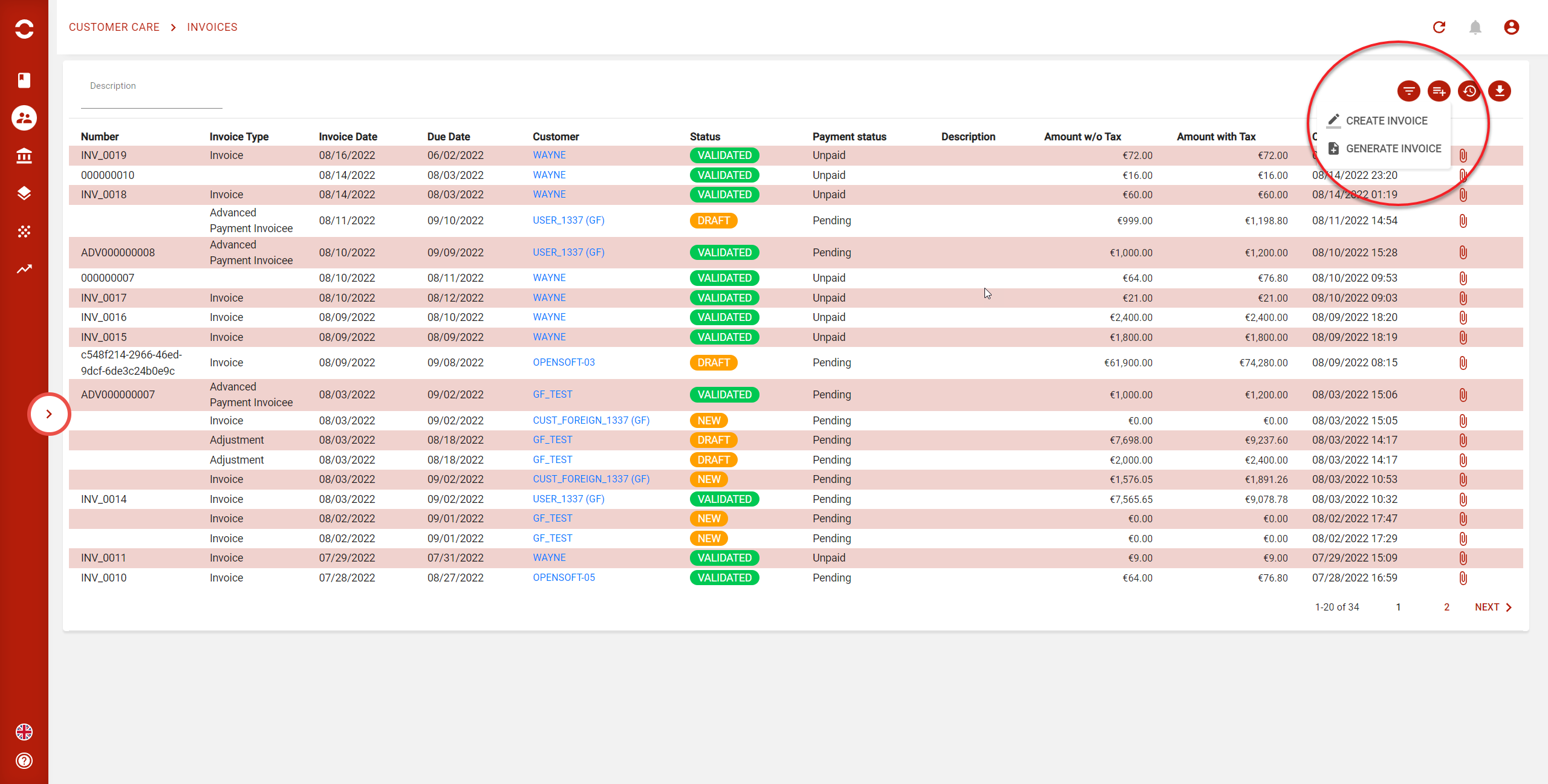
To manually create an invoice in Opencell portal, you need to go to Customer Care → Invoices and click on the “+” icon to generate a new invoice.
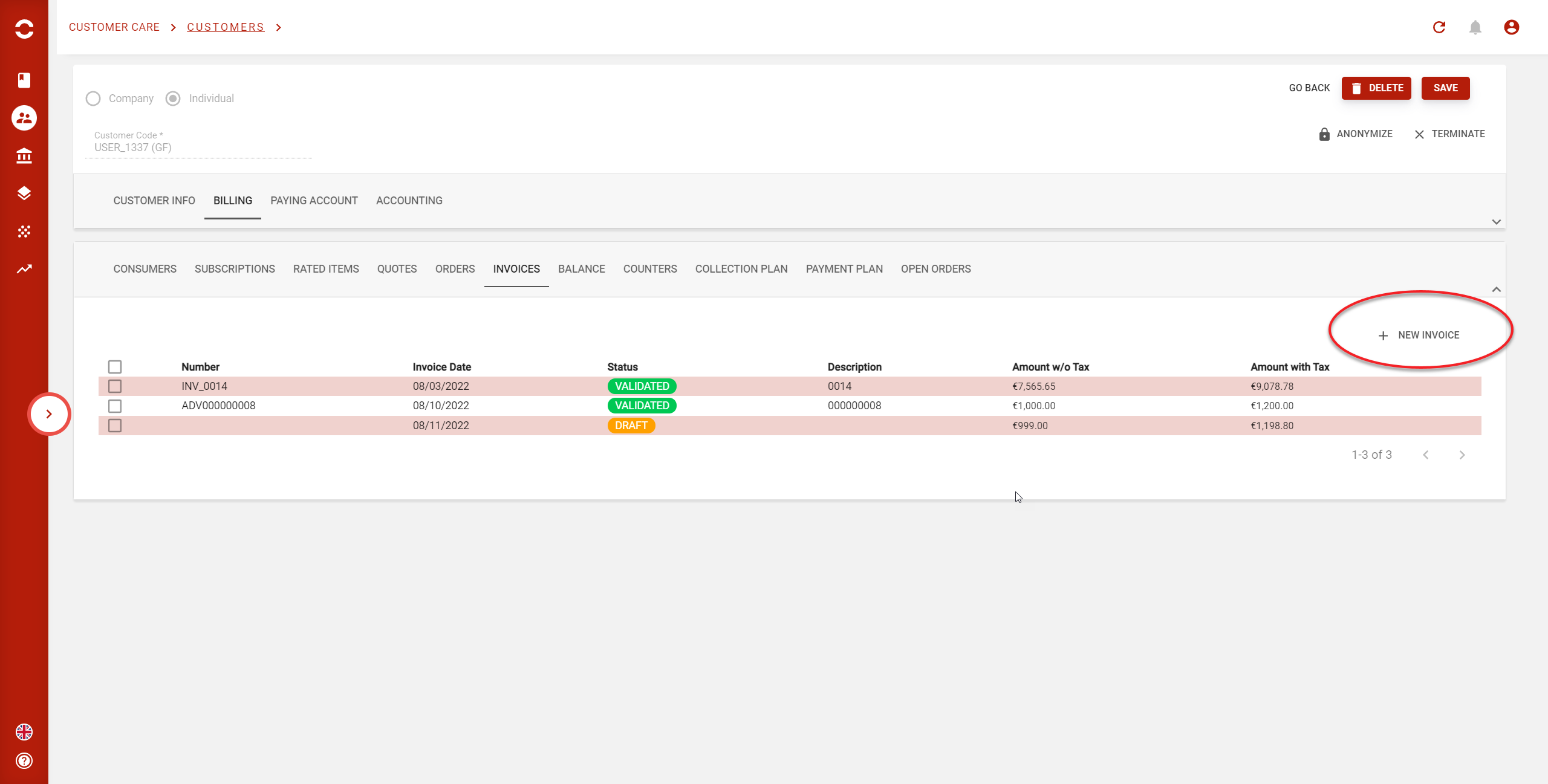
Or you can also do it directly from your customer page, under the tab “invoice” :
Conversion on invoices
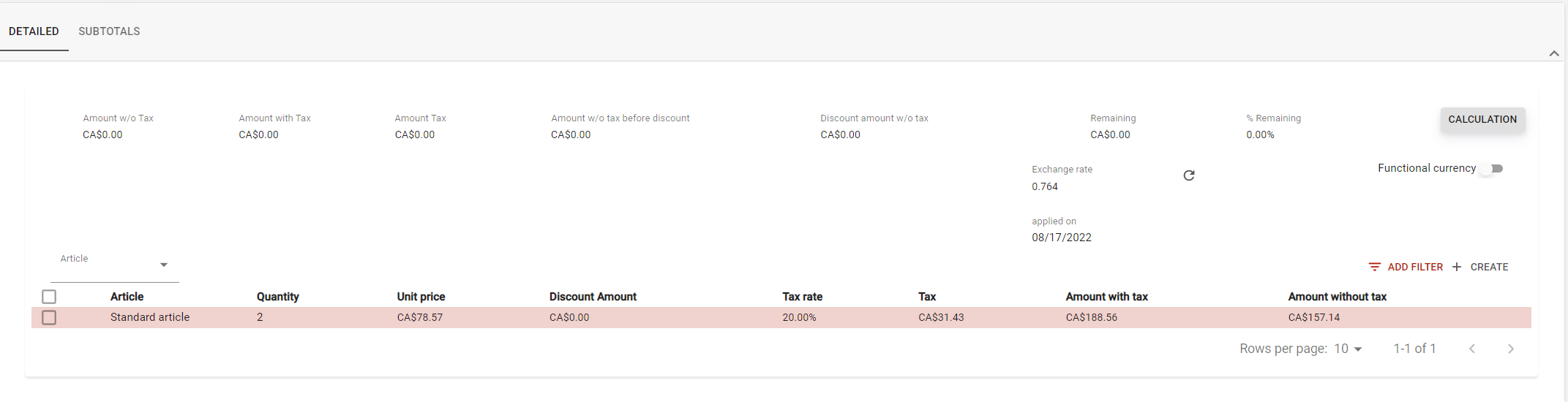
Once your DRAFT invoice is created, you will see different informations related to the conversion on the page :
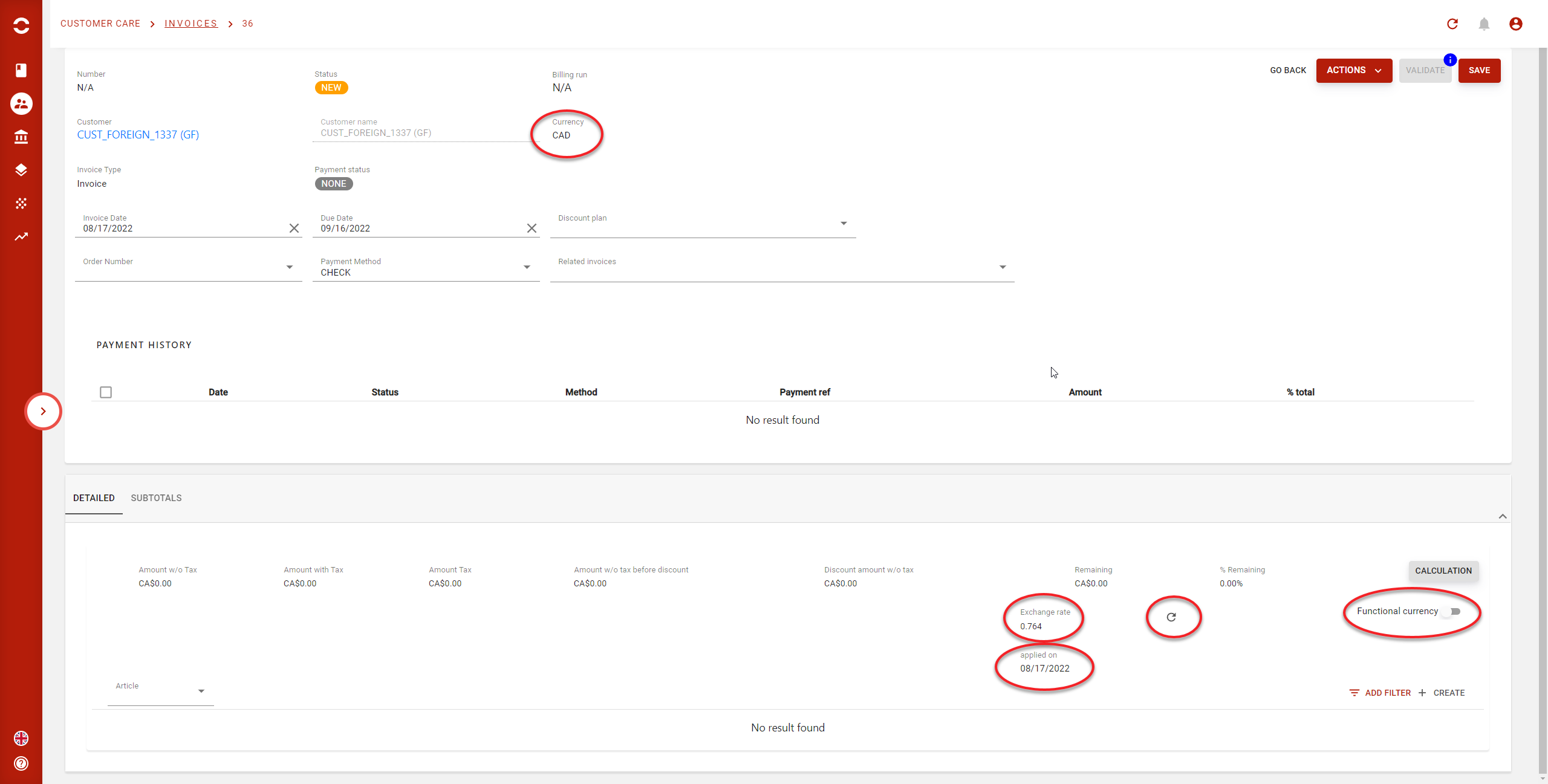
Note that if the customer’s currency is the same as your functional currency, these fields are hidden.
Currency : It’s the code of the currency associated to your customer
Exchange rate : It is the rate applied on the creation date of the invoice (= to the current rate of the foreign currency)
Refresh : You are able to refresh the rate associated to the invoice. It can be useful to update invoices to today’s rate. After awards, you won’t be able to go back to previous rate or default rate (rate at invoicing date).
Applied on : Showing you the date when the rate was associated to the invoice.
Functional currency : The switch allows you to display amounts in your functional currency instead of the foreign currency.
Adding invoices line
When you’re adding lines to your invoice, you will see that amounts are displayed in functional currency.
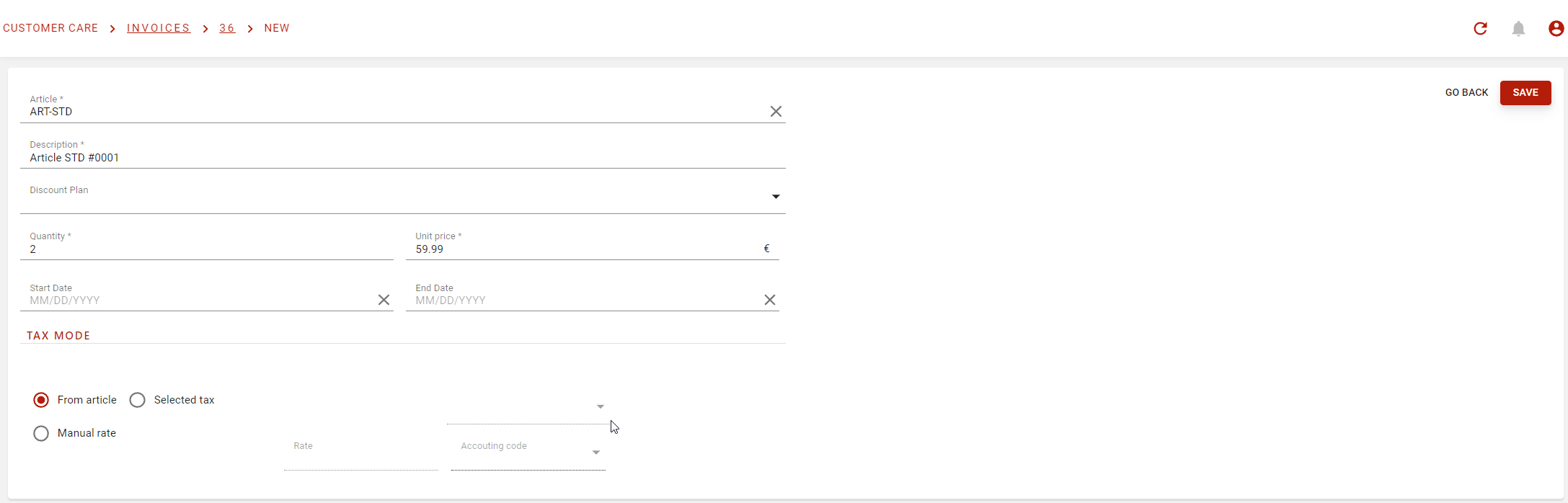
After validation, they are automatically converted with the rate associated to the invoice :
Validating an invoice in a foreign currency
When you’re ready to send the invoice to your customer, Opencell portal will make a check if the rate associated is equal to the current rate.
If not, pop-up will appear with a warning message. You will have the choice to :
-
Go back
-
Update and validate
-
Don’t update and validate