Now that you have activated multi-currency, you’re now able add new currencies to your application and define specific exchange rates (XR).
Adding a new foreign currency (trading currency)
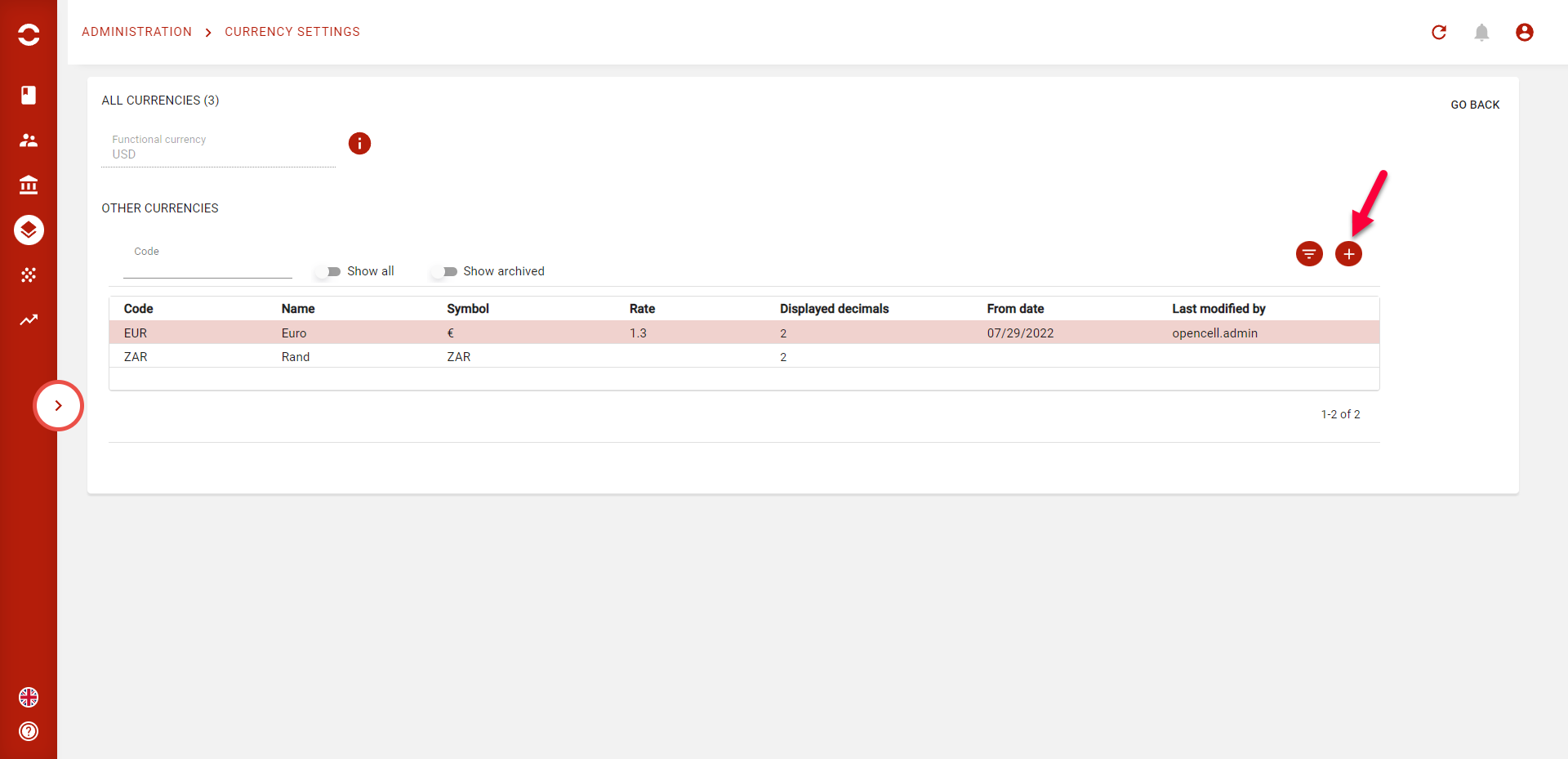
To add a new currency to Opencell portal, click on the “+” icon on the setting page :
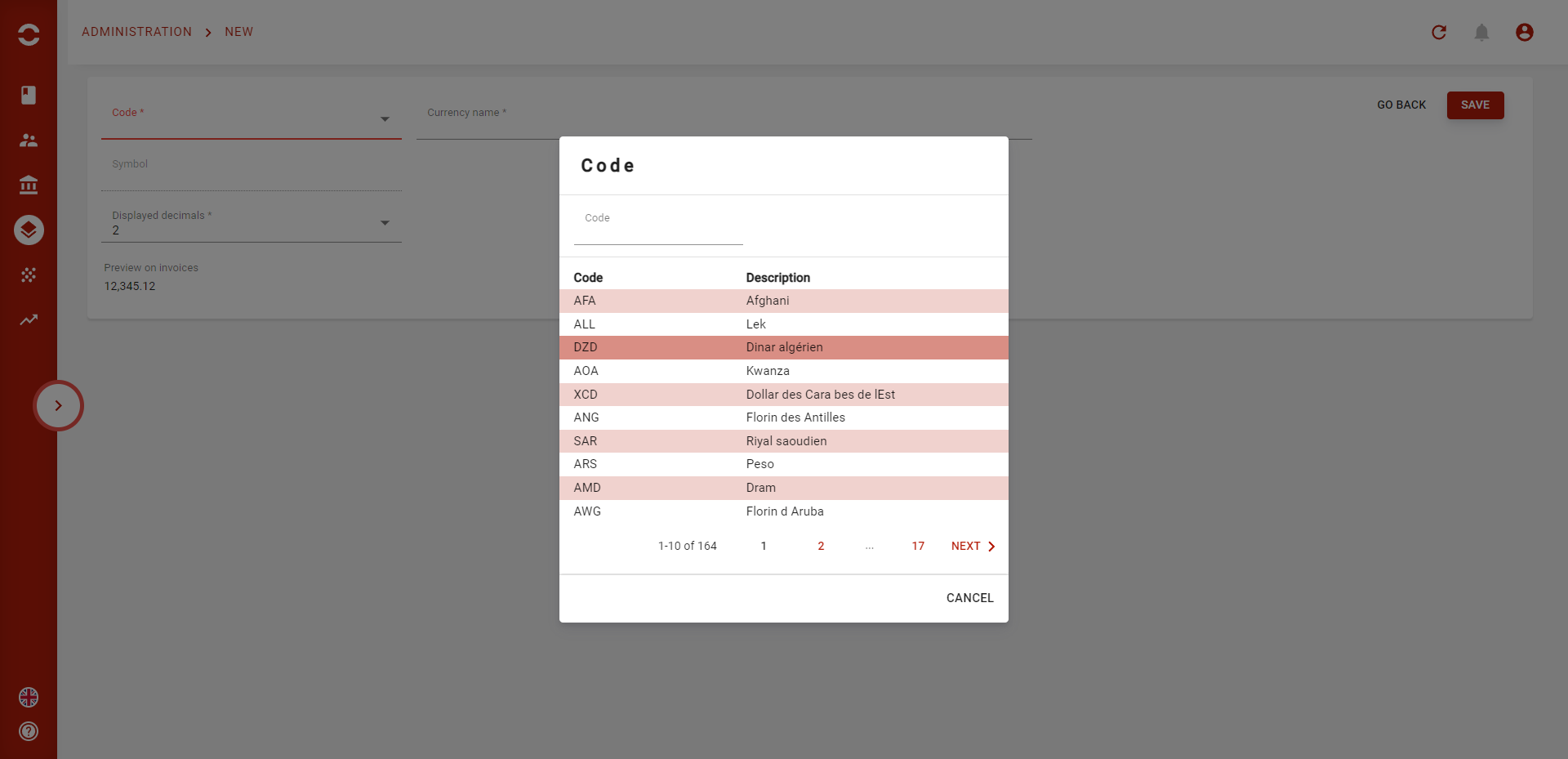
You are now on the creation page of your new currency. You can click on the code to choose from the list to add a new currency :
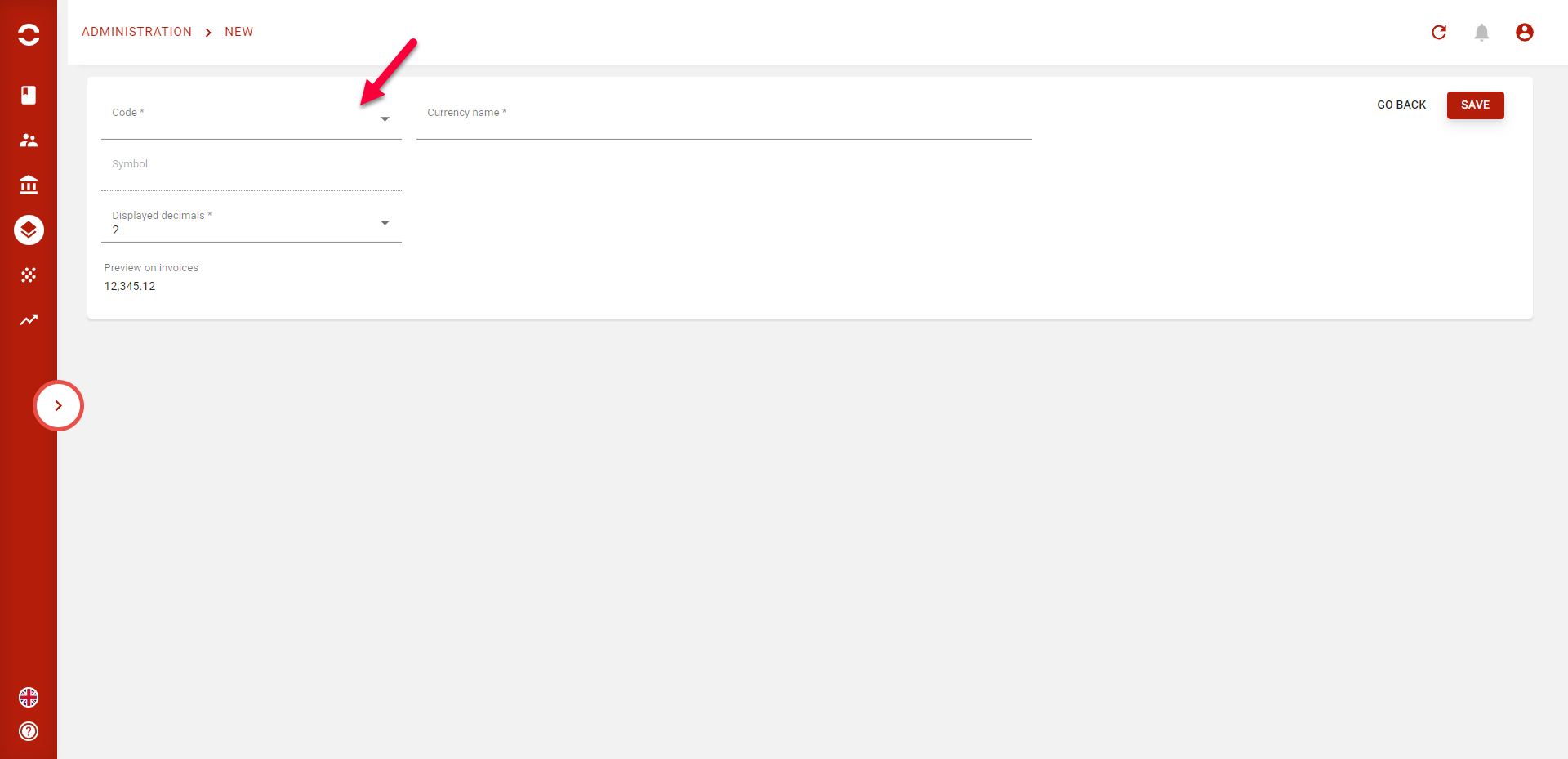
You can now customize the “NAME” of the currency and also the displayed decimals that will be the number of decimals shown on invoices and reports. You can also the preview of how amounts are going to be displayed on invoices.
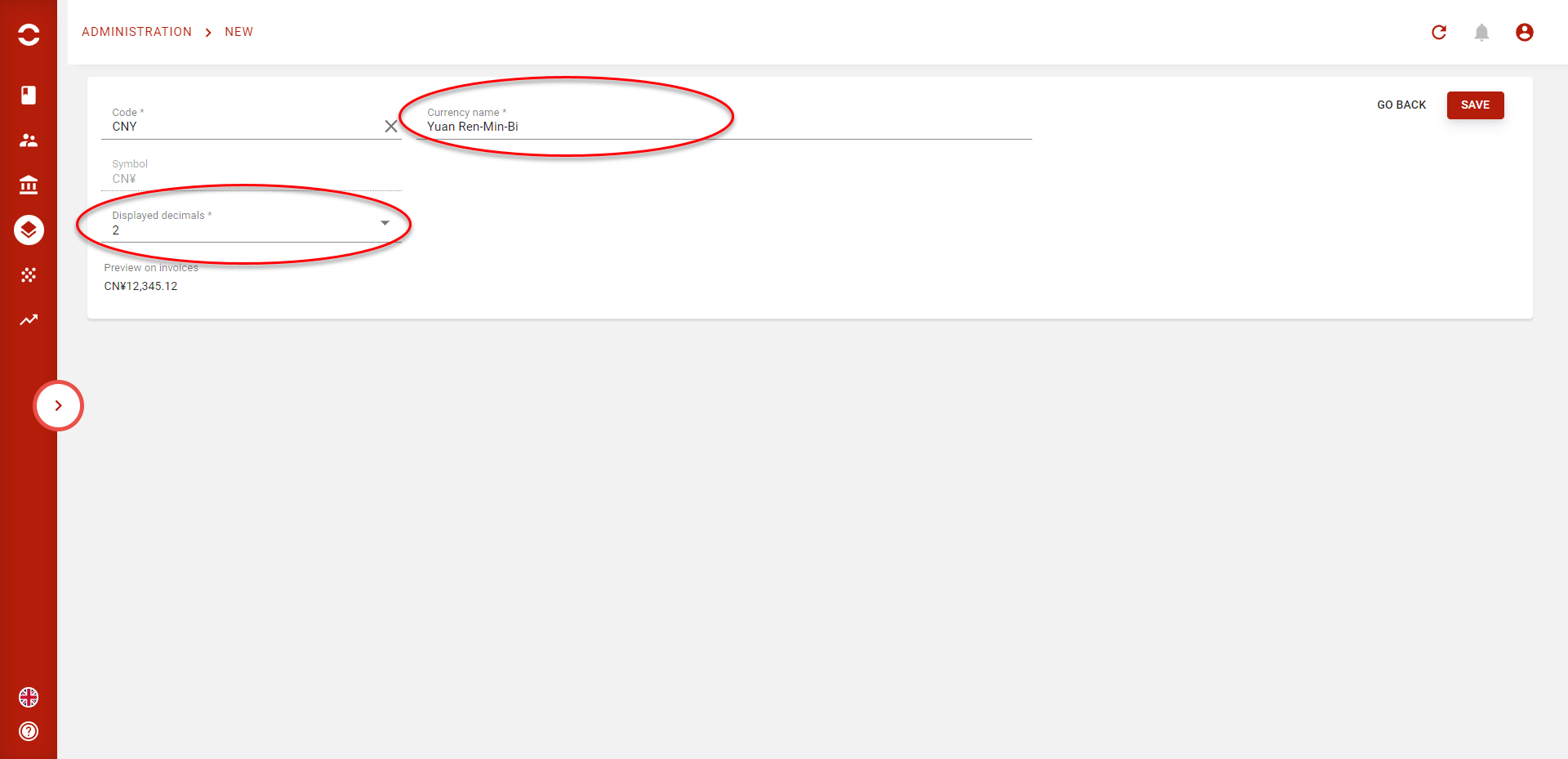
You can click on save to finish the creation of your new currency.
You can update these 2 settings at any time on the currency page.
Creating a new exchange rate (XR)
Congratulations ! You’ve now added your 1st foreign currency in Opencell portal. Now that you’re ready to associate this currency to some of your clients, let’s see how to set an exchange rate.
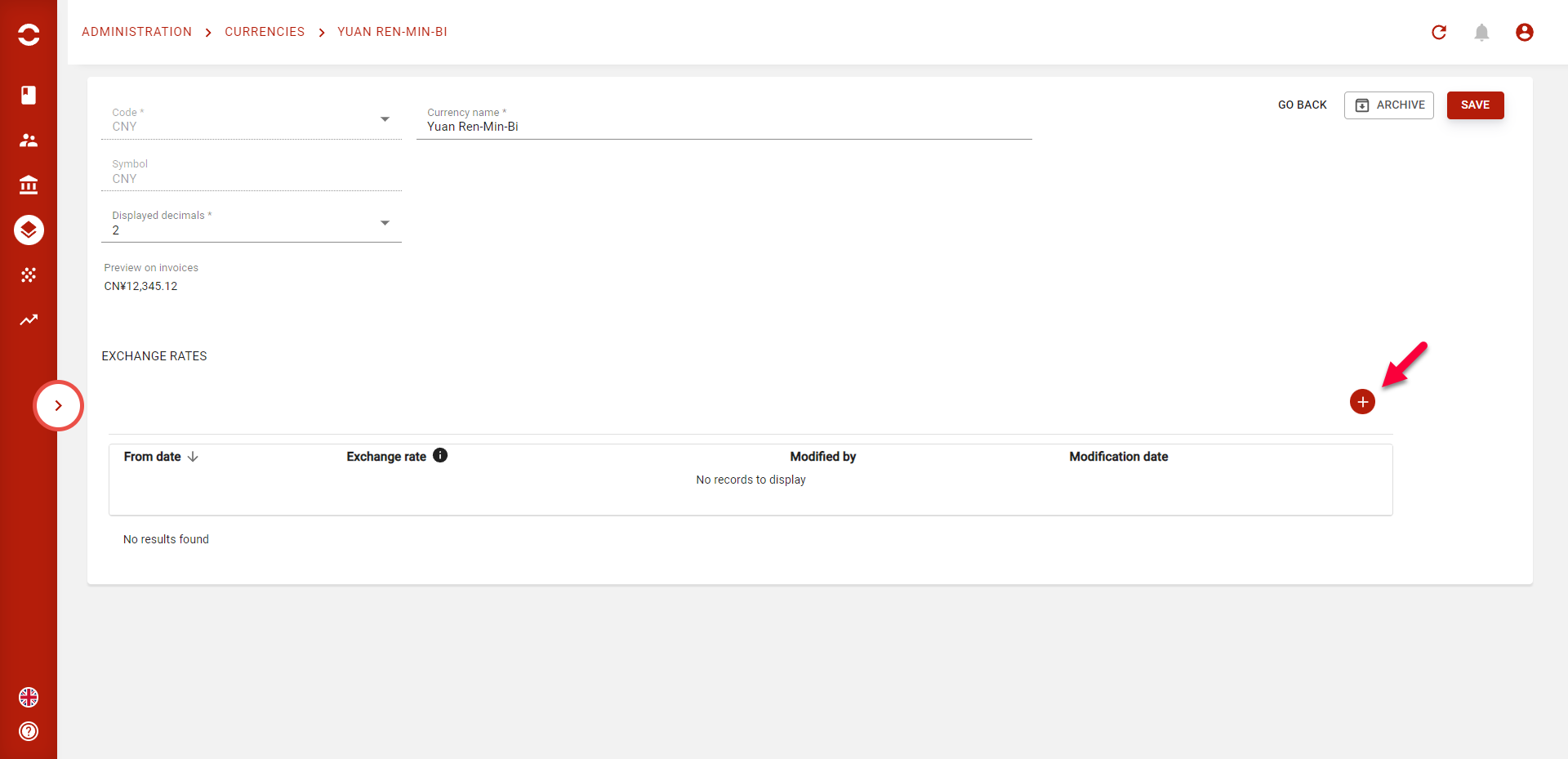
To do so, click on the “+' icon on the currency page :
Then you can choose the date from when the rate will apply and the rate itself.
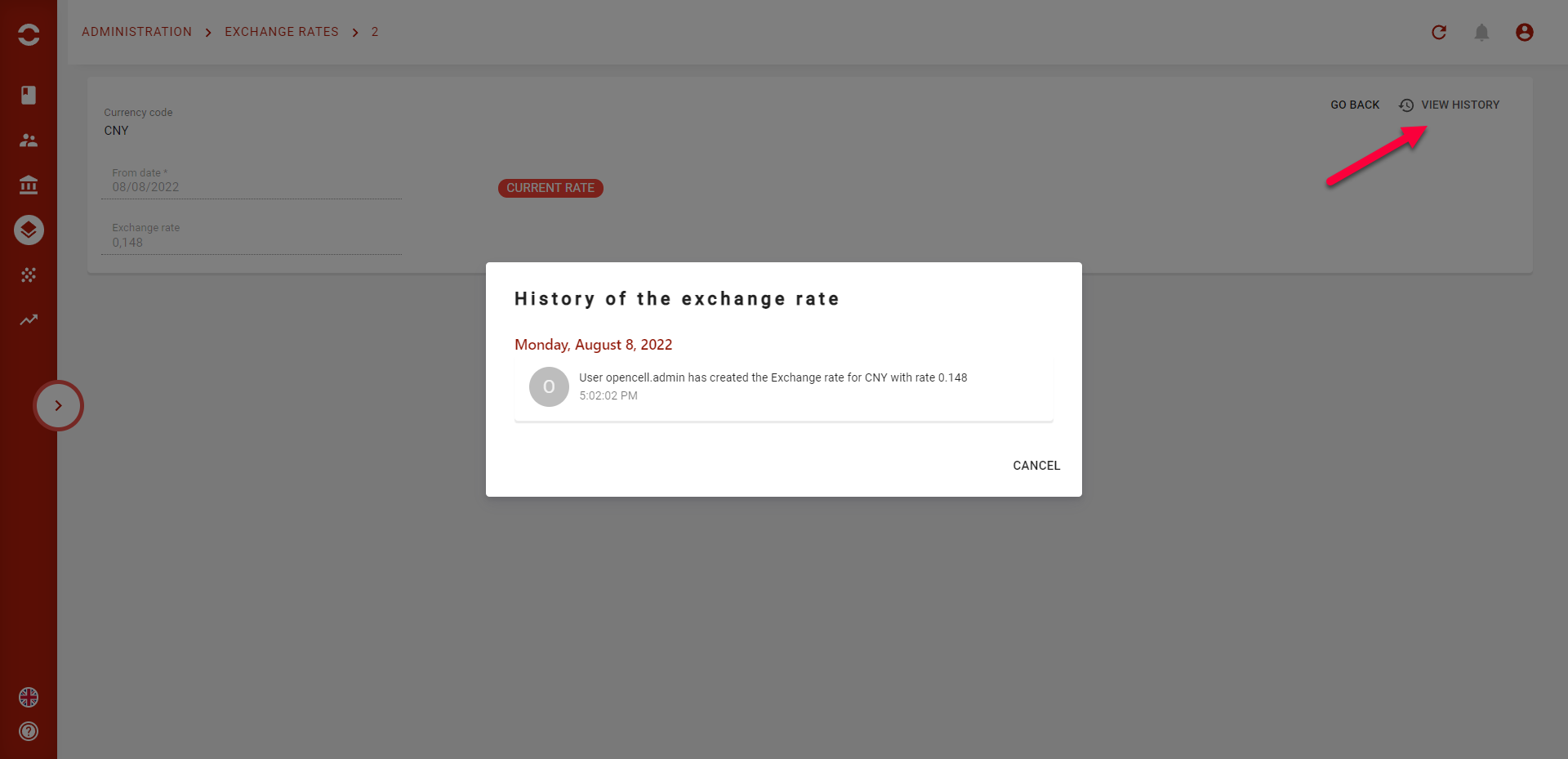
After saving, the rate is saved. You can use the history component to track modifications made on a rate.
Please note that the set rate is equal to the value of the trading currency TO the functional currency.
We are planning in V13.4 to change this calculation to an exchange rate being equal to the value of the functional currency TO the trading currency (most common used)
Once you’re done, you will see in the table all rates set for your new trading currency. You can set rate in the future and you can modify or delete them until the from date is reached :
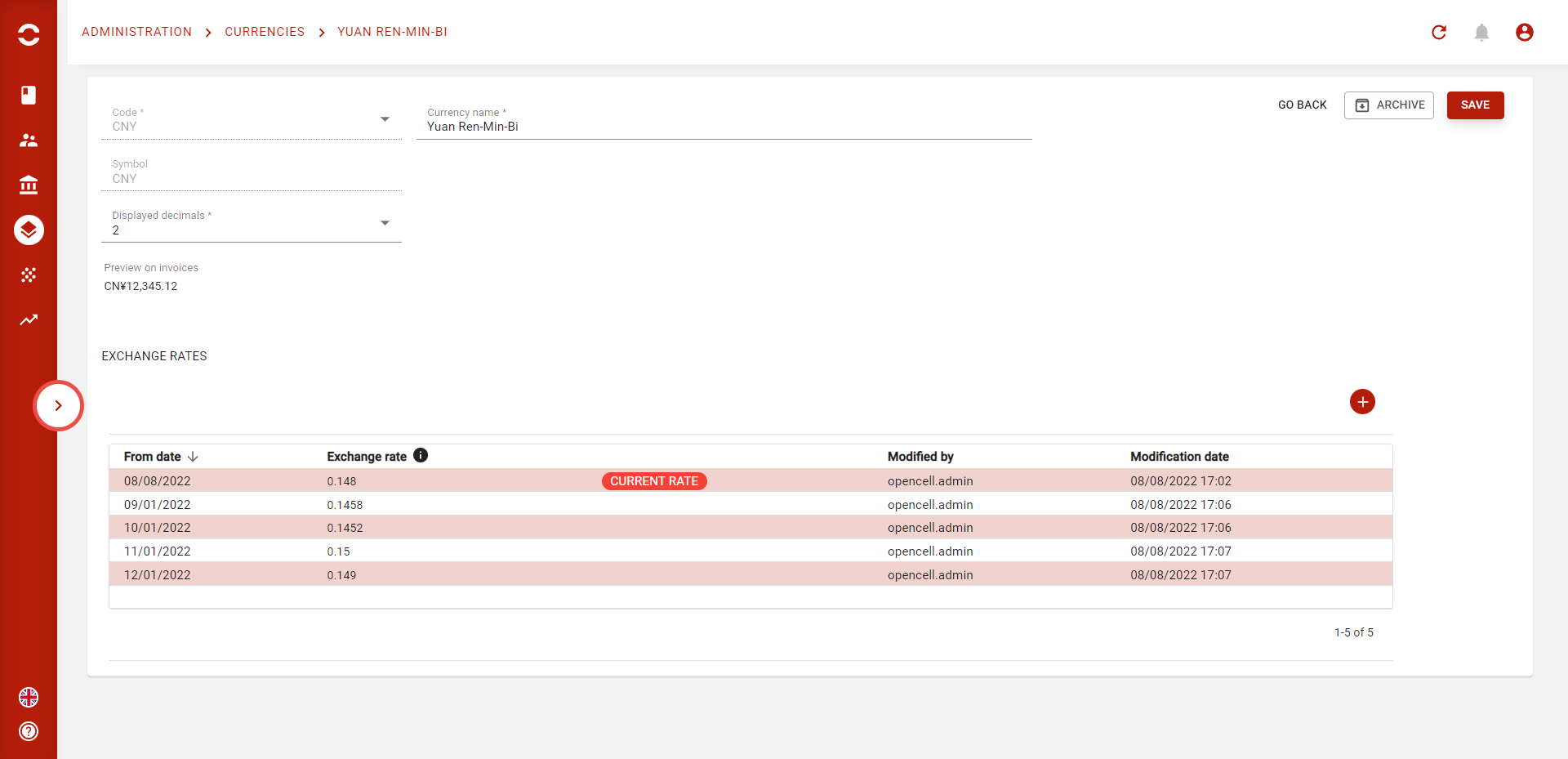
When the “FROM” date is reached, the tag “CURRENT RATE” will be given to the exchange rate and it will apply for new invoices and new billing runs.
On this table, you can see the last user that modified the rate, and also the date of the last modification.
Please note that you cannot modify a rate in a paste OR the current rate. If you want to update the current rate you need to create a new rate starting in a future’s day.
Now that you have set exchange rates for a currency, you will be able to generate an invoice in this currency.
Archiving a currency
You can archive a currency if you’re not using it anymore or if you don’t want it to be displayed upon creating a new customer. To do so, you can click on the “ARCHIVE” button on the currency page.
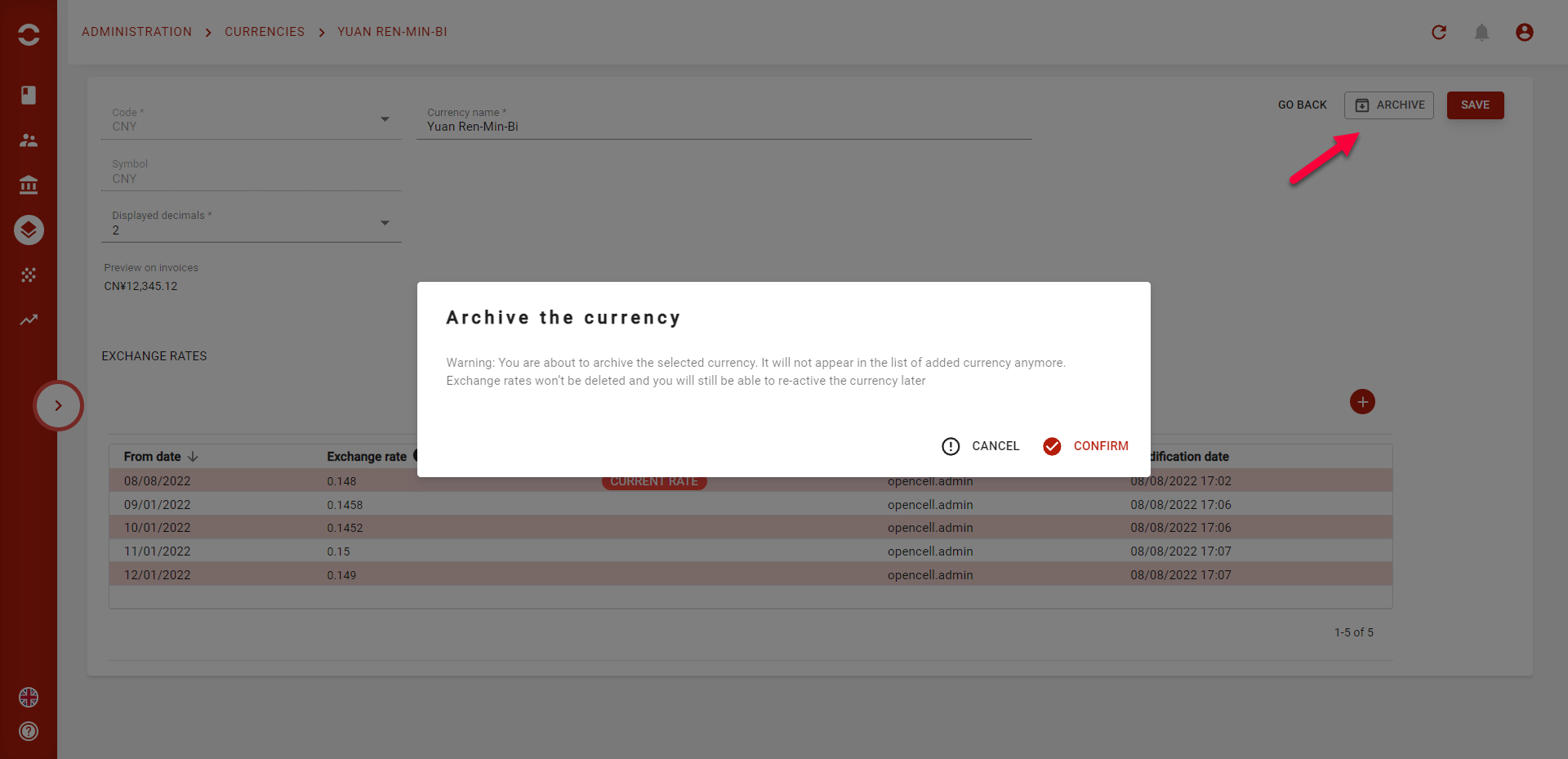
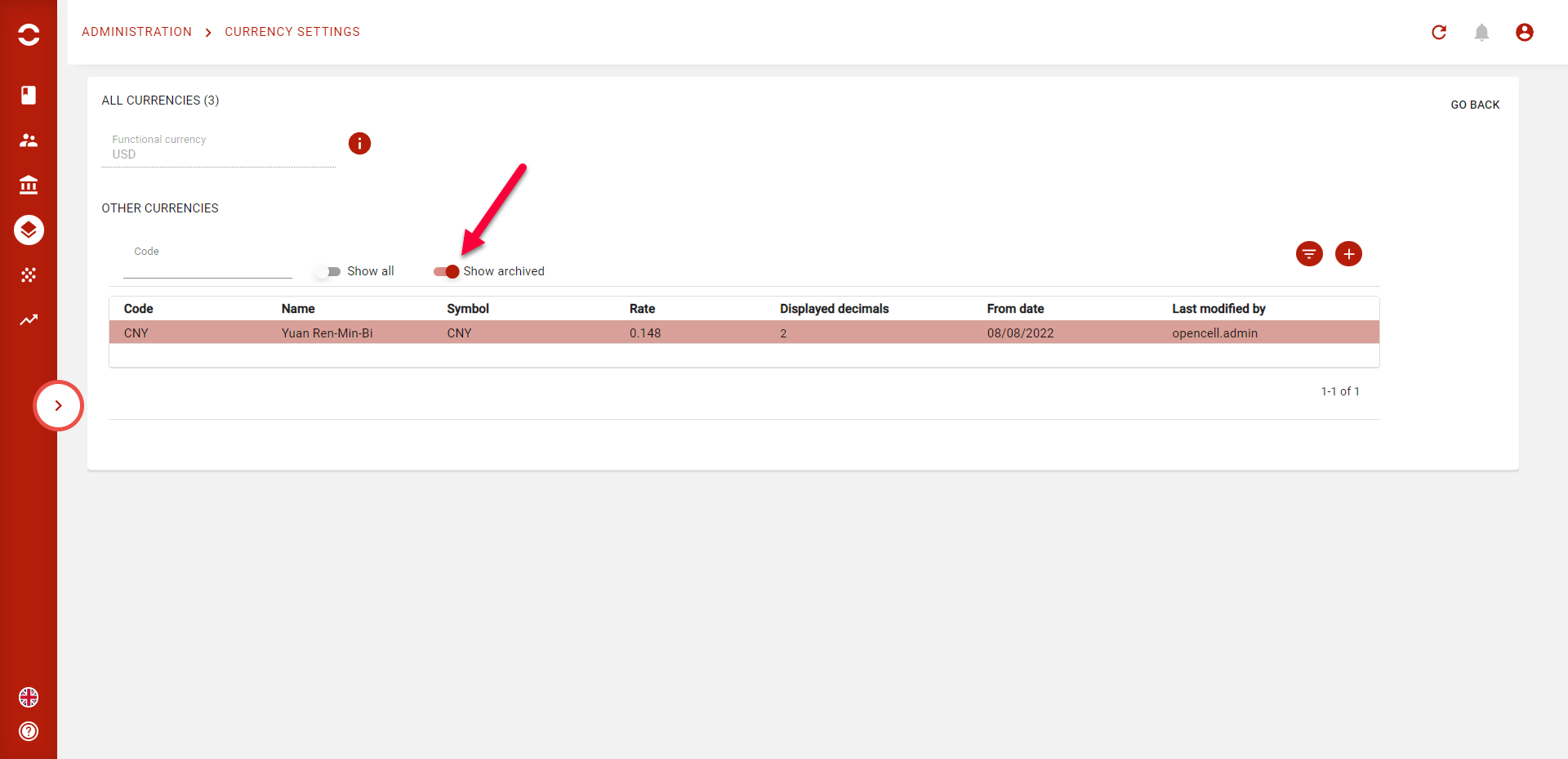
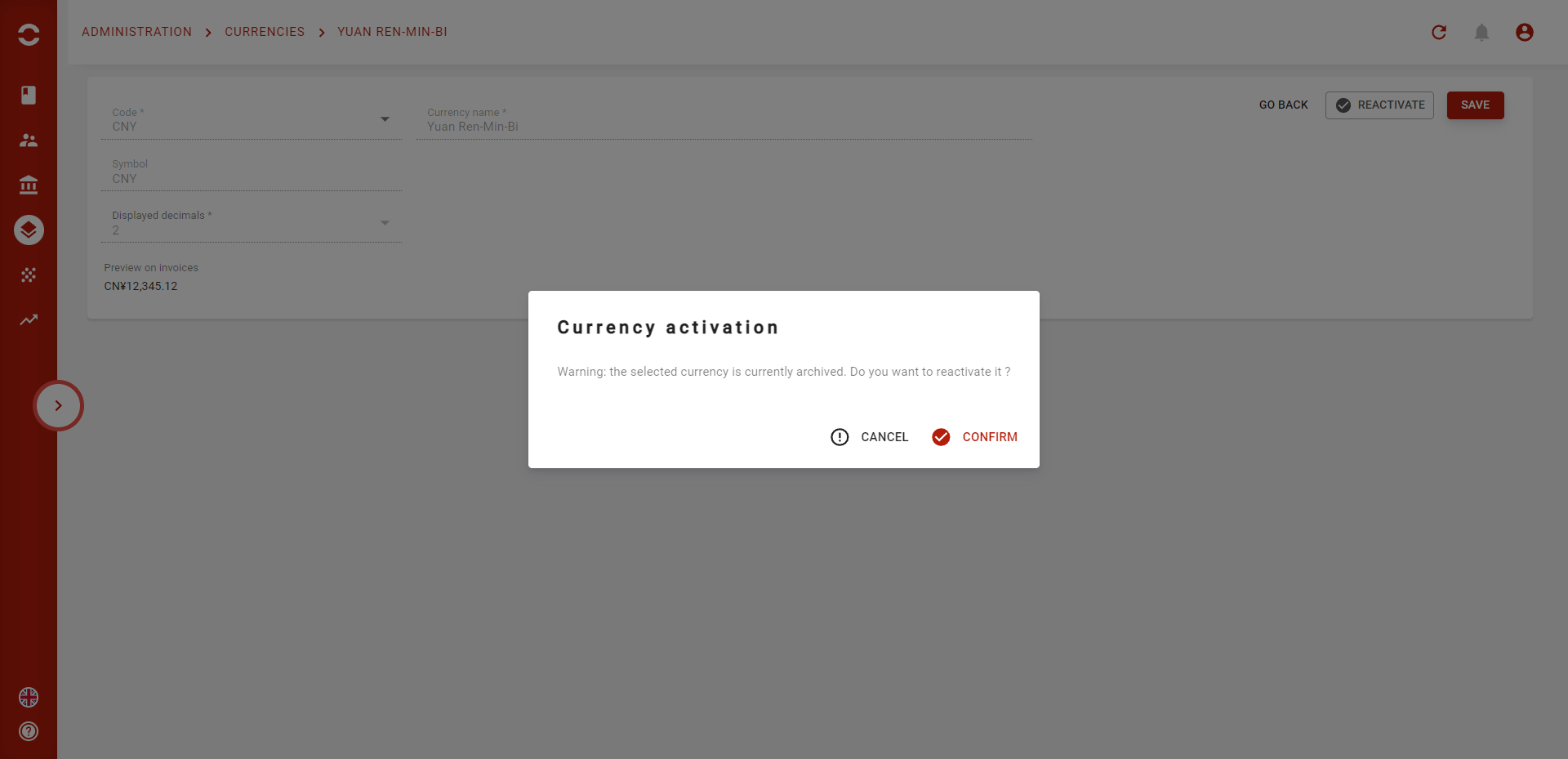
Archiving currencies will not impact previous invoices. It just hides them. You can reactivate a currency at any time by clicking on the “REACTIVATE” button, after using the filter “show archived” on the currency table :