
Rerating is a key feature of Opencell, it allows to recompute the price of events as long as they have not been billed.
Concept
Billing or catalog managers will identify an incorrect price in the catalog, or incorrect data could have been sent to Opencell interconnected business platforms…
I any case, instead of sending incorrect invoices to the customer (and then having to produce credit notes, or other adjustments, with the occasional customer complaints), you’ll want to rerate the incorrectly priced events, after the issue has been fixed.
3 steps process
-
Fix the issue (incorrect catalog price, corrupted data, buggy software component, …)
-
Mark impacted events (actually wallet operations) to rerate.
You’ll usually identify the impacted events by id, offer, product, charge, article,or any relevant criteria. -
Rerate marked events
Important notes
-
by default only “unbilled” wallet operations can be rerated
A application setting allows to also rerate billed items. -
rerating a “main” wallet operation will automatically rerate associated discount wallet operations
-
rerating a “main” wallet operation will automatically cancel and re-trigger triggered events.
-
using the feature “Drop zero wallet operation” will delete wallet operations with amount zero.
These wallet operations being deleted, they cannot be marked to rerate. -
overridden prices (from quotes, charge instance, one-shot other application) will never be recomputed.
Override values are kept by rerating.
How to rerate events in Portal
Here, we assume that the root cause of the incorrect pricing has been fixed.
The root cause can be very specific to your implementation and is beyond the scope of this article.
Mark wallet operations to rerate
-
Go to “Rating/Wallet operations” in “Operations”
-
Select wallet operations to rerate by either
-
selecting individual wallet operations
-
using simple filters
-
using advanced filters
-
To make your task easier, we don’t allow rerating if filters “main only” and “unbilled“ are not selected, so you won’t be distracted by uninteresting wallet operations.
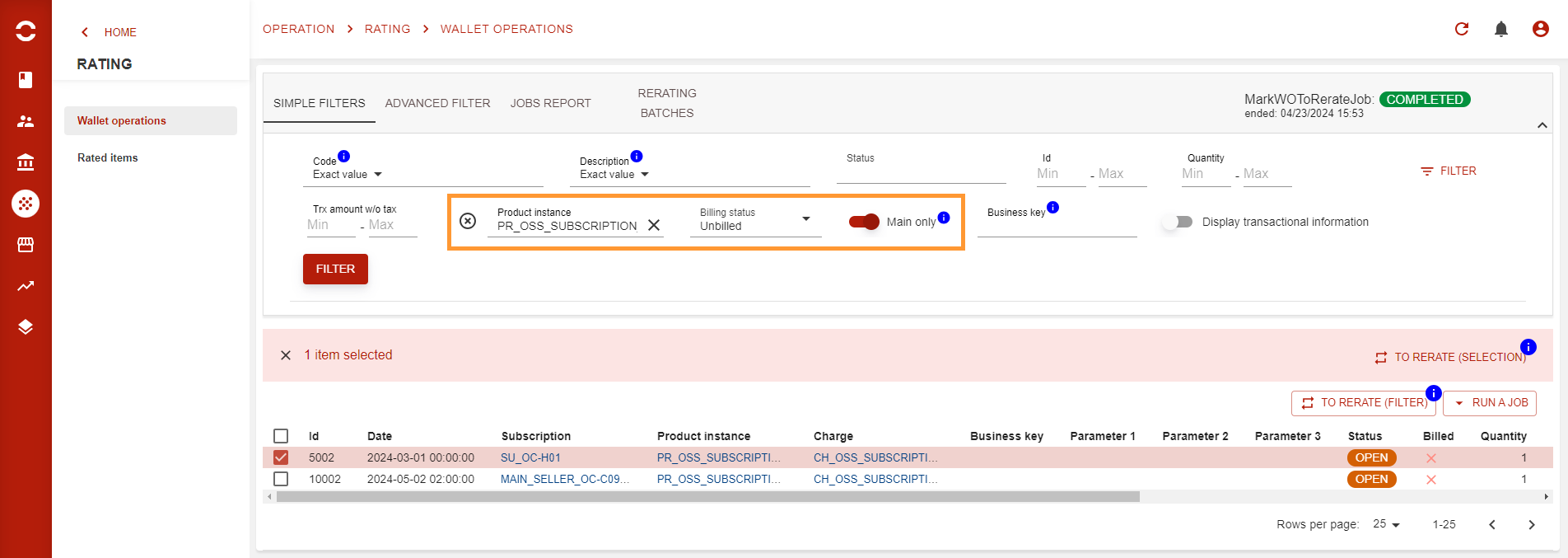
-
Hit the “To rerate” (“filter” if you used filters, or “selection” if you selected individual items) to mark selected wallet operations.
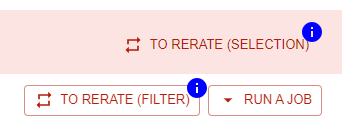
-
If wallet operations are identified as “huge volume” then a marking batch will be created for asynchronous marking. You will then be asked to customize the marking batch’s label, and if you want to be notified when the marking is done:
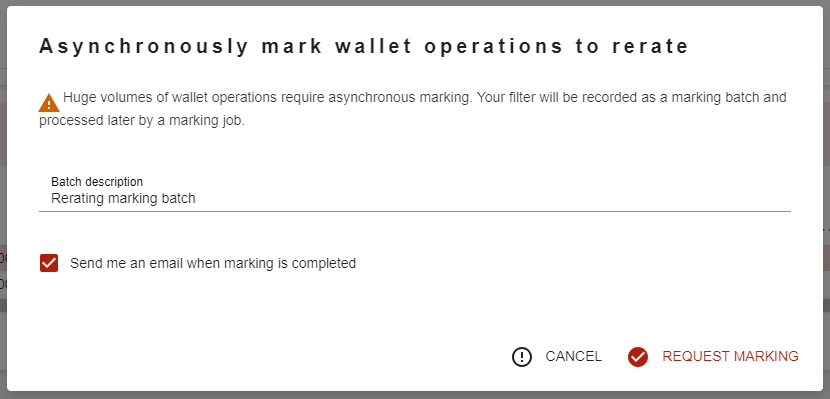
-
After you hit the “Request marking” button, a new marking batch will be created.
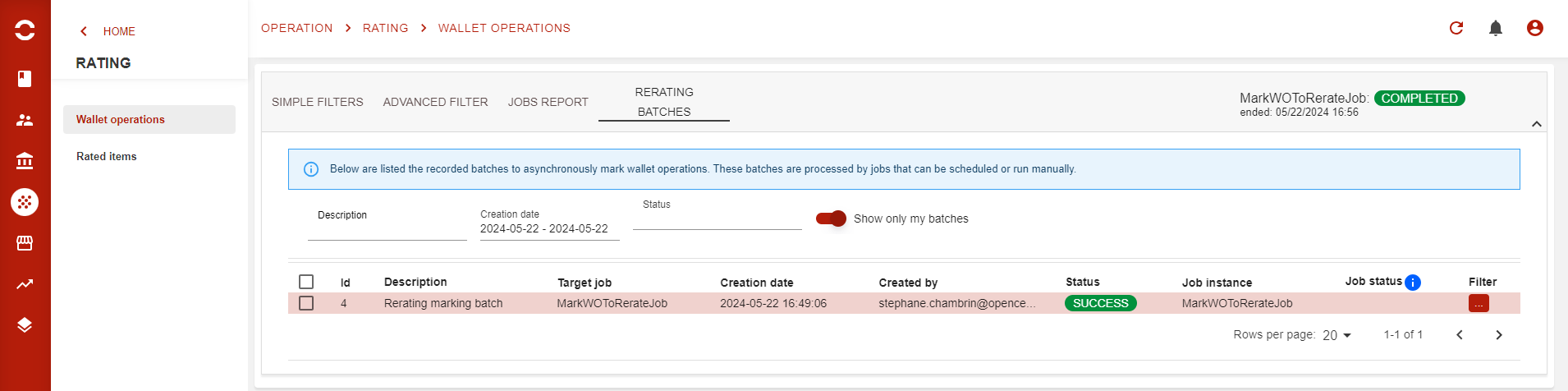
It’ll be visible in the “Rerating batches” tab:
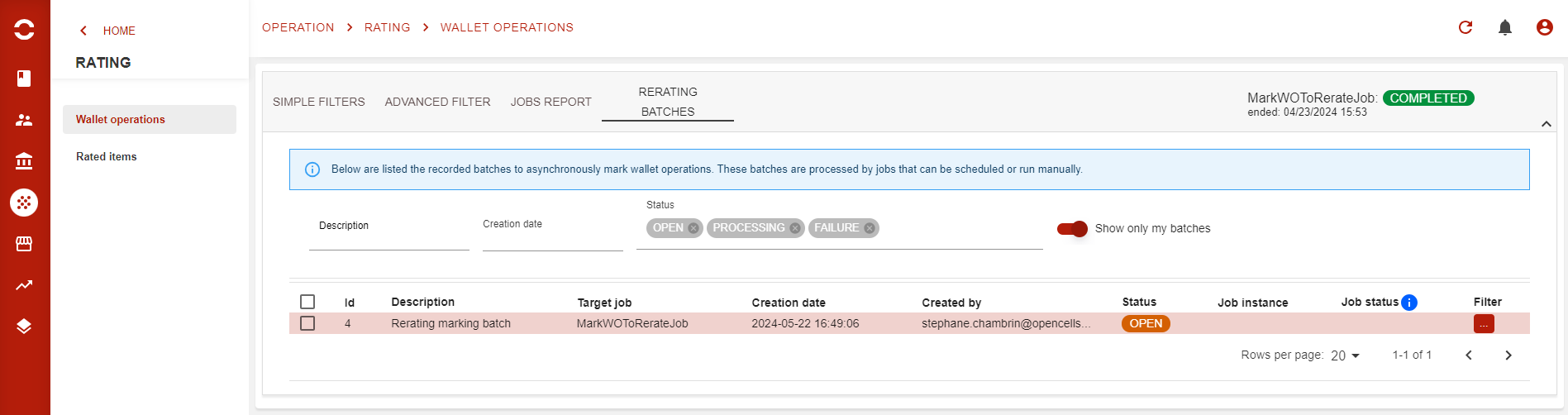
-
Depending on your process, you may wait for a scheduled “MarkWOToRerateJob” to process your batch and send you a notification.
Or you could manually run the marking job from the main wallet operation tab
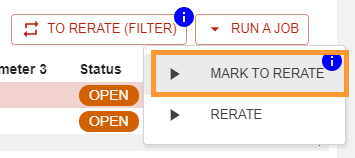
-
Once the job has processed the batch, the wallet operation will have been marked to rerate.
(status changed to to_rerate )

Rerate wallet operations
Now that wallet operations have been marked to rerate, we will actually rerate them.
You can either:
-
wait for a scheduled rerating job to run
-
run the rerating job from the main wallet operations page:
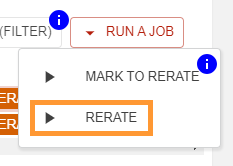
-
a dialog will pop asking which marked wallet operations you’ll want to rerate:
(all, those from a batch, those not from a batch)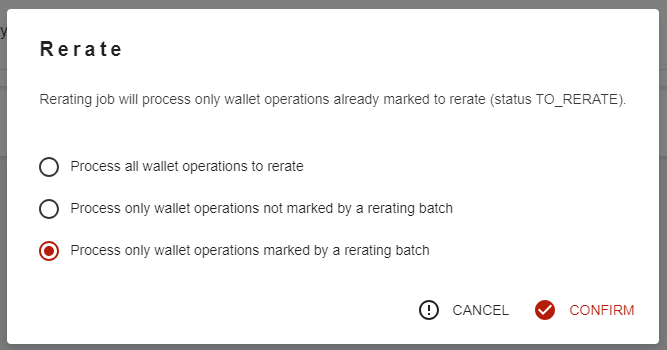
-
-
run the rerating job from the rerating batch tab to rerate wallet operations from selected batches:
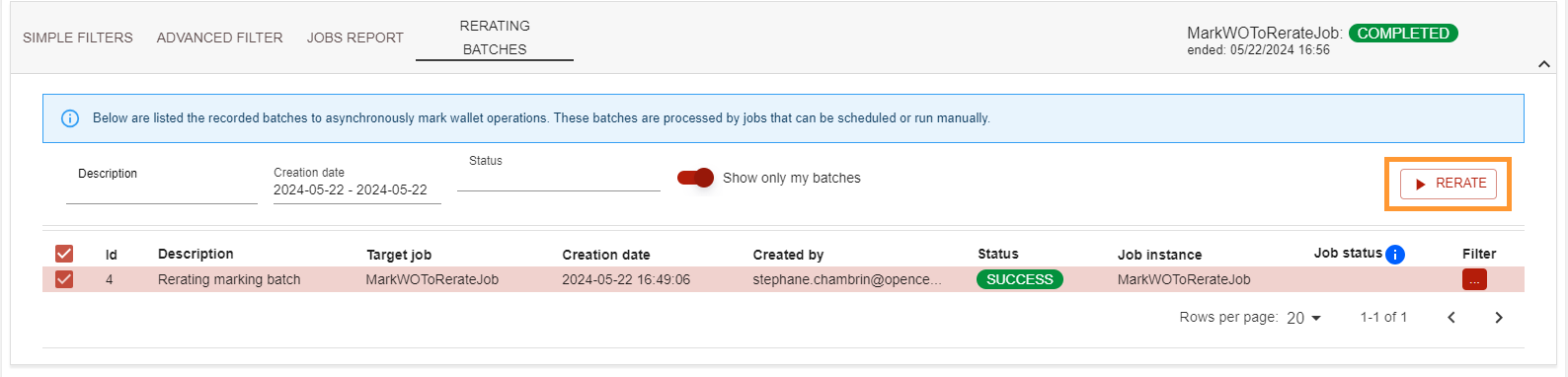
-
after the job has completed its task, the marked wallet operations are rerated.
You can see the “old” wallet operations with status RERATED and the new one with status OPEN, ready to be processed.

High performance rerating jobs
With version 16.0, a new set of rerating jobs have been added, with increased performance.
As of version 17.0, Portal launches these new jobs.
The rerating process has been divided into 2 jobs:
-
RatingCancellationJobwill take all wallet operations marked to rerate, cancel all wallet operations linked to theses marked items (recursively including linked discount and triggered items).
This job creates materialized view to speed up the second step of the process -
ReRatingV2Jobwill make use to of the previously created materialized views and actually rerating the events