From the billing runs list, you can access the details for a given billing run by clicking on the line.
This details page is where you can review and process your billing run.
The page is organized around foldable sections.
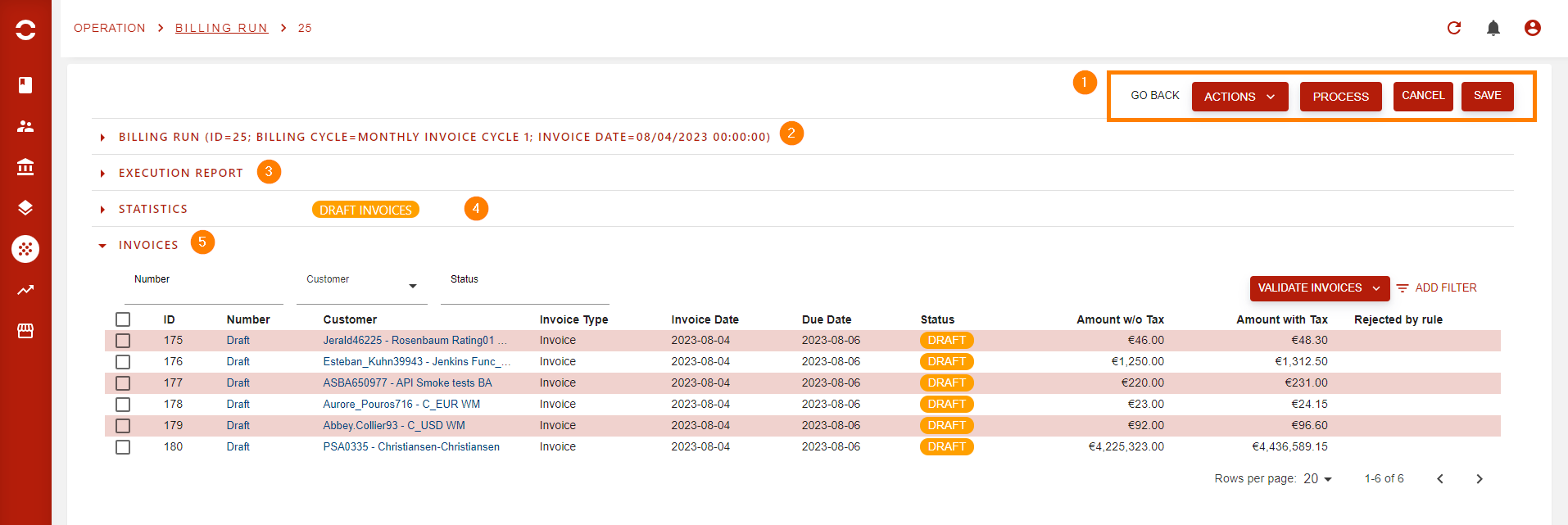
Actions bar (1)
Here you will find actions that affect the hole run.
The list of actions will differ depending on billing run status.
|
Action |
Description |
|
|---|---|---|
|
1 |
Go back |
Goes back to previous page |
|
2 |
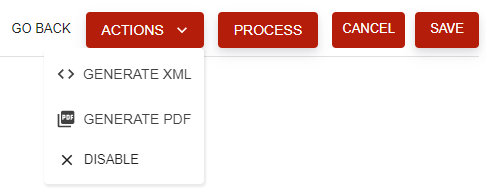
Actions |
A menu-button to show additional actions |
|
3 |
Generate XML |
Generate XML for all invoices in the run |
|
4 |
Generate PDF |
Generate PDF for all invoices in the run |
|
5 |
Disable / Enable |
Will disable or enable billing run
|
|
6 |
Process |
Moves billing run to the next step in the workflow
|
|
7 |
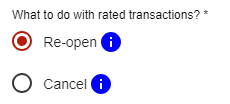
Cancel |
Cancel the billing run.
|
|
8 |
Save |
Save the billing run. Actually after a run has been created, you can only change it’s description. |
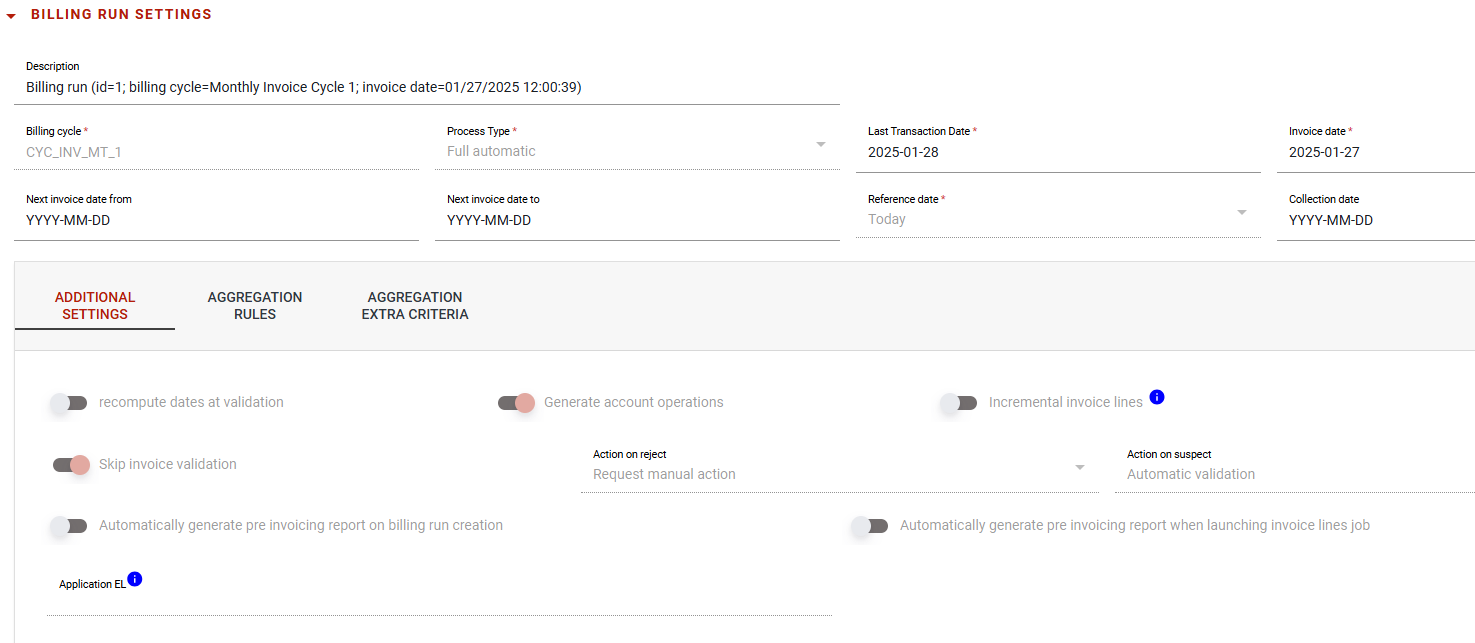
Billing run configuration (2)
When folded, it show the billing run’s description.
This description is auto-generated when creating the run, but you can edit it here.
(actually, it is the only editable field after creation)
For details on other fields and aggregation settings, please check Create a cycle billing run and Billing cycle.
Execution report (3)
This section shows jobs execution status and report for all jobs related to this specific billing run.
-
A global status, visible even when folded, indicates if a job is running or if there’s an error.
-
The execution history shows all job executions for the run. Log can be consulted via a popup, when available.
-
Additional indicators can show up on action buttons.

Statistics (4)
See Billing run pre-invoicing report for details.
Invoices (5)
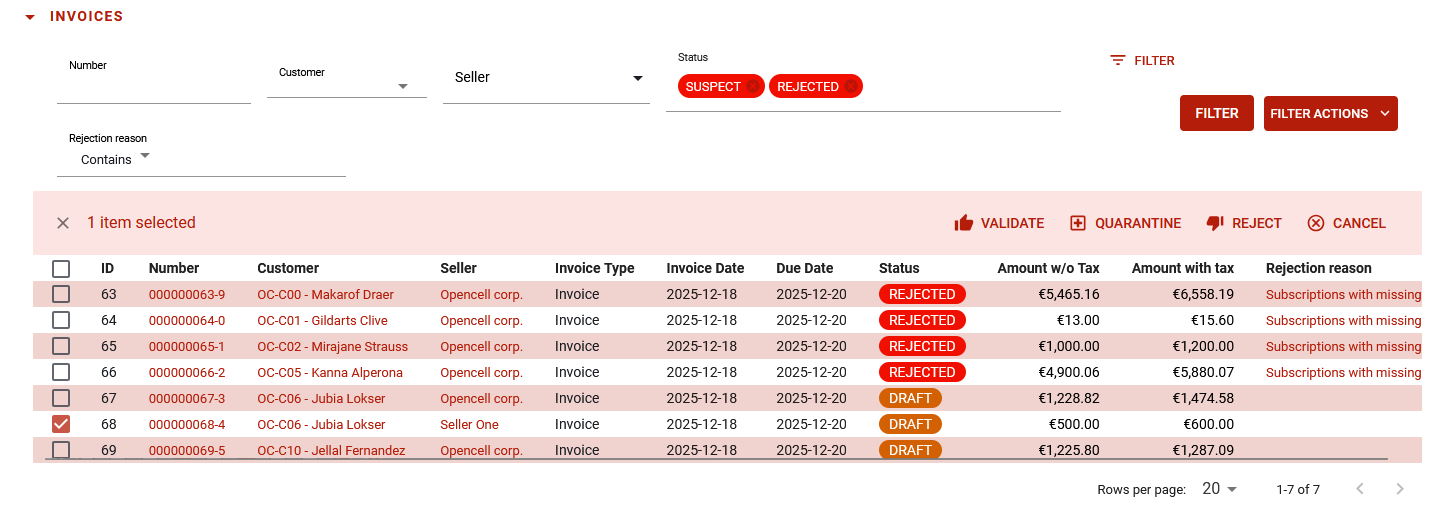
This section, visible only invoices have been generated, lists all invoices produced by the billing run.
You can:
-
search for specific invoices using a variety of filters
-
view a specific invoice by clicking on the list to perform unitary checks and actions
-
validate, quarantine, reject, or cancel a selection of invoices
-
validate, quarantine, reject, or cancel invoices corresponding to a given filter
-
for rejected rejected invoices, you can see the rejection reason