
To provide further flexibility Opencell allows to create exceptional billing run, not linked to a Billing cycle.
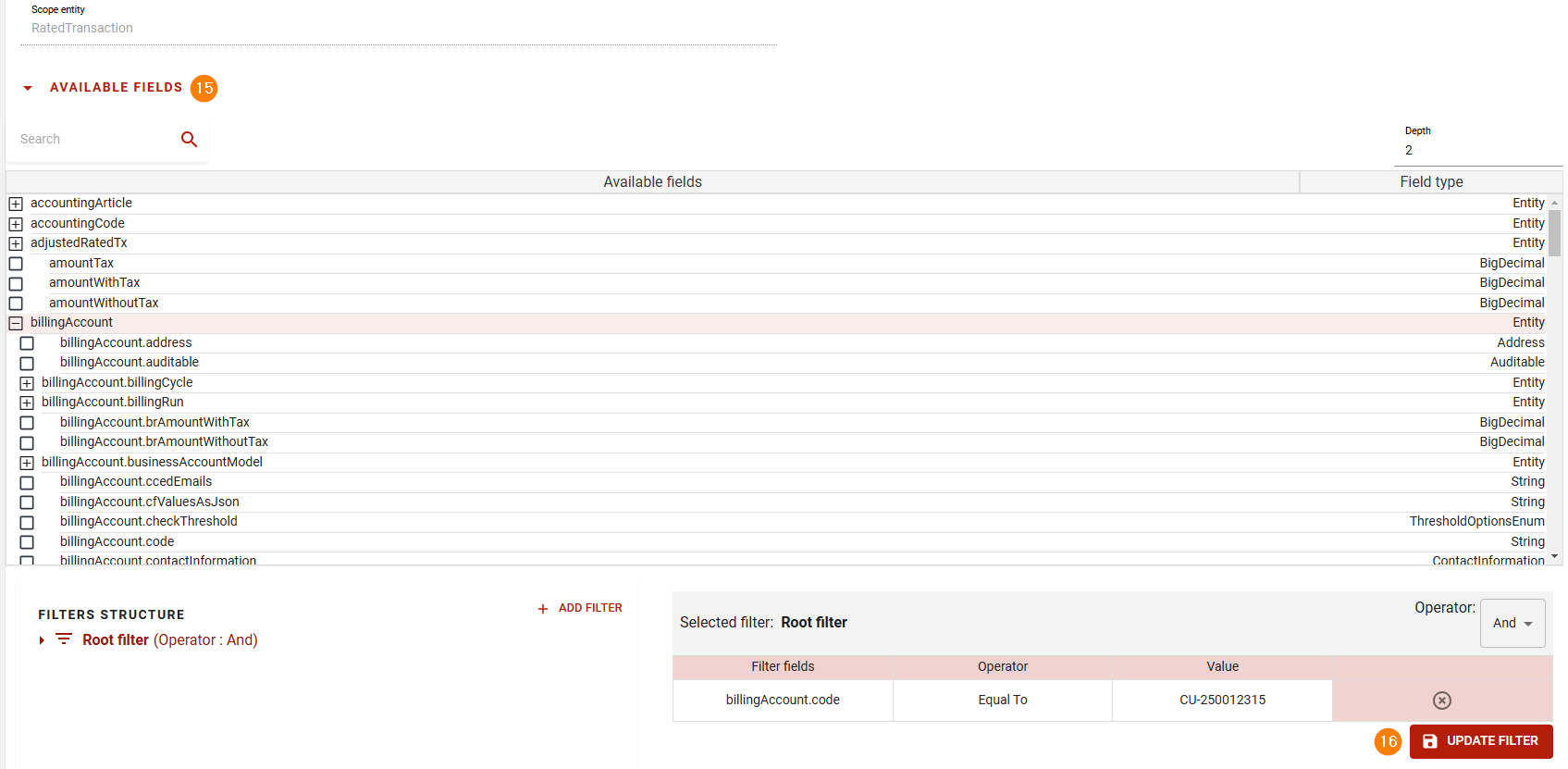
This feature allows to select which rated elements (Rated transaction) will be invoiced using a filter similar to those used in Query tool or Generic query API.
All that is presented here is of course also available through API.
Please refer to technical documentation for more information.
Exceptional billing run creation is accessible Flexible Portal in Administration application under “Operations” / “Billing run” / “Create” / "Exceptional run”:
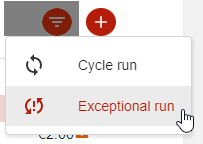
This will bring up a new page where you’ll be able to configure your run:
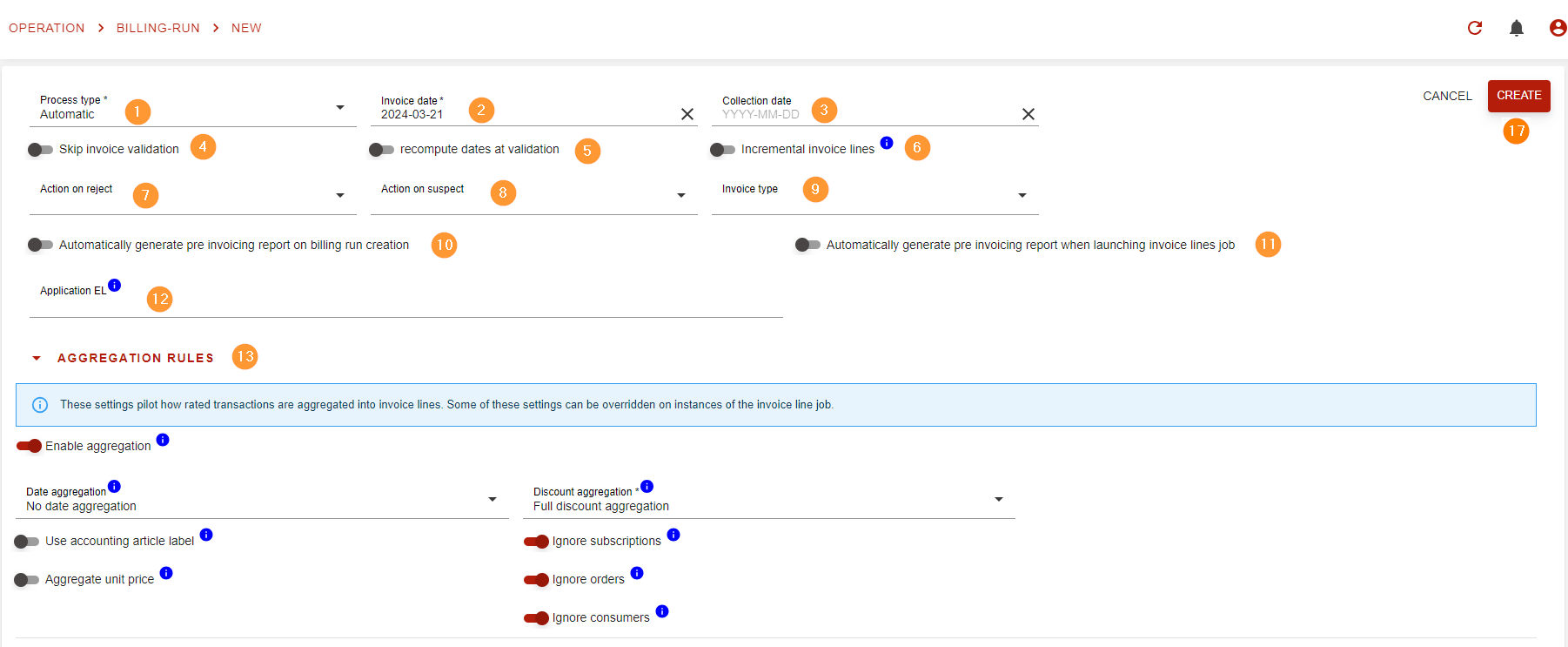

|
Field |
Mandatory / optional |
Description |
|
|---|---|---|---|
|
1 |
Process type |
mandatory |
You have 2 options here:
Of course, for both process types, invoice validation is performed and the run could land in a REJECTED status, unless mentioned otherwise. |
|
2 |
Invoice date |
mandatory |
Will be used to set the invoice date of invoices produced by the billing run.
|
|
3 |
Collection date |
optional |
An optional date to set the initial collection date on invoices. |
|
4 |
Skip invoice validation |
optional |
Turn this on to completely skip Automated invoice validation.
default: off |
|
5 |
Recompute dates at invoice validation |
optional |
Use if you expect a long delay between invoice draft creation and invoice validation. This will recompute due date and other automatically set dates when the invoices are validation by the run (not if there are validation manually) based on validation date. default: off |
|
6 |
Incremental invoice lines |
optional |
This will make the run into an “open billing run” (more info in Batch invoicing (Billing Run)) allowing to add new rated items before generating draft invoices. default: off |
|
7 |
Action on reject |
mandatory for “full automatic” |
Automatic action to preform when an invoice is rejected by automatic validation. Optional for “Automatic” process type.
Options are:
default: empty (Automatic process type only, equivalent to “Request manual action”) |
|
8 |
Action on suspect |
mandatory for “full automatic” |
Automatic action to perform when an invoice is suspected by automatic validation. Optional for “Automatic” process type.
Options are:
default: empty (Automatic process type only, equivalent to “Automatic validation”) |
|
9 |
Invoice type |
optional |
Allows to select a specific invoice type for generated invoices |
|
10 |
Automatically generate pre invoicing report on billing run creation |
optional |
A toggle to decide is you want the pre invoicing report to be generated when the billing run is created. |
|
11 |
Automatically generate pre invoicing report when launching invoice lines job |
optional |
A toggle to decide is you want the pre invoicing report to be generated automatically when invoice lines are added to the billing run. |
|
12 |
Application EL |
optional |
An expression to decide if the billing run must be processed.
|
|
13 |
Aggregation settings |
optional |
Here you can sett custom aggregation settings.
|
|
14 |
Additional aggregation criteria |
optional |
More aggregation criteria |
|
15 |
Available fields |
- |
The list of fields available to setup your filters |
|
16 |
Filters |
mandatory |
The filters to select the rated items to invoice |
|
17 |
Create |
- |
When you’re ready, hit the “create” button to create the new billing run.
|