
Opencell is not an accounting software however, as we are specialized in billing, we do have an impact on part of the accounting of a company. So following this logical evolution, we are currently working in adding various aspects in our Finance app that will allow you to easily integrate accounting elements from Opencell to your dedicated accounting soft.
In our solution, accounting entries are defined by Accounting schemes. These schemes can be configured by your team to reflect the accounting logic you have implemented in your organization.
Do not mistake Accounting entries and Account operations 😅 :
-
Accounting entries → Records a transaction from an accounting perspective
-
Account operations → Represents any events that impacts the customer account balance, this notion is specific to Opencell,
Accounting entries report
The report is accessible directly when you arrive on the Accounting entries page in the Finance app:
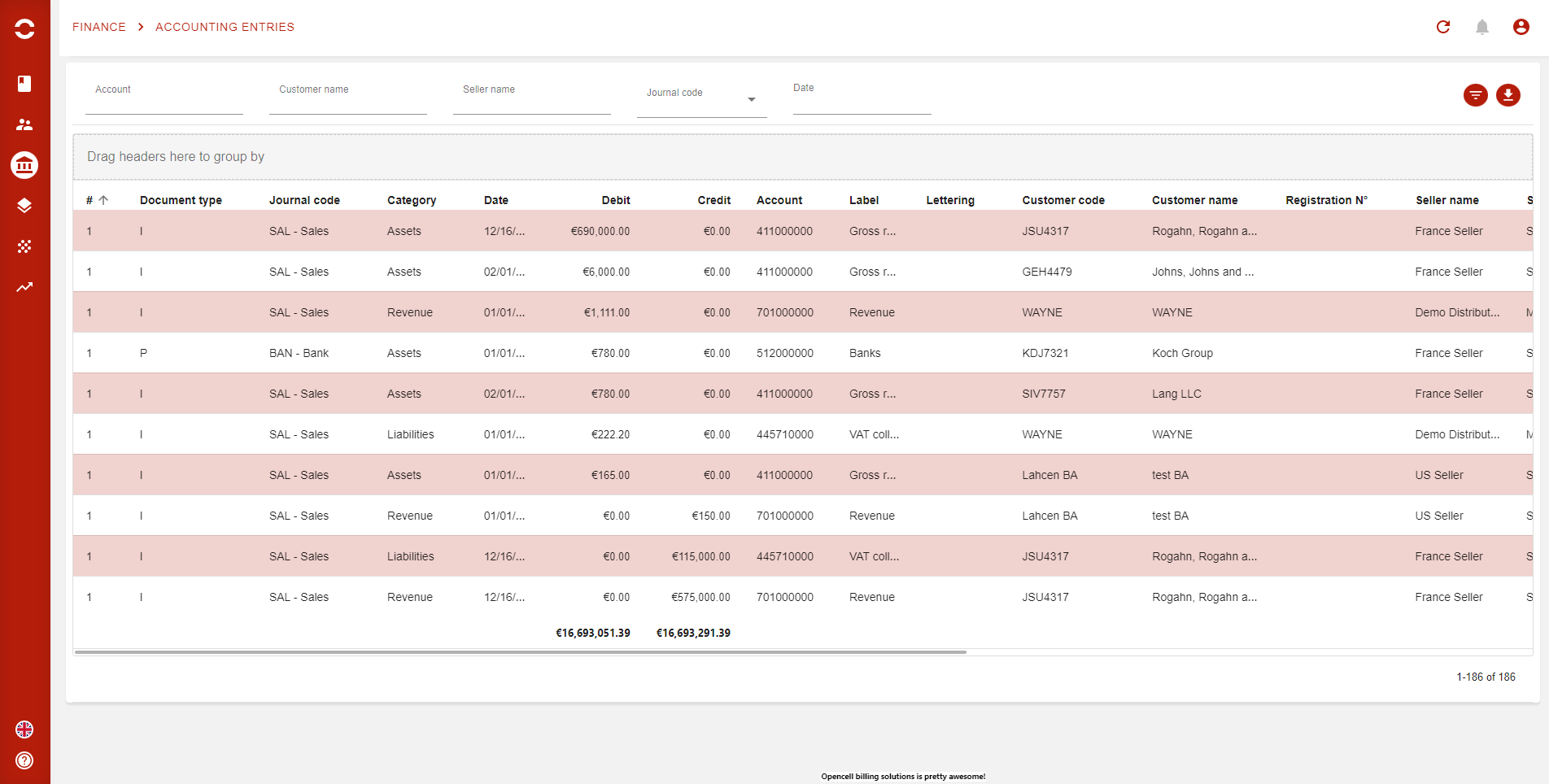
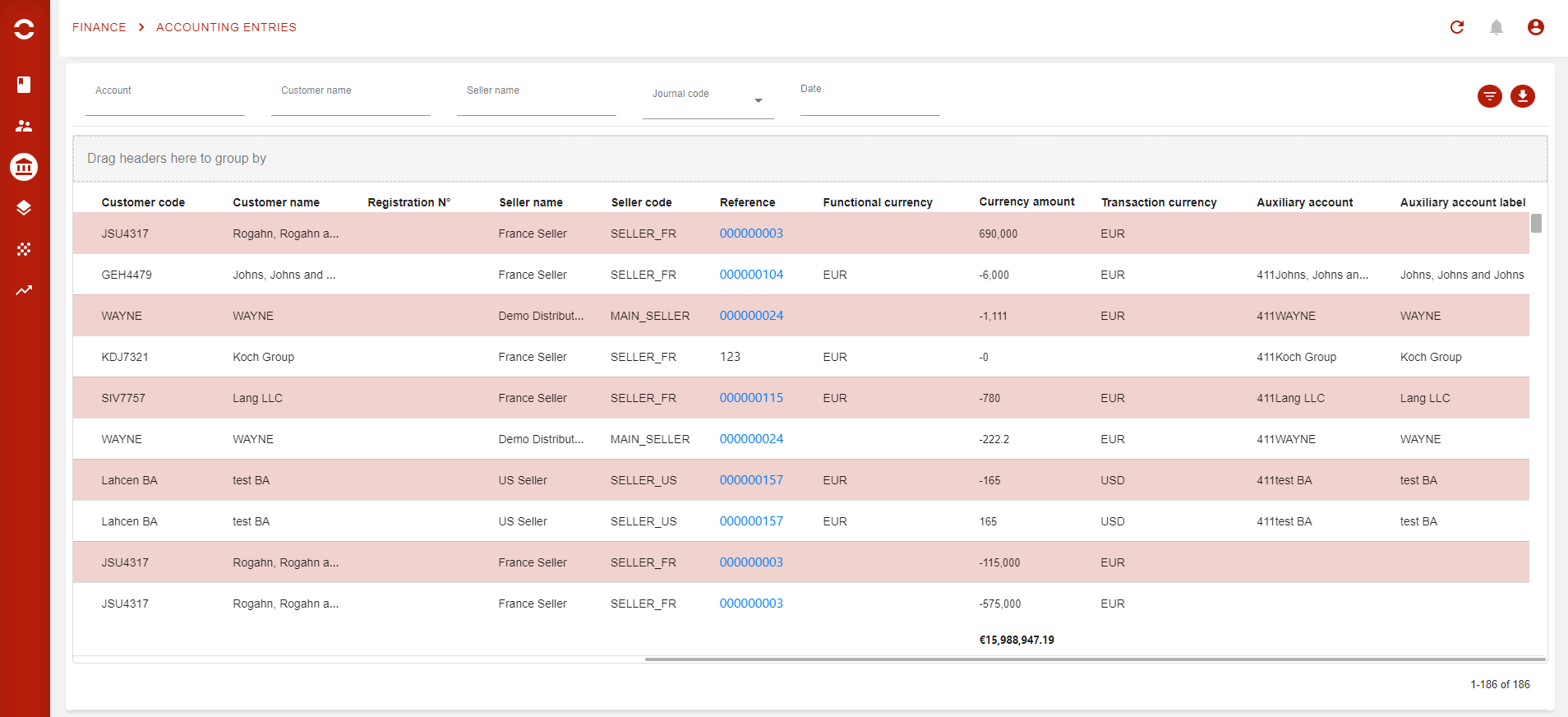
In this report are listed all Accounting entries that have been generated in Opencell (please not the print screen here is in two parts as the report is oversized in width 😉 ).
Here you will have over 20 columns that will give you thorough information for each entry, such as:
-
Journal code
-
Category
-
Date
-
Account n°
-
Customer account
-
Seller
-
Transaction currency
-
…
A new nice information now available on this report is the Lettering column. It allows you to directly see the link between two or more accounting entries. The link is a code generated each time two or more account operations are automatically matched together.
Codes are made of letters (from A to Z), and stars with one letter (A), then adds another letter (AA) and so one (AAA, AAAA…).
Please note that this will only be the case for invoices and payments for now.
Note that this report is in the Functional currency of your Opencell environment.
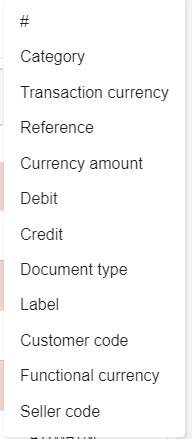
A number of filters are also available by default at the top of the report page, and other filters are available via the :filter: at the top right corner of the report. You will have:
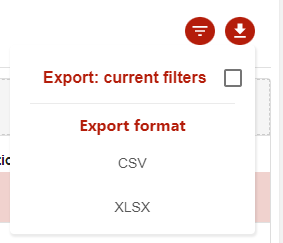
Finally, you can export your report via the :Download: button (upper right corner of the report):
Since V13, all accounting entries are persisted, which means no compilation/calculation are required each time you need to check the data 😉