
Once you have finished the initial installation, there is not much to do before starting using Opencell.
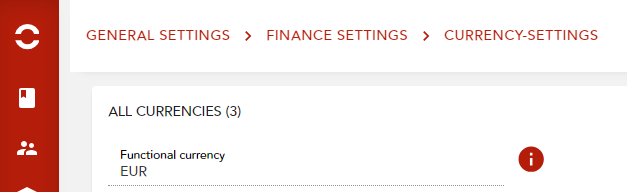
One step that has much importance is to set the functional currency for your tenant, this is the one information you won’t be able to change later.
For this you have to go to GENERAL SETTINGS / FINANCE SETTINGS / CURRENCY-SETTINGS
Activating features
Some features are activated by default, other not.
You can manage this by going to GENERAL SETTINGS / APPLICATION SETTINGS / OTHER-SETTINGS
For many of them, you will be able to later deactivate them.
Configuring Opencell to fit your activity
Seller
Opencell can manage multiple sellers, but you have a default one. It is the one that will sell to your customers.
You can define it in the menu SELLERS / SELLER. All the information that you will define here will be used to generate invoices. It is where you define your registration informations, VAT number, addresses, default communication language…
You can define sequences and custom invoice sequences there to personalize your PDF generation.
The default dataset includes a Main seller, and one for France and one for USA.
Configuration
The main menu can be found in GENERAL SETTINGS / GENERAL SETTINGS
This encompass:
-
Articles: to set up the invoices/credit note type an accounting number
-
Account operation types: to set the accounting and contra codes for accounting
-
Accounting periods: to set and define accounting periods and sub periods
-
Charts of account: to define your company’s accounting codes
-
Customer balances: to define the composition of the customer balance
-
Currency: to define which currency will be managed on the system and their exchange rate
-
Payment: to manage payment and payment reject settings
-
Taxes: to define taxes, accounting codes and possible exemptions
-
Contact categories: to define categories of contacts
-
Portal message: to define a message available to all users, such as schedules maintenance…
At this time, some initial set-up parameters still exist only on the “blue portal”:
-
rating settings (rounding…)
-
trading countries
-
billing calendars
-
invoice types
-
triggered EDR
-
payment gateways
-
workflows
-
custom jobs
-
channels
The default dataset includes a monthly billing cycle.
Configuring Opencell catalog to sell your offers
The next step would be to configure the catalog to set up your offers. You can do that from the Catalog menu.
You will have the possibility to create products and incorporate them within an offer, and define what is optional, mandatory and the quantity by default or maximum.
Products will hold the prices and conditions. See the concepts of catalog to learn more !
In the catalog manager, you can configure your catalog parameters:
-
Medias: collaterals to use on the catalog
-
Product families: hierarchy of families to organize your catalog
-
Tags: tags to put on catalog element for easy sorting and display
-
Tag categories: groups of tags
Plus individual elements of catalog configuration.
And after ?
Now you’re ready to sell and you can bring in customers !