Subscriptions are one of the pillars at Opencell as it represents the recurring revenue once the deal was made.
In your environment, Subscriptions represent the contract that you have, defining the service(s) for which your company will provide an access for a defined period of time.
Let’s now see the subscription in the Quote/Order/Subscription process.
Subscription after order validation
Once a user validates an order, this will automatically generate one or several suscriptions. This depends on the number of order lines you have in your order. An order line represents an offer, and each offer will generate one subscription as their length can change, as well as their renewal conditions can differ.
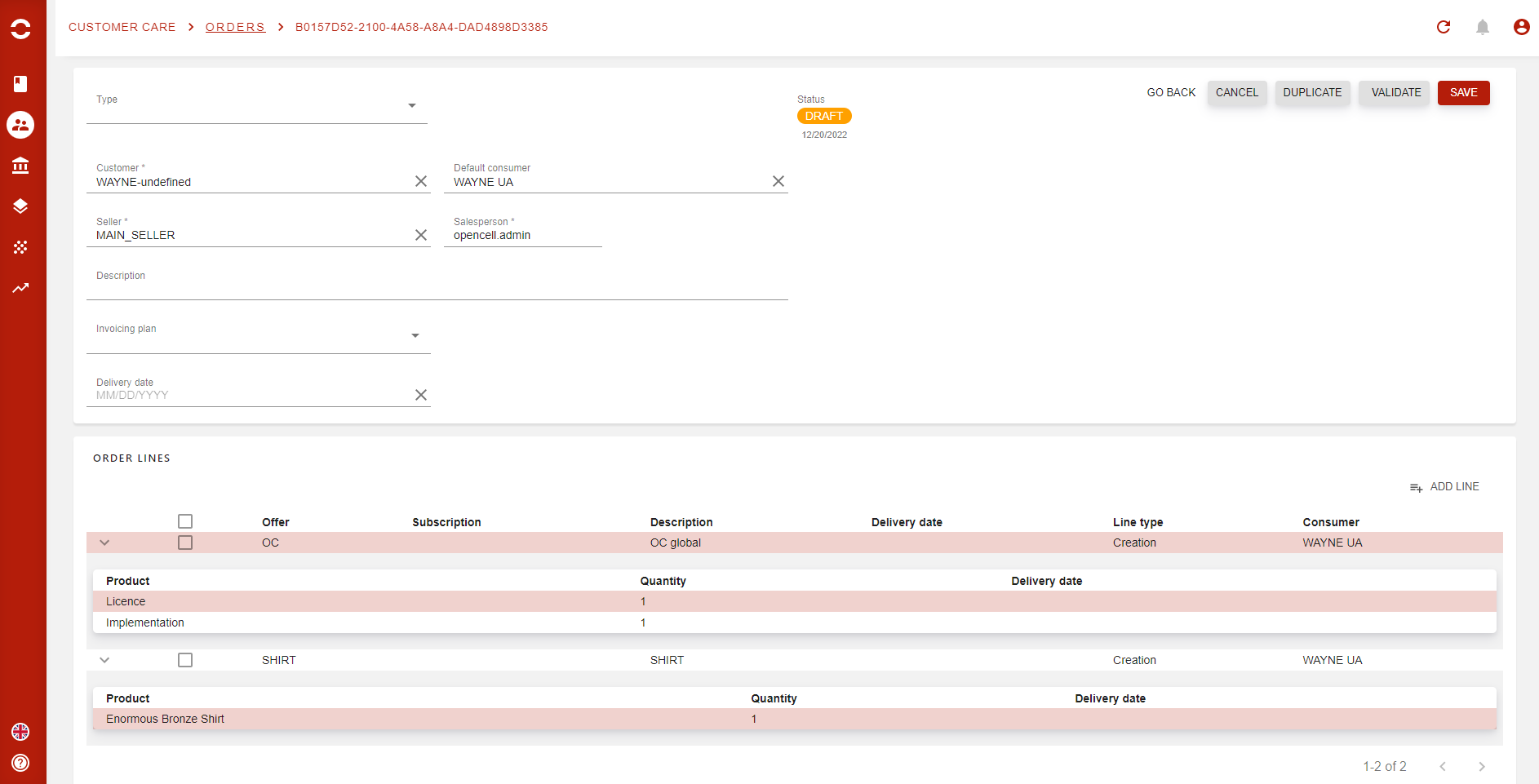
In our example above we have two order lines. Let’s validate the order now:
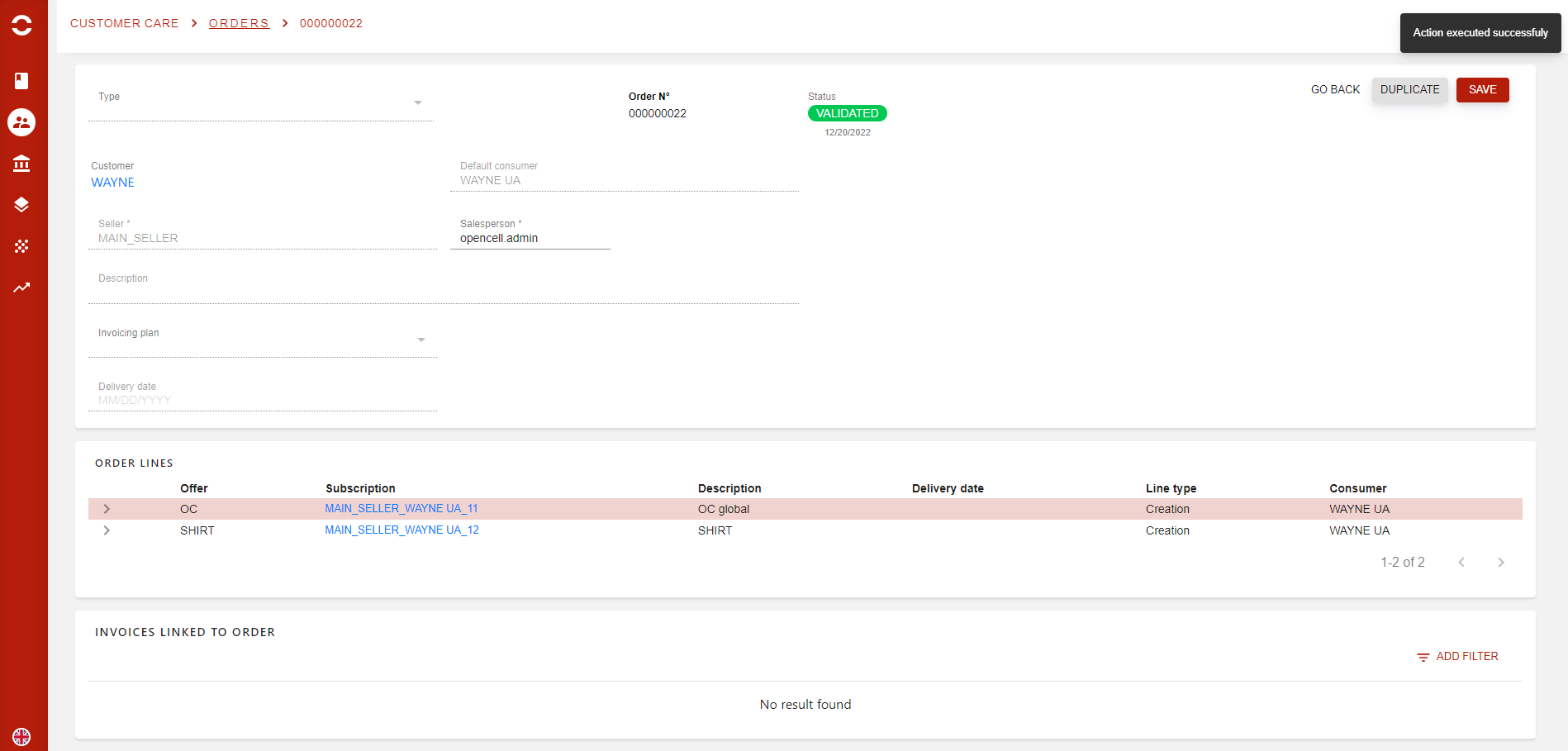
And both subscriptions for both offers have been automatically generated.
Now let’s have a look at the Opencell subscription (the first one).
Note that you can click the subscription nae directly to get to it
The newly created subscription
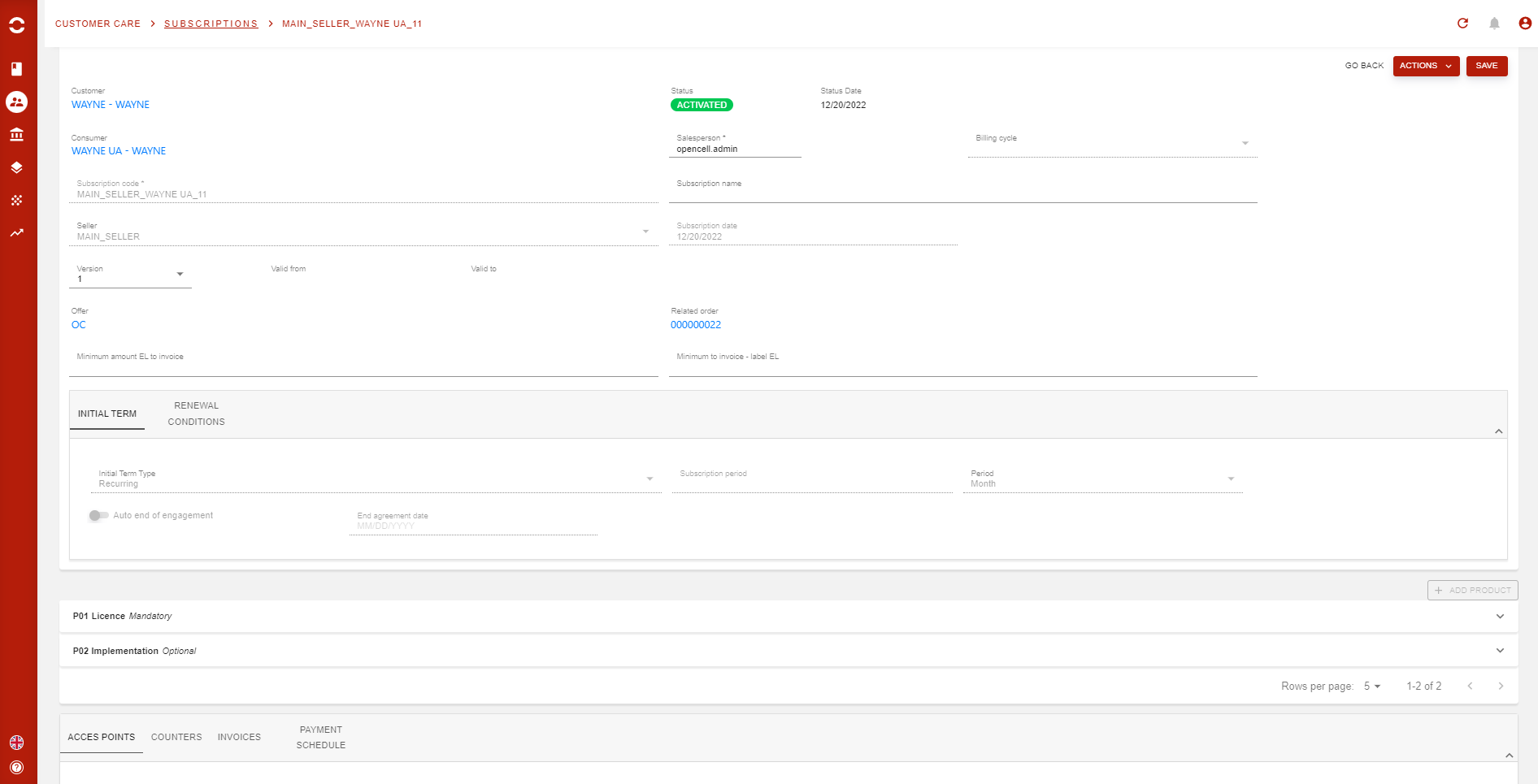
As you can see from the snapshot above, the subscription has been created directly in an ACTIVATED status.
However a few status actually exists for subscriptions:
-
Instantiated →
-
Activated →
-
Paused →
-
Terminated →
A lot of information is available on this page, so we will subdivise them into four sections:
-
General section
-
Tab section 1 // Renewal section
-
Products section
-
Tab section 2
We will now zoom in to each section
General section
A few global information are available in this section that are used to manage at a high level the subscription itself.
Here’s a quick overview of the main fields we have in this section:
-
Customer → Customer linked to subscription
-
Consumer → Consumer aka User account that will use the services linked to subscription
-
Status → Subscriptions' status
-
Subscription code → Code that is either auto-generated or that you can edit when creating manually a subscription
-
Seller → Which seller is linked to the subscription
-
Version → Version of the subscription, each modification to the subscription’s products will create a new version of the subscription
-
Salesperson → The person in charge of the subscription, as well the one who initially created the subscription. This field can me modified by specific profiles
-
Billing cycle → You can set a specific billing cycle for a given subscription, which will be different from the one of the Customer (or Billing account).
Upper tab section
Two tabs are available here, and will allow you to manage the subscriptions initial term and renew conditions. All information that you will find her in both tabs come from the same exact tabs in the Commercial offer page.
Here’s a focus on the section
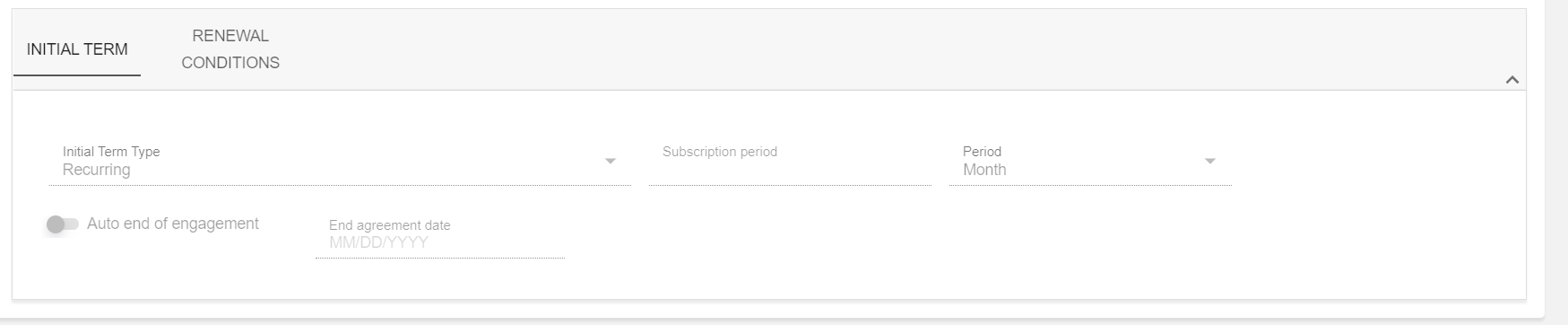
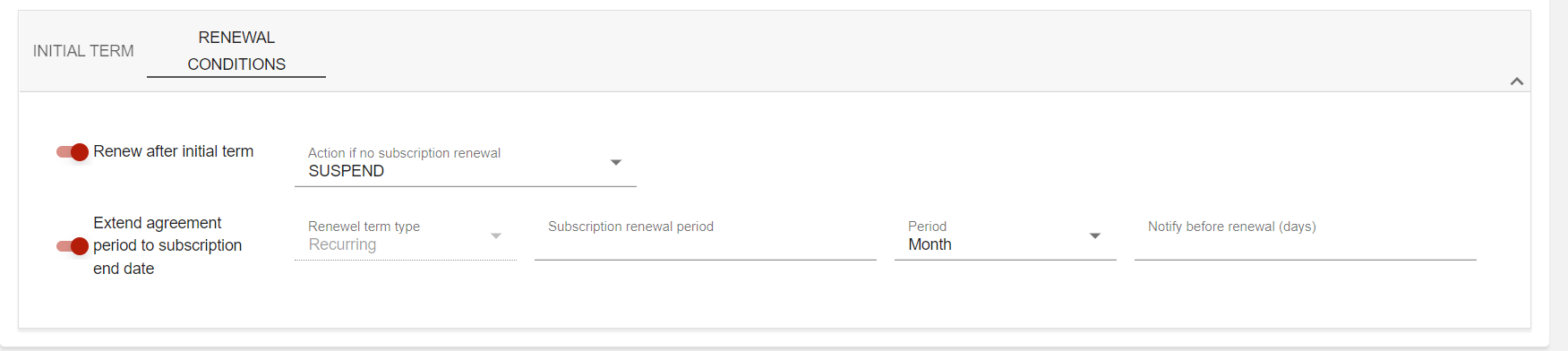
In our example here, since the subscription was automatically generated in an Activated status, then Initial term cannot be modified. However, if you were to create a new subscription manually, you would then be able to modify the information 🙂
Products section
Here is where a lot is actually managed as in Opencell products get a specific treatment when a subscription is created:
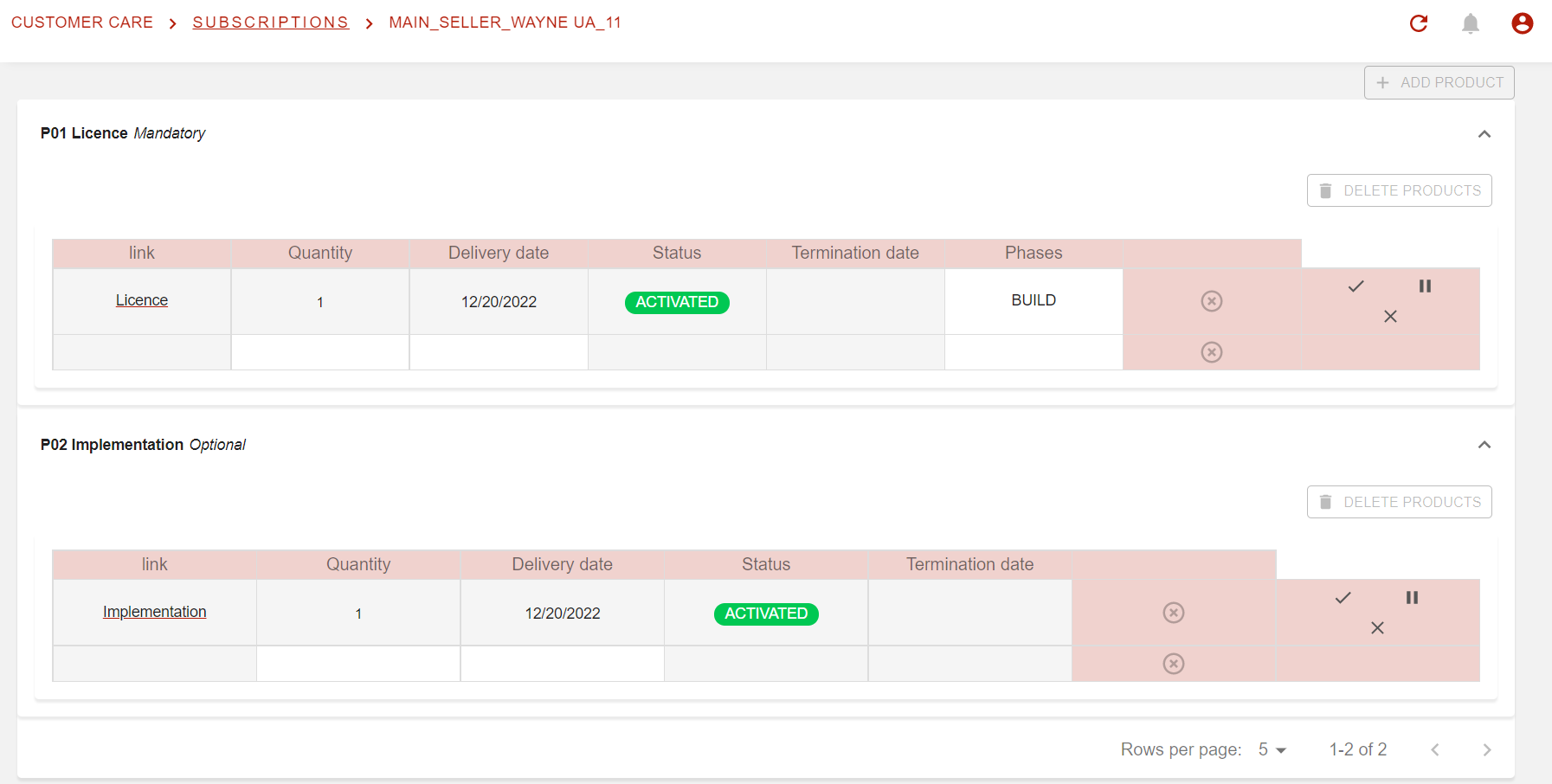
For each product linked to a subscription, an object will be created called a “service instance”. This new object will be a duplication of the product that your client has bought, with all its specific information (attribute values, counters, custom fields…).
Below you have the products high level info, with the link to the service instance, then quantity, delivery date…
At the far right part of each product line, you will be able to Activate, Pause or Terminate any service instance.
Multi instantiation:
Since Opencell V.13, it’s now possible to have several time the same product in the same subscription, via the multi-instantiation feature. This might seem like an easy feature, the amount of work to take under consideration a great number of specific cases made it a convoluted new option. However, we are happy to say that you are now able to manage several services instances directly onto your subscription, keeping the same management logic that is described in this page.
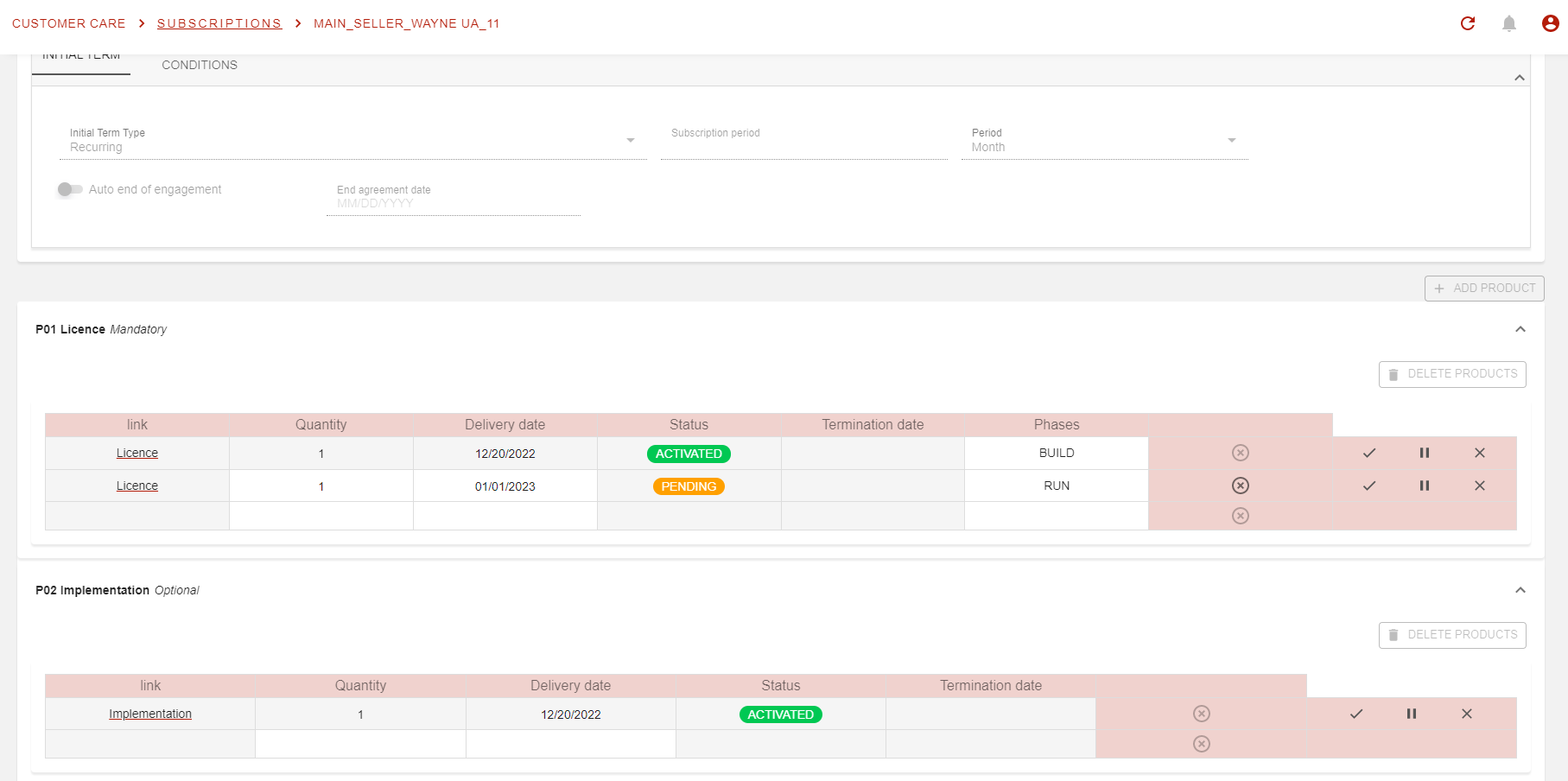
Multi service instances management will allow you to add new product lines to an existing one, and set it with a specific configuration based on a large variety of options such as:
-
Attributes
-
Delivery date
-
Initial terms
-
Renewable conditions
-
…
In the section below, we will go into the service instance management page.
Service instance management:
To access the service instance page, click in the product name at the beginning of each product line in the Products section of the subscription (header reads “Link”). You will then arrive on the following page:
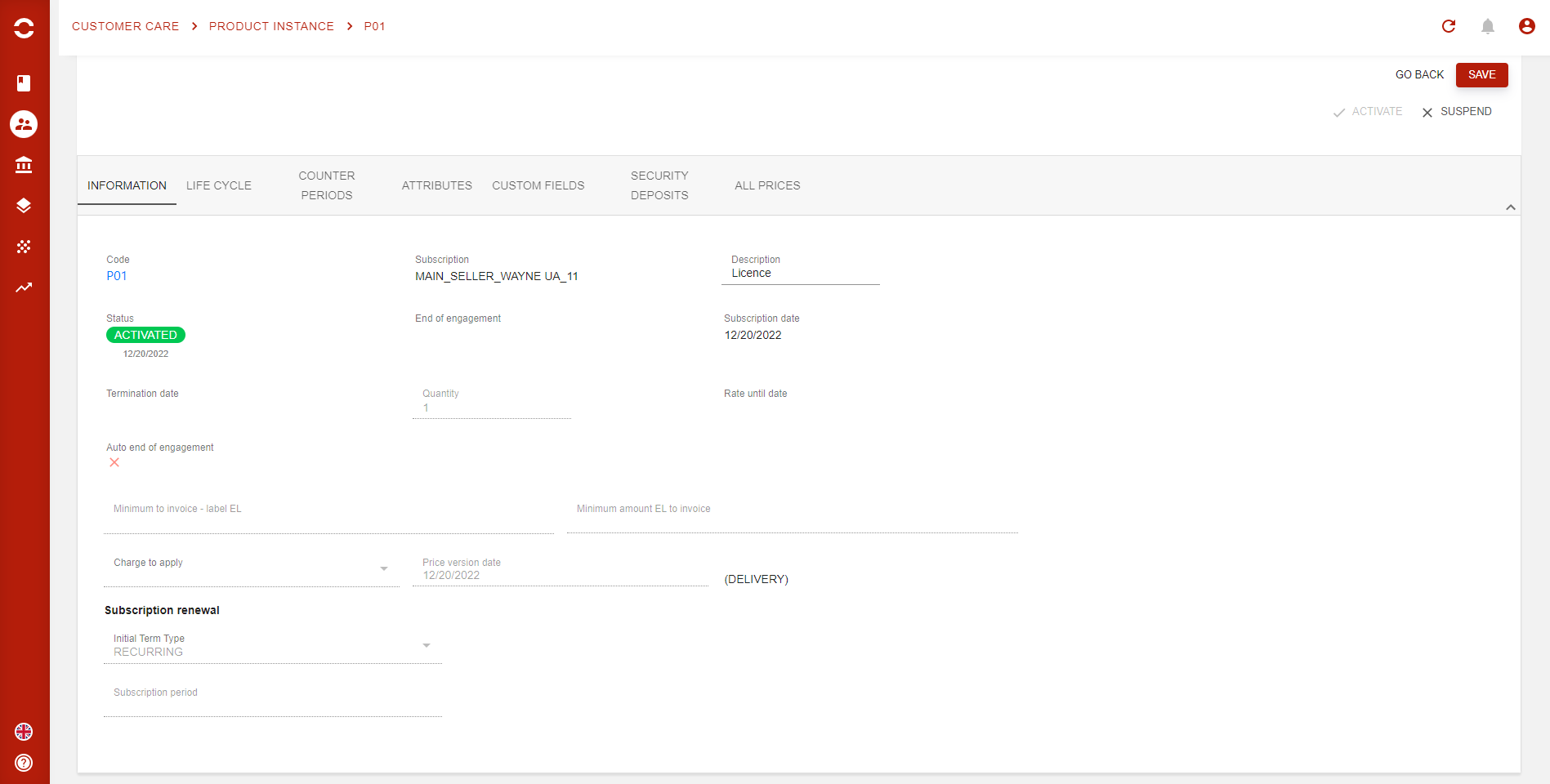
Several tabs are present here, so let’s see each of them:
-
Information:
Global information linked to service instance. Here will be some key fields to help you have a granular mangement of your services instances. Main ones are:-
Initial term fields
-
Renewal fields
-
Price version date
-
Subscription date
-
-
Life cycle:
A nice and simple list view to see the history of all status changes and by whom, for each service instance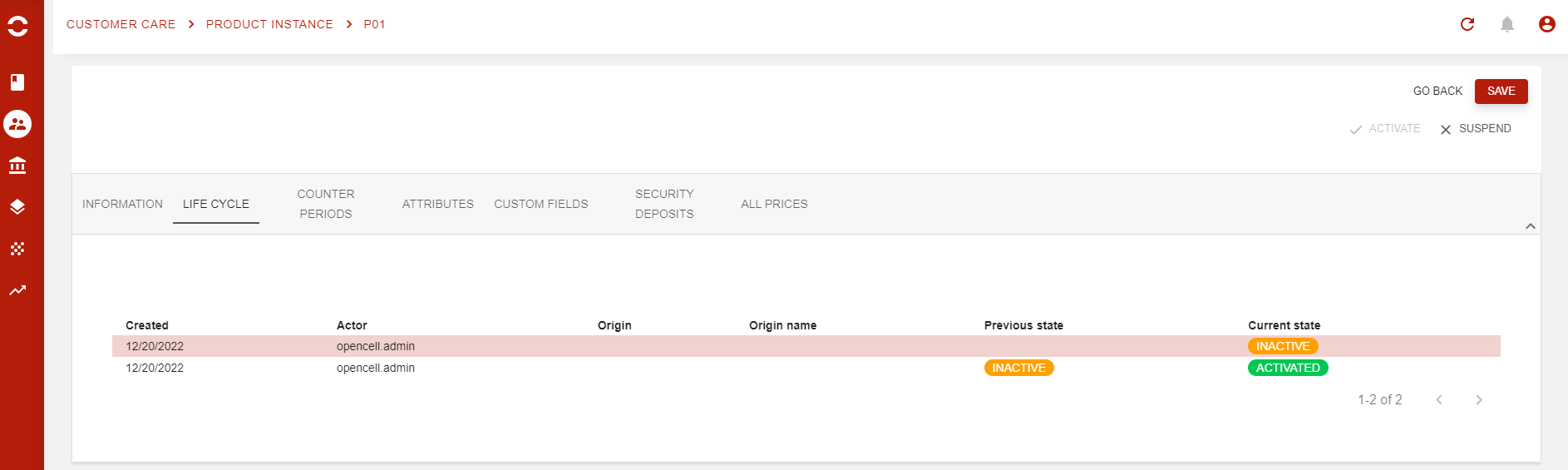
-
Counter periods:
Counters can be used depending on the business you are running. These are mainly used in Energy or Telecom industries. Example that all can rely to, the amount of data you are allowed in your phone subscription. Well to keep track of what you used, your operator set a decrement type counter.
Then, each time you use data, the information is sent to the counter instance of your service instance (yes keep up with me, it’s pretty logical in the end).
A counter template is linked to the charges that you manage in the Catalog app, however their creation is done in the admin portal (blue one).
Once a product is instantiated (copied like) to a service instance, then the counter are also instantiated into Counter instances, that you will find here.
This allows to have a specific counter, or even several, linked to one service instances.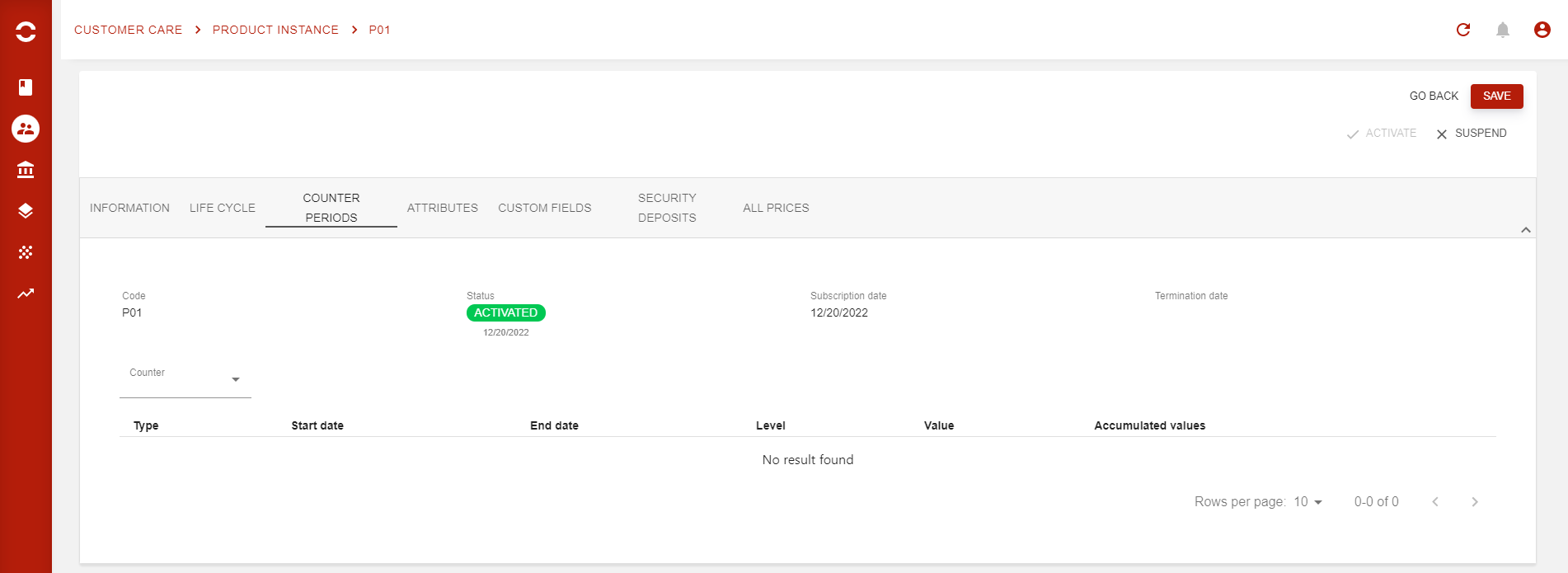
Quick reminder: You can link one decrement type counter to a charge, but you can link
n incremental counters to the same charge 😉
In this tab, you will use the Counter drop-down field to see all counter instances linked to your service instance. You will only see the counts of the current period you are checking, as counters are reset based a period that is defined on the Counter template.
-
Attributes:
Here are displayed all attributes linked to your service instance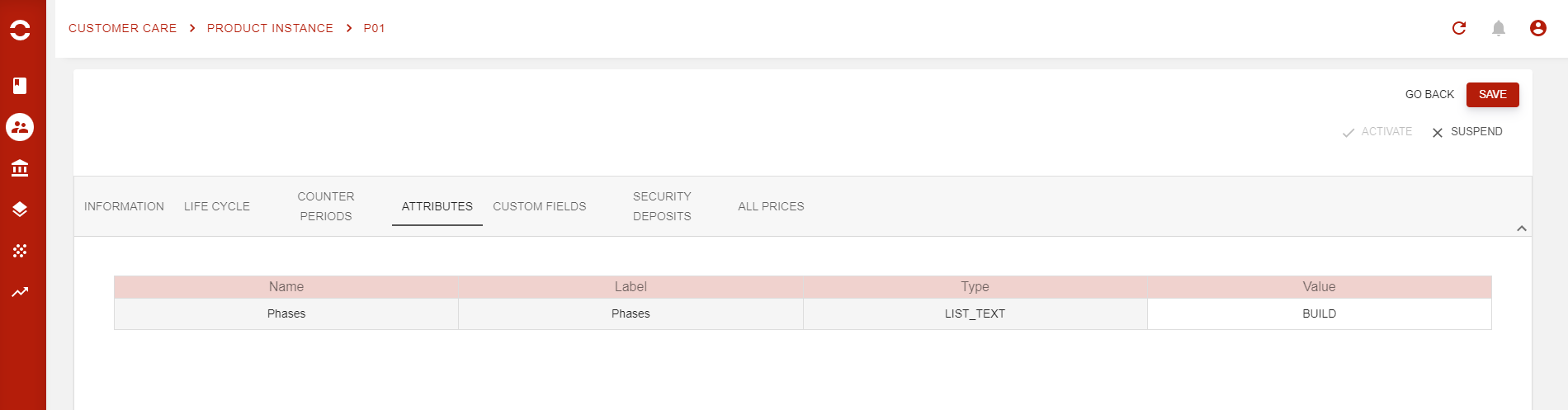
-
Custom fields:
As for almost any object in Opencell, you are able to add some Custom fields. in this case, fields added to Service instance objects -
Security deposits:
For some businesses, security deposits are more than mandatory when managing subscriptions. This displays the linkes SDs -
All prices:
Finally, our latest addition to this very complete page, the price list page that is applied to your service instance. A the latest can actually have several Charges, that means it can have several applicable prices at any point, and even more when checking throughout time (think Price versions for each charges 🙂 ).
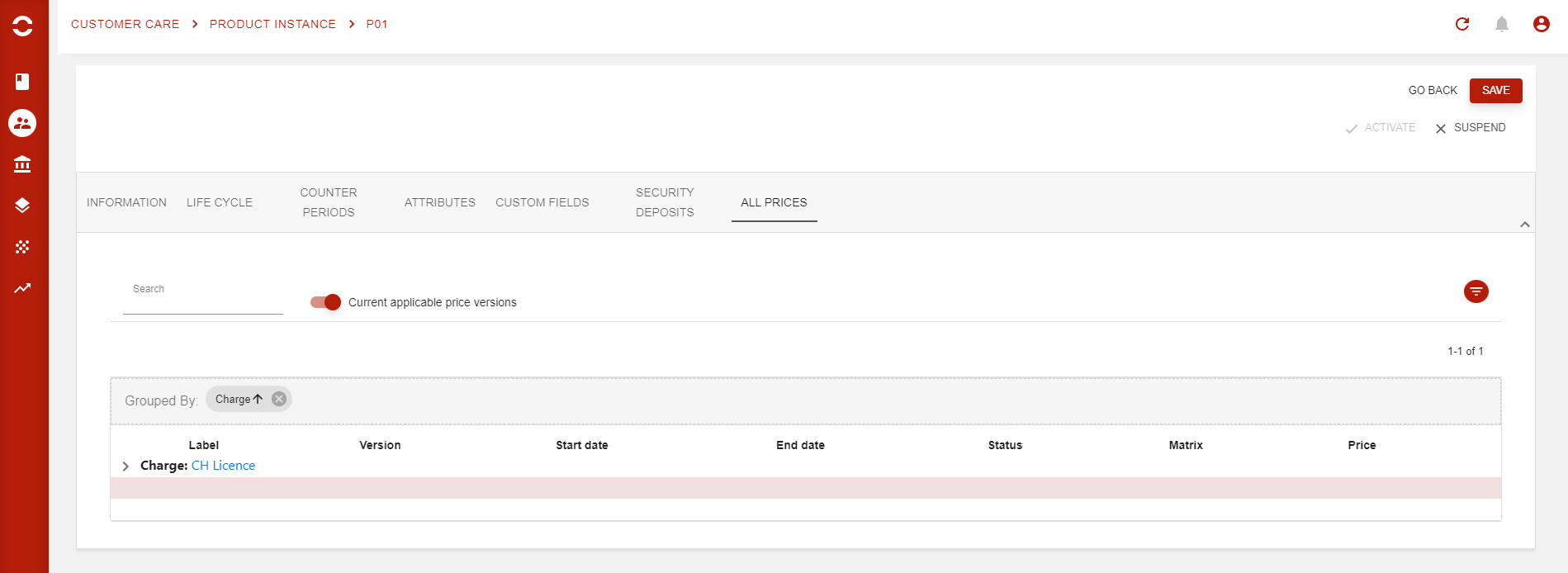
In our example here, our service instance only has on charge. However, the default list view displays all applicable Price versions when user accesses the page. Great bonus here, you are able to access the charges page from here to then see all linked Prive versions 🥳
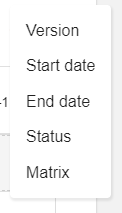
And do not forget to use the :filter: button when you have lots of charges linked to one product.
Lower tab section
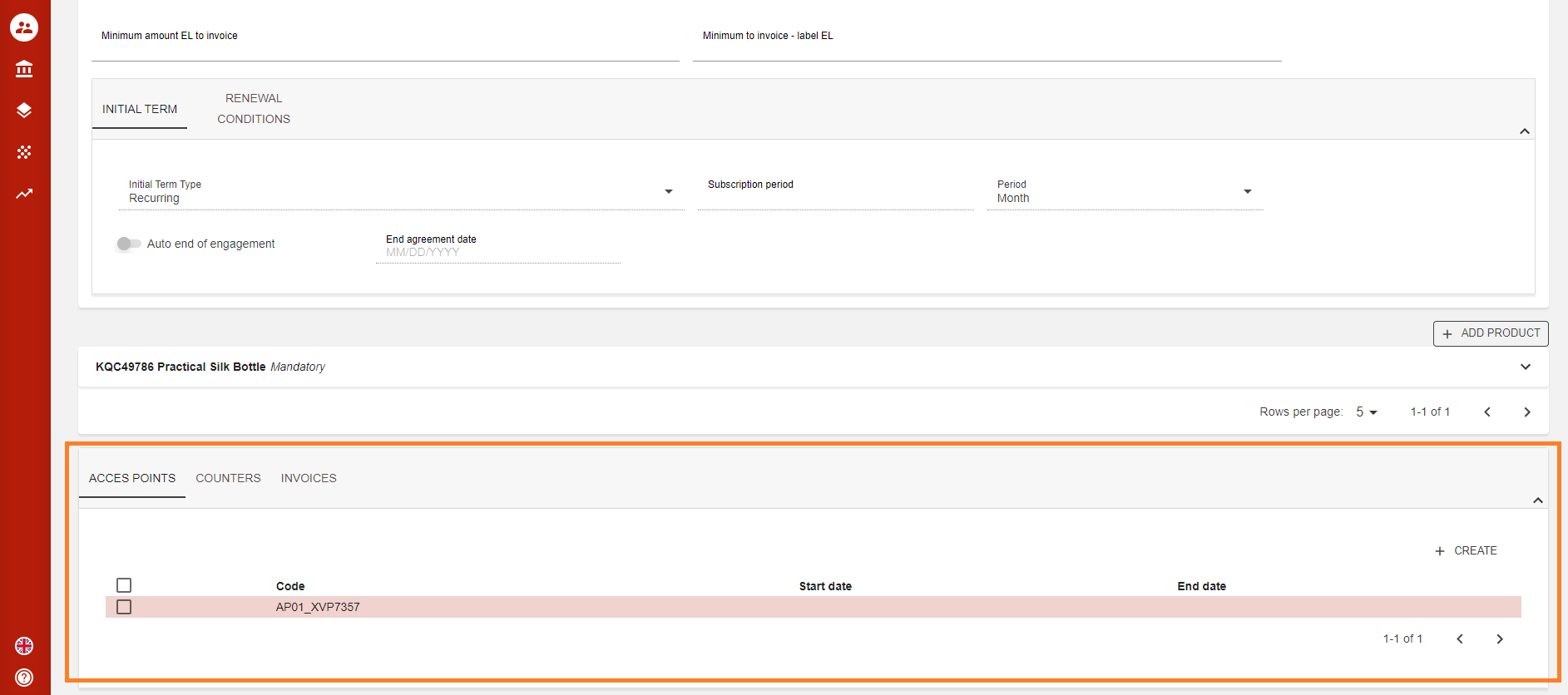
At the very bottom of each subscription, you will now find 4 tabs with various information.
Access points
The first tab will display all Access points created for that particular subscription. Do not forget an access point is unique, and is the link between the external systems and Opencell. It only gets events from events generation systems.
From this tab, you will be able to create or delete the access points linked to the subscription.
Counters
This tab will display all counters that you or your integrator will create in the Admin portal (blue portal). Counters are used to count consumptions.
Invoice
Finally! The tab that displays all invoices generated from the subscription itself. Of course you can find them in the Invoice tab on the customer 360 view, but now, no need to filter, just go into this tab, they’re one click away.

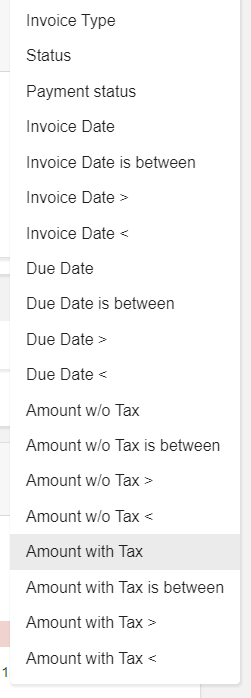
You can easily use the search bar for invoice numbers, or hit the :filter: button with all available filters as below: