
Introduction
In Opencell, you will now be able to go further in the accounting management directly in Opencell.
Though Opencell is not an accounting solution, we do believe that some “basic” notions should be integrated in our software to allow users to go further with our solution.
This feature is a great example of the direction Opencell is going, as it is not mandatory, and is a feature organizations like yours can activate at any time.
Accessing the settings page
If your organization decides to define fiscal year in Opencell, and even use Accounting periods, then you will have to log yourself into your OC environment.
Once you are logged in, go to the Finance module using the menu bar on the left side of the screen, then go to “General settings” → “Accounting period settings”.
You arrived on the following page:
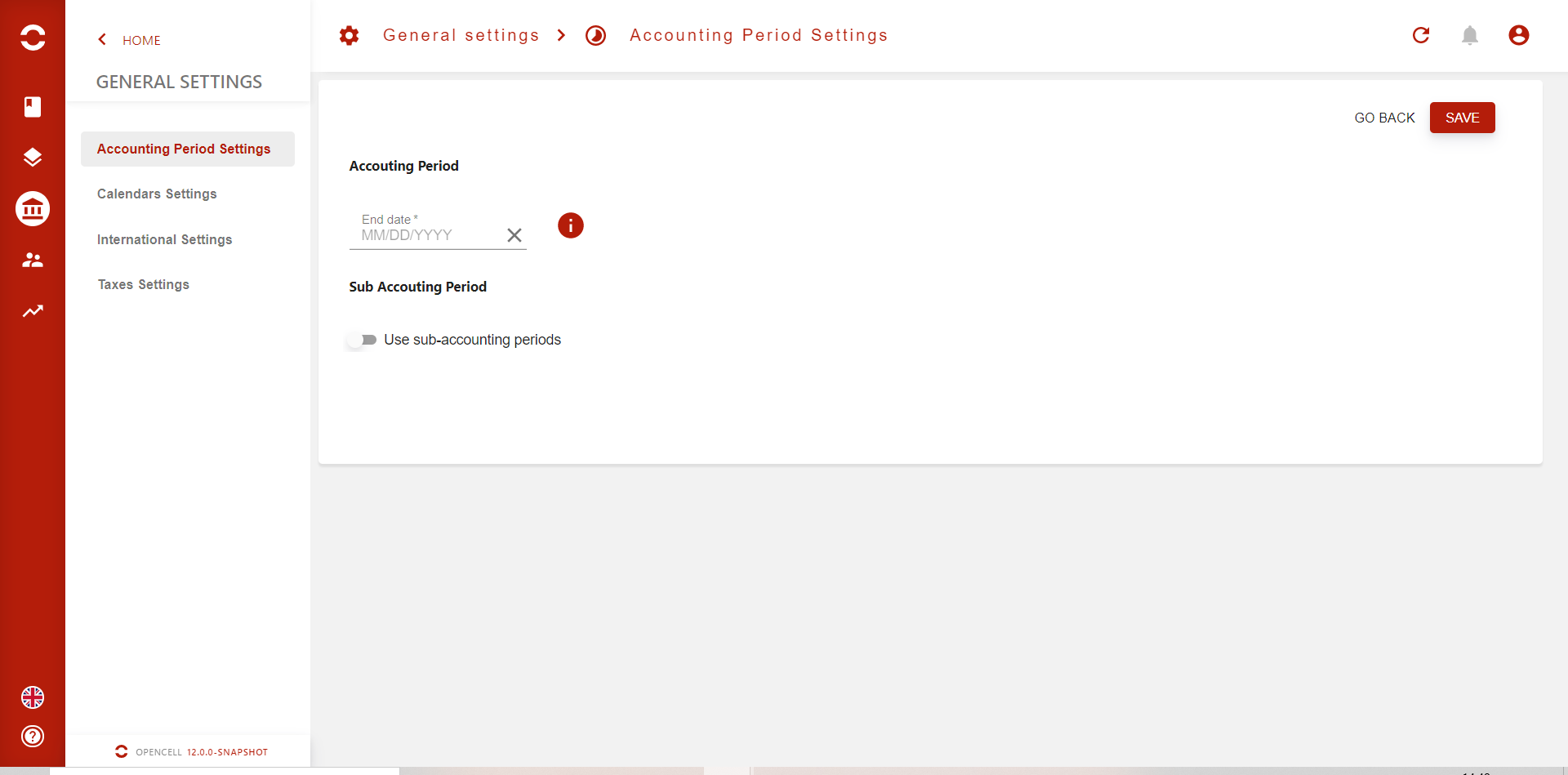
You arrived on the settings page for Accounting period.
From there you will start by defining the “End date” of your fiscal year.
“A fiscal year is a one-year period that companies and governments use for financial reporting and budgeting. A fiscal year is most commonly used for accounting purposes to prepare financial statements. Although a fiscal year can start on Jan. 1 and end on Dec. 31, not all fiscal years correspond with the calendar year. For example, universities often begin and end their fiscal years according to the school year.”
This is why you are able to chose any date as an “End date”. However, note that once set, this date will not be modifiable. Double check before saving you changes
Opencell will ask you to define the “End date” the first FY of your organization could be longer or shorter than an actual year. Once defined, all the following fiscal years will have the same end date.
You could chose to stop there and save, or you would like to use Accounting periods.
“Accounting periods are created for reporting and analyzing purposes, and the accrual method of accounting allows for consistent reporting.”
Source: https://www.investopedia.com/terms/a/accountingperiod.asp
When a company goes from one fiscal year to another, it is then impossible to add, modify or delete any financial information, except is specific cases, and even though, this is higly regulated.
Accounting periods work almost in the same way, meaning your organization will define the length of each Accounting period, and the, all the periods will be closed one after the other (perhaps a little before or a little after the actual end date of a period), to either restrict or allow groups of users to add or do any modification.
Opencell lets you define :
-
If you want to use Accounting periods → Checkbox
-
The length of the periods (called “Accounting period type”)
-
Every month (monthly)
-
Every 3 months (quarterly)
-
Every 6 months (half-yearly)
-
When you decide to use accounting periods, Opencell will also ask you to define the rule that will automatically close the accounting periods for regular users, thus allowing only users with Finance manager role to continue posting in the last accounting period, make final revision and modification before definetly closing the accounting period.
Two options will be available, either at the end of each accounting period, or at a custom date that will be the same for all accounting periods.
In the case of “Custom”, you will be able to chose a number of days before or after the end of the accounting period.
If you chose the “end of accounting period” or “custom” which dates can be 29th, 30th or 31st for auto-closing of accounting periods for regular users, then the system will apply the last existing date of the accounting period. 1
“Operation management” field will appear to let you define the default rule that will be used for all journal entries that arrive on the system and are linked to a closed accounting period.
Again, two options will be available:
1- Block → This setting will set all journal entries, which dates (????) are in a closed accounting period, at a “Blocked” status and block their posting. It will then be the role of the accounting to manually manage all these journal entries via the “Accounting operations report”.
2- Force → This setting will force the posting of journal entries, which dates are in a closed accounting period, onto the current opened accounting period.
To do so, you will have to define the specific date on which the posting will have to be done. This will be a specific date and it will be the same for each accounting period. Three options are available to you:
A- The first day of the opened accounting period
B- The first Sunday of the opened accounting period
C- A custom day in the month (Here, same rule will apply than in section info 1 )
Now that you have finished configuring your accounting period settings, you can move to the next step:
Accounting period manager. You can find everything on the page with the same name. See you there!