
As for any IT project, you usually have a test environment, and you real environment (production). The test environment is meant to ensure that what you will implement in you production environment will actually work, and will not cause any issue or errors. However, if you have a large and or complex catalog, well you just do not want to do twice the same work!
This is why we are now introducing the export / import catalog feature in Opencell.
As you will see below, for both export or import process, a specific process has been put in place. This allows you to apply these processes for two types of objects:
-
Commercial offers (CO)
-
Products
This insures for complex COs or products models a better import process as the number of operations is limited, and made as simple as possible.
Another specificity that this feature allows is to either:
-
Export to another Opencell environment → No downloads/uploads, all is done seamlessly
-
Download in XML format → Make mass modifications and upload them after
Export
Export process for both products and commercial offers is quite the same. The process will export the whole hierarchy of the objects (product versions, charges, attributes, price plans, price versions, tags, media…), and set the initial object into a “DRAFT” status, while the rest of the hierarchy will keep their initial status.
This allows you to run actual tests on the dedicated environment, and then make one last check on the production environment.
For products:
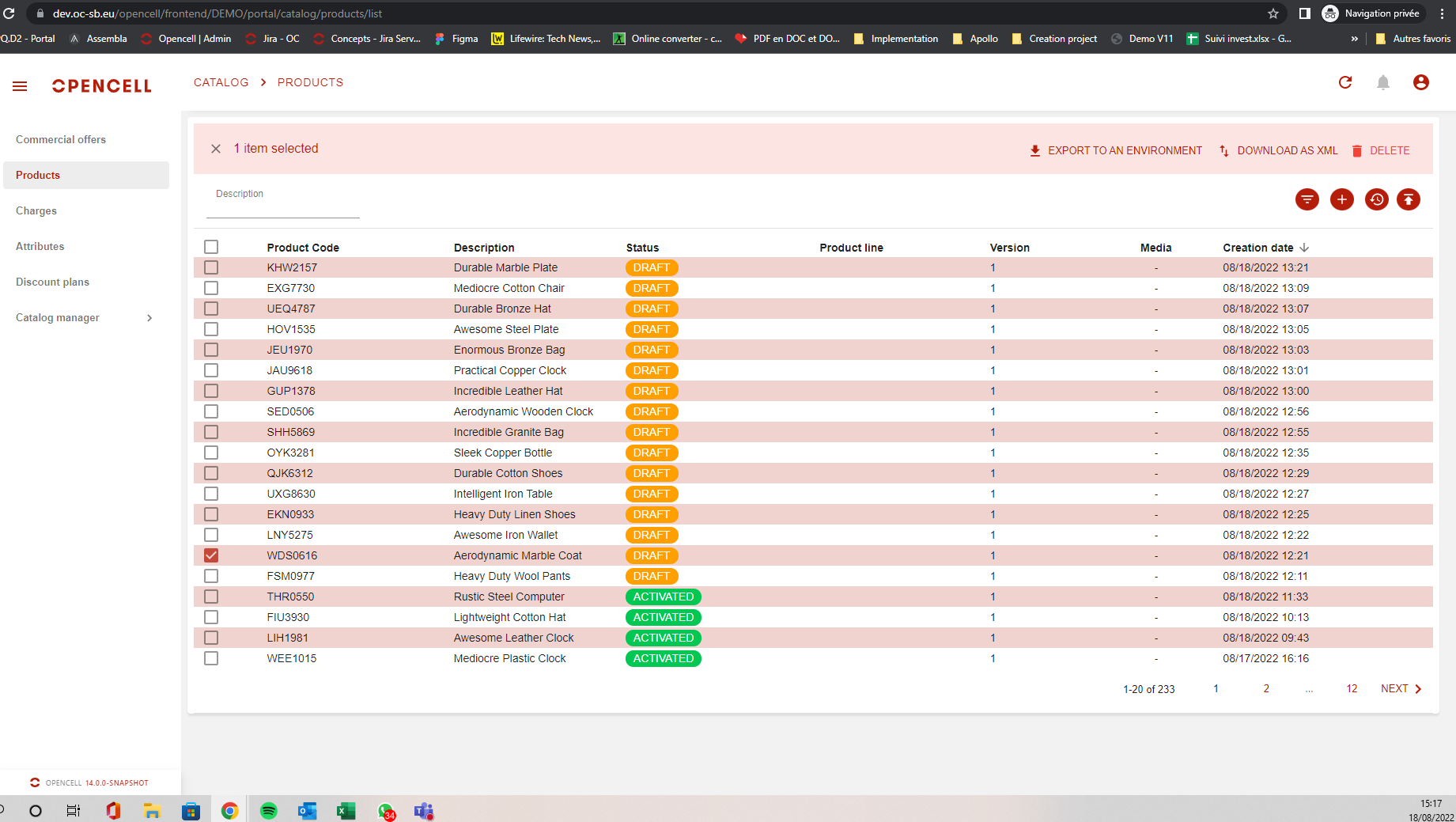
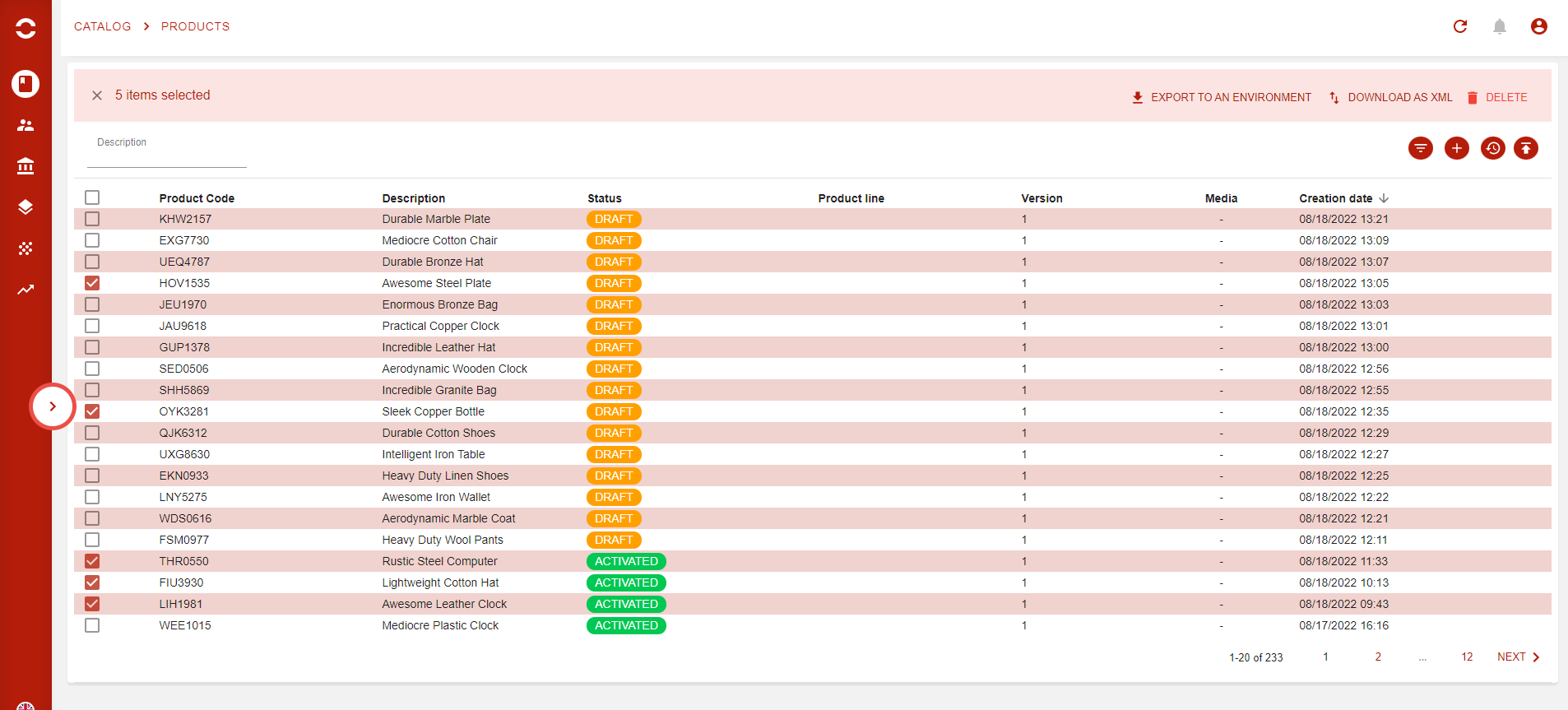
In the product list view, you may have noticed that you now have a selection box available for all product lines. This box, once ticked, will allow you to do two actions:
-
Export to an environment
-
Download as XML
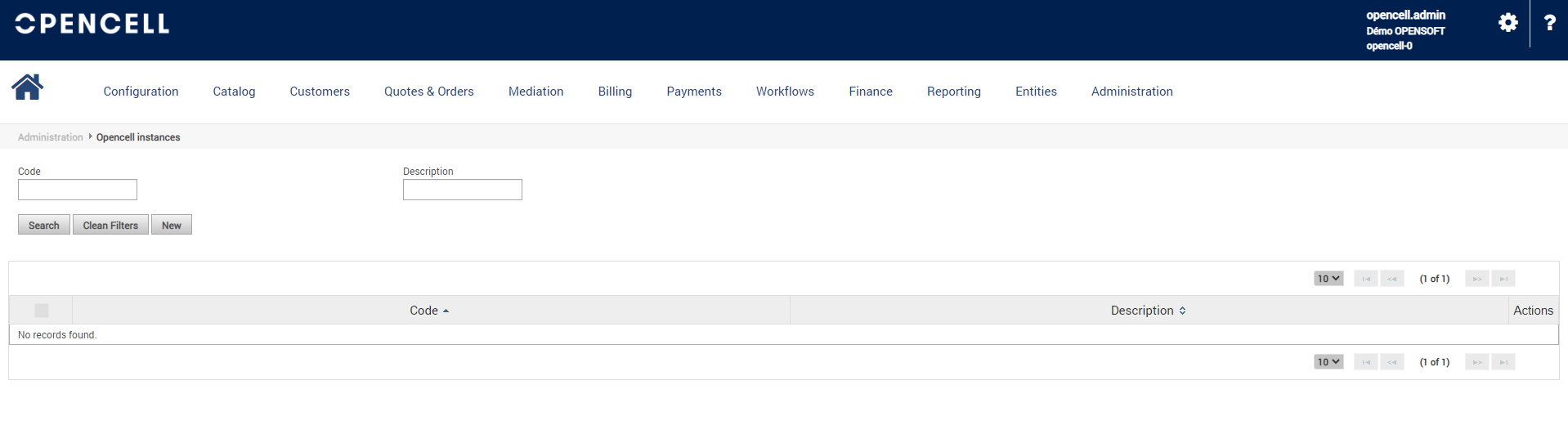
If you want to export to an environment, you will have to first make sure to link the environment together. To do so, you will have to do so in the the Administration portal (the blue one), via menu Administration, sub menu Opencell instances.
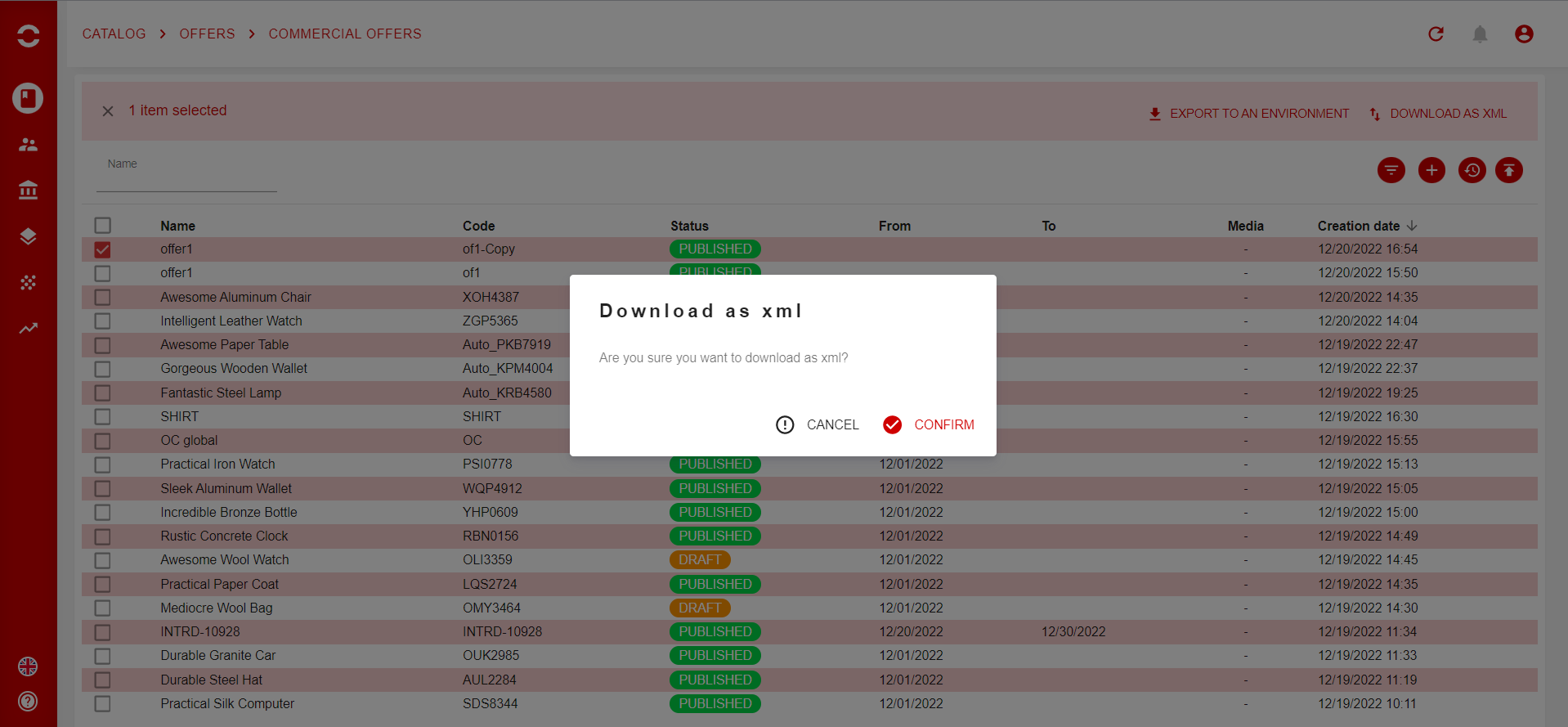
If instead you would rather download an XML file, just hit the button ‘Download as XML’ and download will then be done
Obviously, both methods allow you to select one or several products 😃
For commercial offers:
For commercial offers, we have the same process that is available
Import
Import process behaves the same way as export.
For both products and commercial offers is quite the same. The process will export the whole hierarchy of the objects (products, product versions, charges, attributes, price plans, price versions, tags, media…), and set the initial object into a “DRAFT” status, while the rest of the hierarchy will keep their initial status.
This allows you to run actual tests on the dedicated environment, and then make one last check on the production environment.
This process only covers the upload of XML files as the export already created products/commercial offers in targeted environment.
For products:
To upload products from an XML file, you have to go to the product list page and hit the upload button :upload: that is on the upper right corner of the page. Then, a pop-up will appear in which you will be able to drag and drop or click to select your file.
Note that only one file can be selected per import.
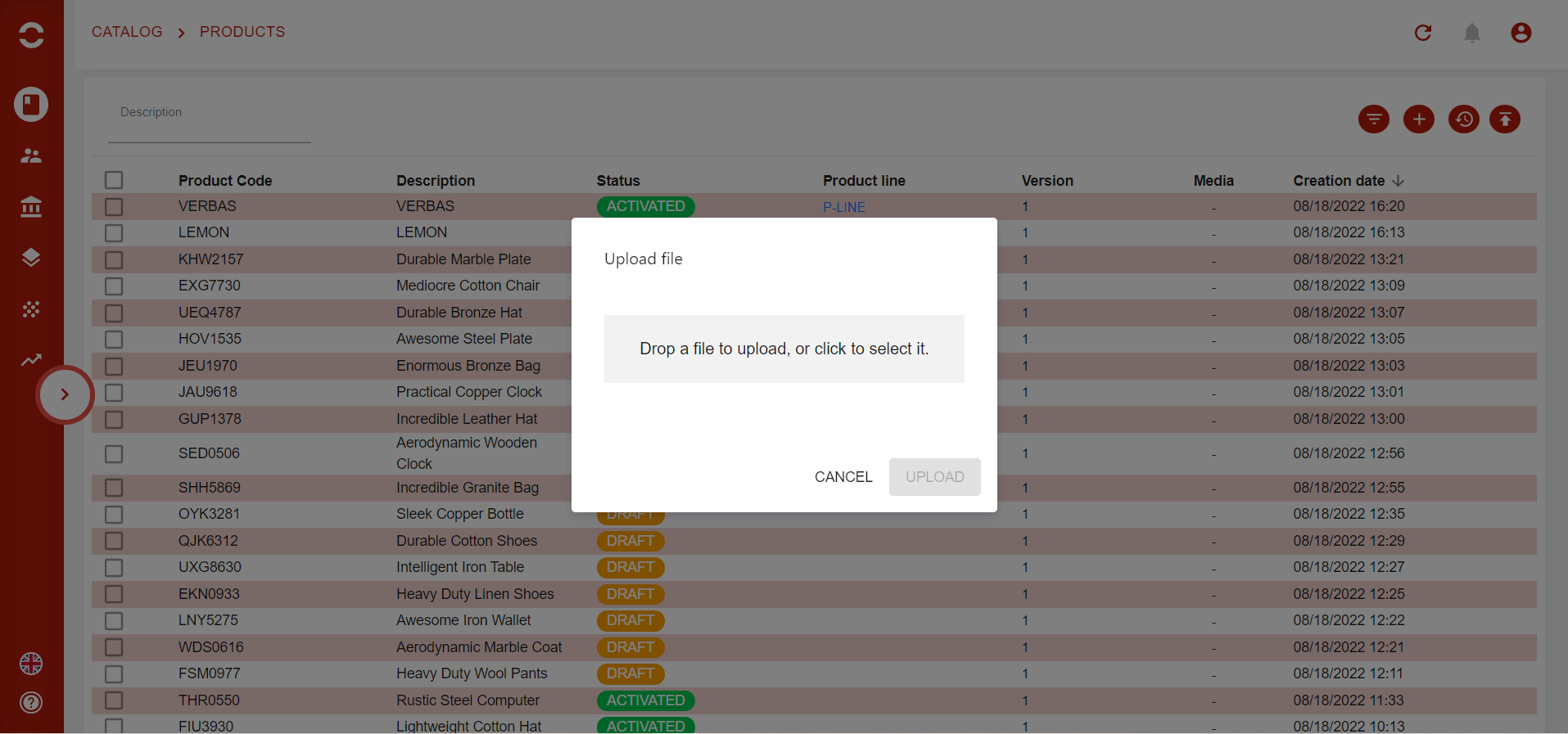
Then you only have to hit the ‘UPLOAD’ button on the pop-up to start the process.
When the import was a success, then a message will be displayed. However, if an issue blocked the import, then a pop-up will display an error message.
Uploading products that might exist can occur modification on ongoing quotations, orders or subscriptions. If the system detects that you are uploading products or commercial offers that already exist, then you will be warned of the potential impacts this action might have.
For commercial offers:
As seen for export process, the import process is the same between products and commercial offers.
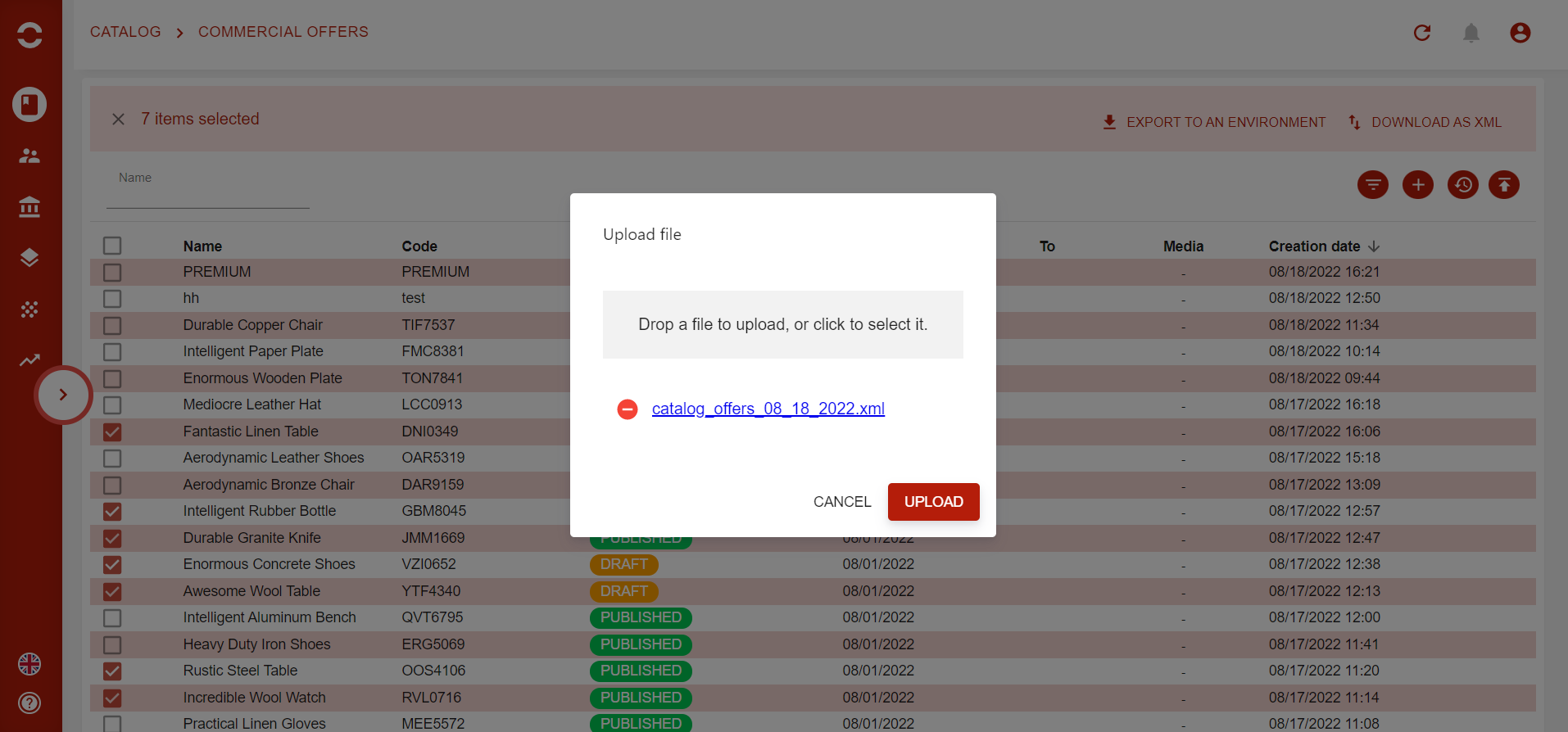
A popup then appears to confirm what will be imported and to confirm import:
Uploading commercial offers that might exist can occur modification on ongoing quotations, orders or subscriptions. If the system detects that you are uploading products or commercial offers that already exist, then you will be warned of the potential impacts this action might have.
Now it’s your turn to run tests and manage your catalogs between several environments 😉