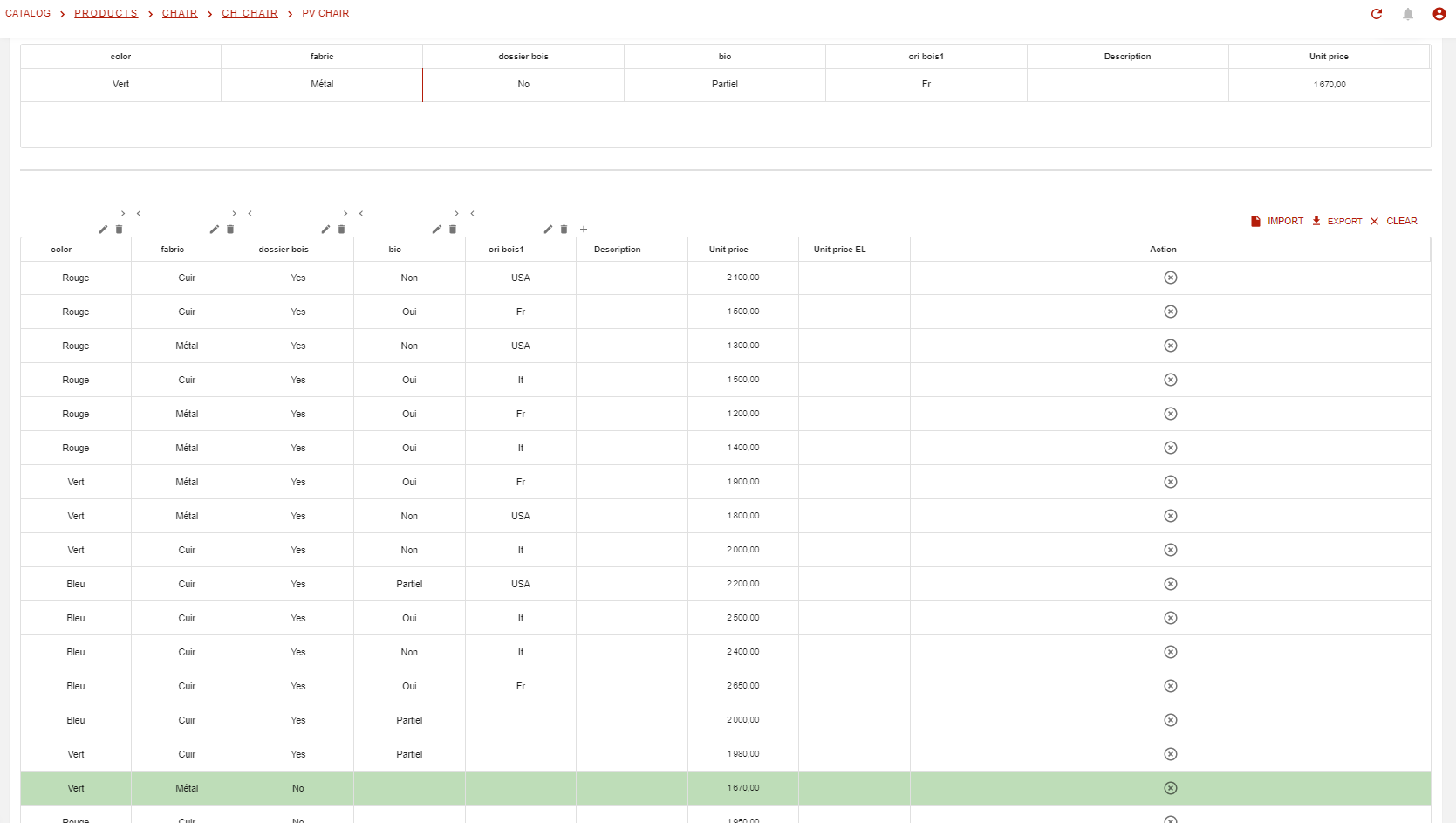
Here you will learn how to work with price grids associated to charge in Opencell. Price grid allows you to efficiently manage tariffs, and also to export and import datasheet from Microsoft Excel.
Concept
Charges are the elements on which you will be able to define the tarrifs of your products/services. As you must already know, 3 types of charges exist:
-
Recurring → Recurring prices (think Netflix subscription)
-
Usage → For consumption (think electricity)
-
One shot:
-
Other → Any product you would sell once. Not linked to a subscription
-
Subscription → Think an activation fee, linked to a specific subscription
-
Termination → Thing cancellation fees for a given subscription
-
Opencell supports flat prices and matrix based prices also called “Price grids”.
Price grids can be found on Price versions, that are managed on Charges themselves directly.
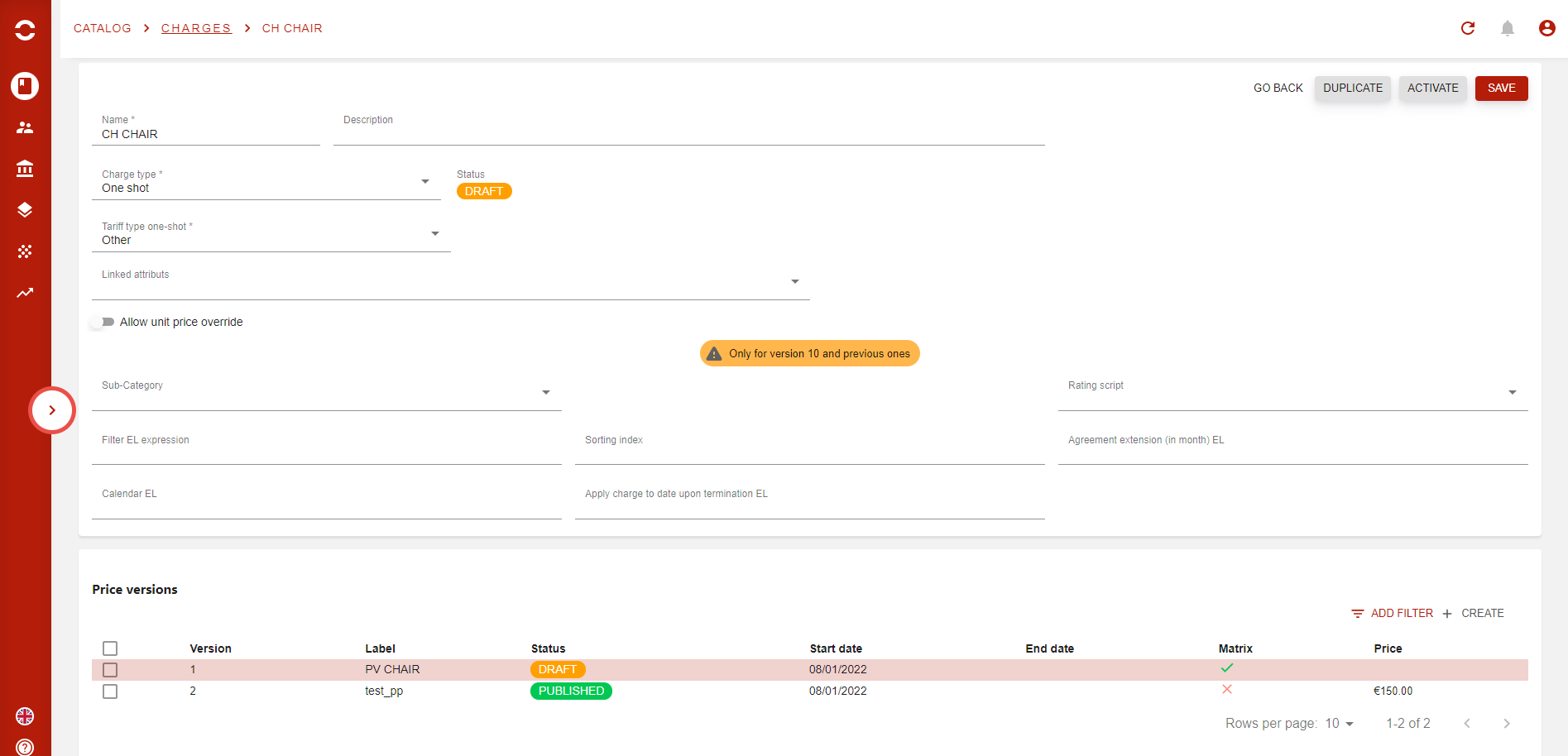
Now price grids can also be managed directly in a sub-menu of the Catalog app → Catalog manager → Price version:
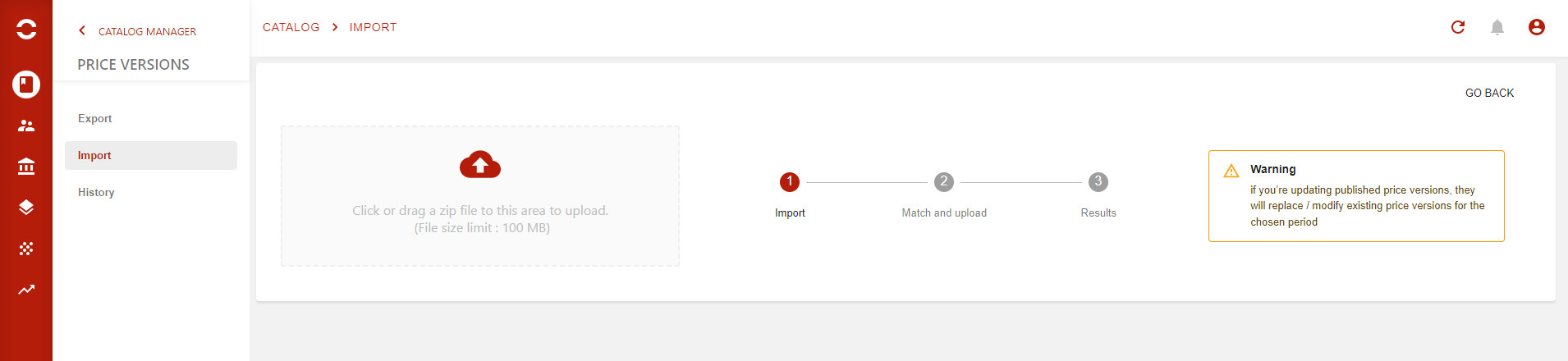
From there, you can directly import, export and consult the whole history.
Please refer to Export / Import price versions for more informations
From the price version:
Price grids are available only if you use attributes (business or custom ones) to define the price for your product/service based on their value. For example Color would be an attribute, and it’s possible values might include Red White and Blue. Depending if it’s either of these colors, than the price of the chair (yes, in my example here we are talking about a chair) will change accordingly to the price I would have put in my price grid. This is an easy example, however you can have price grids with dozens of attributes, making their management complicated.
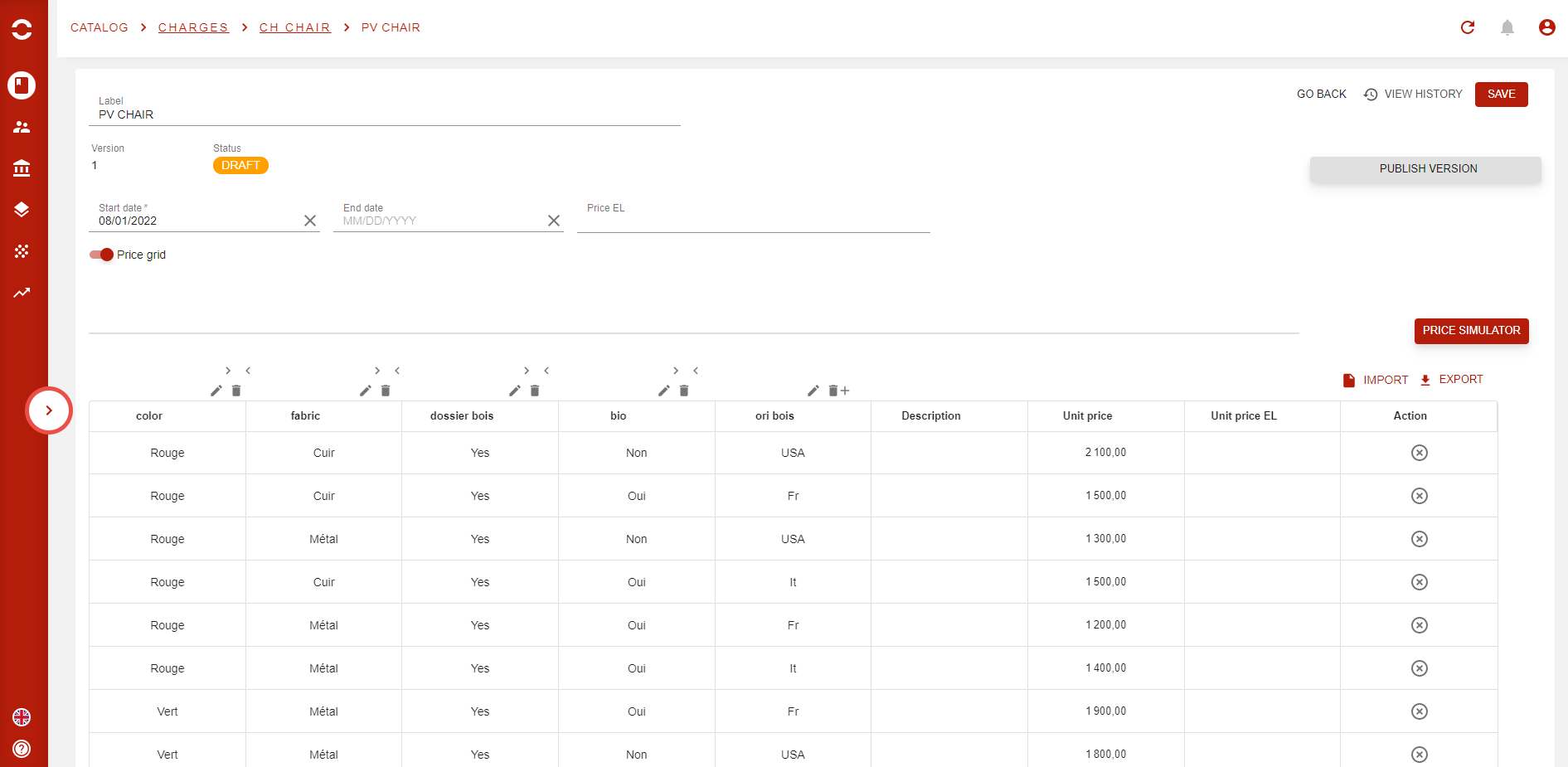
To create a price grid, you have to activate the feature when creating your Price version. Once done hit the ‘SAVE’ button and then you can add your attributes, that will be the dimensions (or just columns) of your grid.
Custom attributes in price grids are the ones you create on your own, either from the product version section of a product, either on the attributes tab of a commercial offer, or directly in the Attributes sub-menu in the Catalog.
Business attributes in the other hand exist by default in any Opencell environment and are used to have links to external solutions, retrieve the information and use that specific information to define values for each dimension (or column), thus giving out a price.
As for other objects in Opencell, a price version has statuses. It’s modification can only be done when in “DRAFT” status. However a new update in V13 allows a some users to modify “PUBLISHED” price versions (flat prices or price grids), and this will be described bellow.
To ease your grid management, and even more when you have grids with a great number of lines, you might want apply some filters on your grid. This new option (v14.2), is available once you have created a grid, and you have saved the grid at least once.
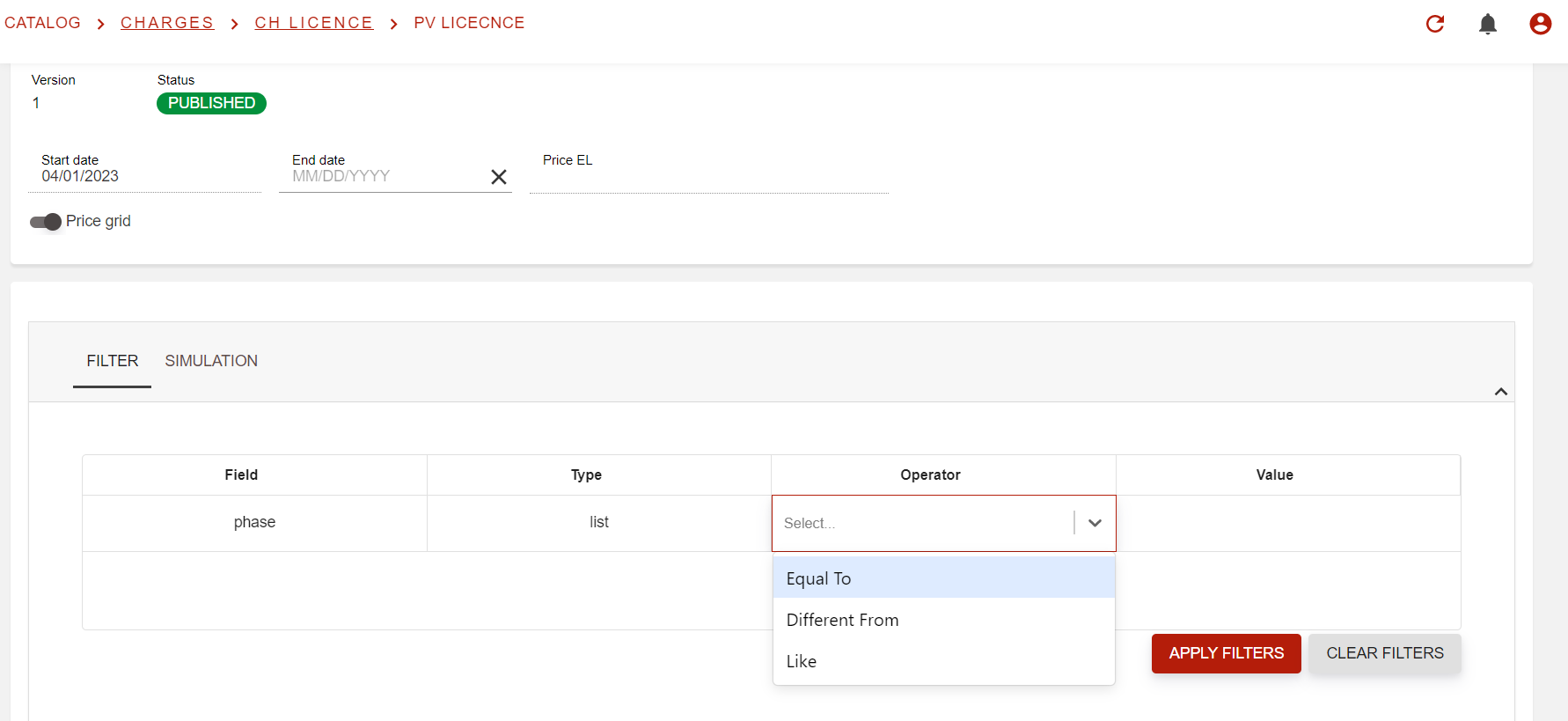
You will then see the new Filter/Simulation section that you can use.
The simulation feature is detailed below in section Price simulator feature.
From import/export sub menu:
Will be added later…
Price grid prioritization:
Opencell has a specific way to prioritize combinations (or price grid lines) from one another.
Let’s contemplate the price grid below:
|
|
A |
B |
C |
D |
E |
|
|
|
Color |
Fabric |
Wooden chairback |
Bio |
Wood origin |
Price |
|
1 |
Red |
Metal |
Yes |
Yes |
Fr |
1 200,00 € |
|
Red |
Metal |
Yes |
Yes |
It |
1 400,00 € |
|
|
Red |
Metal |
Yes |
No |
USA |
1 300,00 € |
|
|
Red |
Leather |
Yes |
Yes |
Fr |
1 500,00 € |
|
|
Red |
Leather |
Yes |
Yes |
It |
1 500,00 € |
|
|
Red |
Leather |
Yes |
No |
USA |
2 100,00 € |
|
|
Green |
Metal |
Yes |
Yes |
Fr |
1 900,00 € |
|
|
Green |
Metal |
Yes |
No |
USA |
1 800,00 € |
|
|
Green |
Leather |
Yes |
No |
It |
2 000,00 € |
|
|
Blue |
Leather |
Yes |
Partial |
USA |
2 200,00 € |
|
|
Blue |
Leather |
Yes |
Yes |
It |
2 500,00 € |
|
|
Blue |
Leather |
Yes |
No |
It |
2 400,00 € |
|
|
Blue |
Leather |
Yes |
Yes |
Fr |
2 650,00 € |
|
|
2 |
Blue |
Leather |
Yes |
Partial |
|
2 000,00 € |
|
Green |
Leather |
Yes |
Partial |
|
1 980,00 € |
|
|
3 |
Green |
Metal |
No |
|
|
1 670,00 € |
|
Red |
Leather |
No |
|
|
1 950,00 € |
|
|
Red |
Metal |
No |
|
|
1 000,00 € |
|
|
Green |
Leather |
No |
|
|
2 000,00 € |
As you can see on the far left side, we have 3 distinct sections here.
-
Section 1 → All columns have a listed value in them
-
Section 2 → All columns minus one have a listed value
-
Section 3 → All columns minus two have listed value
Note how the sections are arranged here. Section 1 is at the very top, as all its columns have at least one listed value. Section 2 has all it lines that have all columns but one with a listed value, and this goes so on. Contrary to the dimensions below, the system will actually rearrange all your price grid lines based on this logic. So you don’t have to worry about the way you create or import them (the rearrangement is done at each save).
We also have 5 dimensions (attributes as columns)n which are A, B, C, D, and E. Columns order is very important as their place on the grid definer their priority, and this goes left to right, most important priority to less important one. So it will be important for you to take this under consideration when creating your grids.
We now know that prioritization on price grids is both done on lines (automatically from the system) and manually by user via the dimensions. This allows any user to be able to visually see the prioritization made in Opencell:
-
Lines → From top to bottom
-
Columns → From left to right
Opencell will always prioritize the “perfect match”, which means when system can find as many exact values between what the goal and what is present in the grid.
Say the target is: Blue, Leather, Yes, Partial, USA
Then the appropriate line will be:
|
|
Color |
Fabric |
Wooden chairback |
Bio |
Wood origin |
Price |
|
1 |
Blue |
Leather |
Yes |
Partial |
USA |
2 200,00 € |
Other case if the target could be: Blue, Leather, Yes, Partial, IT
Then the appropriate line will be:
|
|
Color |
Fabric |
Wooden chairback |
Bio |
Wood origin |
Price |
|
2 |
Green |
Leather |
Yes |
Partial |
|
1 980,00 € |
Same line would actually be selected for the following target: Blue, Leather, Yes, Partial, Fr
The selection is due to the prioritization that we have implemented in Opencell. Below is a small exercise. Select for each case the #line that will be selected to give a price.
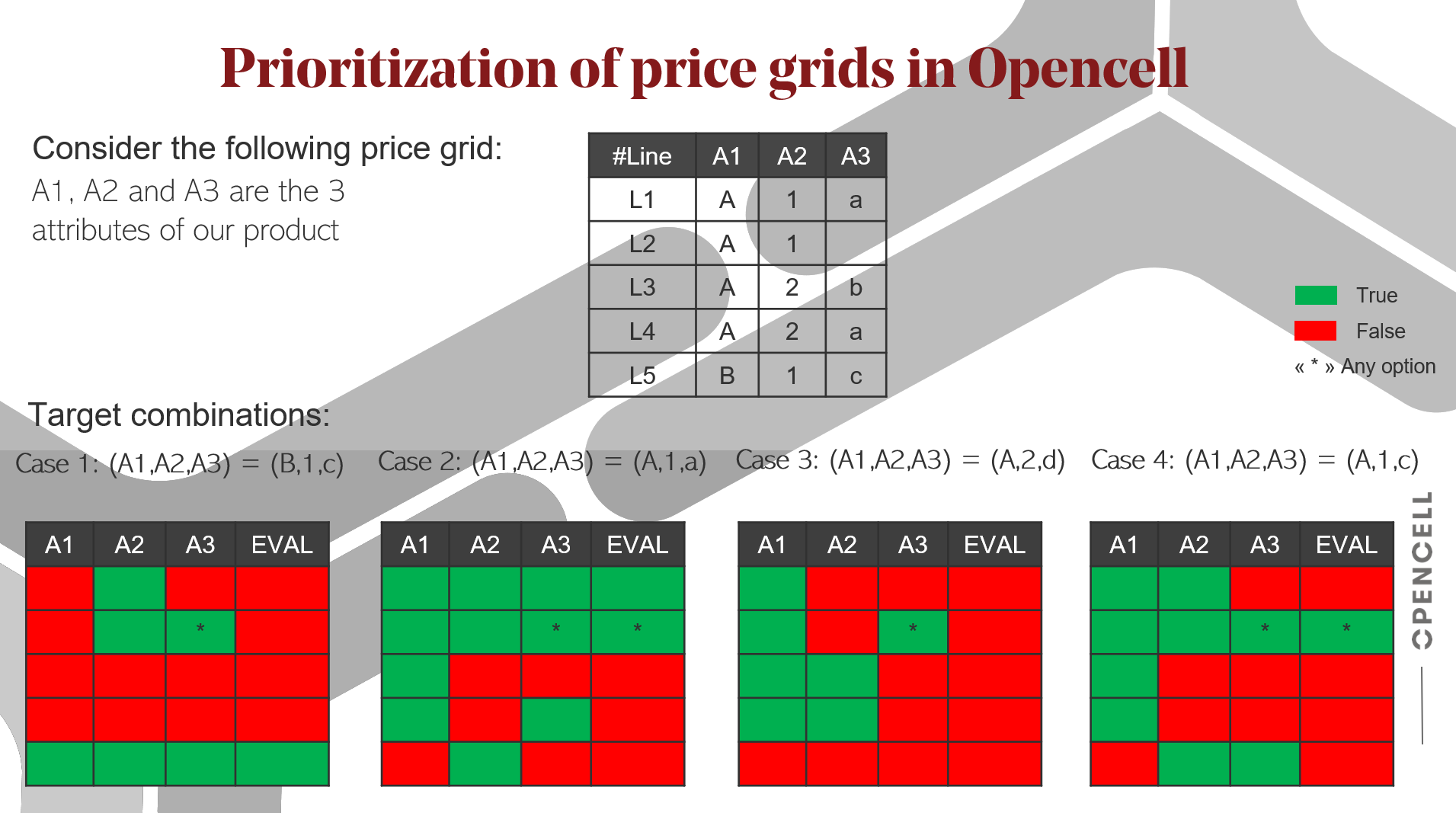
Answers: Case 1=L5, Case 2=L1, Case 3=None, Case 4=L2
Price simulator feature
A cool new feature to allow users to quickly check their price grids is now available via the price simulator. This essentially allows you to check:
-
If a combination is present
And
-
If a price is entered for a specific combination
Which means that in a few clics, you can easily stress test yout grids in Opencell.
In our example below, we have chair which price gris has 5 different attributes:
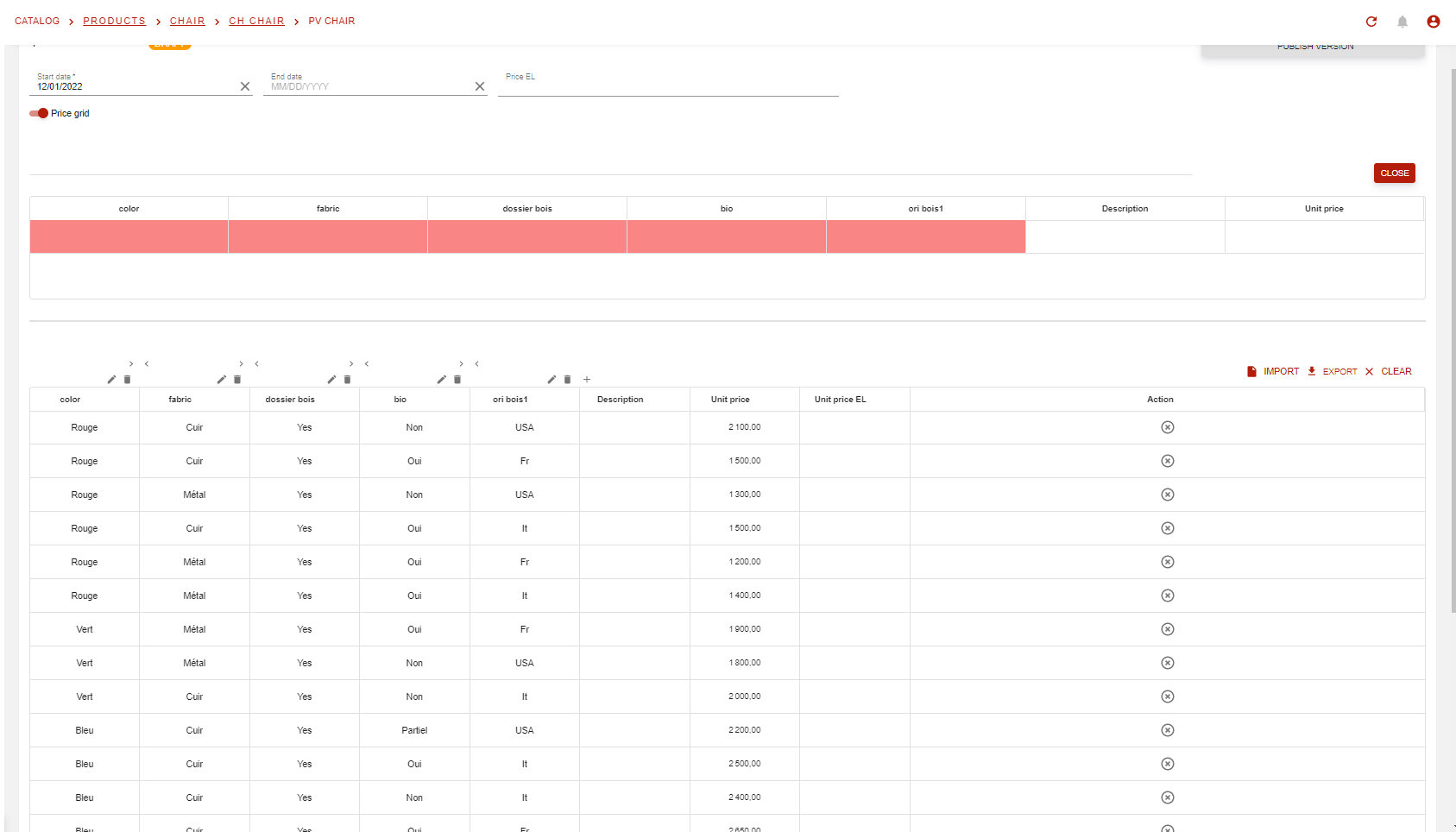
As you can see, I have opened my price simulator, which is empty, for now…
Now after entering some values for each attribute, my system was able to detect that I had a perfect match for my combination, and thus a price is available:
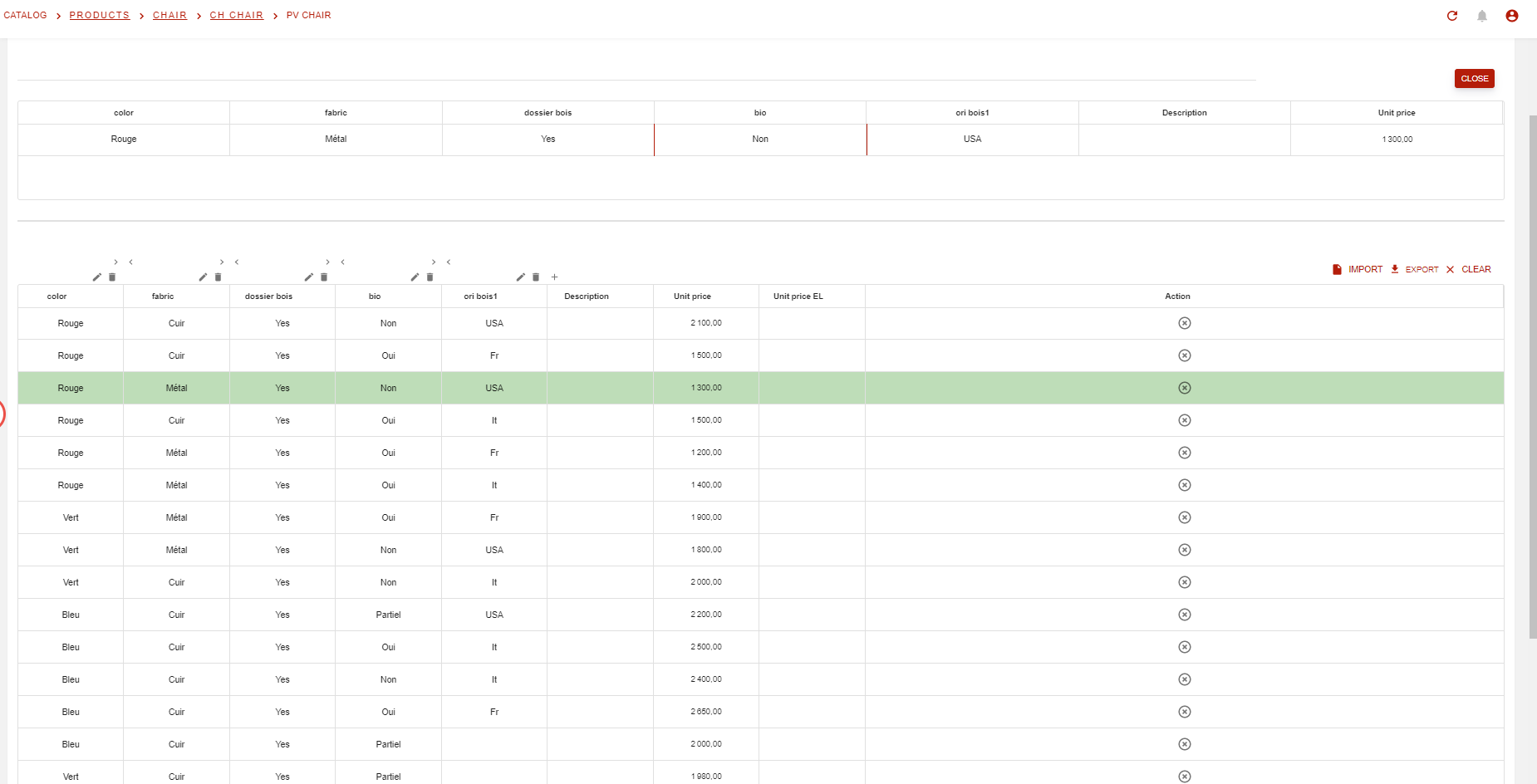
But when I enter a combination that does not exist in my grid, my system then displays a “No match” in the price cell
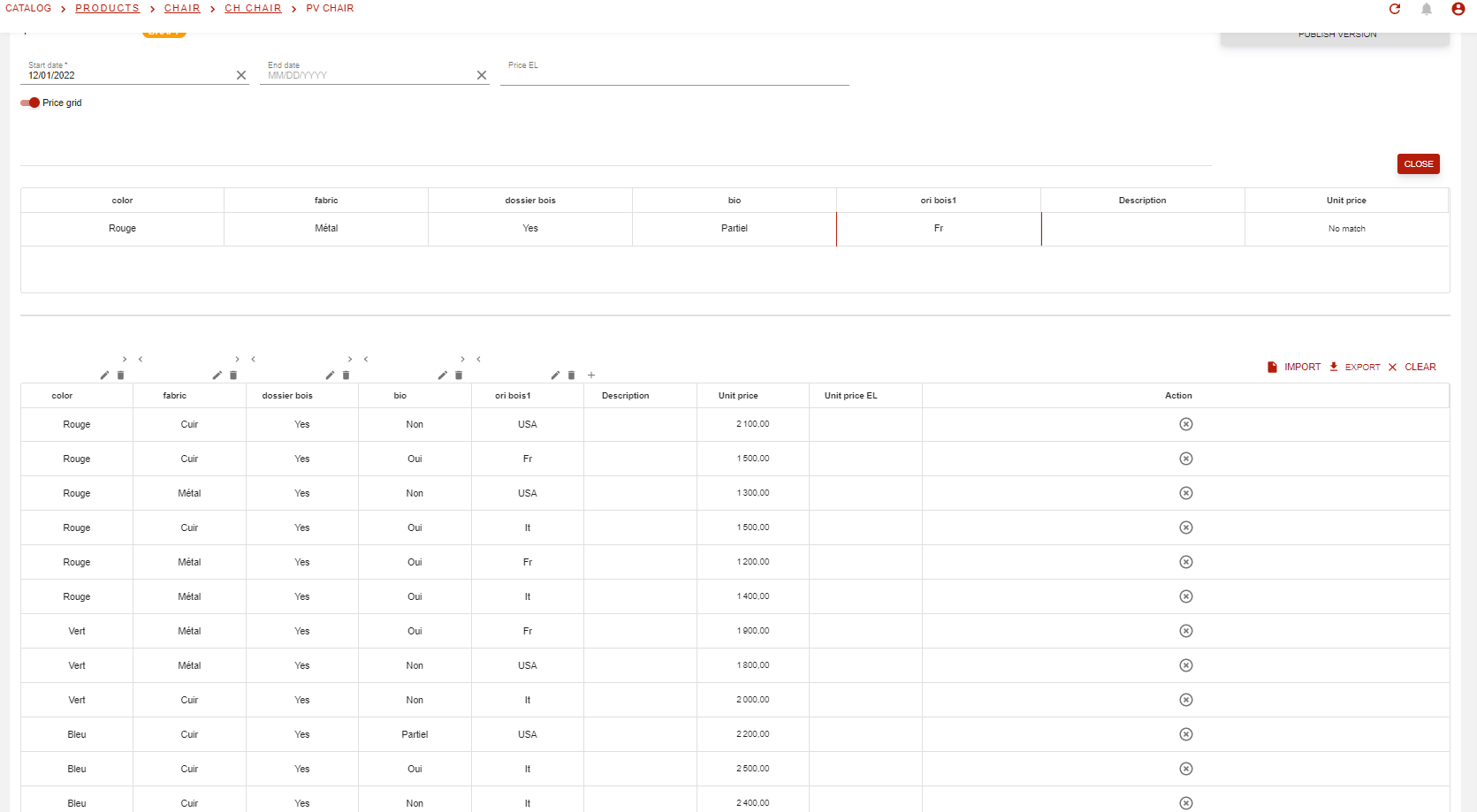
The price grid also works with partial lines, where empty cell can take any value 😉