
In Opencell, the Price Lists are used to overload catalog prices of charges based on validity date, application date and many possible attributes (brand, customer category, countries, credit category, currency, legal entity type, payment method, sellers).
A customer can also have both Price List and Framework Agreement, they are thus compatible in the evaluation of price. As a reminder, Framework is for only one customer, where Price List are for many customers.
Price lists can be activated in General settings menu.
Let’s now see how Price lists are created and managed in Opencell.
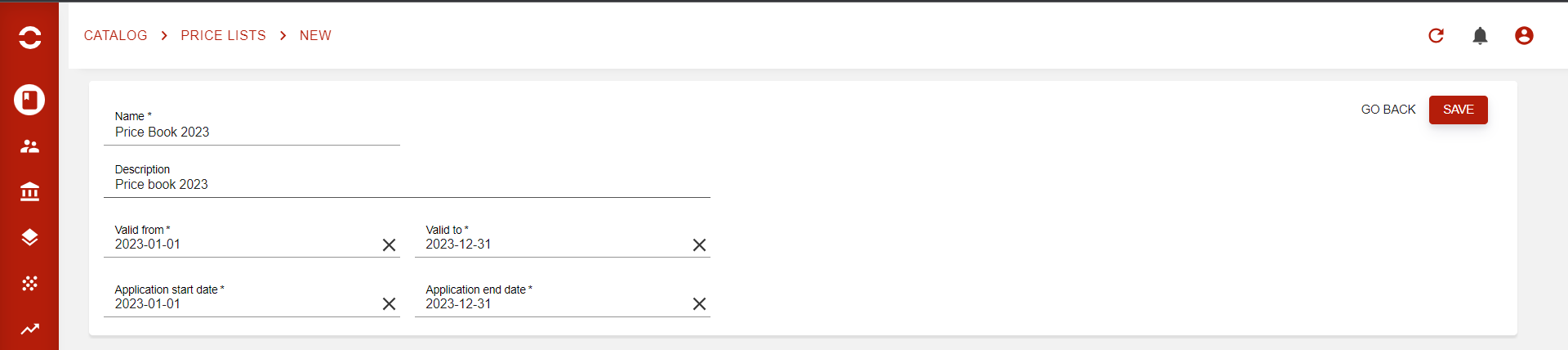
Price lists→ Where to find them
Price lists are created and managed directly in the Catalog app.
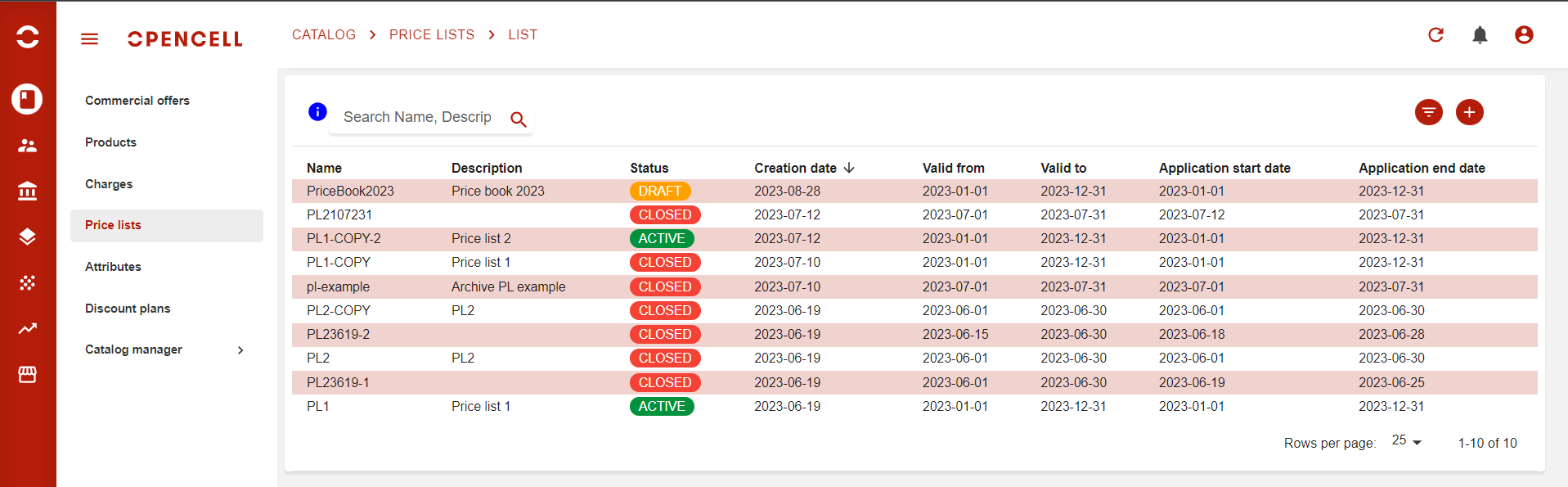
When you arrive on the Price lists page list view, then you will see all Price lists that have been created in your environment. As in all list views, a few features are available to allow you to quickly search for specific Price lists, such as:
-
Search bar on Description field
-
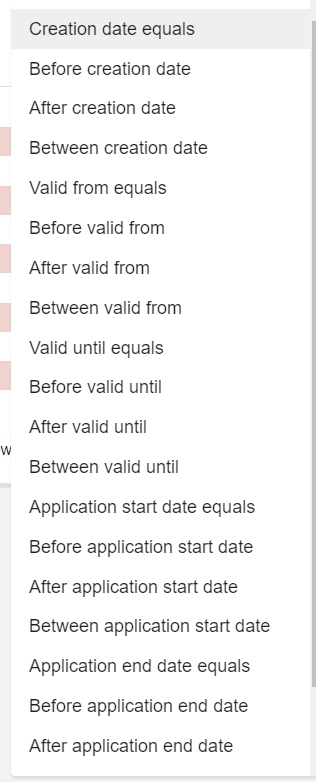
:filter: Filter button for the following fields
-
:plus: New button to create a new Price list
Creating a Price list
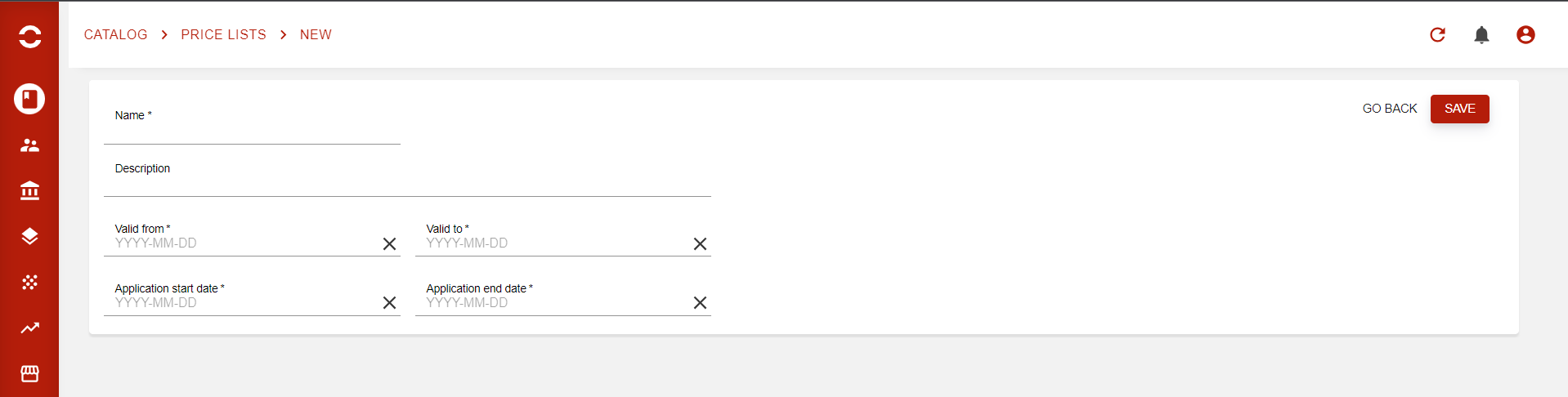
To create a Price list, you will have to hit the :plus: button that you can find on the upper right corner of the page we have seen above. Once done, you will arrive on the following page:
Generic section
This is the Generic part of your contract, where you will define global key information such as:
-
Name* → Price list internal code
-
Description → Contract internal description
-
Valid from* → The Price list first day of commercial eligibility
-
Valid to* → The Price list last day of commercial eligibility
-
Application start date* → The Price list first day of rating application
-
Application end date* → The Price list last day of rating application
When all mandatory fields are filled, hit the SAVE button.
Price list definition
You can then see the updated page as below:
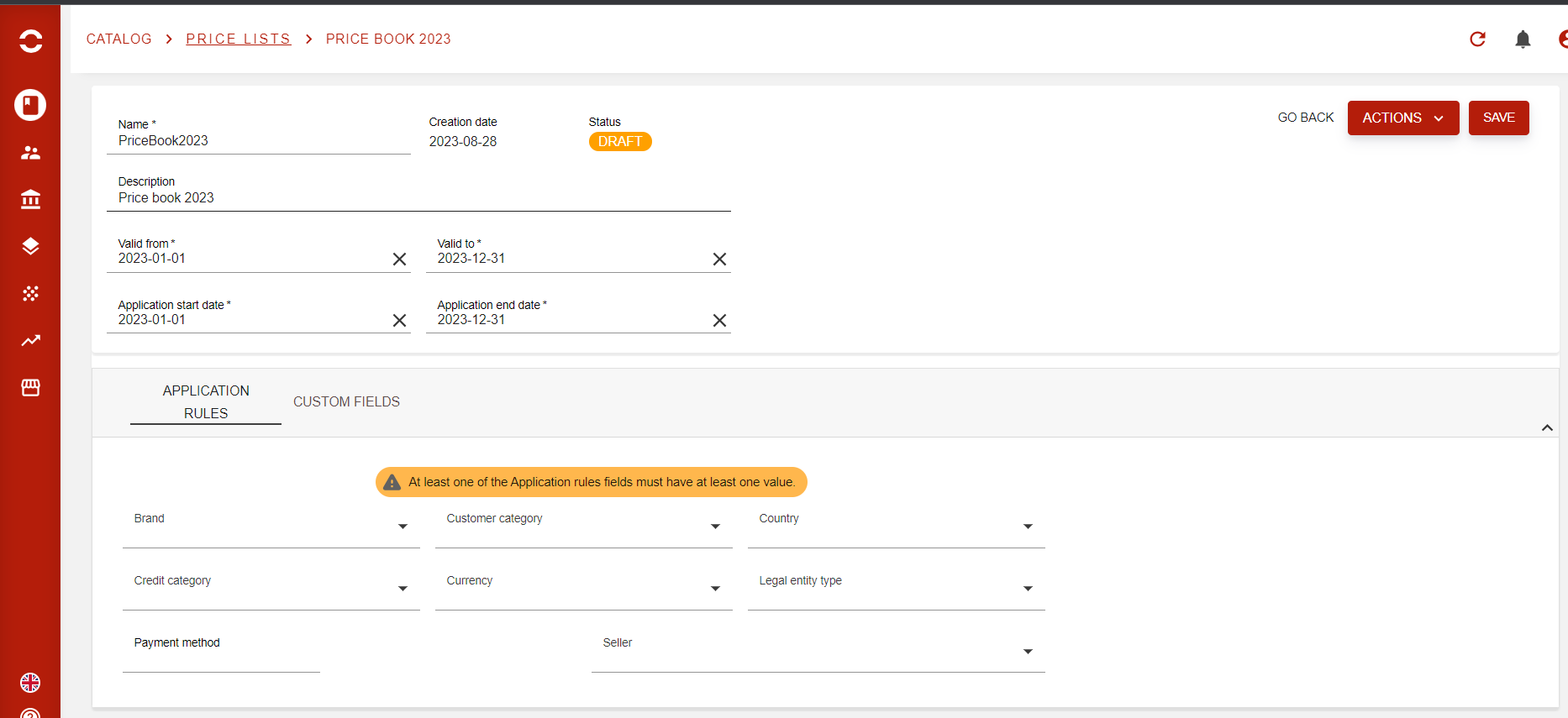
The Price list has been properly saved as we now have its STATUS and a creation date. A few buttons are also available now that the Price list has been created.
Two new sections have appeared:
-
Application rules: this is where the commercial eligibility of the customer (not the periods defined above) will be checked if they exist.
-
Price lines: this is where you will be able to manage the contract lines. Now what must be clear before going any further is that a Price list will override the prices for targeted charges, so that means the more charges you will have in your price list, the more lines you will have to create and manage.
Application Rules tab
From there, you can add an extra eligibility layer of Price lists, each is multi-valued:
-
Brand,
-
Customer category,
-
Countries,
-
Credit category,
-
Currency,
-
Legal entity type,
-
Payment method,
-
Sellers
Price line creation
Let’s start with the first tab of the second section, which is Price line. There you will create and then see all lines related to the price list. So let’s jump right to it!

This is the page you arrive on after hitting the 'CREATE' button on the contract line tab. You may have noticed that this looks like what we have seen earlier on the Price lists management, which means we will have other sections/pages after this first step.
-
Code*
-
Description
-
Offer category → Chose if you want to filter charges from an Offer category
-
Product category → Chose if you want to filter charges from a Product category
-
Offer → Chose if you want your Price list line to be dependent of the offer, and then to the targeted charge linked to this offer.
-
Product → Chose if you want your Price list line to be dependent of the product, and then to the targeted charge linked to this offer. You can also combine Offer + Product to target even more a charge.
-
Charge* → Define the actual charge that will be impacted by this Price list line.
For a Price line, the Charge is always mandatory as it is the object that represents the pricing. However, using the Product and/or the Offer fields can allow you to add granularity to the contract line application.
Since the layout of the page changes based on the Contract lien type, we will now go into more details for the four of them.