
In Opencell portal, you’re able to deal with complex tarification and pricing management. As you may been working on external tools to create or update existing tarification, we’ve introduced an export / import feature to allow you to be more flexible on tools you’re using.
In this page, you’ll learn how to export price versions and re-import them after, but also how to use the mass update tool that will allow you to export as many price versions you want in a single shot and then to re-import them easily.
To export price versions, you can export it directly from the price grid OR using the mass export feature which is not restricted to price gird only.
Exporting format
You can export a price grid directly from the price version page :
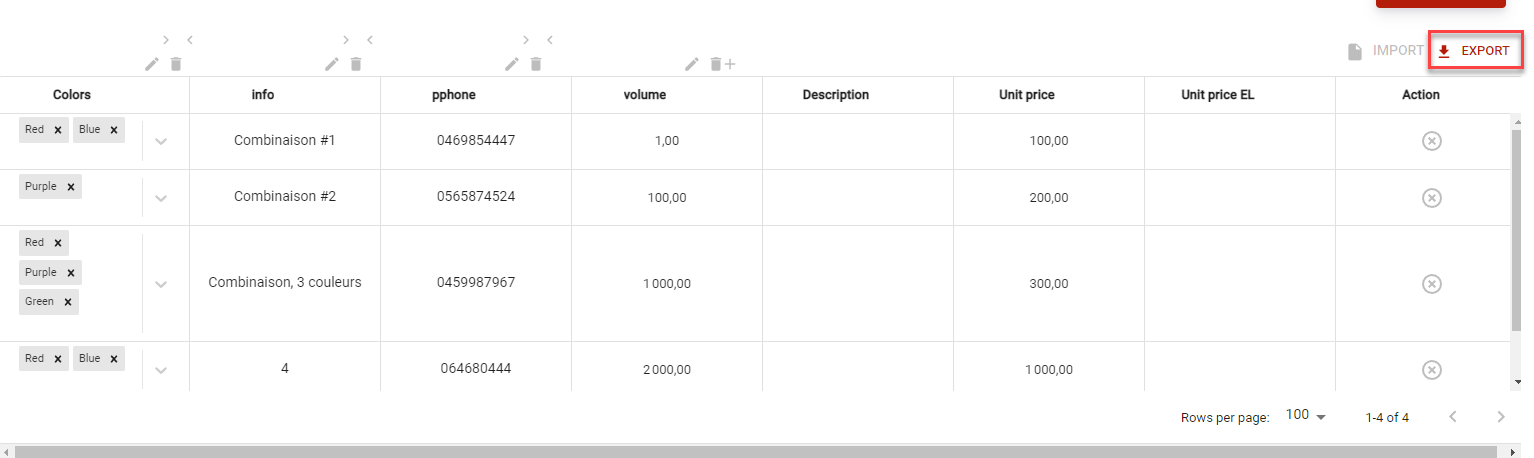
When exporting a price grid, it will download a .csv document (field separator is the semi-column ;, field values are encased in double-quotes "). Structure of the .csv document will be as follow :

In this exemple, the display is as follow :
-
First line is the title of the column (ID, colors, Info, phone, volume, description, price). Attribute type is also displayed between “[ ]”
-
Each lines represent a line in the price grid.
Some attributes will have a specific export format :
|
ATTRIBUTE TYPE |
EXPORT CHARACTERISTICS |
|---|---|
|
Boolean = TRUE / FALSE |
If boolean is true, export will have “true” and if false : “false” |
|
Date |
Format MM/DD/YYYY (In English) and DD/MM/YYYY (In French). ISO format will be used in the export : YYYY-MM-DD |
|
EL |
Text format |
|
|
Text format |
|
Information |
Text format |
|
Integer value |
Number format |
|
List of numeric values |
Number format |
|
List of text values |
Text format |
|
Multiple list numeric values |
If multiple numbers, they will be separated by a special character “|” |
|
Multiple list text values |
If multiple values, they will be separated by a special character “|” |
|
Numeric Value |
Number format, with decimal numbers |
|
Phone |
Special characters and number format |
|
Text |
Text format |
Note that you can also add new lines in your price grid by typing new datas in each rows. Also, if you’re using attributes of type “list” and you want to add new lines to the price grid, you need to type existing values form the “list” of the attribute to correctly import new datas. Don’t forget to separate each values from the list by the “|” symbol.
Be careful
-
Follow the format of the attribute type in the new lines you’re about to import.
-
When opening to and saving to Microsoft Excel, and potentially other spreadsheet tools, file format may be altered and saved file may not be imported directly into Opencell.
Mass update feature
To use the mass update feature you must go to : Catalog → Catalog manager → Price versions. Then choose if you want to export or import.
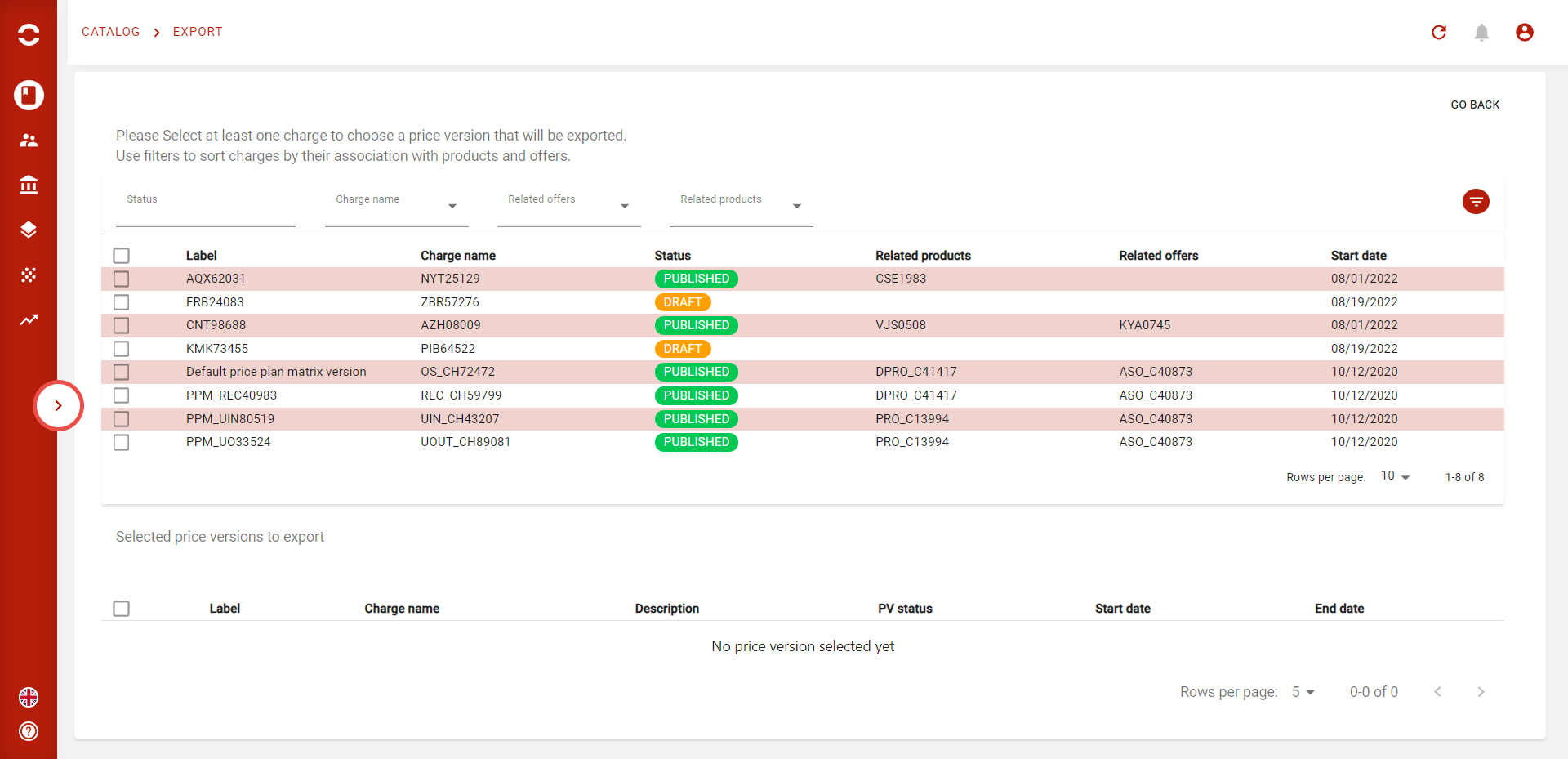
Exporting using mass update
This page will display all price versions created in Opencell portal. From this page you’re now able to use filters to redefine your search.
You can search for price versions depending on their status, their relation to products, commercial offers, framework agreement, from charge they’re included in and many more ! These filters are powerful, try them !
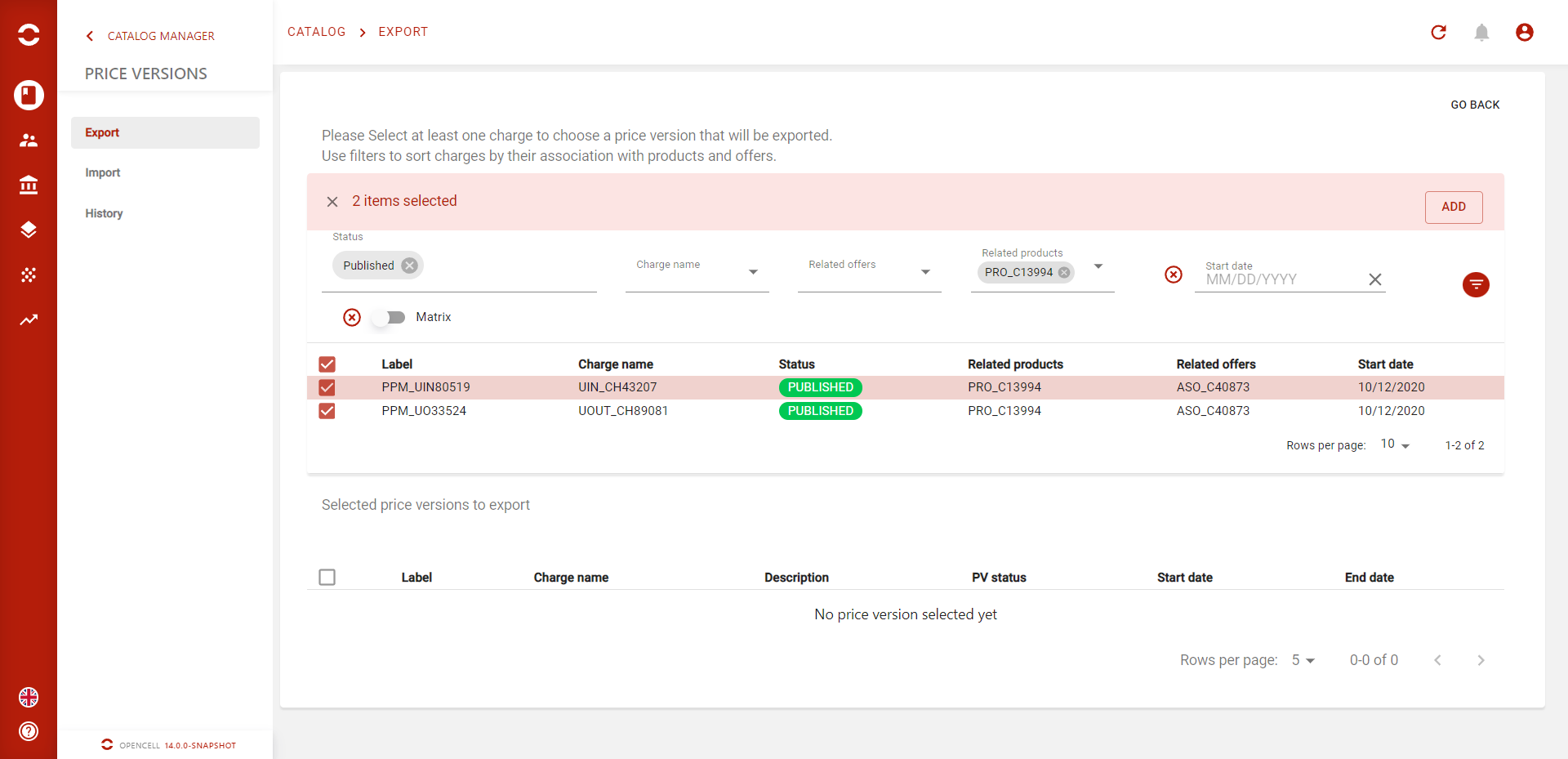
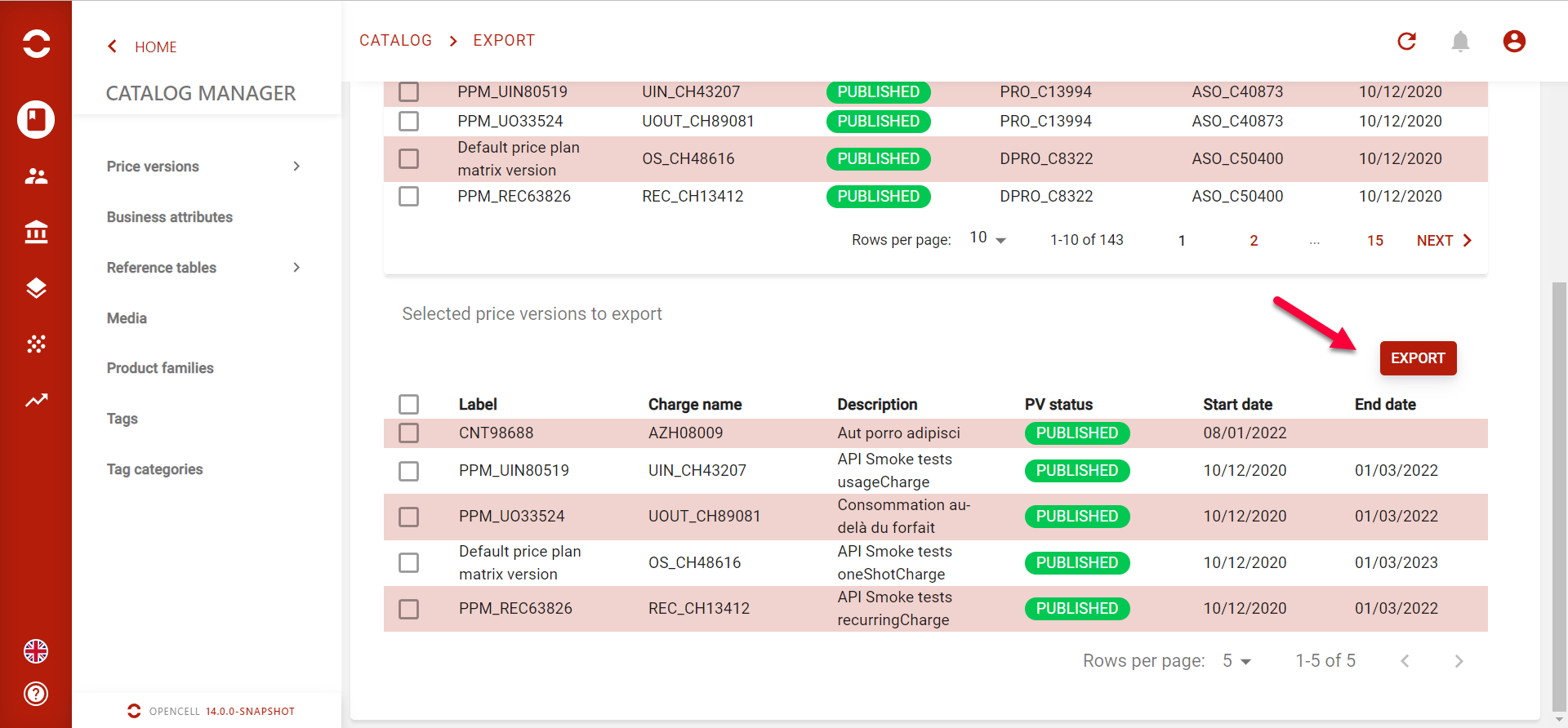
Once your selection is done, you can click on “add” to add price versions to be exported. You can add as many price version you want.
Then click on “export” when you’re done. A download should begins in your browser and price versions are downloaded inside a .zip file.
-
Name of the .zip file will be : [TIMESTAMP]_export. / ie : 20220330_export
-
Name of .csv document : [Price plan version identifier]_-_[Charge description]_-_[Charge code (charge name)]_-_[Label of the price version]_-_[Status of price version]_-_[start date]_-_[end date]
Price version name will be used when importing to pre-populate informations in the import page (see below).
Please refer to exporting documentation for more information about exporting format of .csv file.
Importing using mass update
After updating price versions, you can now re-import them. Only .zip files are supported for now. It means that each price versions in .csv should be zipped into a .zip file to being imported.
Once you’re ready to import price versions, go to import section and upload your file.
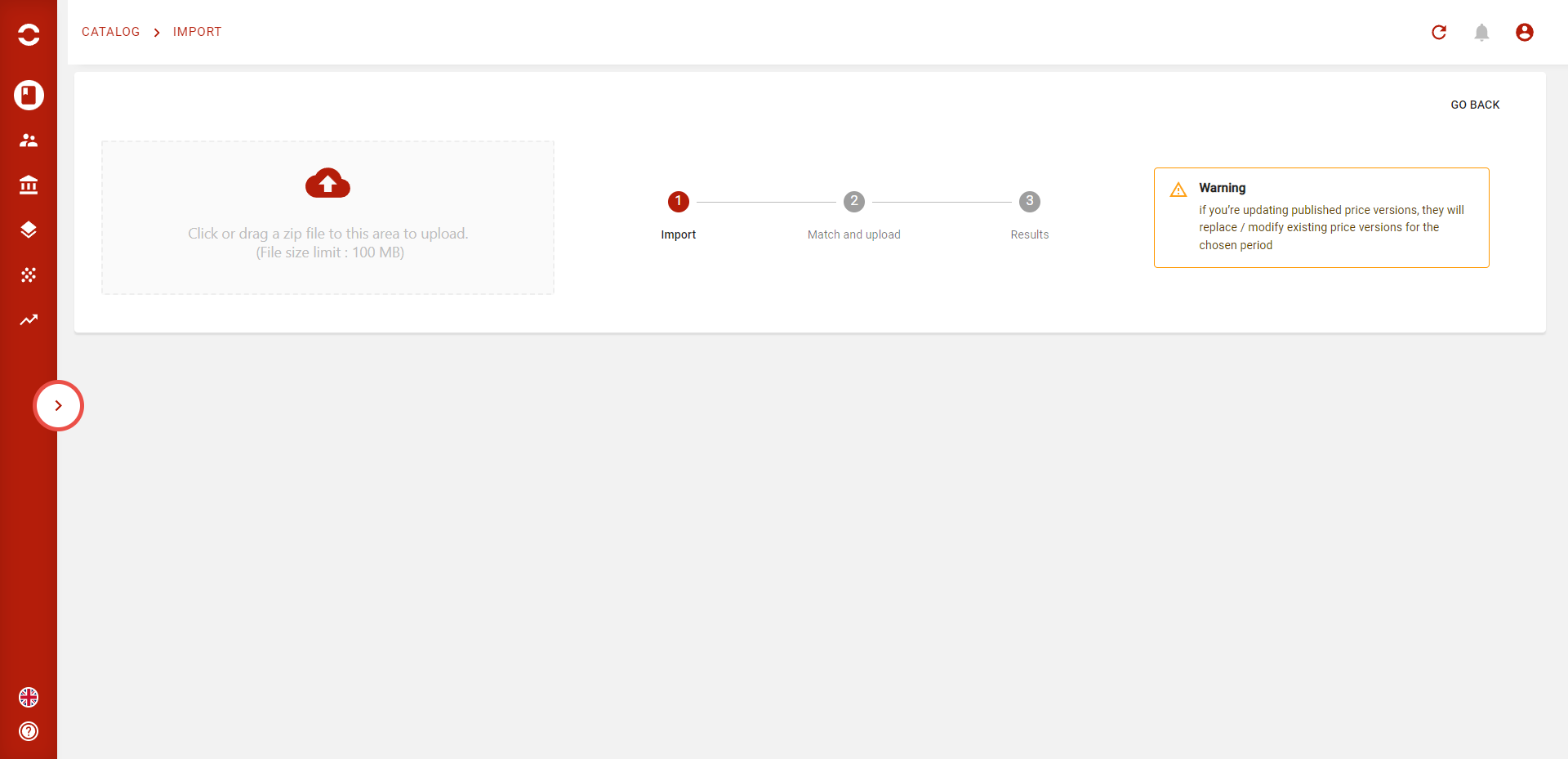
All price versions inside the .zip file will then be listed below :
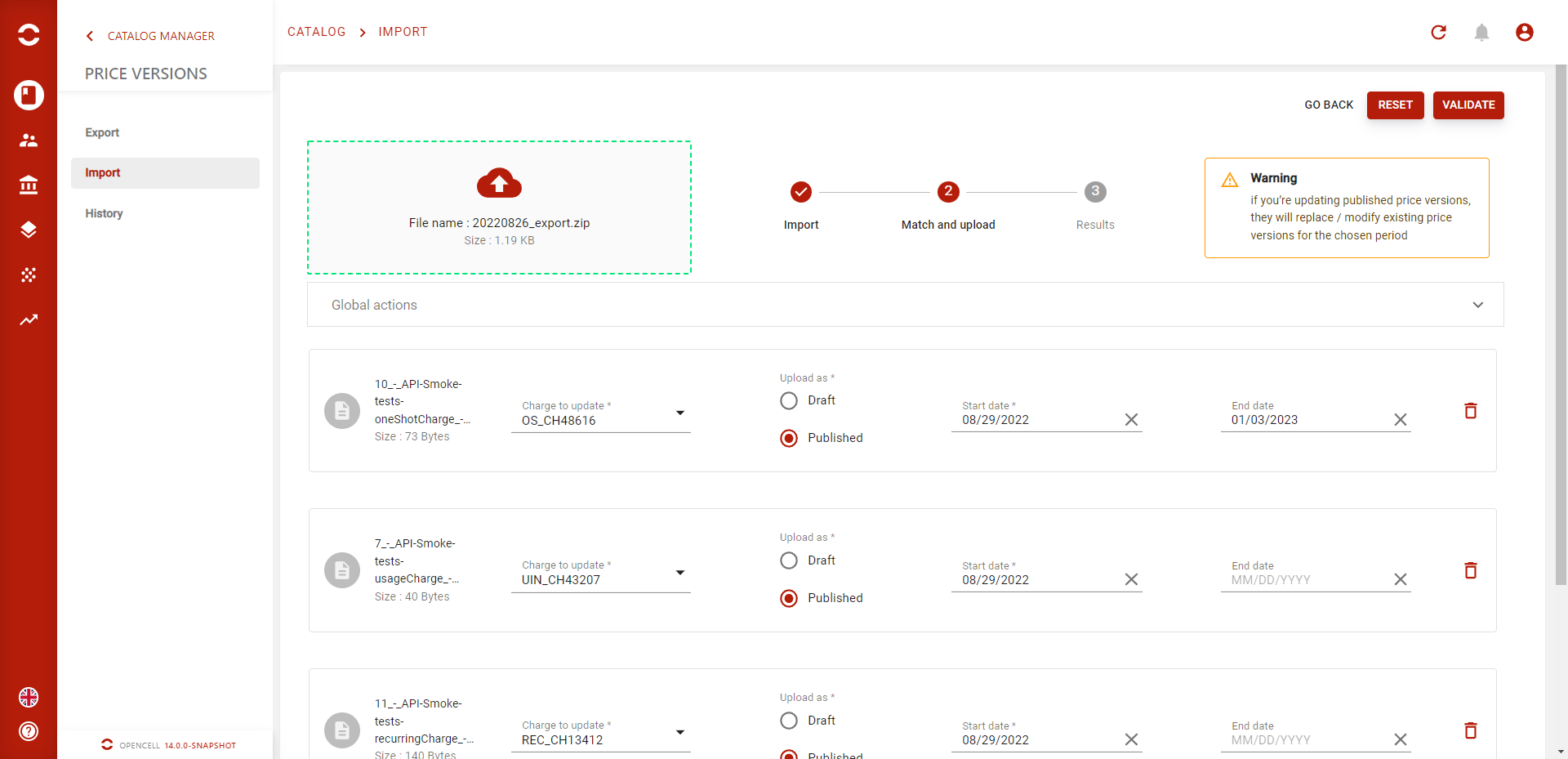
From this page, you’re able to :
-
Select the charge you want to upload the price version in
-
Select the status of the price version to be imported
-
Select the start date of the price version to be imported
-
Select the end date of the price version to be imported
-
Remove a price version to be imported
Note that informations should have been pre-populated using file name from the exported .csv documents.
Once you’re ready, you can click on “validate” to update targeted charges.
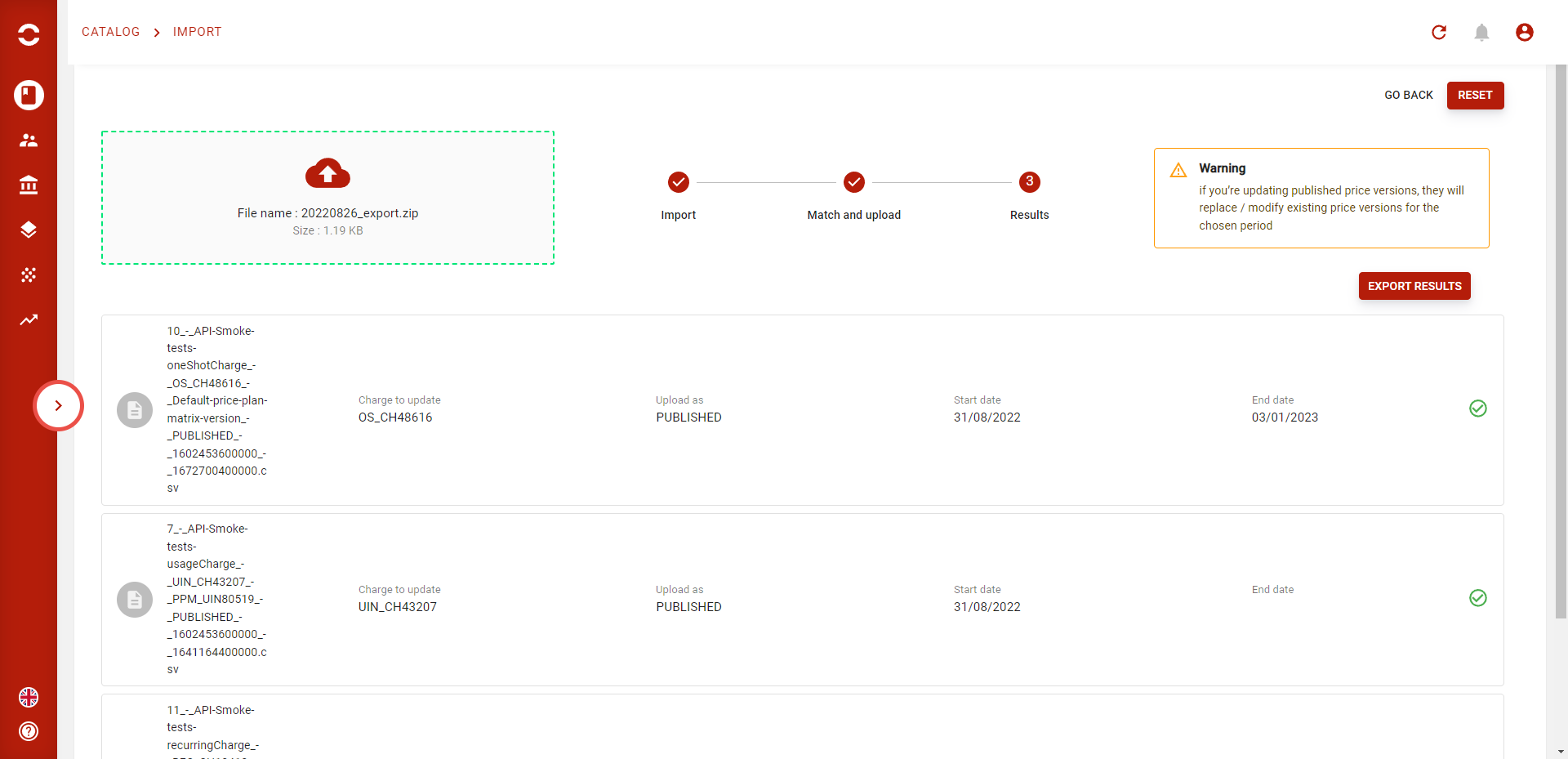
Using global action section
When expending the “global action” section, you’re able to set a parameter for the whole selection of price versions.

Using “export modifications” tool will download a .json file with your selection so that you can use this file later if you want to import other price versions with same properties.
Importing rules :
When using the mass import feature, some price versions may be in conflict. As you can only have one published price version per charge for a period, using the feature for an already existing period will update / replace following rules :
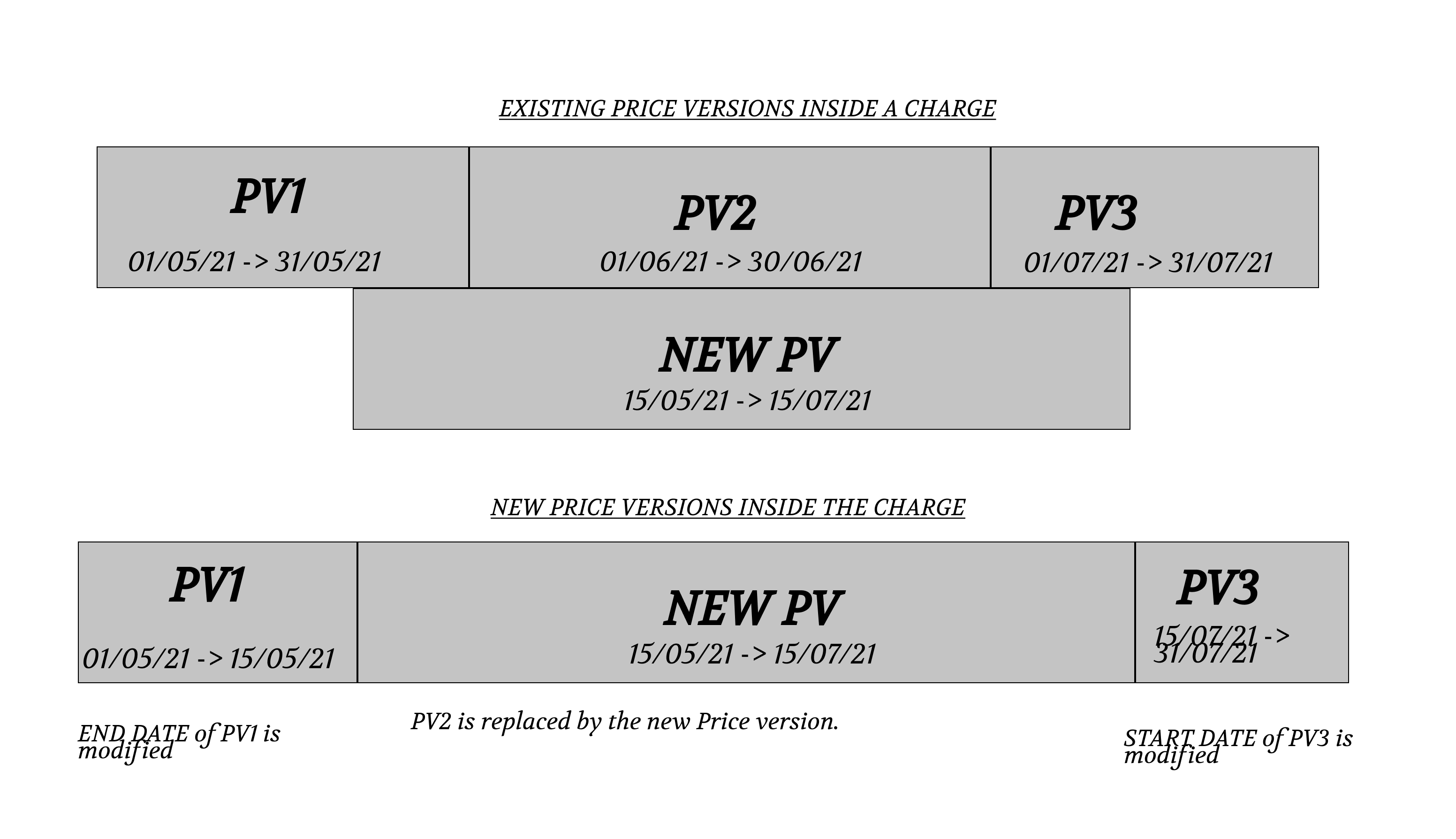
In this scenario, we have 3 published price versions inside a charge and user wants to update one of this PV with new values and new period (NEW PV). Existing PVs are :
PV#1 : From May 1st 2021 → May 31st 2021
PV#2 : From June 1st 2021 → June 30rd 2021
PV#3 : From July 1st 2021 → July 31st 2021
When importing the new PV, user will select a start date from May 15th 2021 and end date July 15th 2021.
To avoid conflict between existing PV and PV to be imported, the import process will modify end date of PV1, insert new PV, and modify start date of PV3.
By doing so, the new price version is inserted with the desired date and existing price versions are conserved.
Please note that importing rules only apply for price versions to be imported in status PUBLISHED . By importing price versions in status DRAFT , these restrictions do not apply.