
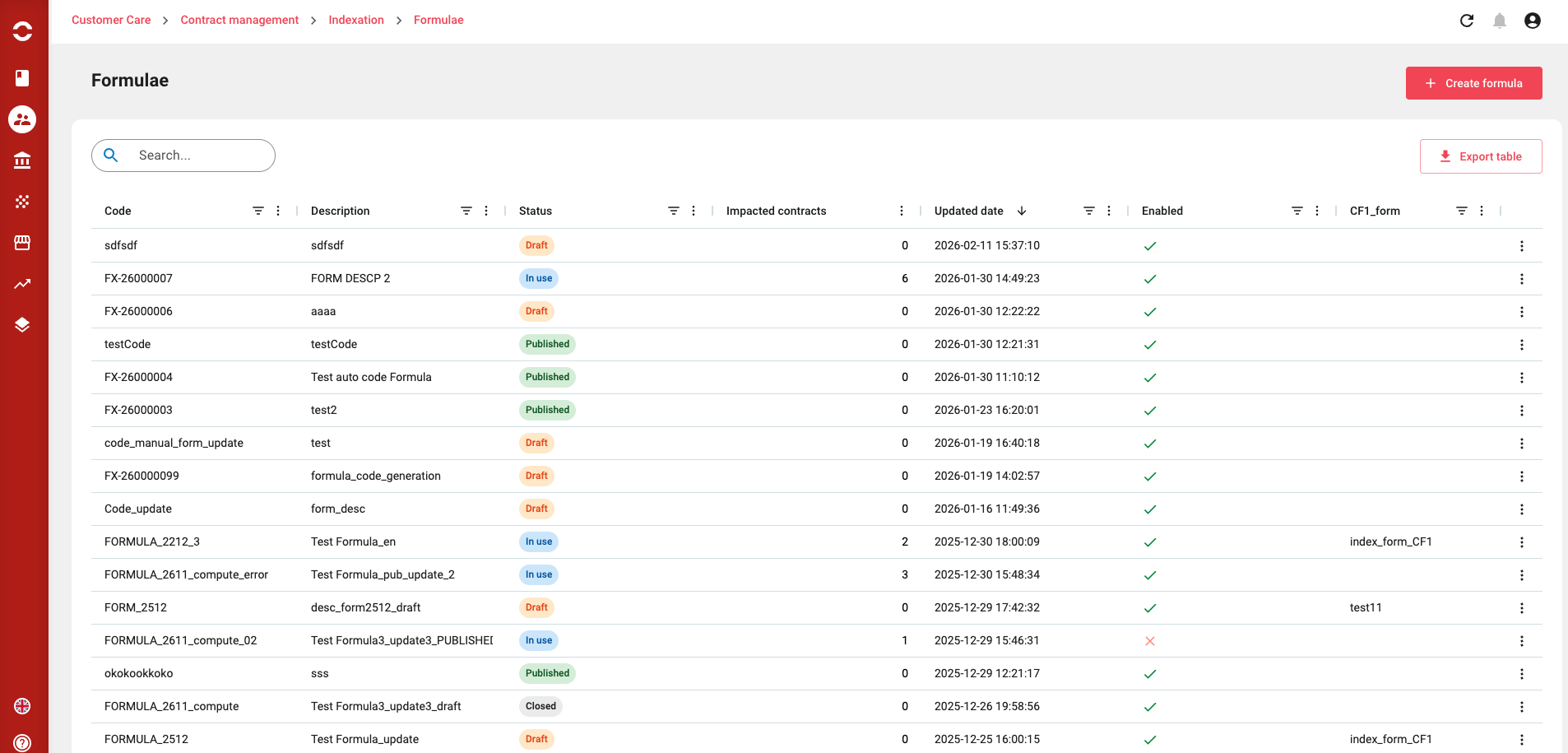
When you arrive on the Formulae page list view, then you will see all formula that have been created in your environment. As all list views, a few features are available to allow you to quickly search for specific formula, such as:
-
Search bar

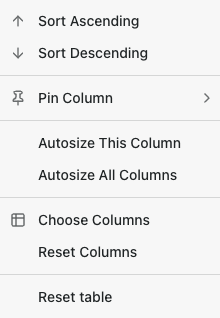
:filter: Filter button on all column
-
New button to create a new Formula

-
An export table button → This will download the view in .CSV format
Actions Available (via Actions menu)
You can interact with each formula directly from the list view using the action menu. The following actions are supported:
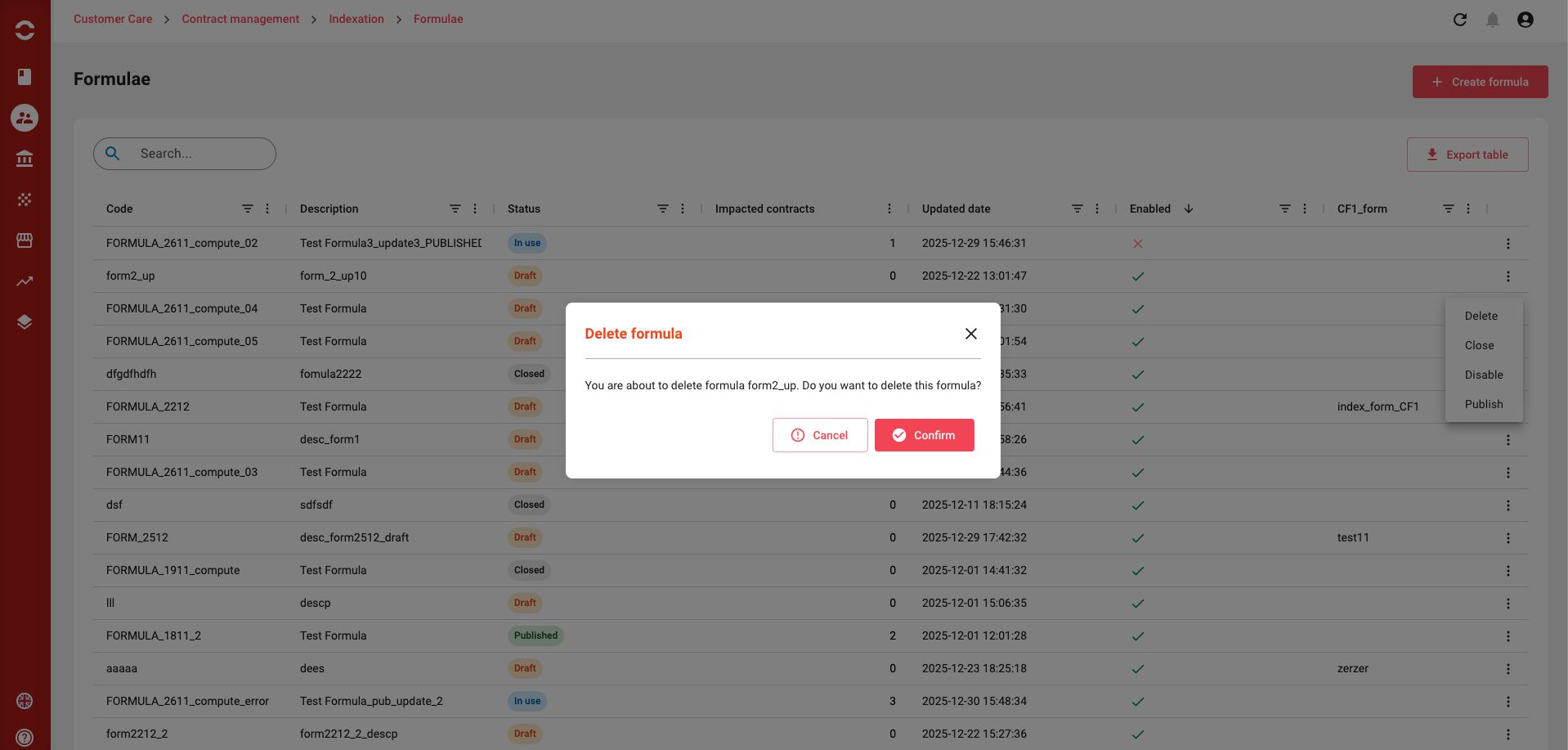
DELETE Formula
-
Deleting a formula will automatically delete all associated formula line. This action is irreversible.
-
this action is only for draft formula
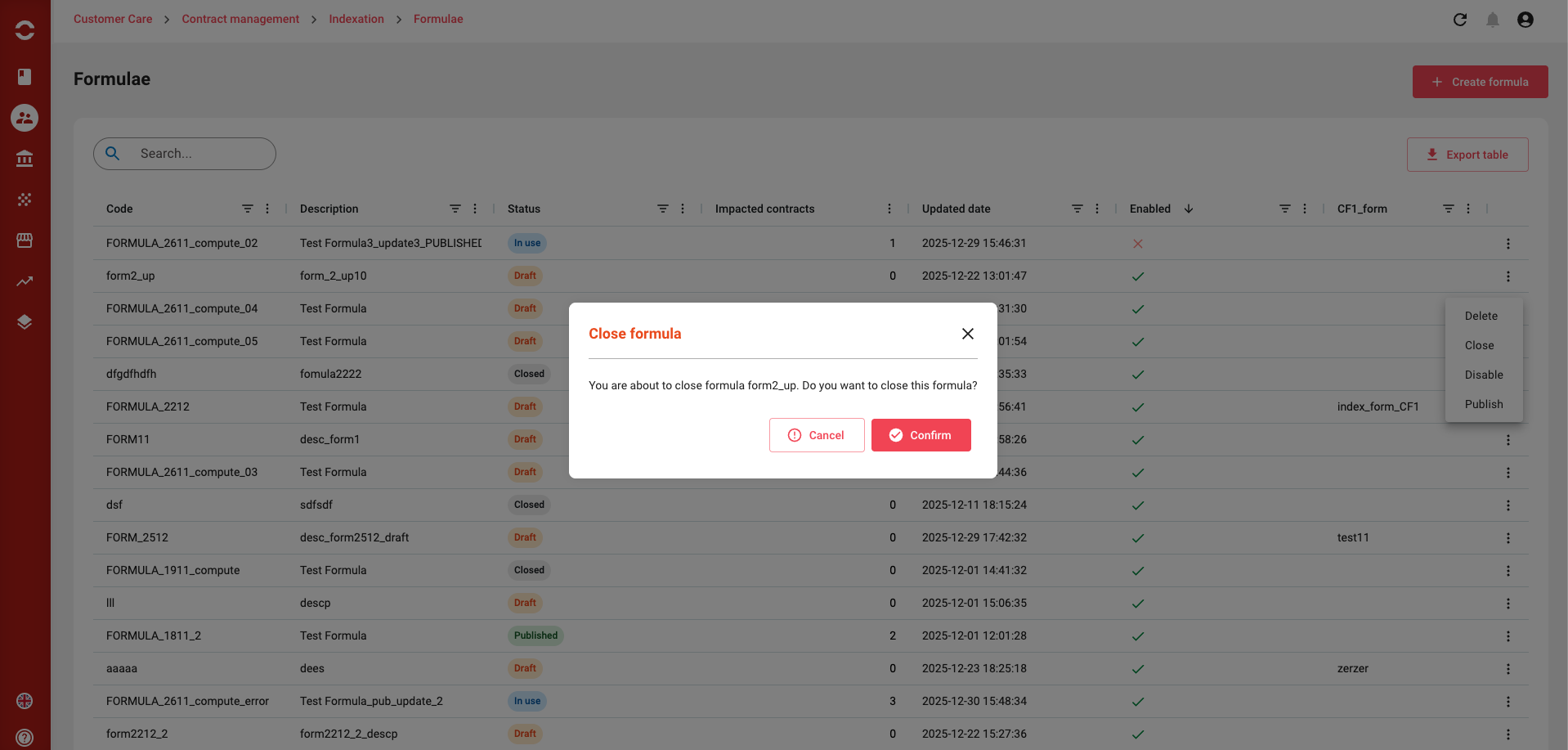
CLOSE Formula
You can always close a formula
-
this action is only for draft formula
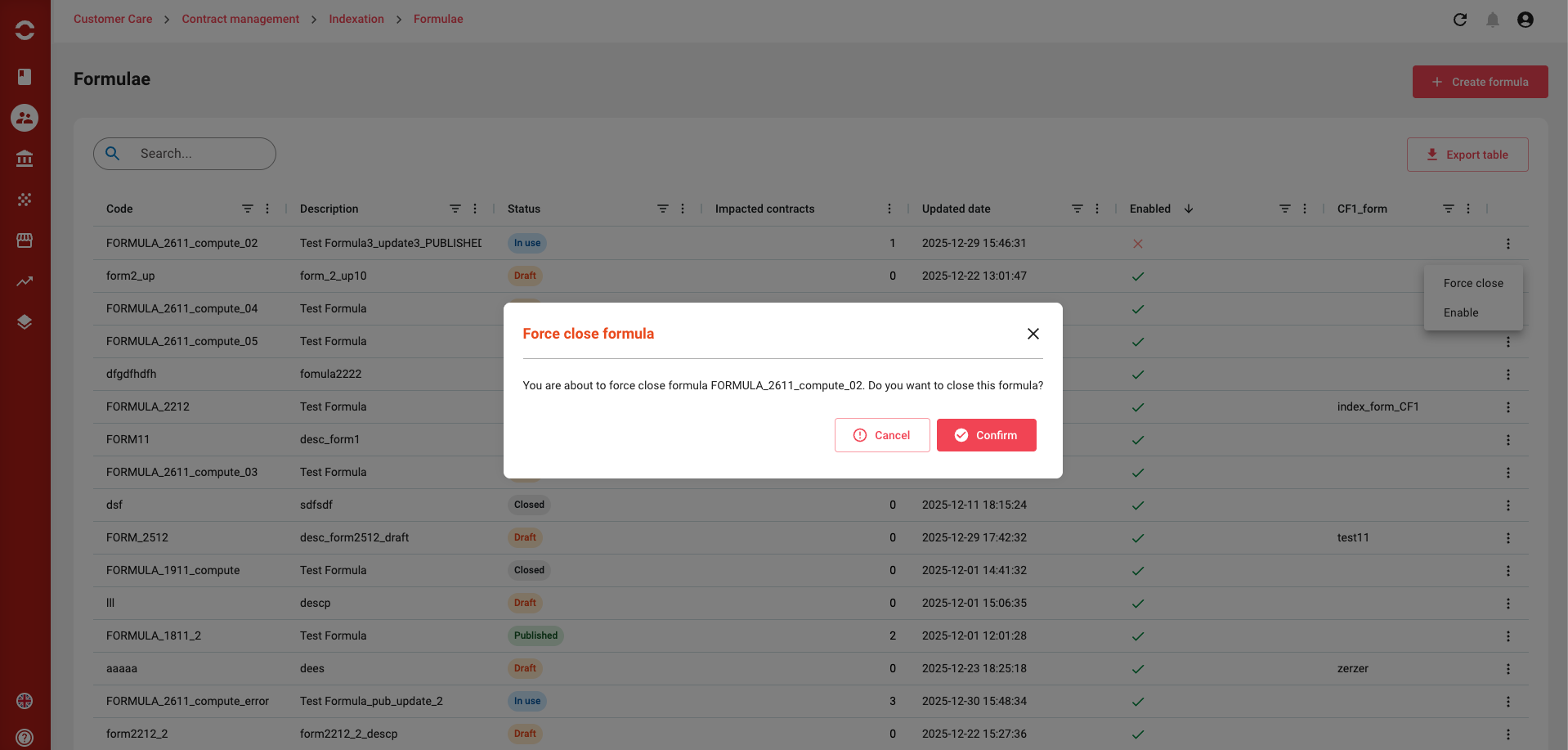
FORCE CLOSE Formula
The same rules as for closing
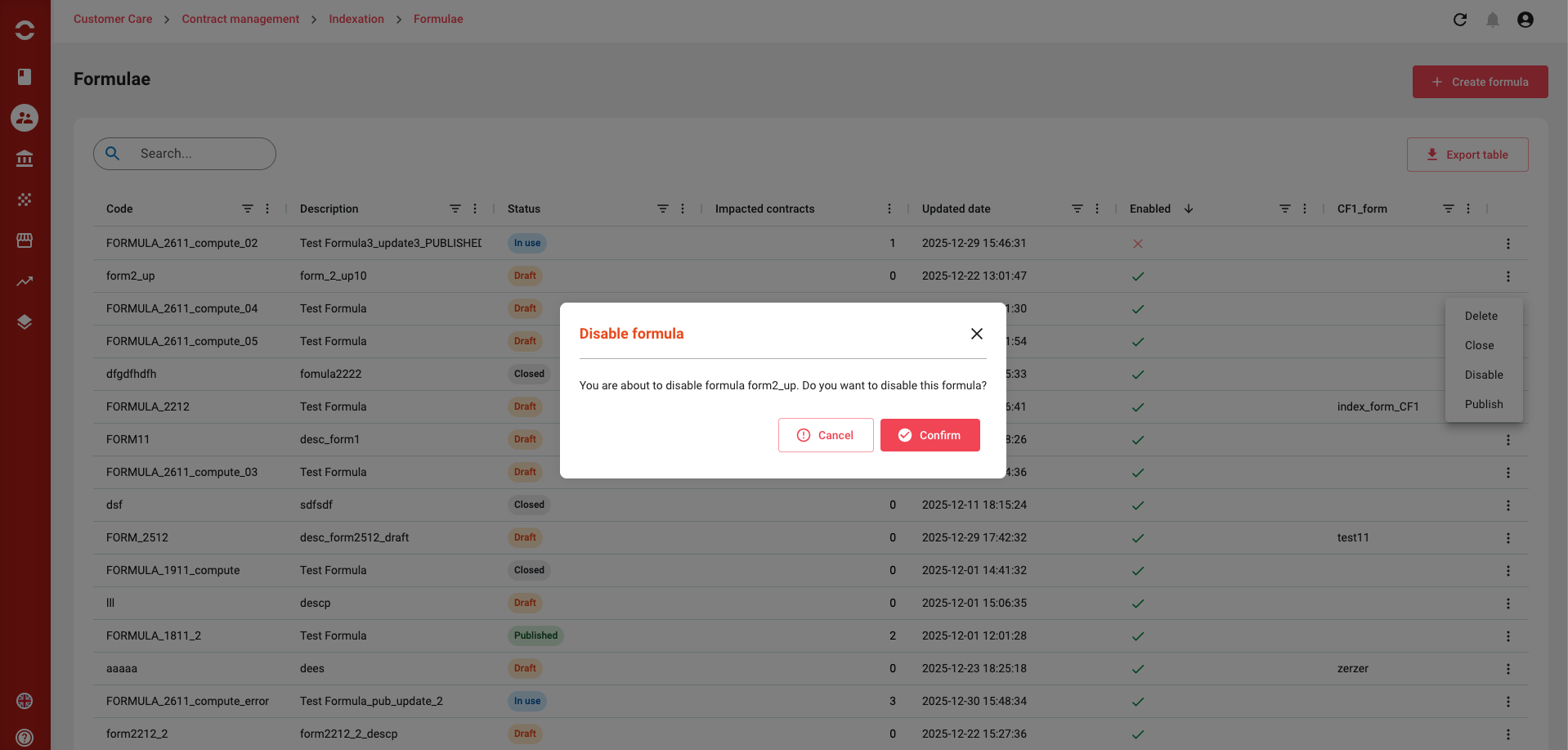
DISABLE Formula
-
Disabling temporarily disables the formula (for exemple, to wait for an update).
-
this action is only for draft formula
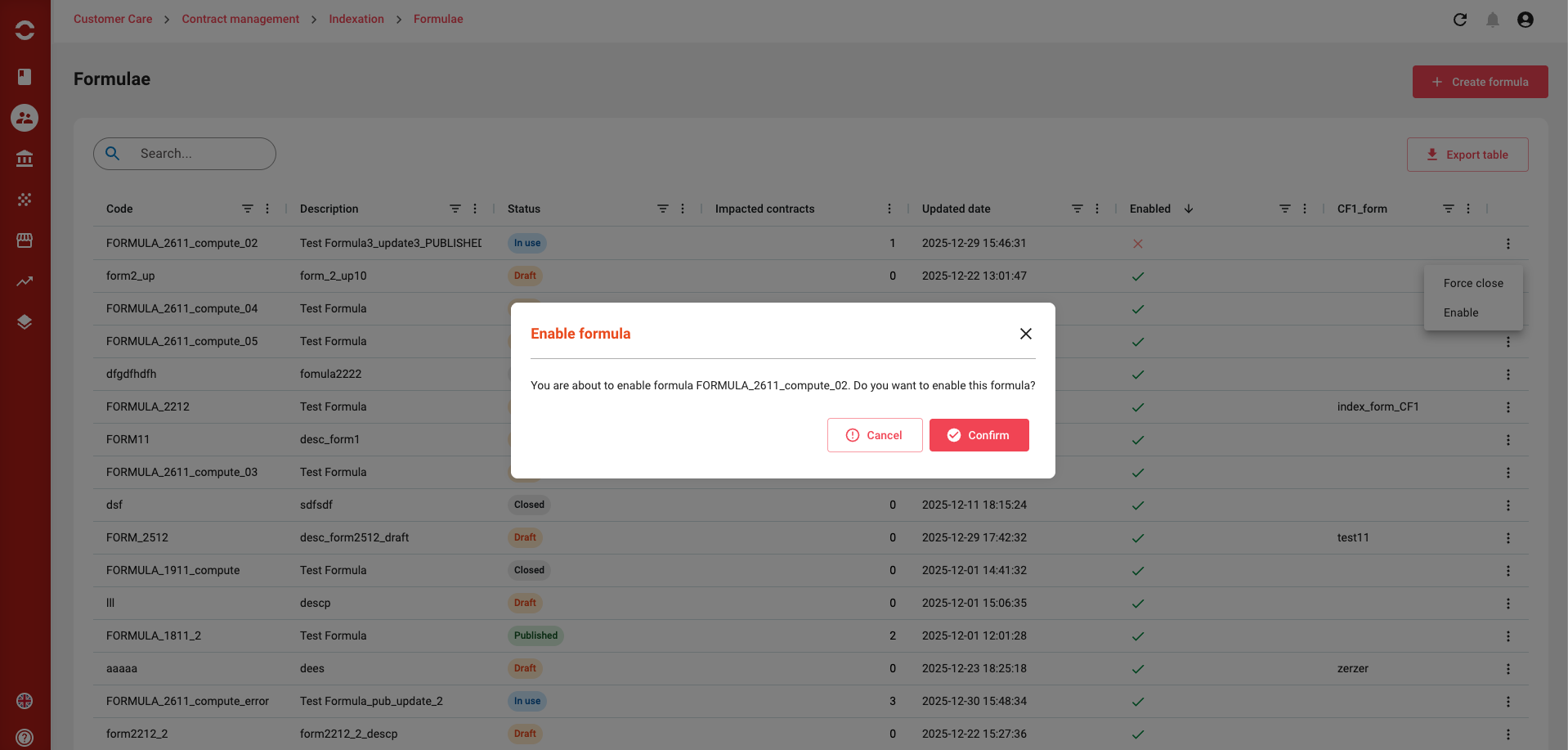
ENABLE Formula
-
Enabling re-enables the formula when the status is in use .
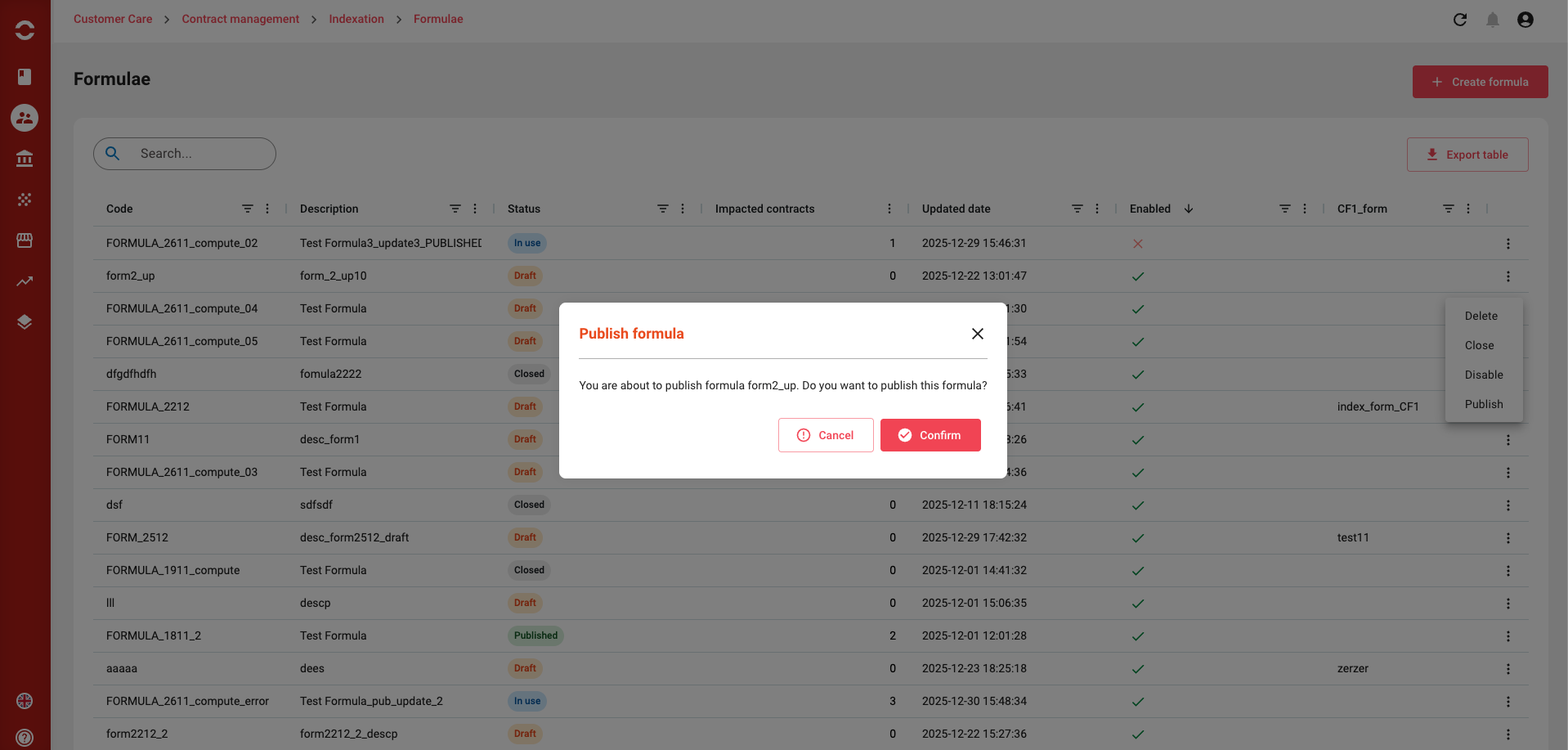
Publish Formula
-
Publish the formula when it is in draft status.
-
this action is only for draft formula
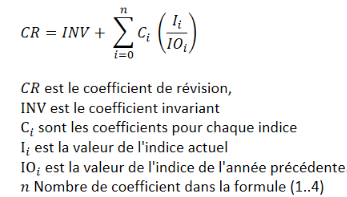
Creating a formulae
To create a formulae, you will have to click on the create button that you can find on the upper right corner of the page we have seen above. Once done, you will arrive on the following page :
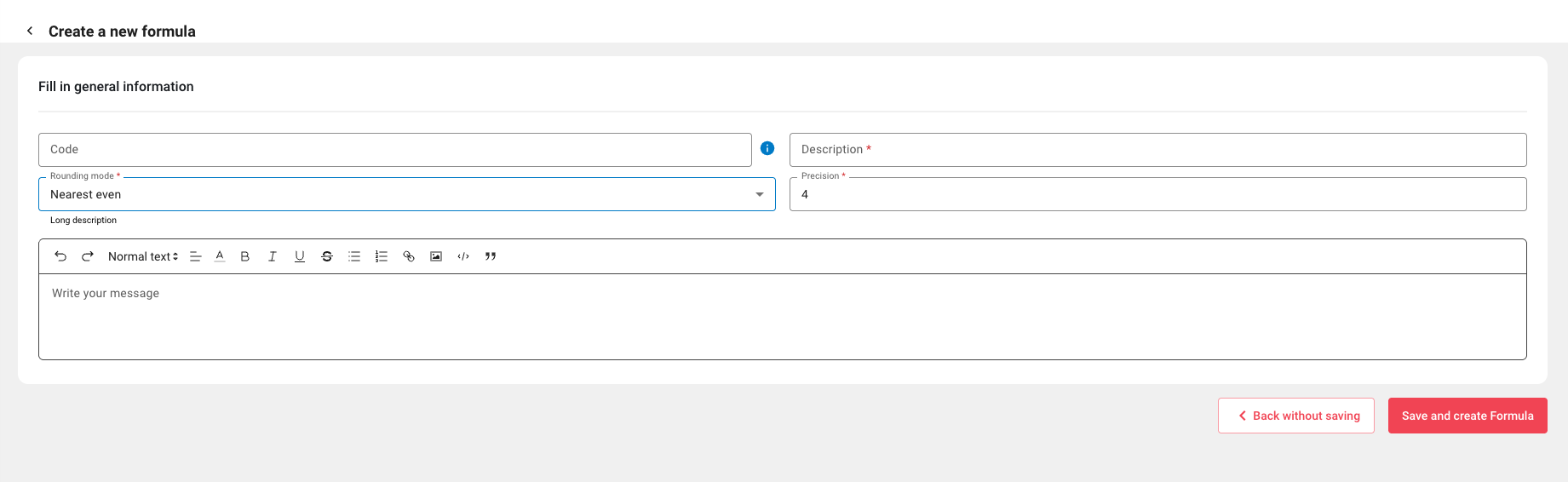
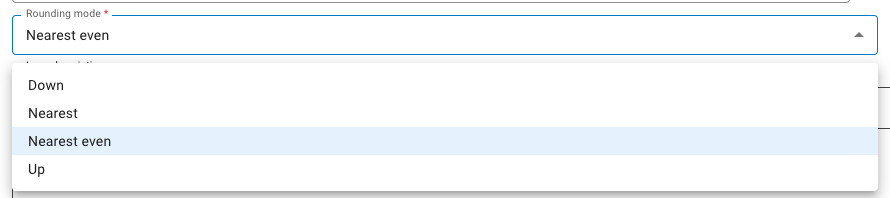
Create your formulae and save it.
You will be redirected to the following page :
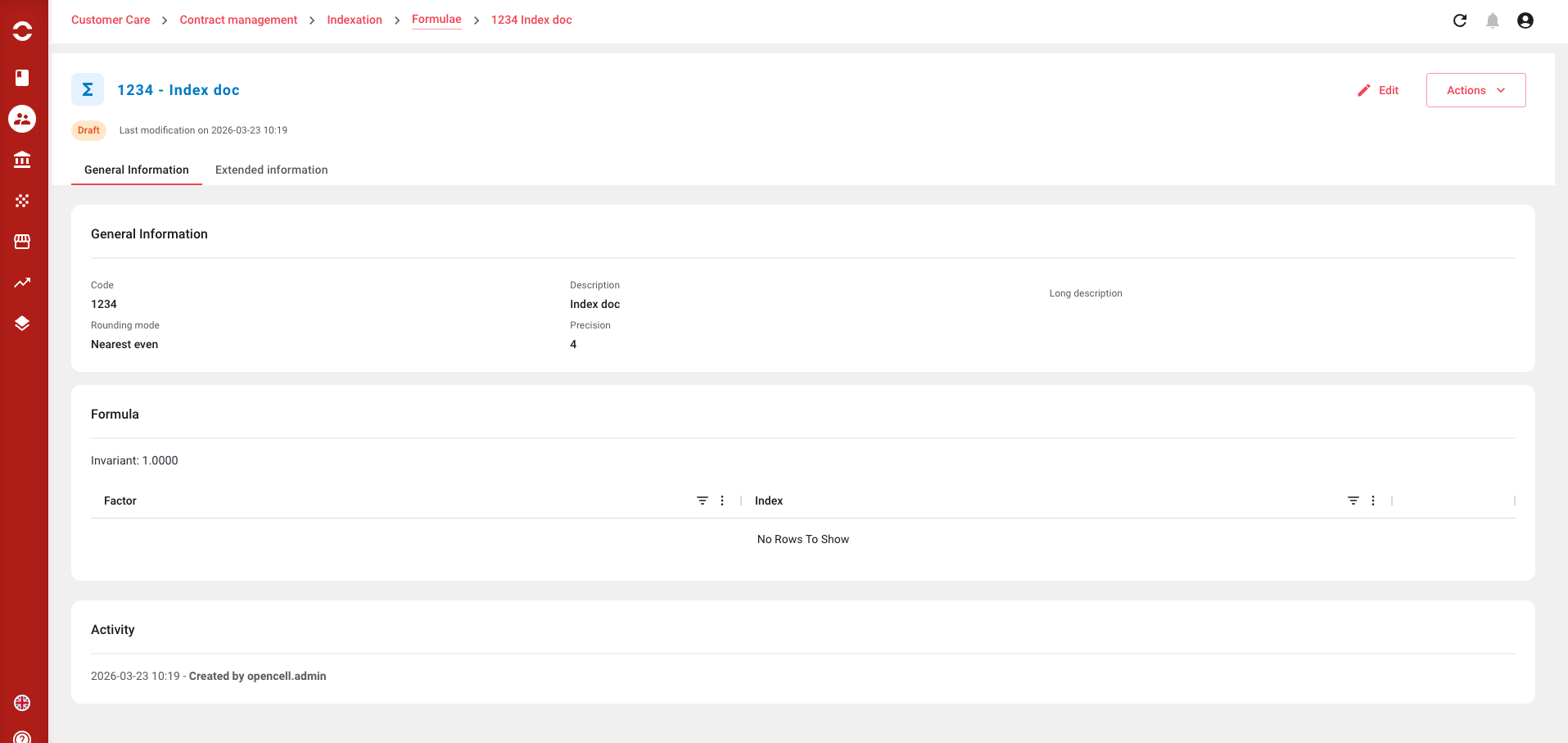
You can now edit your formulas using the "Add a new line" button; simply add a factor and select an index, then save and publish!
