
Defer payment or arrange payment by installments for customers who cannot keep up their payment obligations.
Installment Payment Plan Settings
When user activates the “Enable Installments Payment Plan” setting, an Installments Payment Plan settings section is enabled so that user can indicate the General Settings.
To activate Payment plan, you need to go to : General settings → Finance settings → Payment settings → Payment settings.
Then, you can enable “payment plan” :
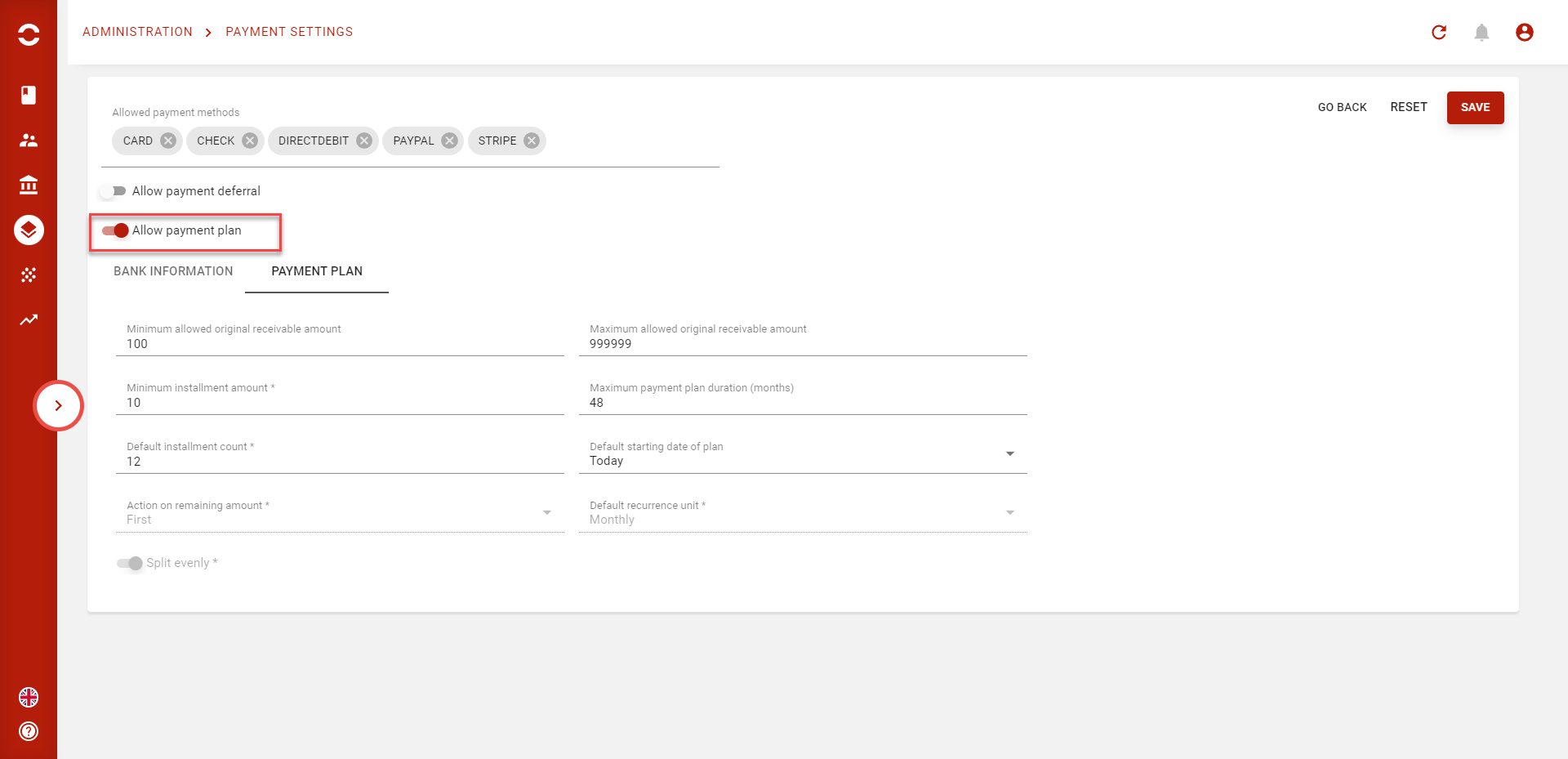
Then you’ll be able to set parameters :
|
Parameter |
Type |
Description |
|---|---|---|
|
Min allowed original receivable amount |
numeric value |
When user selects the receivables to include in an installments payment plan. The amount should be higher or equal to this parameter |
|
Max allowed original receivable amount |
numeric value |
When user selects the receivables to include in an installments payment plan. The amount should be lower or equal to this parameter |
|
Min installment amount |
numeric value |
Minimum amount for an installment |
|
Maximum payment plan duration |
numeric value |
Maximum period for a plan (monthly) |
|
Default installment count |
numeric value |
Default number of installment when creating a plan |
|
Default starting date of plan |
List |
Choose when to start a plan by default |
|
Action on remaining amount |
List |
Decide when to charge the remaining amount of the uneven split. First installment by default (cannot be changed. We’re planning to upgrade this setting in futur version). |
|
Default recurrence unit |
List |
Monthly by default (we’re planning to upgrade this setting in futur versions) |
|
Split evenly |
boolean |
If this parameter is set to true, the original receivable amount will be split evenly if user selects a simulation based on reccurence count. (this setting cannot be change. We’re planning to upgrade this setting in futur versions). |
Creating a plan
After enabling the payment plan and define settings, you’re now able to create a plan.
To do so, go to your customer’s balance and select account operations targeted as unpaid and for which you’re planning to create a plan to split the debt.
Note that you can only select account operations that are not matched yet and type = DEBIT.
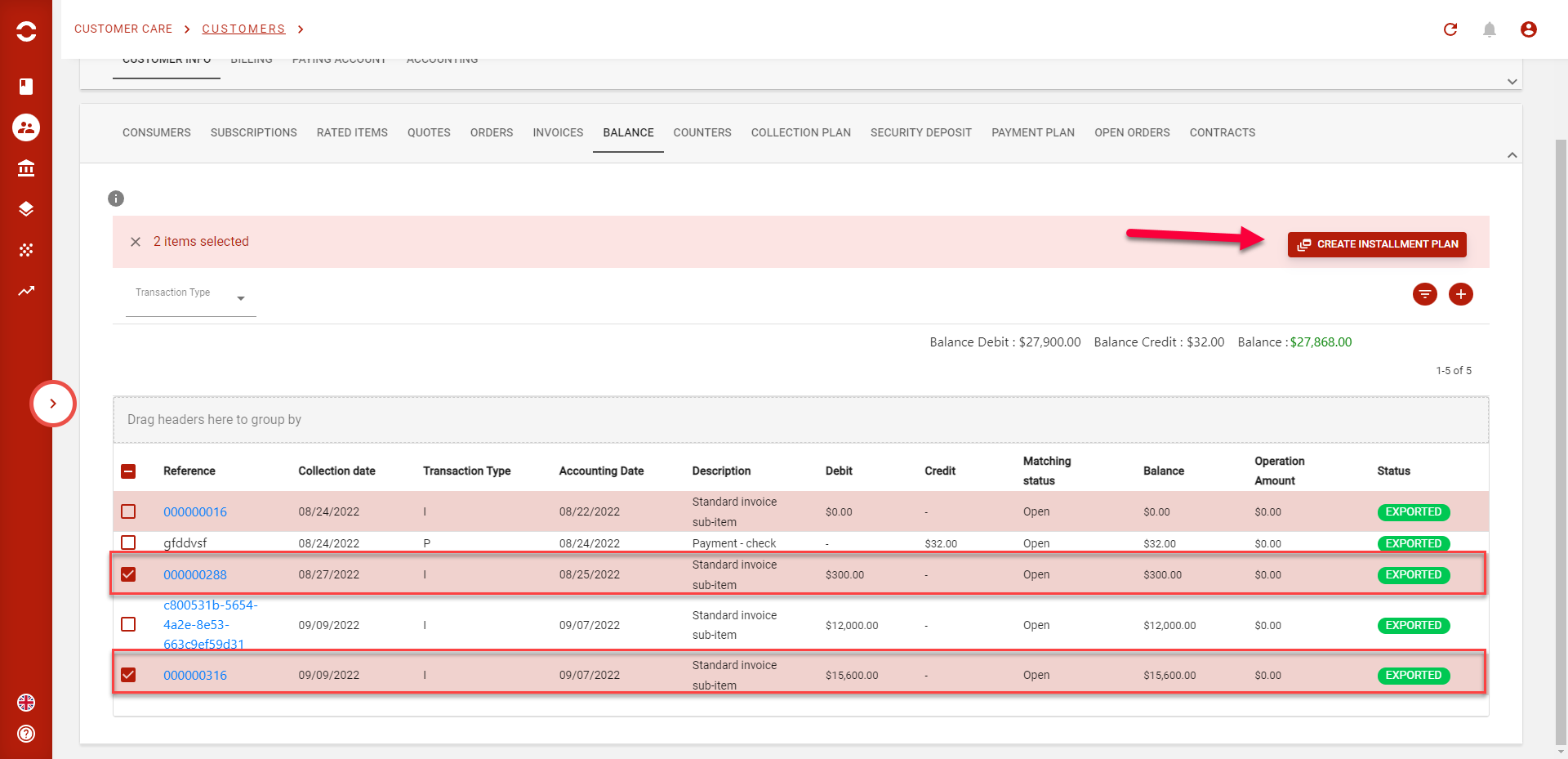
Once you’ve selected account operations, you can hit “CREATE INSTALLMENT PLAN”.
A pop-up will open and you’ll be able to create the new plan :
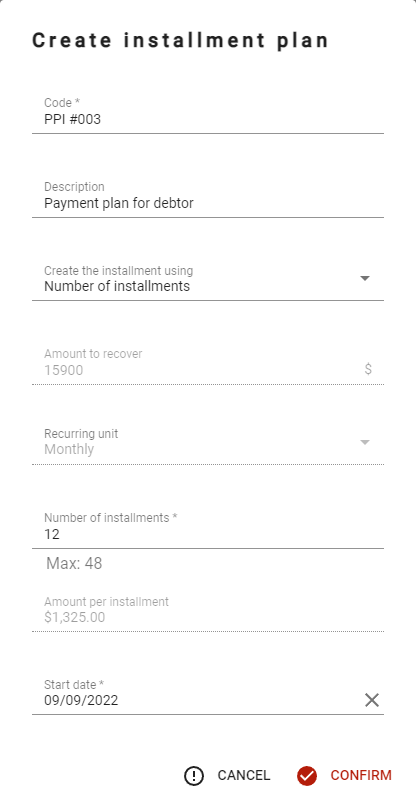
Here you can set a code, a description, start and then decide if you want to create the plan using :
-
Number of installment
OR
-
Amount per installment
Depending on your choice, the other field will automatically be updated.
In this exemple, the amount to recover is 15900$. I can decide to create a plan using a number of installment (12 for exemple), so the amount per installment will be 15900 / 12 = 1325$
OR
I can decide to get 2000$ per installment. Number of installment will then be = 7. As the exact result is 7.95, the remaining amount (0.95) will be charged in the first installment (as defined in settings).
When you’re ready, you can confirm the pop-up and a plan will be created in DRAFT status.
Activating a plan
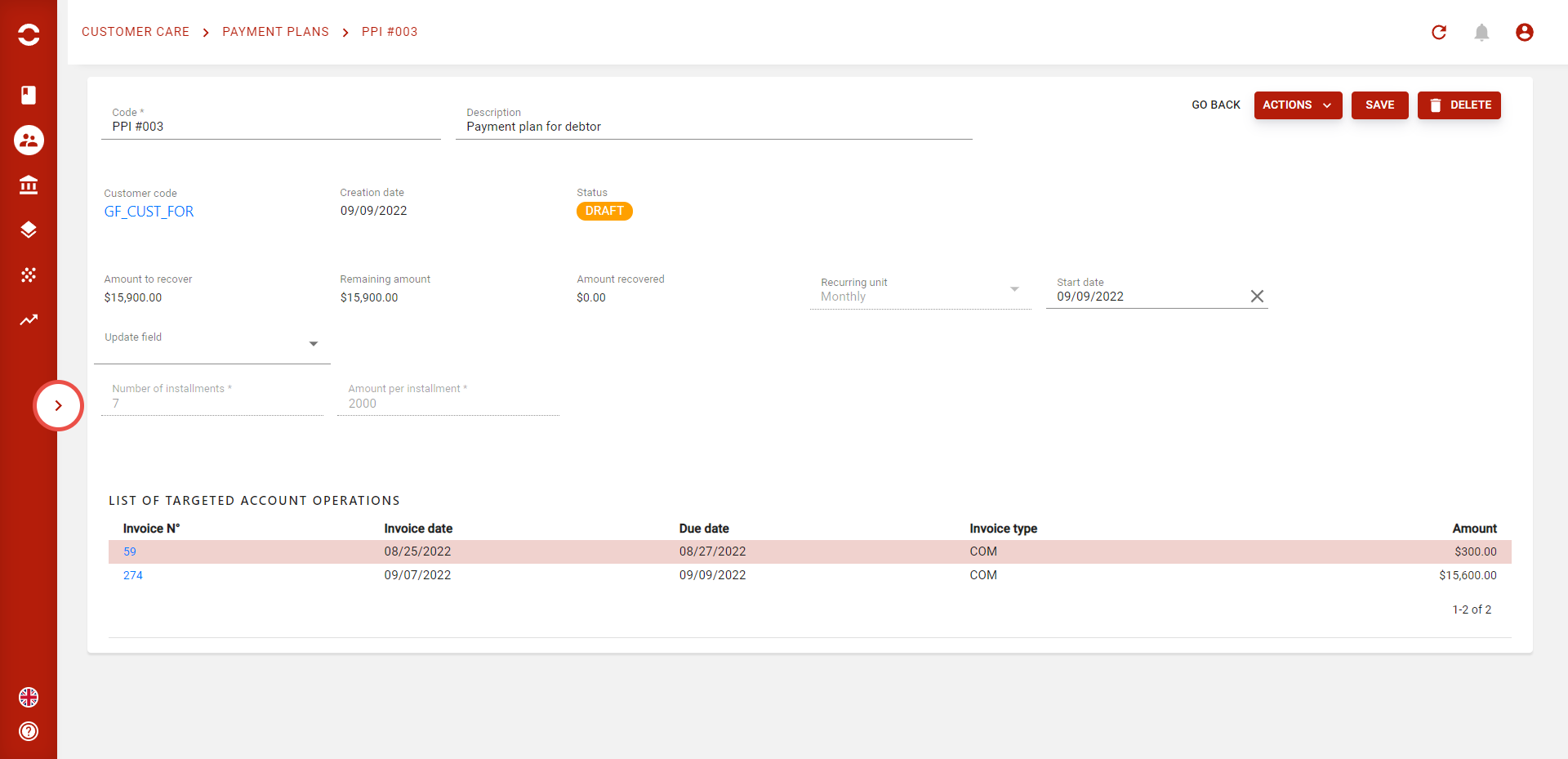
Here is the payment plan page. You can access from the tab “payment plan” in customer page :

Note that payment plan must be activated in settings to be displayed here.
On this page, you can modify settings of the plan that you previously defined in the pop-up.
Targeted account operations and their amount that are part of the plan will also be displayed here.
Once you’re ready to activate the plan, click on activate in the “ACTIONS” button. Payment plan will become ACTIVE . If you activate a plan with a start date in the future, its status will be PENDING .
After activation, list of created account operations will be displayed :
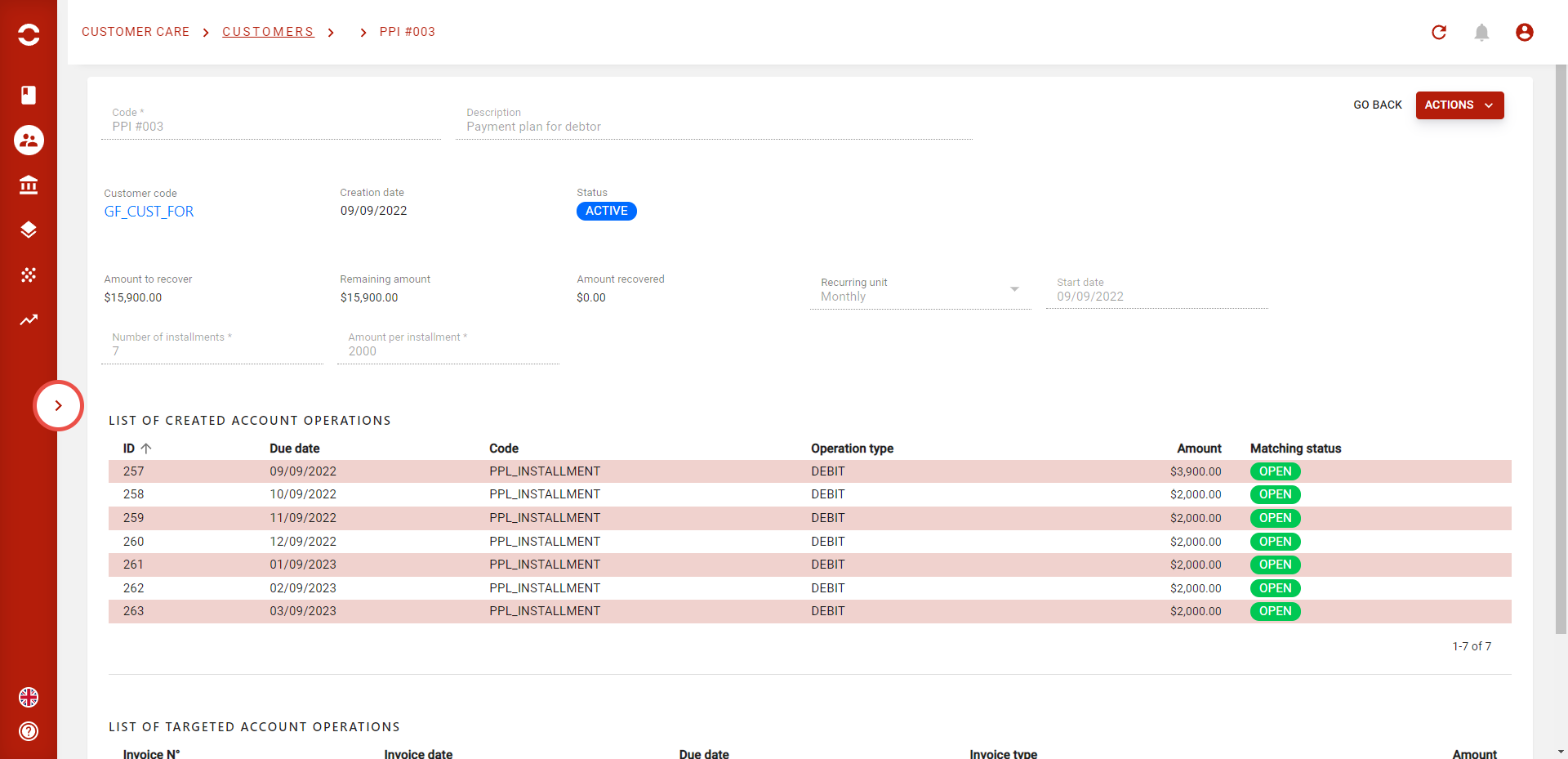
These account operations correspond to the expected installment from your client. Activating a plan will “match” the targeted operations by there amount and then create a new account operation per expected installment.
Note that in this exemple, the first installment is equal to 3900$ as we chose to have an amount of 2000$ per installment so the “extra” from the uneven split is charged in the first installment.
When all expected installments are matched, payment plan will become COMPLETED .
If all expected installment are not matched by the end of the plan, status will become ESCALATED . We’re planning to link this status to dunning feature in futur version