
In Customer Care, your customers are organised in a hierarchy of four levels:
-
Customer: the top of the hierarchy
-
Paying account: handles the payments and the balance
-
Billing account: holds the subscriptions and receives the invoices
-
User account: the user of the service
Each level has its own list, described in Customer - newUI, Paying accounts - newUI, Billing accounts - newUI and User accounts - newUI. The Customer hierarchy page shows all the levels together, as a tree.
Customer hierarchy tree view
Go to Customer Care > Customer hierarchy. This entry is in the menu only when you use the new design of the billing account page and, from 18.1.0 onwards, when Hierarchical Tree View is ticked in the Navigation Panel (see below). The tree lists your customers. Click > at the start of a row to expand it and see the paying accounts, billing accounts and user accounts below it.
For customers, the tree shows Code, Name, Seller, Category, Parent, Account type and Creation date. Each level below shows the main columns of its own list. You can sort and filter the columns.
Use the search bar to find a code or a name at any level shown in the tree. Levels hidden by the settings below are not searched.
From the tree view, you can:
-
Click a code to open its page.
-
Click Create customer hierarchy to create a new customer hierarchy.
-
Point to the information icon next to the page title to read a short description of the four levels.
Choosing what Customer Care shows
Go to General settings > Application settings > Features management. The settings are in the Customer hierarchy section. Click Save when you are done.
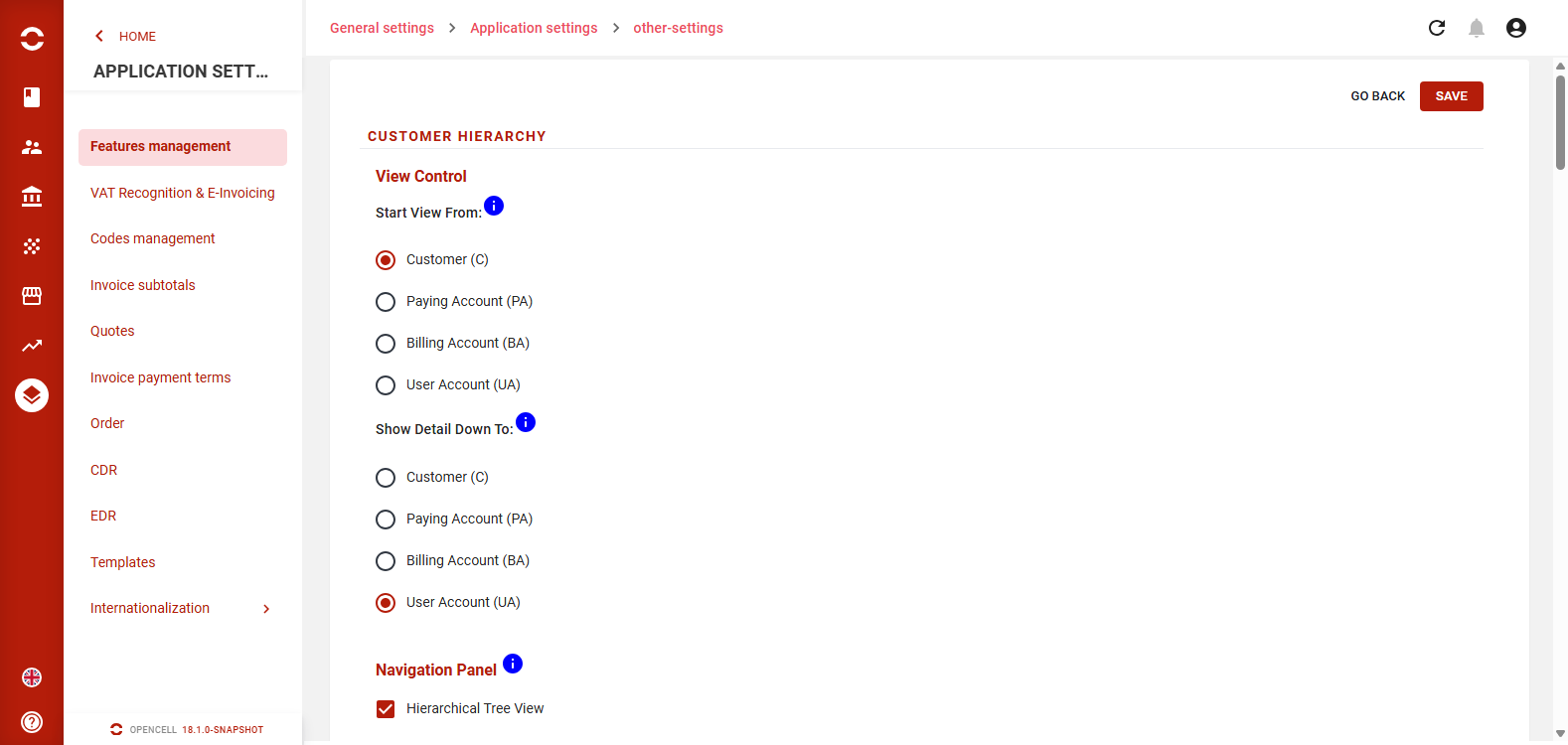
View Control sets which levels the tree view shows:
-
Start View From: the highest level shown.
-
Show Detail Down To: the lowest level shown. You can only choose a level at or below your Start View From choice.
From 18.1.0 onwards, Navigation Panel sets which lists appear in the Customer Care menu. It replaces the former setting that chose a single default page.
-
Tick the entries to show: Hierarchical Tree View, Customer (C), Paying Account (PA), Billing Account (BA) and User Account (UA). At least one entry must stay ticked.
-
The menu always shows the entries in this order.
-
When you open Customer Care, the first ticked entry opens.