
A paying account handles the payments and the balance of a customer. It sits between the customer and its billing accounts. The Paying accounts list shows all your paying accounts. From it, you open a paying account's page.
To open the list, go to Customer Care > Paying accounts. If this entry is missing from the menu, it is hidden by the Navigation Panel setting described in Customer hierarchy - newUI.
Paying accounts list
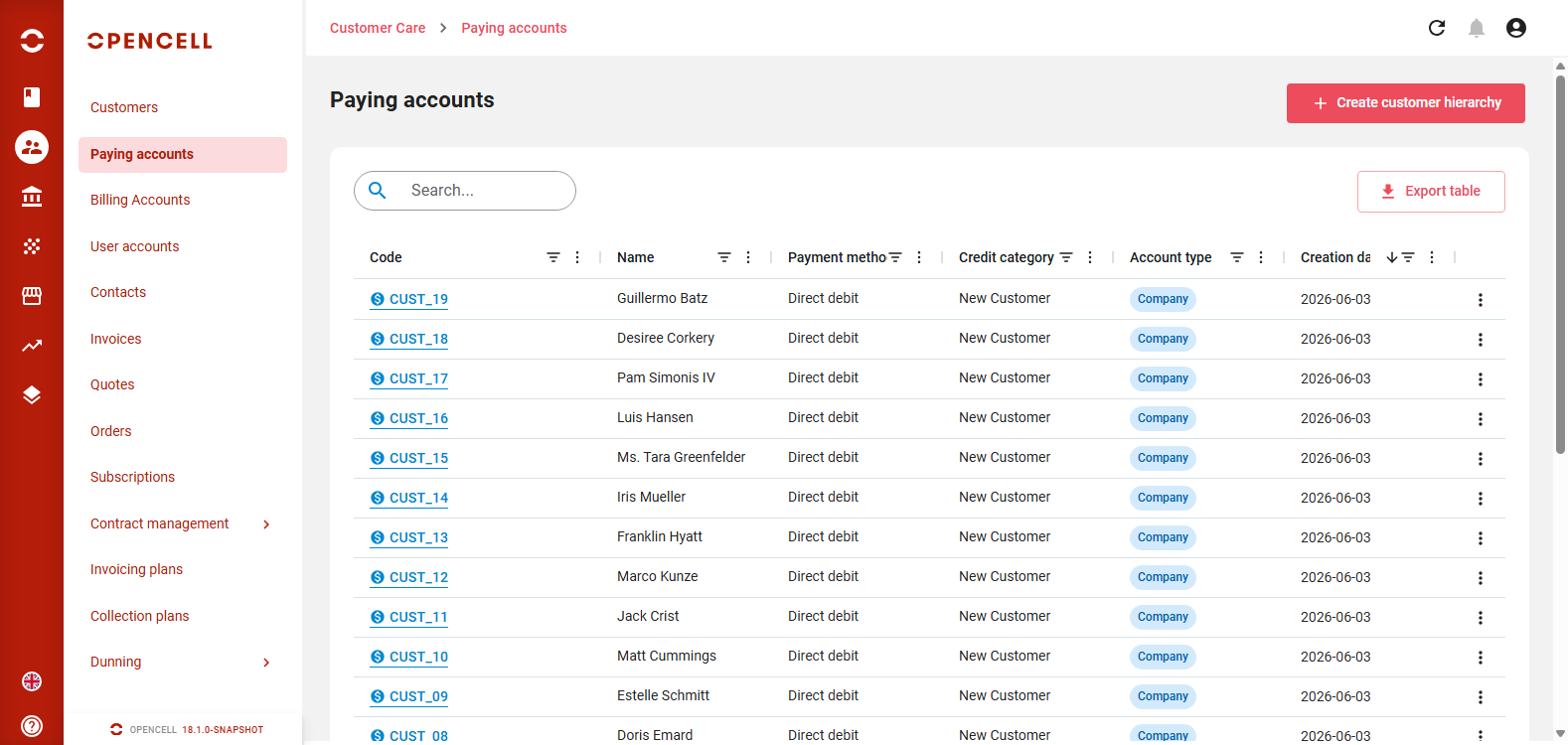
Each line is a paying account. The list shows these columns:
-
Code
-
Name: the description for a company or a government body, the first and last name for an individual
-
Payment method: Check, Direct debit, Wire transfer, Card, Paypal link, Stripe link, Cash, SIPS or Assisted Cheque
-
Credit category
-
Account type: Company, Individual or Government. From 18.1.0 onwards, this column replaces the Balance column.
-
Creation date
You can also show these columns: Payment term, Address 1, Postal code, City, Country, Registration N° and Status. The status is Activated or Closed . You can sort and filter the columns, and move or hide them.
The list is sorted by creation date, newest first. Use the search bar to find a paying account by code or by name.
From the list, you can:
-
Click Create customer hierarchy to create a new customer hierarchy.
-
Click Export table to download the list.
-
Click a paying account's code to open its page.
Paying account page
The paying account page has the General information and Advanced information tabs and, from 18.1.0 onwards, a Documents tab. When custom fields are defined for paying accounts, an Extended information tab shows them.
General information
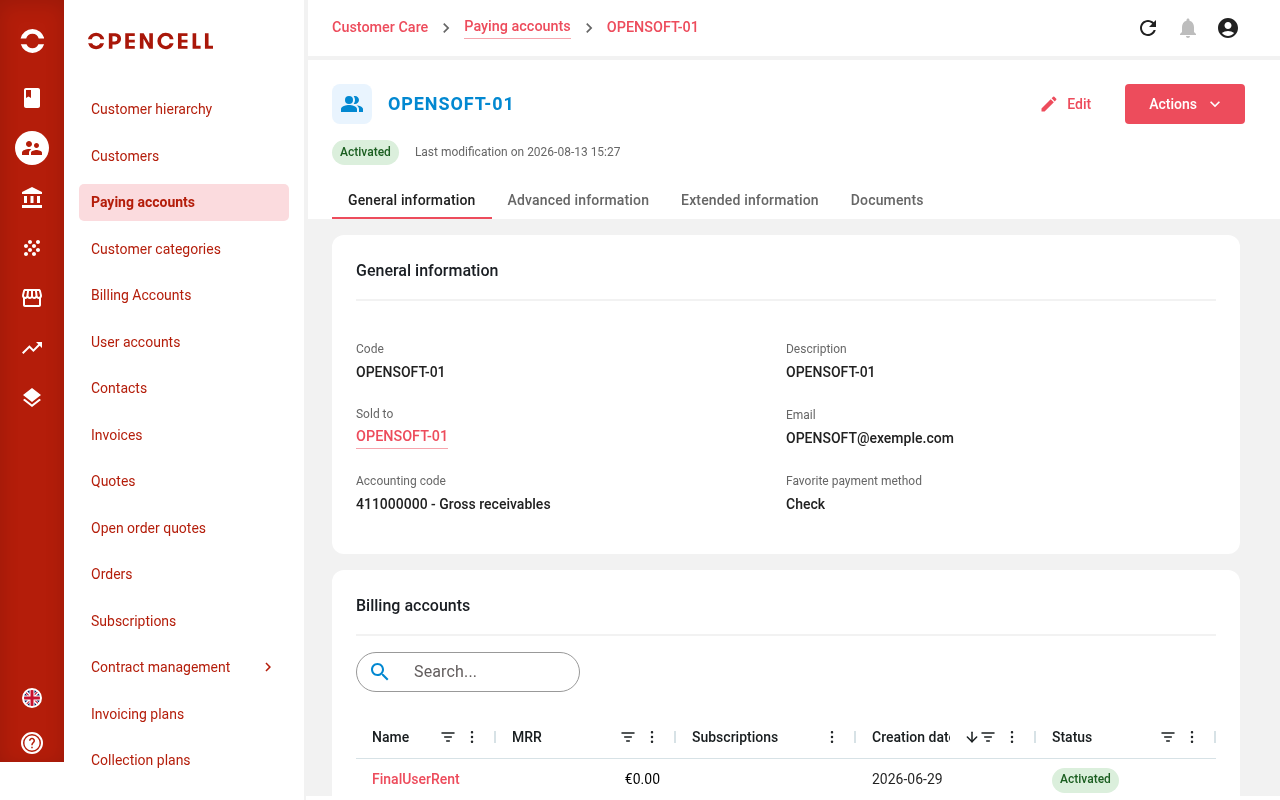
The General information section shows:
-
Code
-
Description
-
Sold to: the customer this paying account belongs to. From 18.1.0 onwards, click it to open the customer's page.
-
Email: the paying account's email address, shown here from 18.1.0 onwards
-
Accounting code: the accounting code used when accounting entries are generated for this paying account. Available from 18.1.0 onwards.
-
Favorite payment method
To change this information, click Edit at the top of the page, make your changes and save.
Below it, the Billing accounts section lists the billing accounts of this paying account, with their Name, MRR, Subscriptions, Creation date and Status. Click a billing account to open its page.
Further down, the Transactions section lists the invoices and payments of the paying account. Click an invoice line to open the invoice.
Advanced information
The Advanced information tab gives the full details of the paying account and of the customer it belongs to, such as their address.
Documents
From 18.1.0 onwards, the Documents tab lists the files attached to the paying account. You can upload, download and delete them. See Documents tab.