
In the new portal, the Products section of the subscription details page lists the products of the subscription. From there you can add products, run actions on each product and view or edit product attributes directly in the page, without opening a window. This page describes the section as it works from 18.1.0 onwards.
The products list
Each line is one product of the subscription. A product can appear on several lines when it was added more than once. For each line you see the product, its Quantity, its Delivery date and its Status.
On each line:
-
An arrow (>) at the start of the line, when the product has attributes, shows or hides them (see below).
-
The eye icon opens the product instance details page.
-
The actions menu (⋮) lists the actions available for the product's status.
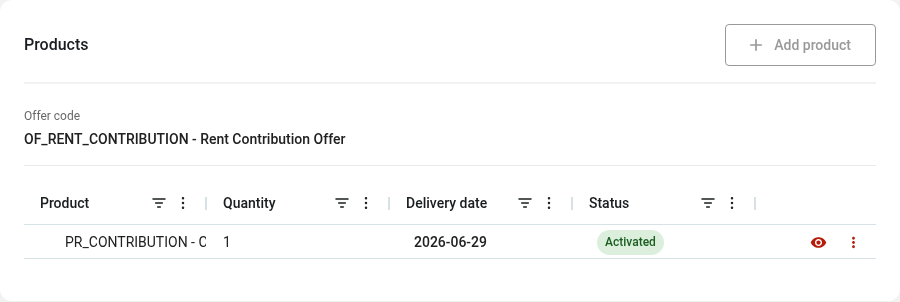
Adding a product
Click Edit at the top of the page, then click Add product and select the products to add in the window that opens. Until you click Edit, the button is greyed out. You can add a product that is already on the subscription. The button is available only while the subscription is instantiated, pending or activated.
Product actions by status
The actions in a product's menu depend on the product's status:
|
Product status |
Available actions |
|---|---|
|
Instantiated (not activated yet) |
Activate product. You can also delete the product line if the product is optional. |
|
Activated |
Suspend product, Terminate product |
|
Suspended |
Resume product (activate the product again), Terminate product |
|
Terminated |
None |
When you terminate a product, a window asks you for the termination reason and the end date.
Mandatory products cannot be deleted. When the subscription or the product is terminated, no action is available: you can only view the information, attributes included.
Product attributes
When a product has attributes, click the arrow (>) at the start of its line to show or hide them in a grid under the product. You can open the attributes of several products at the same time. Only the attributes set as visible in the catalog are shown, in the order defined for the product.
For each attribute, the grid shows:
-
Attributes: the attribute name.
-
Attributes display: whether the attribute is Mandatory or Optional.
-
Values: the value of the attribute.
You can sort and filter the grid columns.
Editing attribute values
After clicking Edit at the top of the page, you edit attribute values directly in the grid, under the product:
-
For a list attribute, select the value from the drop-down list.
-
Read-only attributes cannot be changed.
-
Every mandatory attribute must have a value: you cannot save while one is empty.
-
Dates are shown in the YYYY-MM-DD format.
Your changes are shown in the grid as soon as they are saved.
Opening a product instance
Click the eye icon on a product line to open the product instance details page. When you click Back on that page, you return to the subscription page in the design you are using: the new subscription details page, or the legacy one if you have switched to the legacy design.