
Global invoice list
In the Customer Care application, you have a first level menu item “Invoices” where you can find the global invoice list.
There, you have access to all invoices, and you can apply filters to drill down to those you want.
Clicking on an invoice will bring up the details for that invoice.
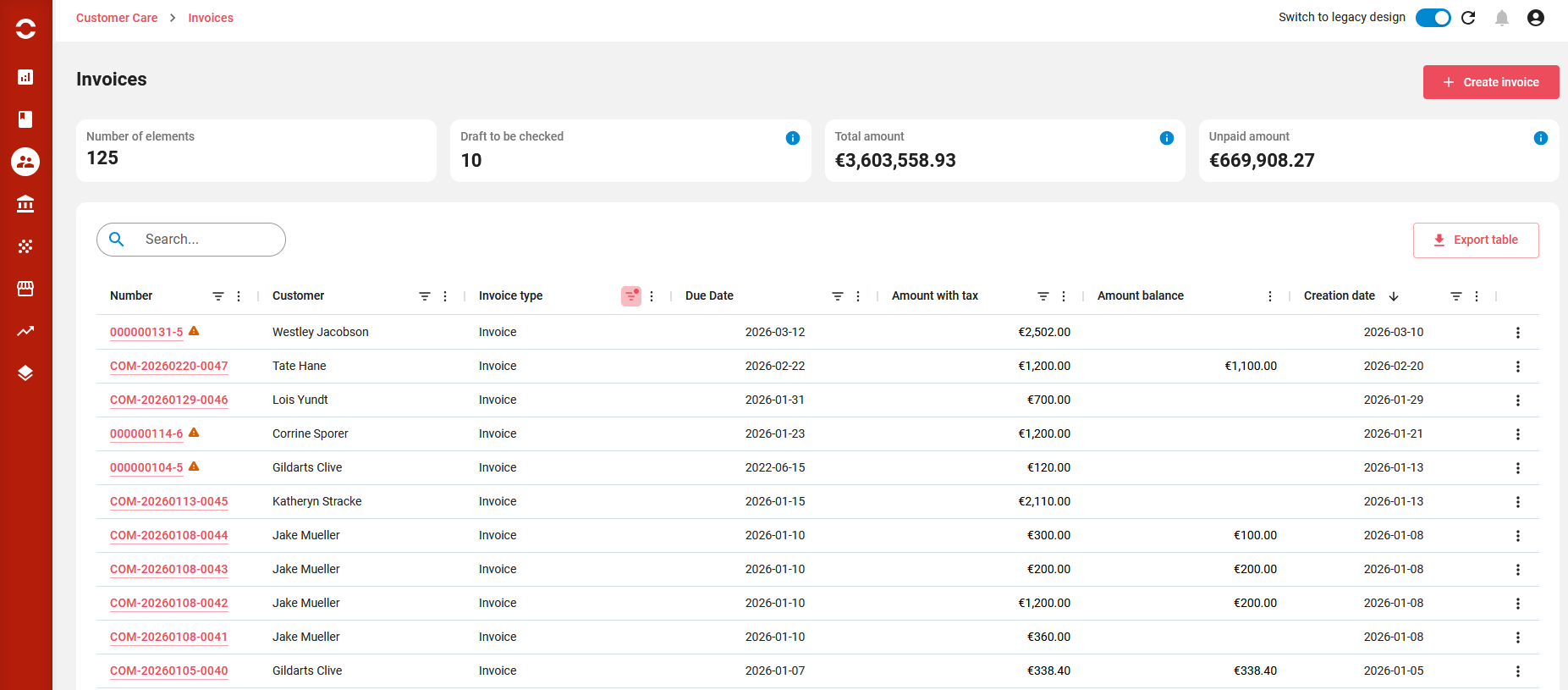
On the top of the page, you will have a few global (unfiltered) statistics.
On the top left corner of the list view, you will find a search bar. When using it, you will search seamlessly Invoice number and billing account description.
On each column, you can:
-
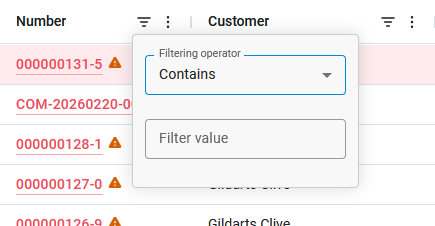
add filters using different operators (start with, contains, equals, greater than, …) depending on the column type:
-
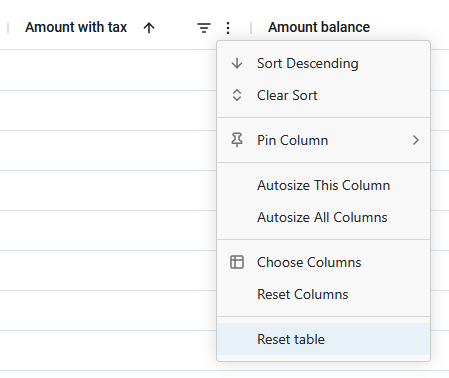
perform a number of operations like “sort”, “choose columns”, “reset columns”, …
Actions on global invoice list
-
View invoice: clicking on an invoice brings up the details for that invoice.
-
Create manual invoice (Debit note)
-
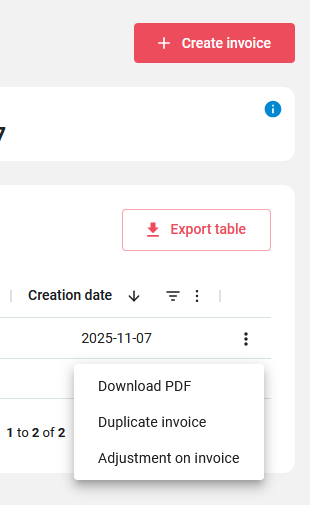
Additionally, on each invoice in the list you can:
-
Download PDF
-
Duplicate invoice
-
Create an adjustment on the invoice (credit note)
-
Invoice view
From one of the invoice lists mentioned above, you can access the details for an invoice.
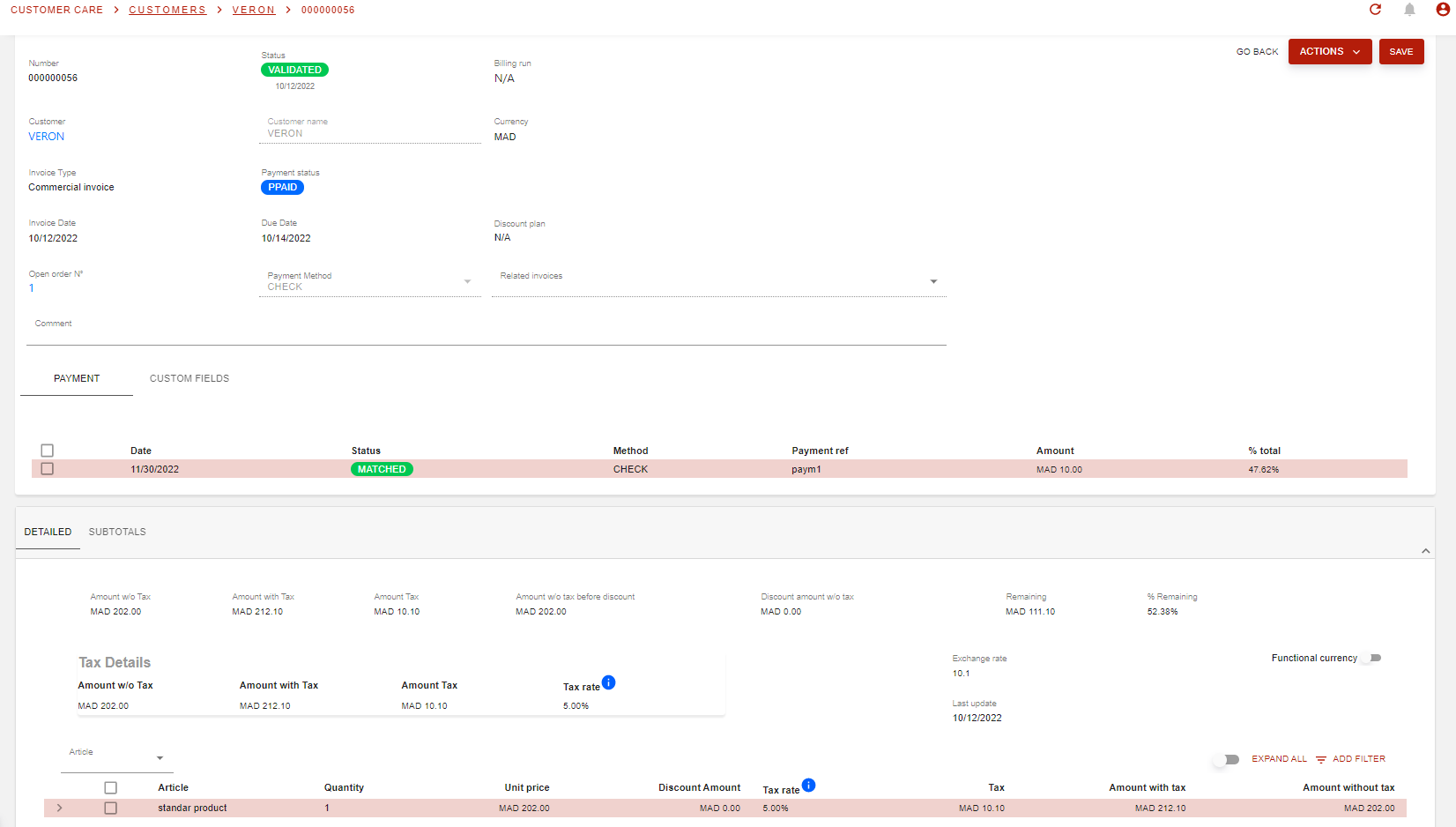
Invoice information
Actions on the invoice
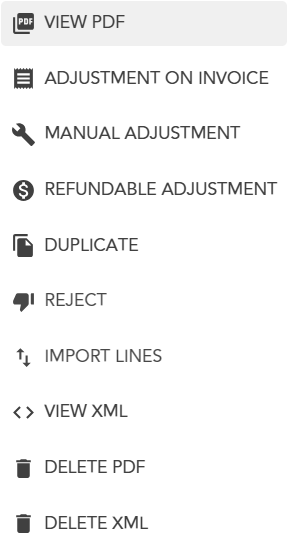
From there you can:
-
View PDF : this allows to view the invoice document
-
Adjustment on invoice: this allows to select lines from the current invoice and generate an adjustment.
-
Manual adjustment: this allows to create a Debit note.
-
Refundable adjustment: this allows to select lines from the current invoice and generate an adjustment that will be refundable.
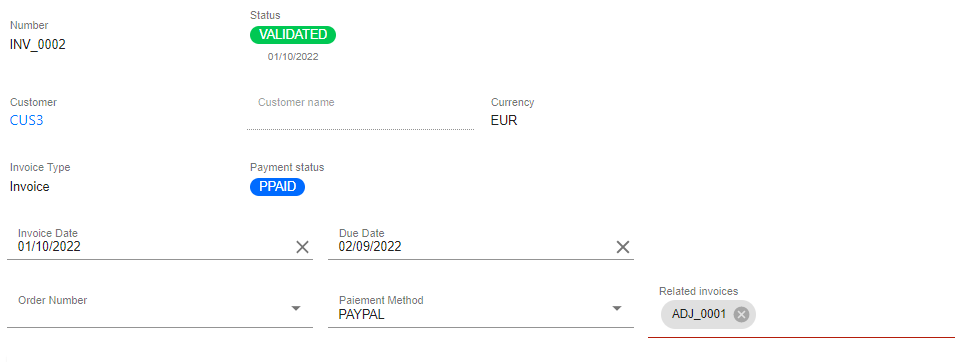
General invoice information
This screen provides a number of information including:
-
invoice number
-
customer
-
invoice currency
-
invoice date
-
due date
-
invoice default payment method
-
invoice status and payment status
-
linked order
-
related invoices (mainly for adjustments and credit notes)
Payment history
Here you can find the details of all payments matched to the invoice:
-
payment date
-
payment method
-
payment reference
-
payment amount
-
percentage of the invoice paid using this payment

Custom fields
Next to Payment history tab, you now have a Custom fields (CFs) tab where you will see all CFs that have been created on the Invoice object in Opencell

In our example above, you can see that we added a boolean CF on the invoice page.
Invoice amounts
Information about the invoice amounts:
-
amount without tax
-
amount with tax
-
total tax amount
-
discount amount
-
remaining amount and percentage to be paid
-
tax details

Invoice lines
In this section you will have the list of invoice lines constituting the invoice.

For new / draft invoices as well as suspect / REJECTED invoices, you can also delete and add invoice lines.
For invoice line creation, you can hit the ‘CREATE’ button, and you will then arrive on the following page (empty obviously 😉) :
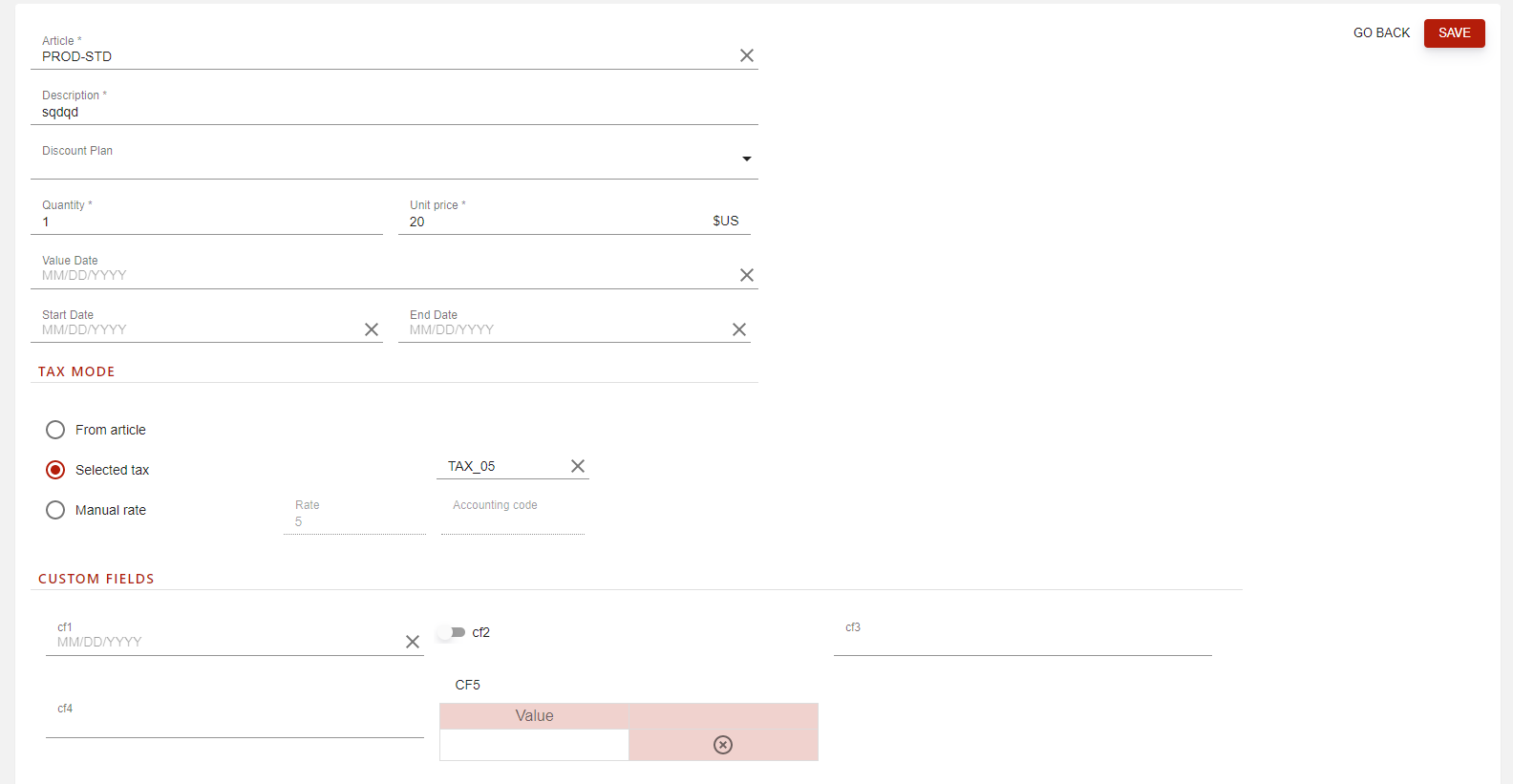
There, you will be able to select an article, add a description, quantity and unit price. In addition, you will be able to select dates (application, start and end), and applicable tax for the given line (which is an override from the applicable tax from selected article).
As for invoices, invoice lines can also have Custom fields (CFs), that will be created in the admin, and displayed here in a separated section.
Additional invoice actions
The invoice details page also offers a number of actions on the invoice.

Duplicate invoice
Duplication will create a draft copy of the invoice (initially in status New ).
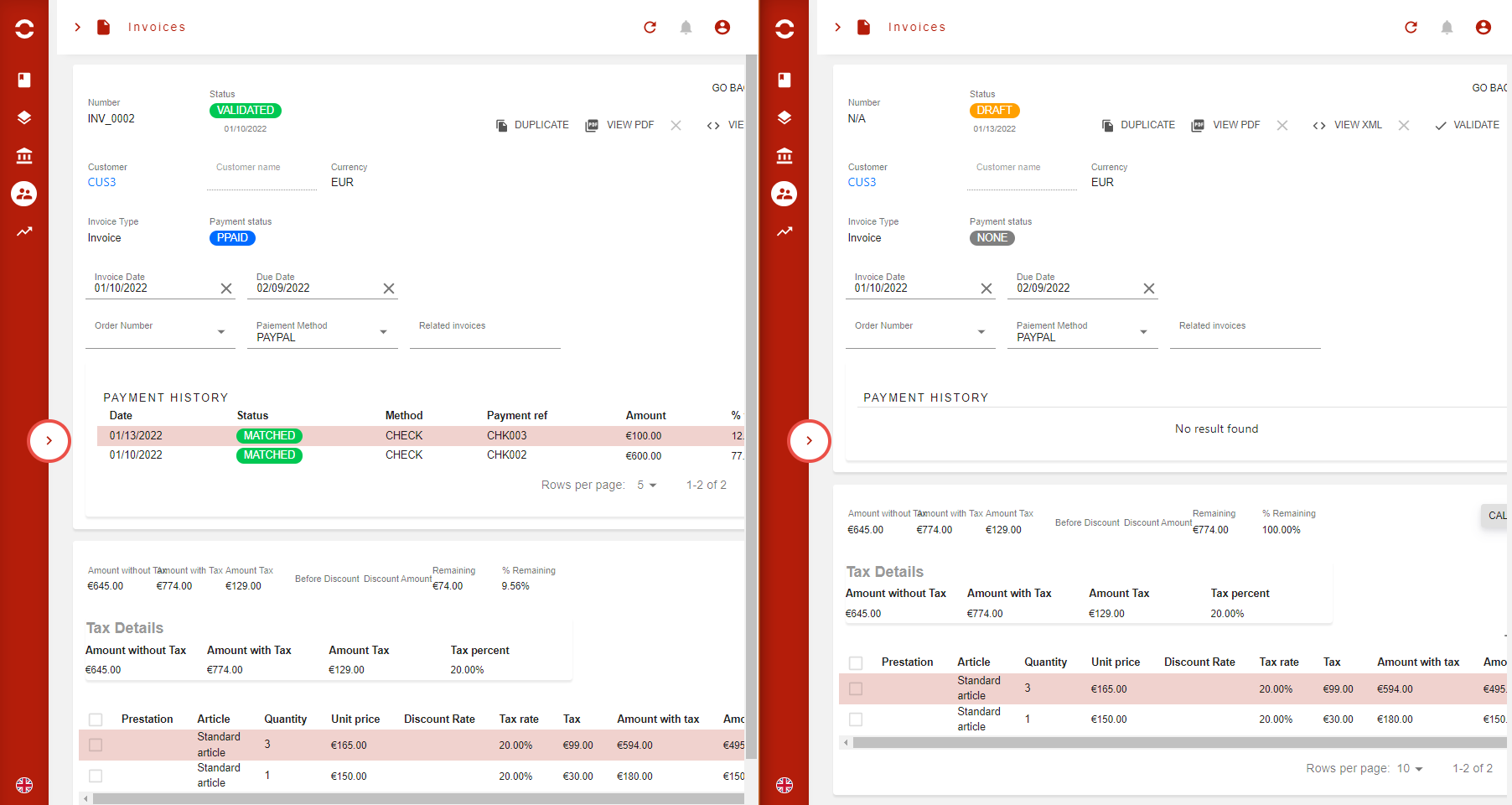
View or delete PDF
-
View PDF will download the invoice’s PDF document.
If the PDF is not present, it will be generated automatically. -
Delete PDF (the small cross next to “VIEW PDF”) will delete the PDF so it can be generated again (usually to use an updated new invoice template)
View or delete XML
-
View XML will download the invoice’s XML document.
If the XML is not present, it will be generated automatically. -
Delete XML (the small cross next to “VIEW XML”) will delete the XML so it can be generated again (usually to use an updated new invoice template that require an updated XML, with more/different information)
Validate invoice
This action will finalize the invoice, you won’t be able to modify it afterwards.
The invoice is validated , it is allotted an invoice number.
When an invoice is validated in Portal, the associated Account Operation (RecordedInvoice) is generated instantly.
You won’t have to waiting AccountOperationJob to run.
Cancel invoice
A canceled invoice will not be sent to the client nor to the accounting module.
A canceled invoice is an invoice that has been canceled in the bill run in draft.
If you want to cancel a unique invoice (validated), you have to generate an amendment from the invoice to cancel and match it automatically to the invoice.
If you want to do it in mass, you can use the mass adjustment.
Quarantine invoice
A draft , suspect or REJECTED invoice from a billing run can be quarantined here.
A quarantined invoice is moved to another “quarantine” billing run to be processed later. This allows to continue the origin billing run by setting aside invoicing that require manual processing.
Reject invoice
Manually marks a draft or suspect invoice from a billing run as REJECTED .
This will prevent the billing run’s processing, unless invoice is also quarantined.