
As seen in the Concept section, Security Deposits (SD or deposit) can be created by two processes, and you guessed it, one of them is the creation of an invoice type Security Deposit. Let’s have a look.
Create invoice to generate a deposit
The creation is actually pretty easy. When you are on the invoice list view on the Customer care app, hit the :plus: button and select option CREATE INVOICE, you’ll then arrive on the following page:
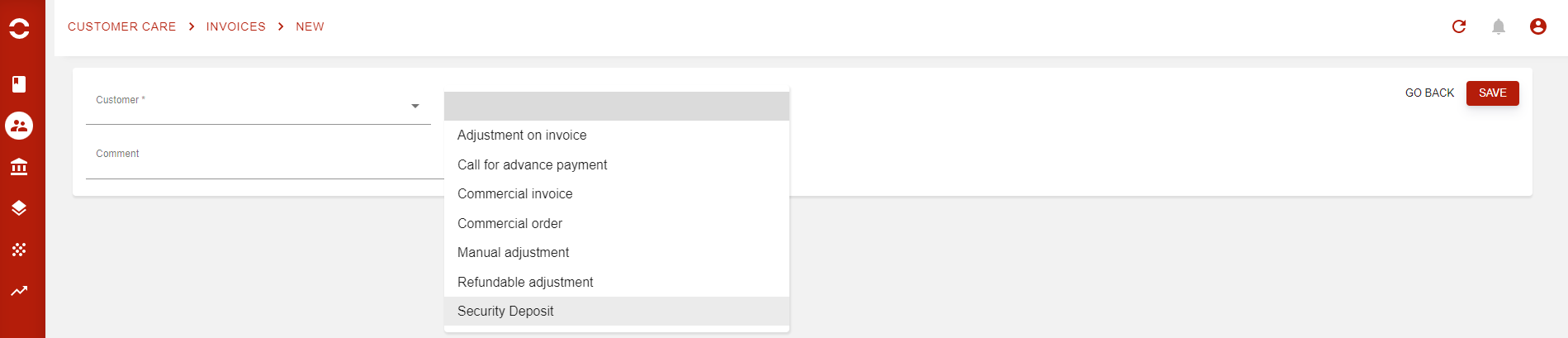
There, select Security Deposit type and save.
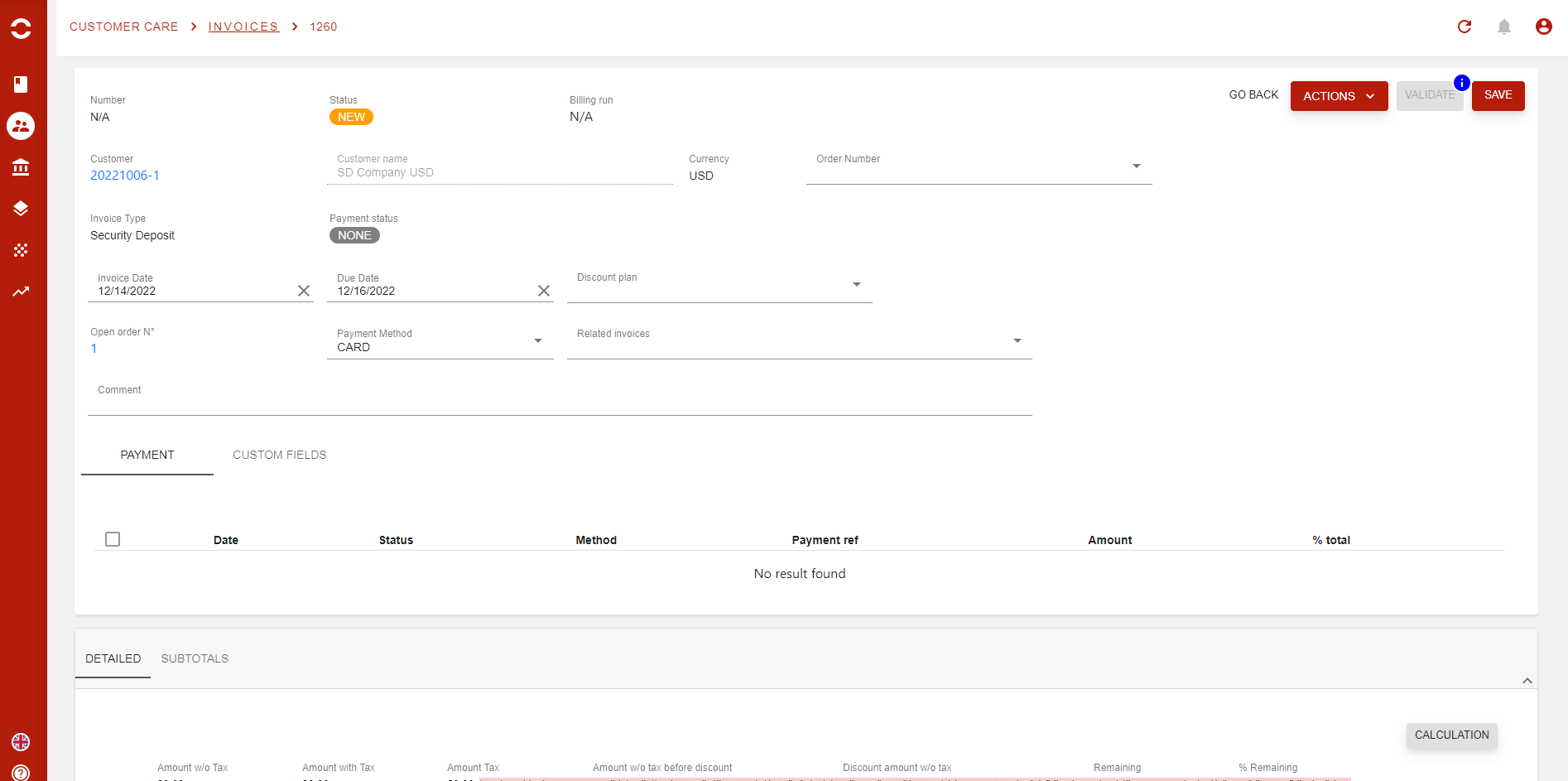
Then fill in mandatory fields and extra fields you need, create an invoice line, save and validate.
A default article is available for this invoice type.
Once validated, the invoice will generate a deposit in VALIDATED status and can be found either in the Customer 360 view or in the Security deposit report page.
-
All invoices created by this process will be of Debit type 🙂
-
Invoice with SD type do not impact the Customers' balance, however the related Account Operation is visible in the Manual Matching page in Finance app