
This is the first step on the configuration of a dunning policy: defining templates of our emails and letters to be send throw action on an execution level date in a policy.
Concept
Now that you have defined the general settings for the Dunning feature, let’s start by defining the templates that you will use for some specific actions (that you will define just after).
Before starting, let’s quickly resume the way a Dunning policy works in Opencell :
A dunning policy is an object that has several levels. Each level has one or several actions linked to it. Some actions can be automatic or manual, and for some action types, a template will be used to automate the flow.
All these different notions are objects in Opencell, and the way to create a dunning policy is to start from the most granular object, and work your way up to the actual Dunning policy.
This is best represented below:

Templates, actions, levels and policies are all independent objects linked to one another.
Accessing Dunning Templates in Opencell
In Opencell, you can manage Dunning Templates within the Customer Care module.
How to Navigate to Dunning Templates
-
Log in to your Opencell environment.
-
Go to Customer Care → Configuration → Dunning → Templates.
The Dunning menu follows the logical order of configuration steps required to implement dunning policies. All dunning-related submenus are accessible under the Customer Care module.
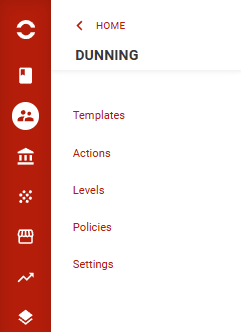
Dunning Templates Overview
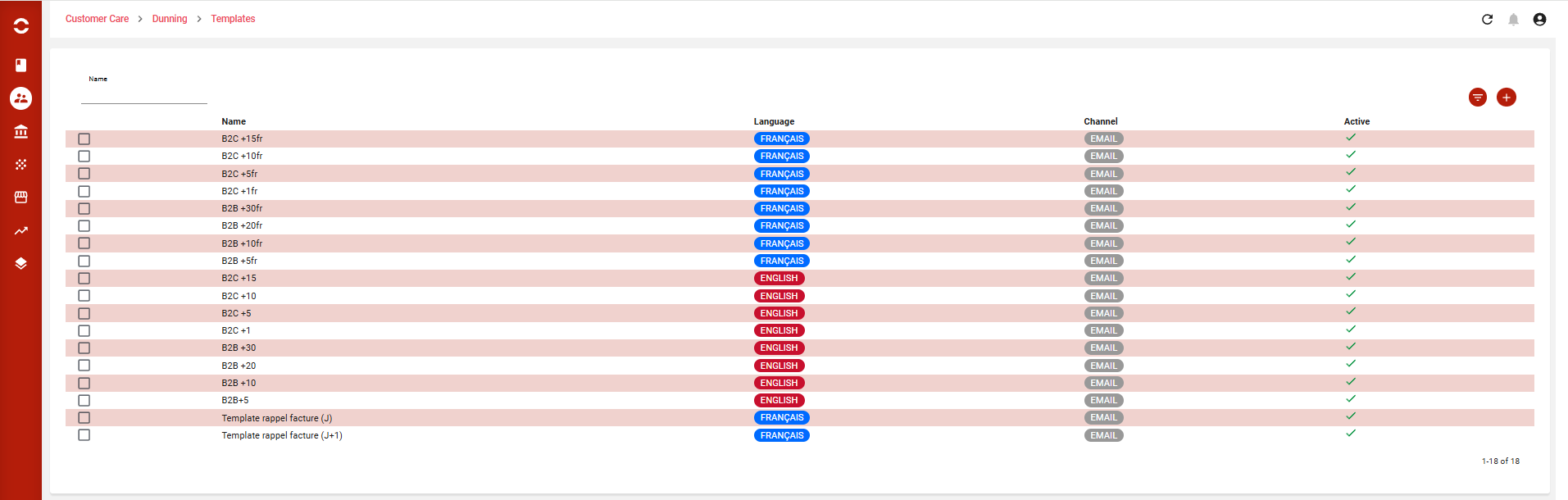
Upon accessing the Dunning Templates page, you will find:
-
Predefined templates that can be used as they are, modified, or deleted based on your needs.
-
A search bar to quickly find templates by name.
-
Filters to refine results by communication channel and language.
-
A duplication feature, allowing you to create a copy of an existing template for quick customization.
With these tools, you can efficiently manage and adapt dunning templates to fit your collection strategy.
Creating a Dunning Template in Opencell
You can create your own Dunning Templates from the Template List View by clicking the “+” button in the top-right corner of the page.
-
Accessing the Template Creation Page
Once you click “+”, you will be redirected to the template creation page:

-
Configuring Your Template
On this page, you can define key template settings, including:
-
Template Name → Assign a name for easy identification.
-
Channel → Specifies where the template will be used (Email or Letter).
-
Language → Determines the language (French, English, etc.) used in the template.
-
Active Toggle → Enables you to prepare templates in advance and activate them when needed.
-
Adding Content & Using Variables
In the template text field, you can insert dynamic variables to personalize messages. These variables pull customer and invoice details into the template.
🔹 Customer Details Variables
These variables are used to insert customer-specific details:
-
#{customerAccountFirstName}→ Customer’s first name -
#{customerAccountLastName}→ Customer’s last name -
#{customerAccountEmail}→ Customer’s email -
#{customerAccountBalance}→ Current balance -
#{currencySymbol}→ Currency used -
#{contactInformationPhone}→ Customer’s phone number
(Other variables available: Legal entity type, billing accounts, parent customer details, etc.)
🔹 Invoice & Balance Variables
These variables relate to invoices and outstanding balances:
-
#{invoiceInvoiceNumber}→ Invoice number -
#{invoiceDueDate}→ Due date of the invoice -
#{invoiceAmountWithTax}→ Invoice total including tax -
#{invoicePaymentStatus}→ Payment status of the invoice -
#{dunningBalanceTotal}→ Total outstanding balance
🔹 Collection Plan Variables
These variables help track the dunning collection process:
-
#{dunningCollectionPlanId}→ Collection plan ID -
#{dunningCollectionPlanStatus}→ Current status of the collection plan -
#{dunningCollectionPlanLastAction}→ Last action performed -
#{nextActionDate}→ Date of the next planned action
By structuring templates effectively, you can personalize dunning emails and letters, making communication more efficient and professional.