
A purchase order is a reference that your customer issues for a purchase. Many companies require their purchase order number to appear on the quotes, orders, subscriptions or invoices they receive.
From 18.1.0 onwards, you can attach one or more purchase orders to an invoice in the new portal. Their numbers are then included in the invoice's PDF and XML documents.
For more information on purchase orders themselves, see Purchase order.
Before you start
-
A purchase order must already exist in Opencell before you can attach it to an invoice.
-
When an invoice is generated by a billing run, it automatically inherits the purchase orders of the subscriptions it bills. You can then add or remove purchase orders on that invoice.
Adding a purchase order to an invoice
-
In Customer Care > Invoices, open the invoice.
-
Click Edit to switch the invoice to edit mode.
-
In the General information section, click the Purchase order field. The Select purchase orders window opens.
-
Select one or more purchase orders, then click Select purchase orders.
-
Click Save modifications.
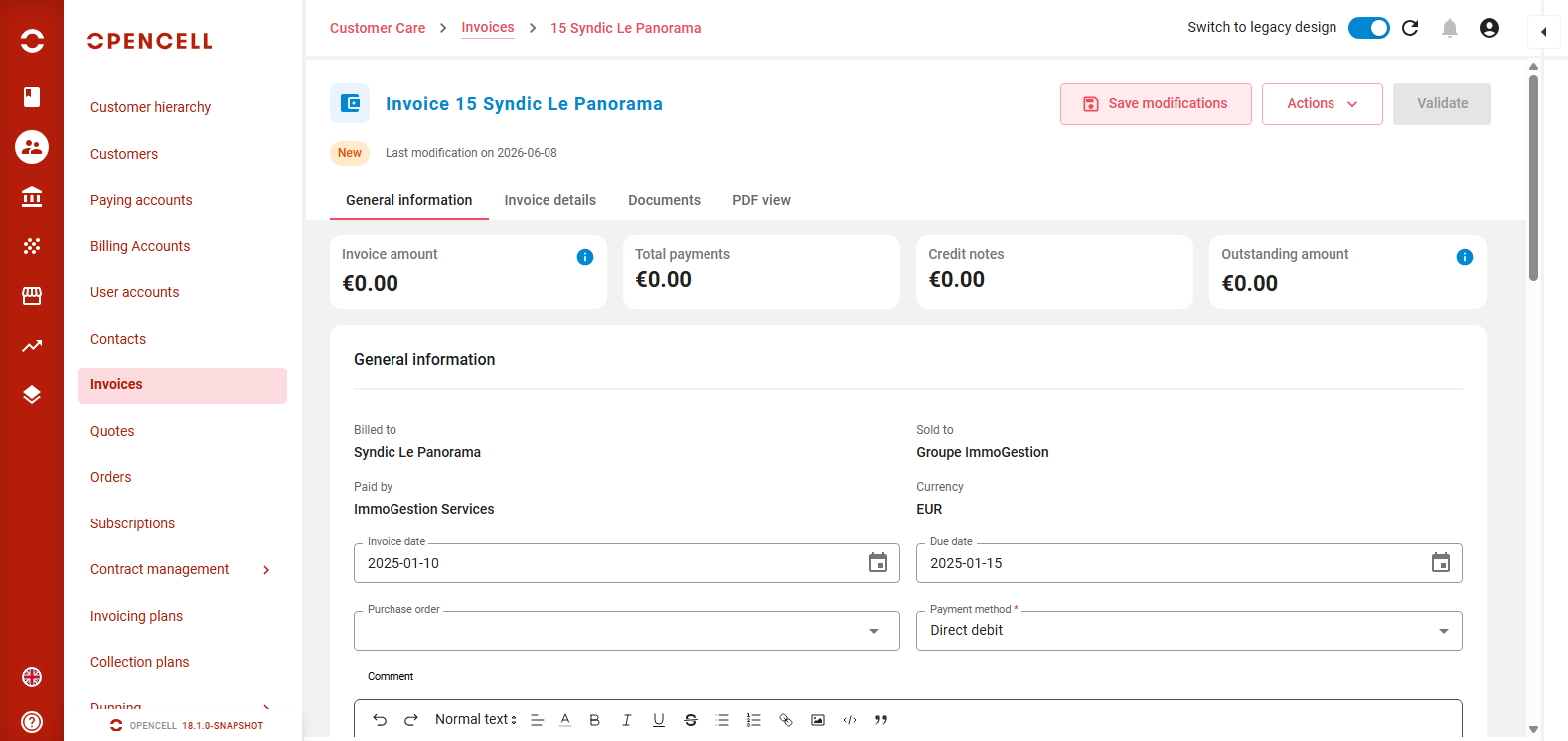
The Purchase order field of an invoice in edit mode
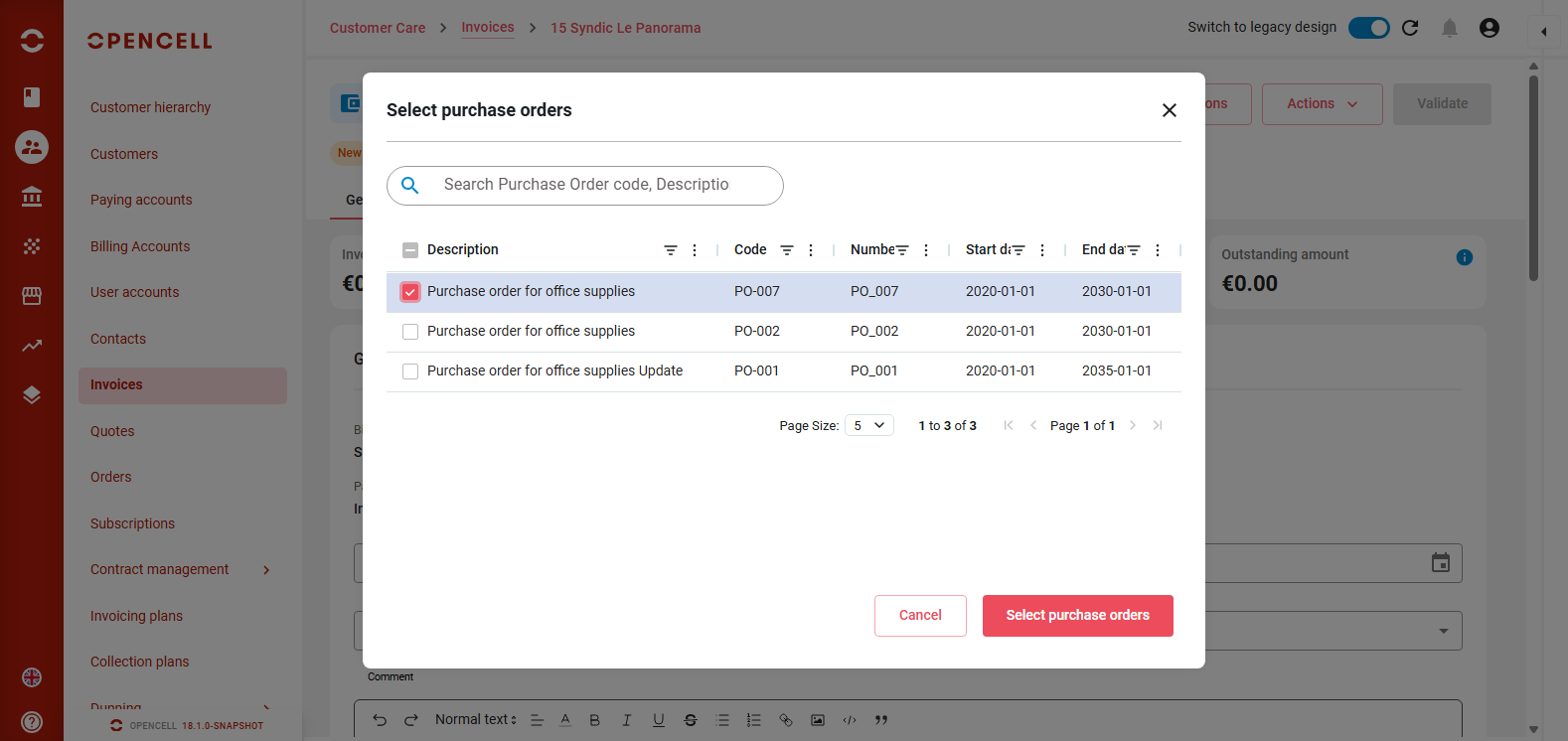
The Select purchase orders window
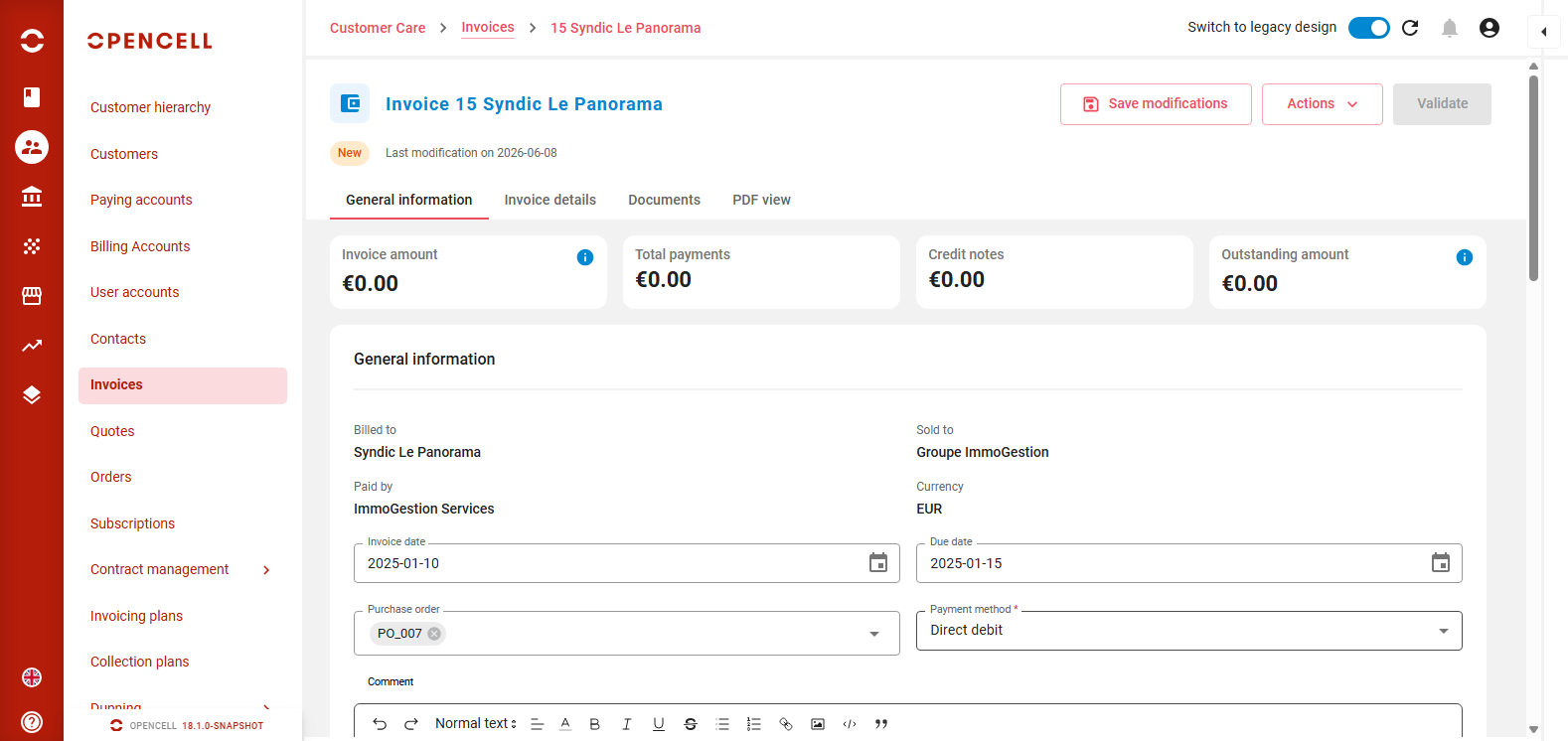
The selected purchase order in the Purchase order field, before saving
Which purchase orders you can select
The Select purchase orders window only lists the purchase orders that:
-
are valid on the invoice date, meaning the invoice date falls between the purchase order's start date and end date, and
-
are linked to the invoice's seller, to its billing account, to the paying account of that billing account, or to its customer.
For each purchase order, the window shows its description, code, number, start date and end date. You can use the search bar to find a purchase order by its description, code or number.
Removing a purchase order from an invoice
In edit mode, click the cross on the purchase order's tag in the Purchase order field, then click Save modifications.
Purchase orders on the invoice documents
The numbers of all purchase orders attached to the invoice are included in the invoice's XML document and printed on its PDF.